
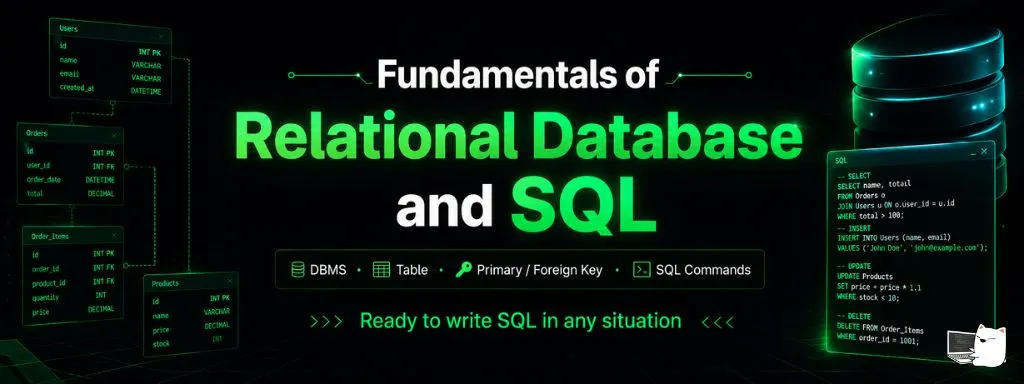
This article is a starting point for those who want to understand Relational Databases and the SQL language, from database management system concepts, table structures, relationships between tables through Primary Keys and Foreign Keys, to writing important SQL commands.
1. Understanding Database Management Systems (DBMS)#
DBMS (Database Management System) is software used to create, manage, and control databases. It acts as an intermediary between users, applications, and the data stored in the database. Popular DBMS examples include MySQL, PostgreSQL, Microsoft SQL Server, and Oracle Database.
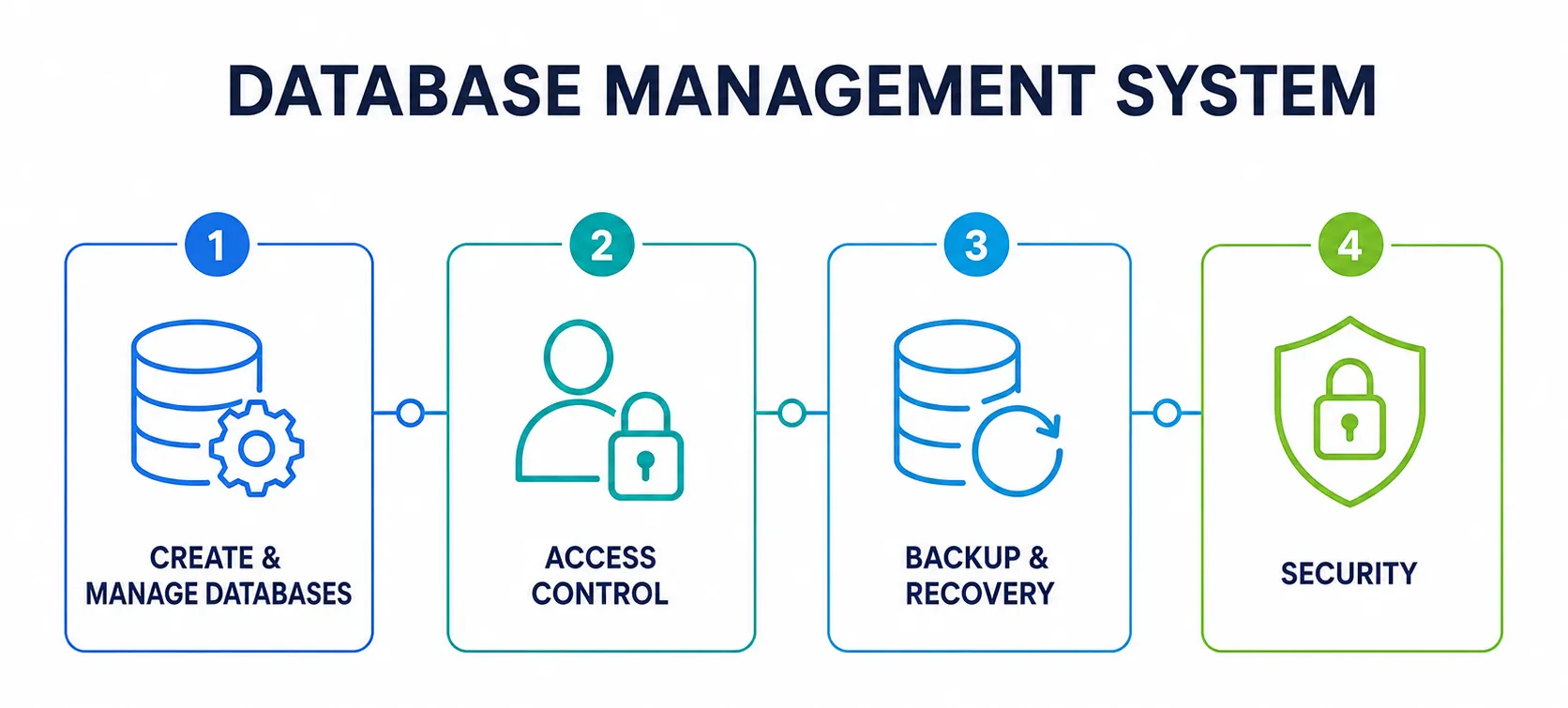
DBMS helps organizations manage data across all 4 key dimensions:
Creating and Managing Databases#
DBMS enables us to create and organize databases efficiently. Users can create tables, add data, modify data, and delete unwanted data. For example, a hospital system might store patient information in a patient table and province information in a province table, making data management more systematic and reliable.
Access Control#
DBMS manages permissions and access levels for each user. Different users can have different access levels to the same database. For example, a doctor can modify patient history, while a receptionist can only “view” patient information, helping protect sensitive data from unauthorized changes.
Backup & Recovery#
DBMS has mechanisms for backing up and recovering data. Data can be regularly backed up to prevent permanent loss. If hardware fails or data is accidentally deleted, it can be restored from backups, ensuring high system availability and business continuity.
Security#
DBMS has security features to protect data. Common measures include authentication, authorization, encryption, and auditing, which are especially important in systems storing personal or financial data.
Summary: DBMS enables organizations to store, manage, secure, and recover data efficiently, making data reliable, accessible, and secure.
2. Understanding Relational Database Management Systems (RDBMS)#
RDBMS (Relational Database Management System) is a type of DBMS that stores and manages data using “related tables”. Data is organized into rows and columns, making it easy to store, search, and manage data. Popular RDBMS examples include MySQL, PostgreSQL, Microsoft SQL Server, and Oracle Database.
RDBMS has 4 main components and features:
Tables#
The basic component of RDBMS is tables. Tables consist of rows and columns, where each row is one record and each column is one attribute. For example, the patient table has columns id, fname, lname, and gender.
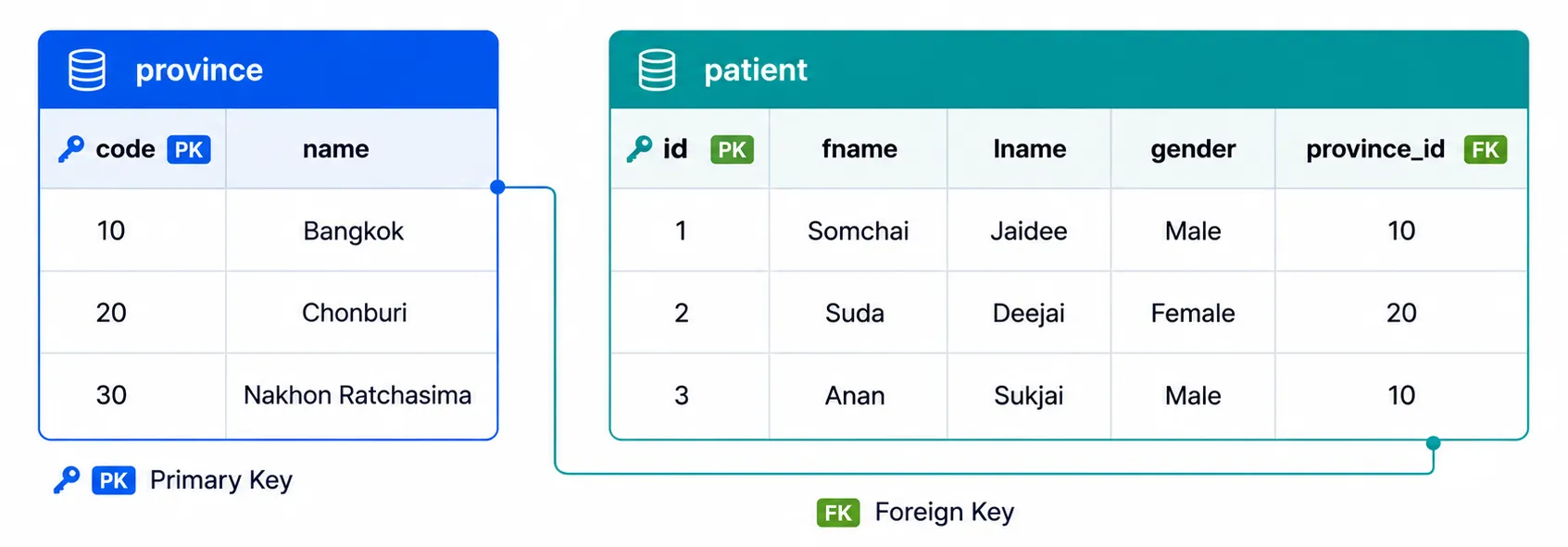
Keys — Keys for Identifying and Linking Tables#
Keys are used to uniquely identify records and define relationships between tables.
- Primary Key (PK) — Uniquely identifies each row in a table
- Foreign Key (FK) — Links one table to another table
For example, the patient.province_id column might reference province.code to link patient data with province data (explained in depth in the Primary Key & Foreign Key section).
SQL (Structured Query Language)#
SQL is the language used to communicate with RDBMS, helping us create tables, add, modify, delete, and retrieve data. SQL is one of the most important skills for working with relational databases.
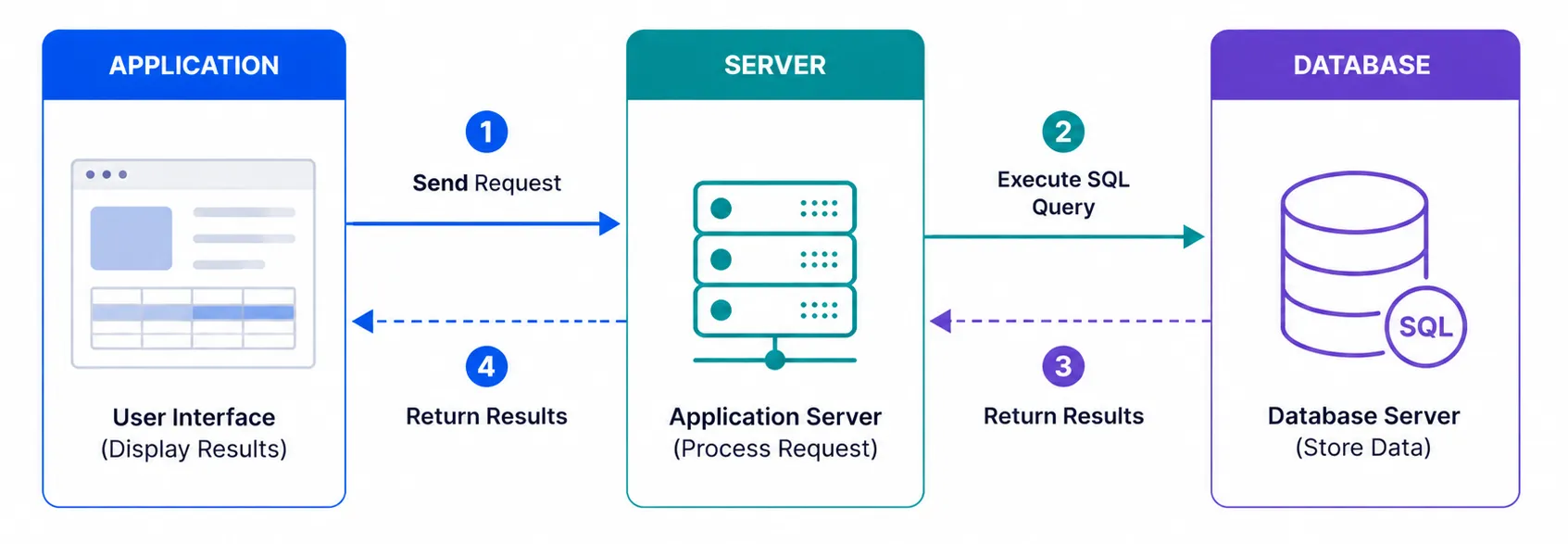
Relationship Management#
A key feature of RDBMS is managing relationships between tables. Relationships are maintained through Primary Keys and Foreign Keys, which reduces data duplication and increases data consistency. For example, the patient table can link to the province table without storing the province name in every patient record.
Summary: RDBMS stores data in related tables, with tables, keys, and SQL as main components. RDBMS provides efficient data retrieval, data management, and relationship management.
3. Popular Database Systems#
The table below shows the top 15 popular database systems, referenced from DB-Engines Ranking ↗ for June 2026. Scores are calculated from multiple factors, such as web mentions, searches, community participation, and related jobs — the higher the score, the more popular it is.
| Rank | System | Type | Score (Jun 2026) |
|---|---|---|---|
| 1 | Oracle | Relational | 1140.04 |
| 2 | MySQL | Relational | 856.29 |
| 3 | Microsoft SQL Server | Relational | 698.04 |
| 4 | PostgreSQL | Relational | 688.23 |
| 5 | MongoDB | Document (NoSQL) | 387.97 |
| 6 | Snowflake | Relational | 214.57 |
| 7 | Databricks | Multi-model | 157.58 |
| 8 | Redis | Key-value (NoSQL) | 150.02 |
| 9 | IBM Db2 | Relational | 113.53 |
| 10 | Apache Cassandra | Wide column (NoSQL) | 102.97 |
| 11 | SQLite | Relational | 95.44 |
| 12 | Elasticsearch | Search engine (NoSQL) | 94.65 |
| 13 | MariaDB | Relational | 81.22 |
| 14 | Microsoft Azure SQL Database | Relational | 74.92 |
| 15 | Apache Hive | Relational | 71.54 |
Summary: From DB-Engines ranking (Jun 2026), Oracle, MySQL, Microsoft SQL Server, and PostgreSQL hold the top 4 positions globally, mostly RDBMS using SQL. MySQL and PostgreSQL are popular open-source choices, while Oracle/SQL Server/IBM Db2 are used in large organizations.
References#
- Database popularity ranking (citing which is most popular): DB-Engines Ranking ↗
4. CAMPP — Local Web Development Tool Suite#
CAMPP is an environment for developing and testing web applications locally (on your machine), free and easy to install. It bundles necessary tools like web server, database system, and database management tools in a single package, enabling developers to create a complete web development environment without configuring each part separately.
Download and install CAMPP from https://campp.melivecode.com/ ↗

After installation, open CAMPP and click Start to begin services.
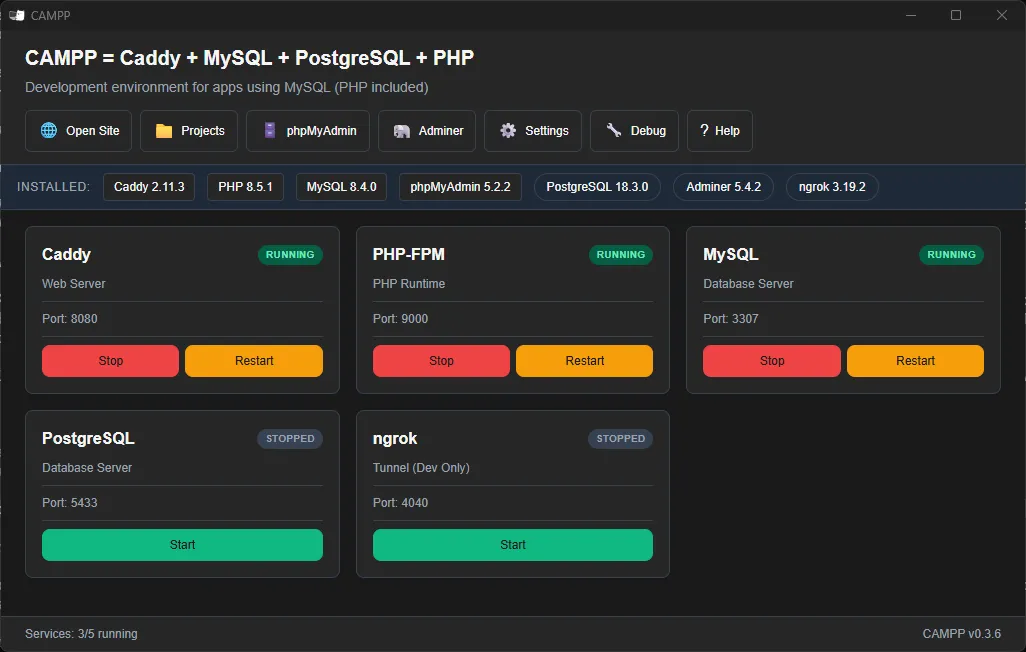
CAMPP includes the following key components:
- Caddy — Web server that receives requests from browsers and sends web pages back. Its highlight is automatic HTTPS support, making web applications more secure.
- MySQL / MariaDB — RDBMS for storing application data, such as user accounts, products, orders. MariaDB is a community fork from MySQL with high MySQL compatibility.
- PostgreSQL — Another RDBMS with advanced features, reliability, and high performance. Often used with enterprise systems and analytics work. Developers can choose MySQL/MariaDB or PostgreSQL based on project needs.
- PHP & PHP-FPM — Popular server-side language for web development. PHP-FPM (FastCGI Process Manager) helps improve PHP application performance. Major systems like WordPress are built with PHP.
- phpMyAdmin — Web-based database management tool with GUI for managing MySQL and MariaDB. Suitable for beginners not yet familiar with command line (explained in next section).
- Adminer — Lightweight database management tool. Unlike phpMyAdmin, it supports multiple database systems in a single interface (MySQL, MariaDB, PostgreSQL, SQLite), making it convenient when working with multiple database platforms.
Summary: CAMPP bundles everything needed for local web application development in a single package, including web server, database, PHP, and database management tools.
5. phpMyAdmin — Web-Based Database Management Tool#
Here is the English version in Markdown:
phpMyAdmin is a web-based tool for managing MySQL and MariaDB databases. It provides a Graphical User Interface (GUI) that allows users to create databases, create tables, insert, update, and delete data, as well as execute SQL queries without using the command line. This makes it especially suitable for beginners who want to learn and manage databases in a convenient and user-friendly way.
You can access phpMyAdmin in two ways:
- Click the phpMyAdmin button on the CAMPP web interface.
- Open a web browser and navigate directly to http://127.0.0.1:8080/phpmyadmin/ ↗.
Once phpMyAdmin is open, you can manage databases through its GUI or click the SQL tab to type and execute SQL commands directly.
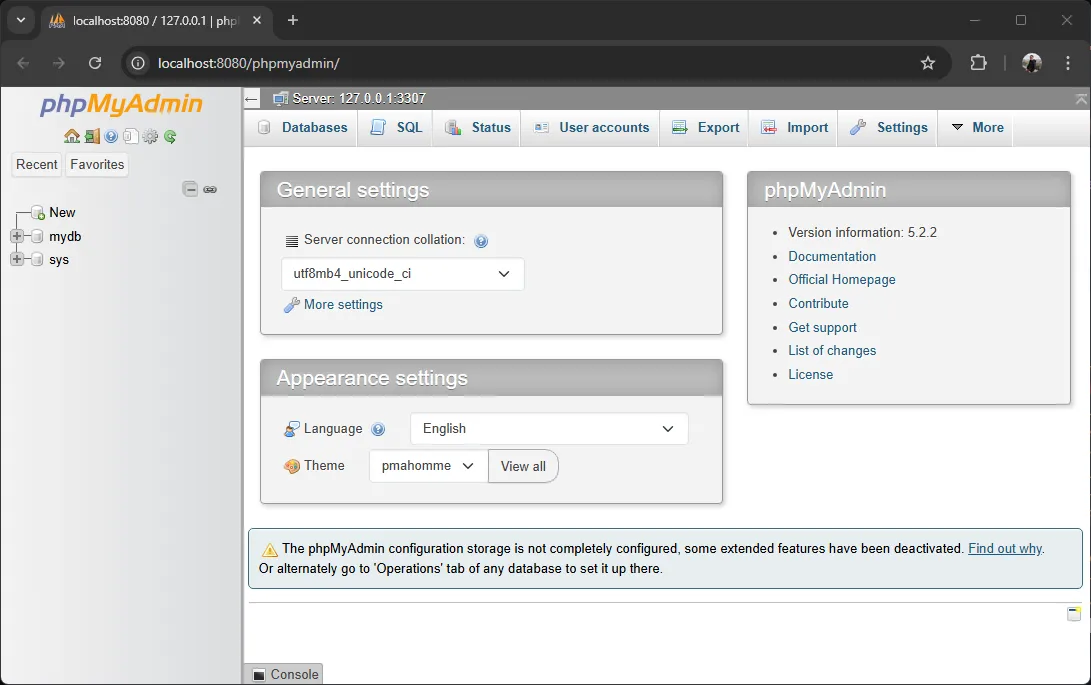
phpMyAdmin helps us do several important tasks without writing SQL every time:
- Create databases and tables — Create a new database in a few clicks, and define columns, data types, and primary keys through a graphical interface
- Manage data — Add, edit, delete, and view records directly through the interface. Useful for testing applications and verifying stored data
- Run SQL commands — Has SQL editor for running
SELECT,INSERT,UPDATE,DELETEcommands directly from browser. Useful for testing queries and troubleshooting database issues - Import / Export data — Supports importing from SQL files, CSV, and other formats, plus exporting for backups. Important for data migration, backup, and recovery
- Manage users and permissions — Administrators can set different permission levels for each user, such as one person can only view data, another can create and modify tables. Helps improve security
Summary: phpMyAdmin is a powerful and easy-to-use tool that simplifies database creation, data management, query execution, data backup, and user management.
6. CREATE DATABASE — Creating a Database#
Before creating tables or storing any data, we must create a database first. A database serves as a “container” that collects related tables and data together.
Basic Syntax#
CREATE DATABASE database_name;Example: Creating testdb database#
-- Create database (using IF NOT EXISTS to prevent error if already exists)
CREATE DATABASE IF NOT EXISTS testdb;

-- Select the database to use
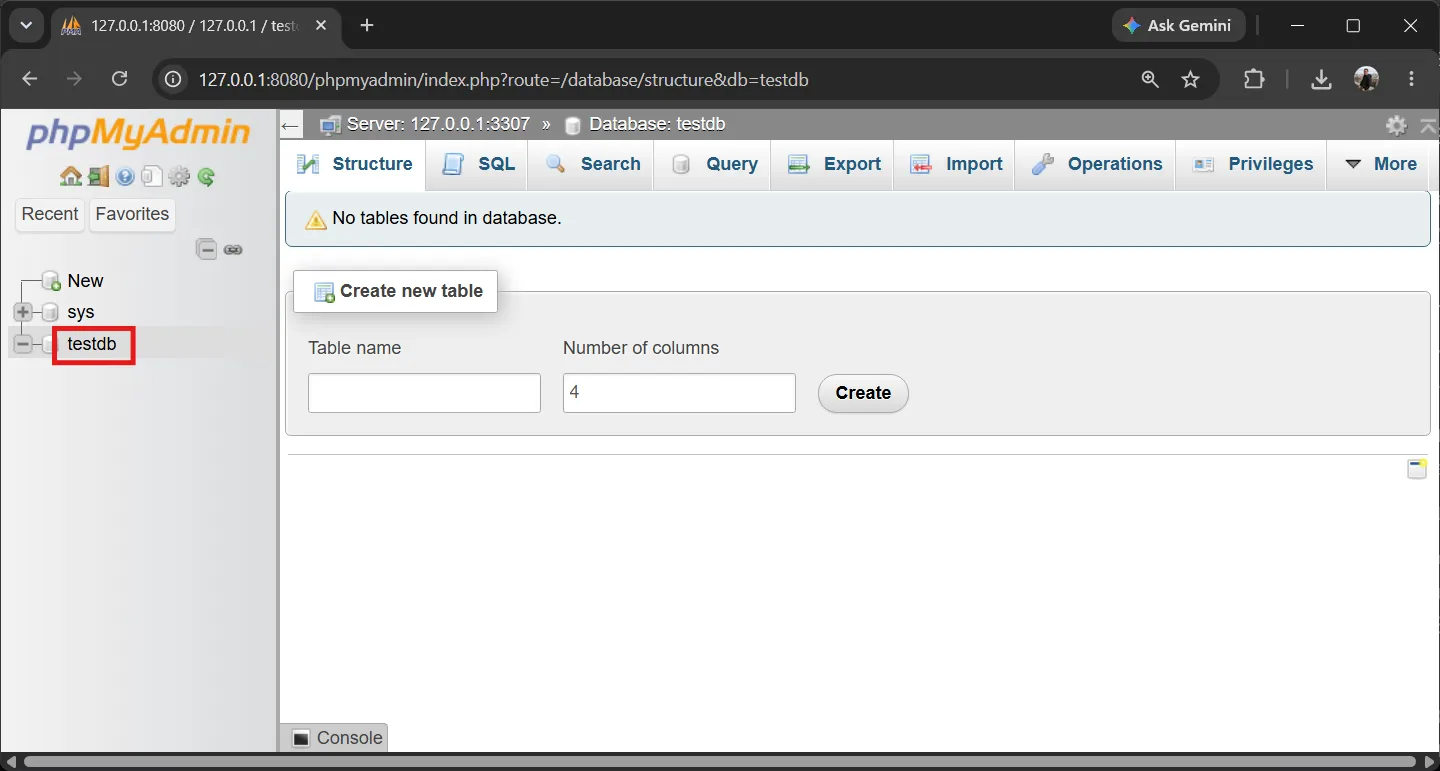
USE testdb;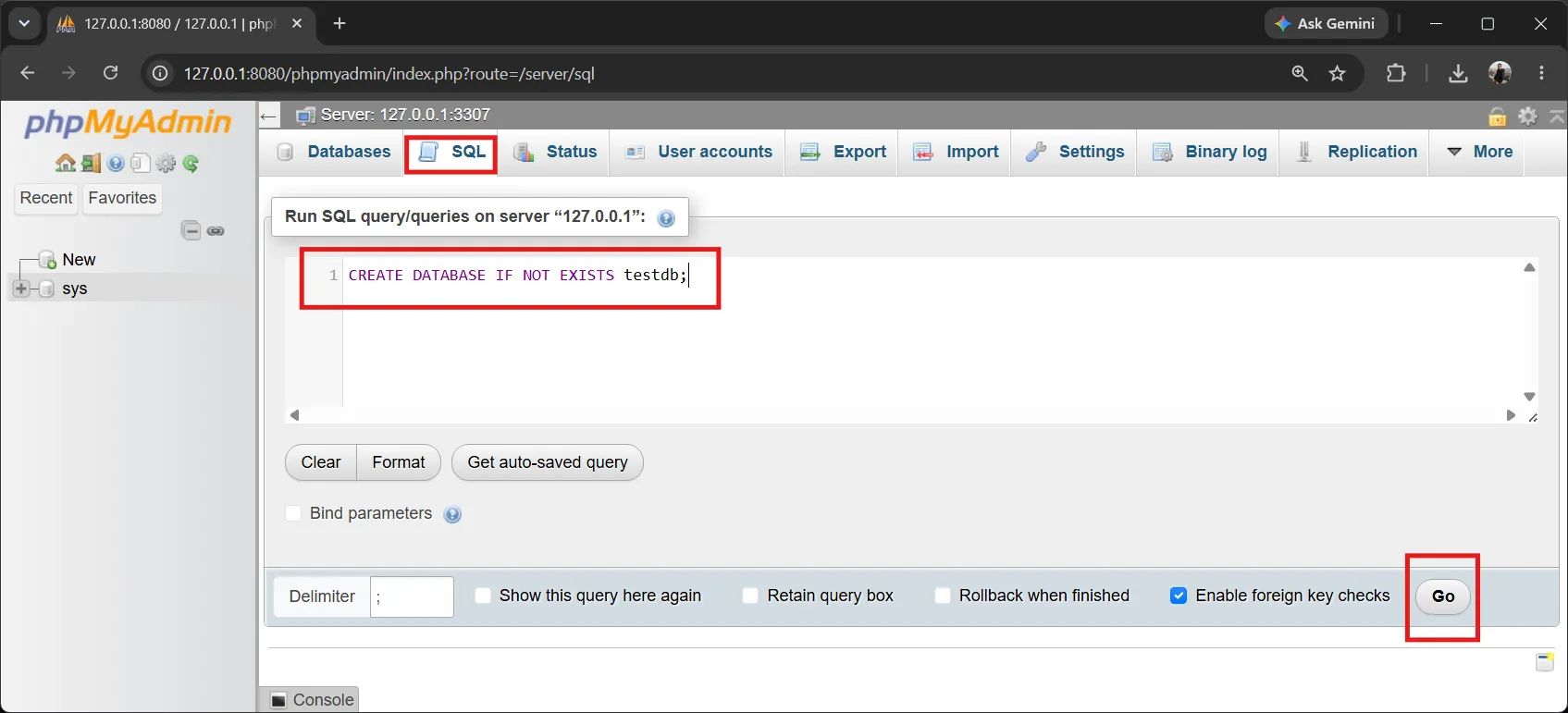
Explaining each part:
CREATE DATABASE— Creates a new databaseIF NOT EXISTS— Checks first that this database name doesn’t exist yet, preventing error when running repeatedlyUSE testdb— Selectstestdbas the active database. TheCREATE TABLEandINSERTcommands in the following sections will be created in this database.
Tip: In phpMyAdmin or Adminer, you can create and select databases through GUI without typing SQL commands.
7. CREATE TABLE — Creating Tables#
Before storing data, we must define the table structure first. This structure specifies what type of data each column will store.
Basic Syntax#
CREATE TABLE table_name (
  column1 datatype,
  column2 datatype,
  column3 datatype,
  ...
);Commonly Used Data Types#
When creating tables, we must specify data types for every column to tell the database what kind of data that column will store. Choosing appropriate data types helps store data correctly, saves space, and enables fast searching. Data types are roughly divided into 3 main groups:
Numeric
| Datatype | Used for | Examples |
|---|---|---|
INT | Integers | ID, age, count |
TINYINT / SMALLINT / BIGINT | Small / Medium / Large integers | 0/1 values, birth year, large counts |
DECIMAL(p,s) | Precise decimal numbers | Weight, height, price, money |
FLOAT / DOUBLE | Floating-point decimals (scientific) | Coordinates, scientific values |
String
| Datatype | Used for | Examples |
|---|---|---|
VARCHAR(n) | Variable-length text (max n characters) | Name, address, email |
CHAR(n) | Fixed-length text (always n characters) | Fixed-length codes like country codes |
TEXT | Long text | Articles, comments, descriptions |
Date/Time
| Datatype | Used for | Examples |
|---|---|---|
DATE | Date (YYYY-MM-DD) | Birth date, appointment date |
DATETIME / TIMESTAMP | Date and time | Record creation time, update time |
Additionally, there’s BOOLEAN for true/false values (true/false like active status) and ENUM(...) for values chosen from a defined set, like gender being 'Male', 'Female'.
Tip — How to choose data types?
- Store money or prices using
DECIMALalways, notFLOAT/DOUBLEbecause floating-point decimals can cause calculation errors.- Use
VARCHARby default for text, whileCHARis only for truly fixed-length values.- Choose “appropriate” size, like
TINYINTfor 0/1 values saves more space thanINT.
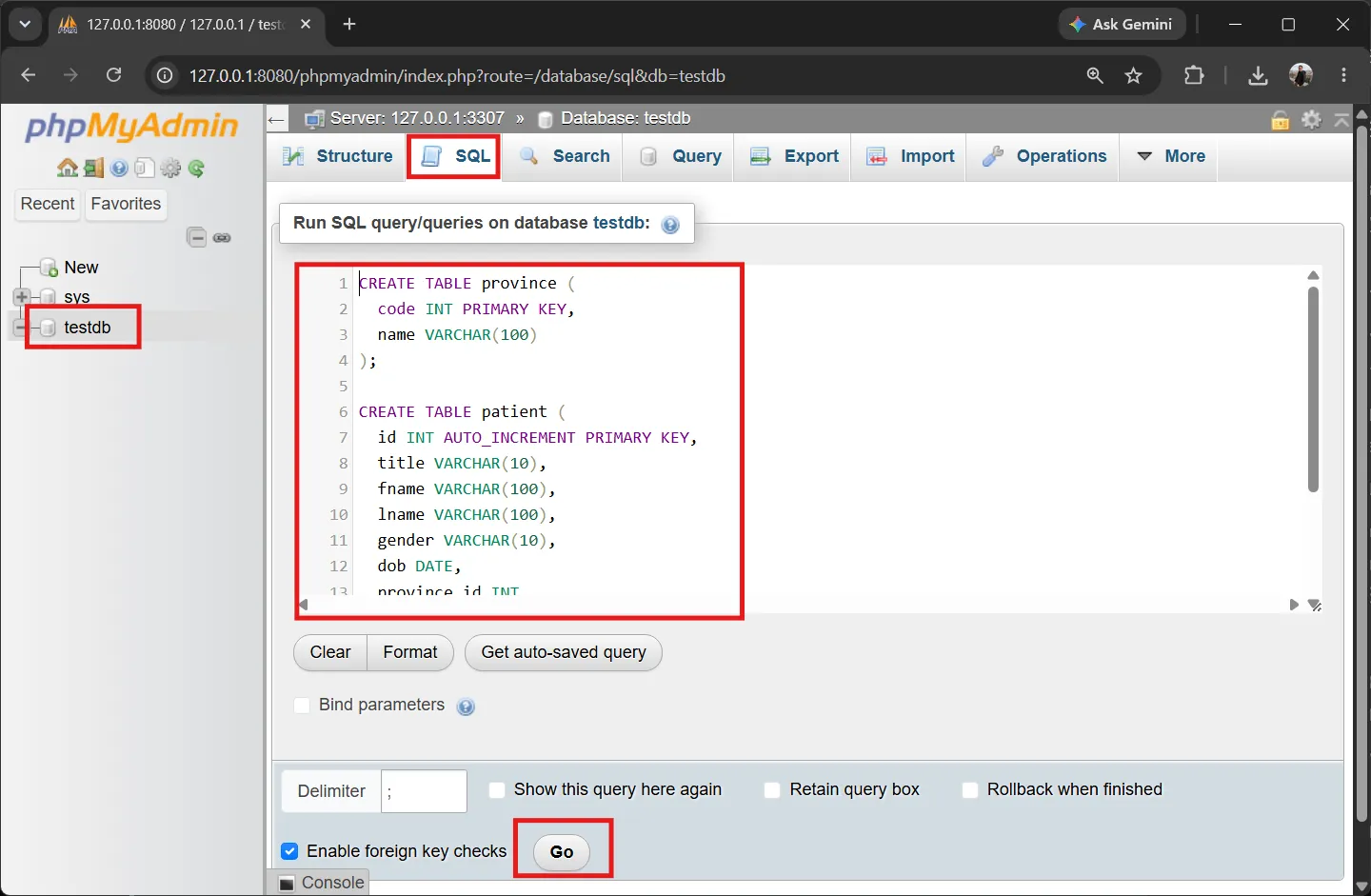
Example: Creating province and patient tables#
-- province table (stores province data)
CREATE TABLE province (
  code INT PRIMARY KEY,
  name VARCHAR(100)
);

-- patient table (stores patient data)
CREATE TABLE patient (
  id INT AUTO_INCREMENT PRIMARY KEY,
  title VARCHAR(10),
  fname VARCHAR(100),
  lname VARCHAR(100),
  gender VARCHAR(10),
  dob DATE,
  province_id INT,
  weight DECIMAL(5,2),
  height DECIMAL(5,2),
  FOREIGN KEY (province_id) REFERENCES province(code)
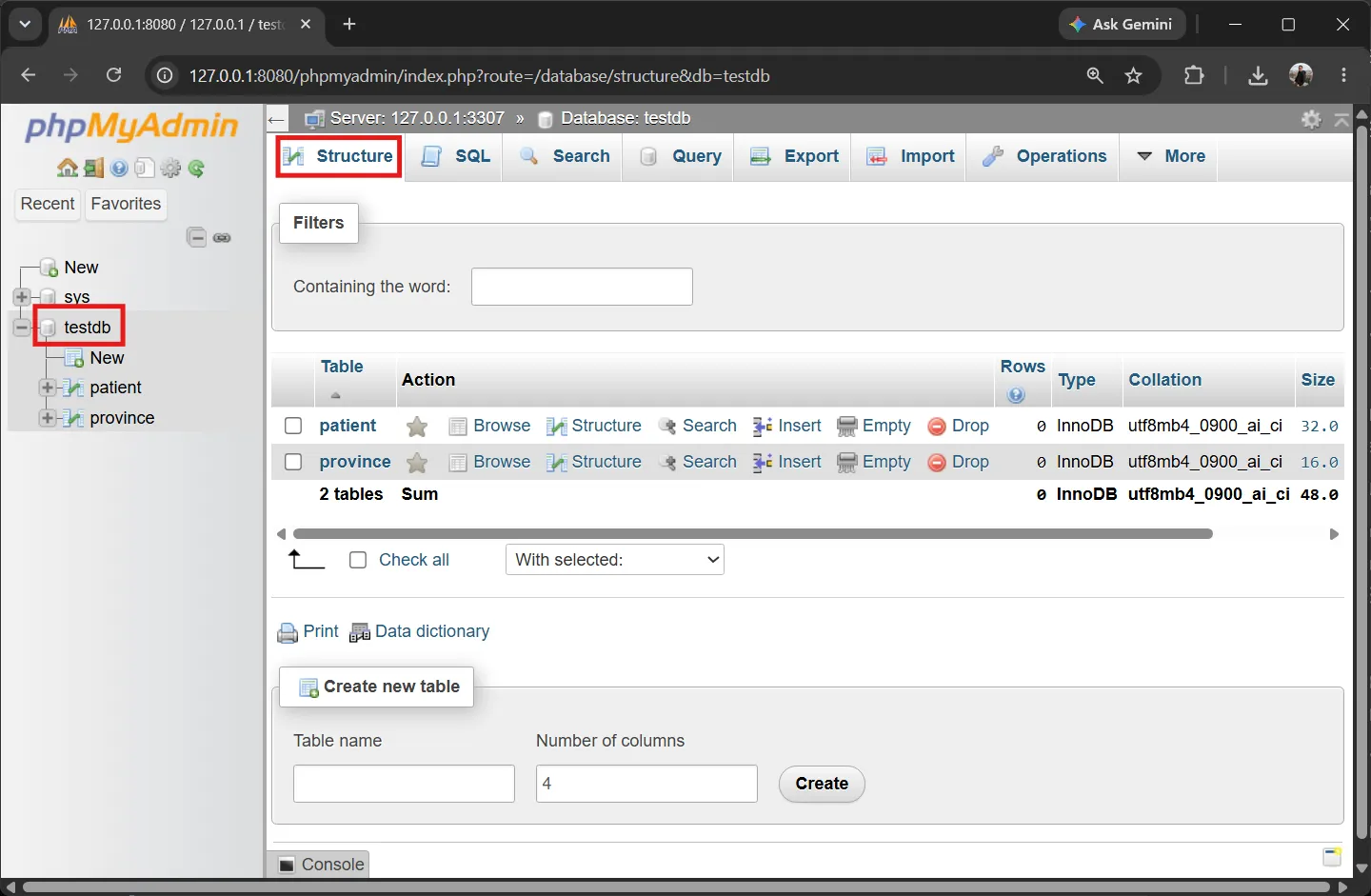
);
Explaining table structure:
code— Province code, usesINTand is Primary Key ofprovincetablename— Province name, usesVARCHAR(100)id— Patient ID, usesINTand is Primary Key ofpatienttable (explained in depth in next section)title— Title prefix, usesVARCHAR(10)like Mr., Ms.fname/lname— First name and last name, usesVARCHAR(100)(text not exceeding 100 characters)gender— Gender, usesVARCHAR(10)like Male, Femaledob— Date of Birth, usesDATEstored inYYYY-MM-DDformat like1990-05-20province_id— Province code, usesINTas Foreign Key referencingprovince(code)(explained in next section)weight/height— Weight and height, usesDECIMAL(5,2)supporting decimals like 105.50, 175.00
Note: Must create
provincetable beforepatienttable becausepatienthas Foreign Key referencingprovince(code). If creatingpatientfirst, database will error becauseprovincetable doesn’t exist yet for reference.
AUTO_INCREMENT automatically generates new IDs when adding new records (1, 2, 3, …) without manual entry. PRIMARY KEY uniquely identifies records and helps SQL search records quickly. Every table should have a Primary Key.
8. Primary Key & Foreign Key#
The way tables in relational databases connect is the heart of database design. This connection is created with Primary Keys and Foreign Keys, enabling efficient data storage without redundancy.
Primary Key (PK)#
Primary Key uniquely identifies each record in a table. No two records can have the same Primary Key value.
- In
patienttable → Primary Key isid(defined withid INT AUTO_INCREMENT PRIMARY KEYwhen creating the table in previous section) - In
provincetable → Primary Key iscode
Foreign Key (FK)#
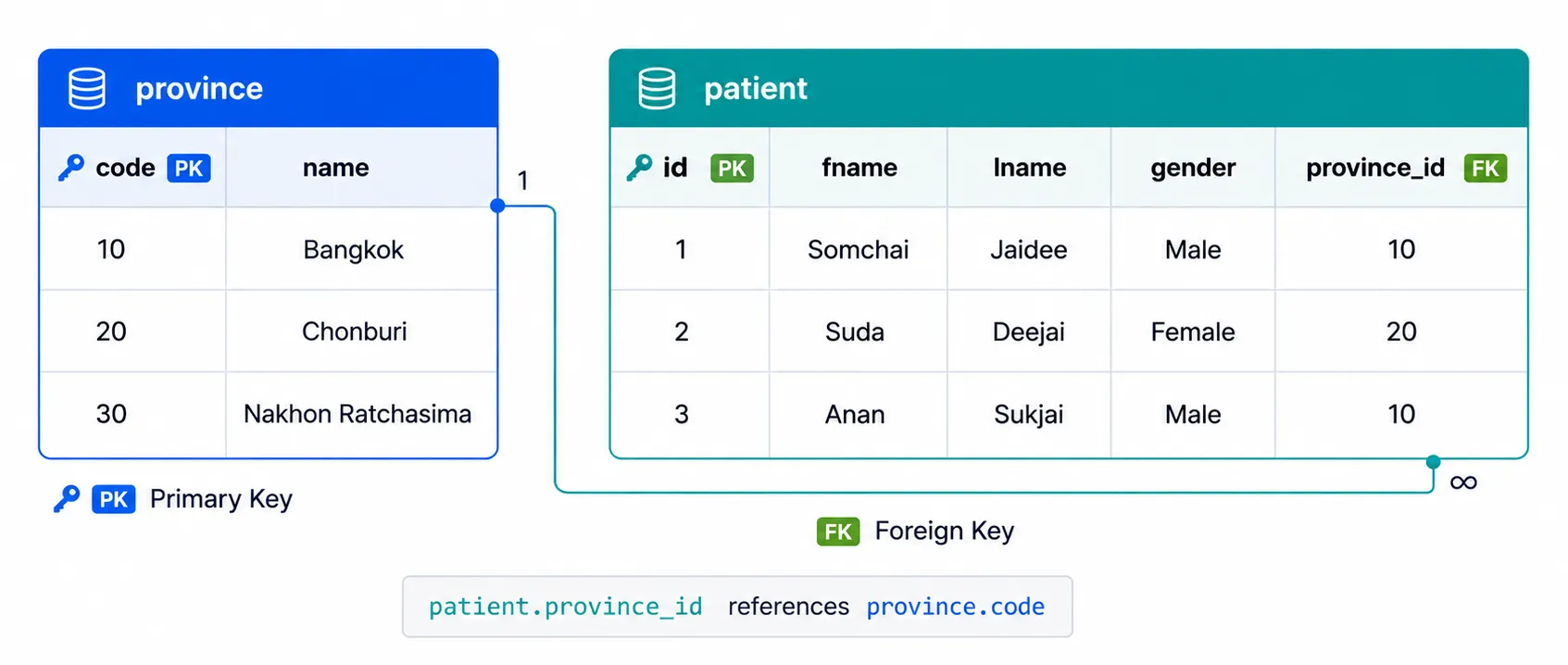
Foreign Key is a column that references the Primary Key of another table. In this example, patient.province_id is a Foreign Key referencing province.code. This relationship links each patient with a province.
Understanding the Relationship#
Suppose we have data in the patient table:
| fname | province_id |
|---|---|
| Somchai | 10 |
| Suda | 20 |
| Anan | 10 |
When the database looks up these codes in the province table, it finds:
- province code 10 → Bangkok
- province code 20 → Chonburi
Therefore: Somchai → Bangkok, Suda → Chonburi, Anan → Bangkok
Why Use Foreign Keys?#
- Prevents data duplication — Store only code instead of full province name in every record
- Improves data consistency — Change province name in one place, reflects everywhere
- Makes maintenance easier
- Saves storage space
- Guarantees related data stays connected
Summary: Primary Key uniquely identifies records, Foreign Key references another table’s Primary Key, and this relationship reduces duplication and increases consistency.
9. ALTER TABLE — Modifying Table Structure#
After creating a table, requirements often change with the project, such as needing to add a “phone” column for patients, or changing a column’s data type. ALTER TABLE is used to modify the structure of existing tables, mostly without affecting stored data, unlike UPDATE (next section) which modifies data in each record.
Adding a Column (ADD COLUMN)#
-- Add phone column for storing patient phone numbers
ALTER TABLE patient
ADD COLUMN phone VARCHAR(20);The new phone column will be added after existing columns. Existing patient data remains intact, only the phone column will have NULL values until UPDATE adds data.
Dropping a Column (DROP COLUMN)#
-- Remove phone column from patient table
ALTER TABLE patient
DROP COLUMN phone;⚠️ Warning: Dropping a column deletes all data in that column. Be sure before running.
Modifying Data Type (MODIFY COLUMN)#
-- Extend maximum length of fname from VARCHAR(100) to VARCHAR(150)
ALTER TABLE patient
MODIFY COLUMN fname VARCHAR(150);Note: Data type change commands vary slightly between systems — MySQL/MariaDB uses
MODIFY COLUMN, PostgreSQL usesALTER COLUMN ... TYPE, Microsoft SQL Server usesALTER COLUMN.
Renaming Column (RENAME COLUMN)#
-- Rename column fname to first_name
ALTER TABLE patient
RENAME COLUMN fname TO first_name;-- Rename column first_name back to fname
ALTER TABLE patient
RENAME COLUMN first_name TO fname;Adding Constraints like Foreign Key#
ALTER TABLE can also add constraints to existing tables, like Primary Key or Foreign Key. The example below adds Foreign Key to province_id (if not set during table creation):
ALTER TABLE patient
ADD CONSTRAINT fk_province
FOREIGN KEY (province_id) REFERENCES province(code);Summary:
ALTER TABLEmodifies existing table structure, such as adding/dropping/modifying/renaming columns, and adding constraints.
10. INSERT — Adding Data#
INSERT is used to add new records to a table. It’s one of the four basic SQL commands (along with SELECT, UPDATE, DELETE).
Basic Syntax#
INSERT INTO table_name (column1, column2, ...)
VALUES (value1, value2, ...);The number of values must equal the number of columns, and data types must match what was defined.
Example: Adding one province record#
INSERT INTO province (code, name)
VALUES (10, 'Bangkok');Since the province table defines code as its own Primary Key (not AUTO_INCREMENT), we must specify the code value each time, like 10 for Bangkok.
Adding Multiple Records at Once#
-- Add province data
INSERT INTO province (code, name) VALUES
  (10, 'Bangkok'),
  (20, 'Nakhon Ratchasima'),
  (30, 'Nakhon Pathom'),
  (50, 'Chiang Mai');

-- Add patient data
INSERT INTO patient (title, fname, lname, gender, dob, province_id, weight, height) VALUES
  ('Mr.',   'John',     'Smith',    'Male',   '1985-03-15', 10, 105.00, 175.00),
  ('Ms.',   'Mary',     'Johnson',  'Female', '1992-07-22', 50,  55.00, 160.00),
  ('Mr.',   'David',    'Lee',      'Male',   '1988-11-30', 10, 112.00, 178.00),
  ('Mr.',   'Robert',   'Brown',    'Male',   '1990-01-05', 20,  80.00, 180.00),
  ('Ms.',   'Linda',    'Wilson',   'Female', '1995-04-18', 10,  62.00, 158.00),
  ('Mr.',   'Michael',  'Davis',    'Male',   '1983-09-12', 50, 120.00, 175.00),
  ('Ms.',   'Sarah',    'Miller',   'Female', '1998-06-25', 10,  48.00, 155.00),
  ('Mr.',   'James',    'Taylor',   'Male',   '1987-12-08', 20,  75.00, 172.00),
  ('Ms.',   'Emily',    'Anderson', 'Female', '1993-02-14', 50,  58.00, 165.00),
  ('Mr.',   'Thomas',   'Thomas',   'Male',   '1980-08-20', 10,  95.00, 168.00),
  ('Ms.',   'Jessica',  'Jackson', 'Female', '1996-10-03', 10,  70.00, 170.00),
  ('Mr.',   'Charles',  'White',    'Male',   '1982-05-17', 50,  88.00, 185.00);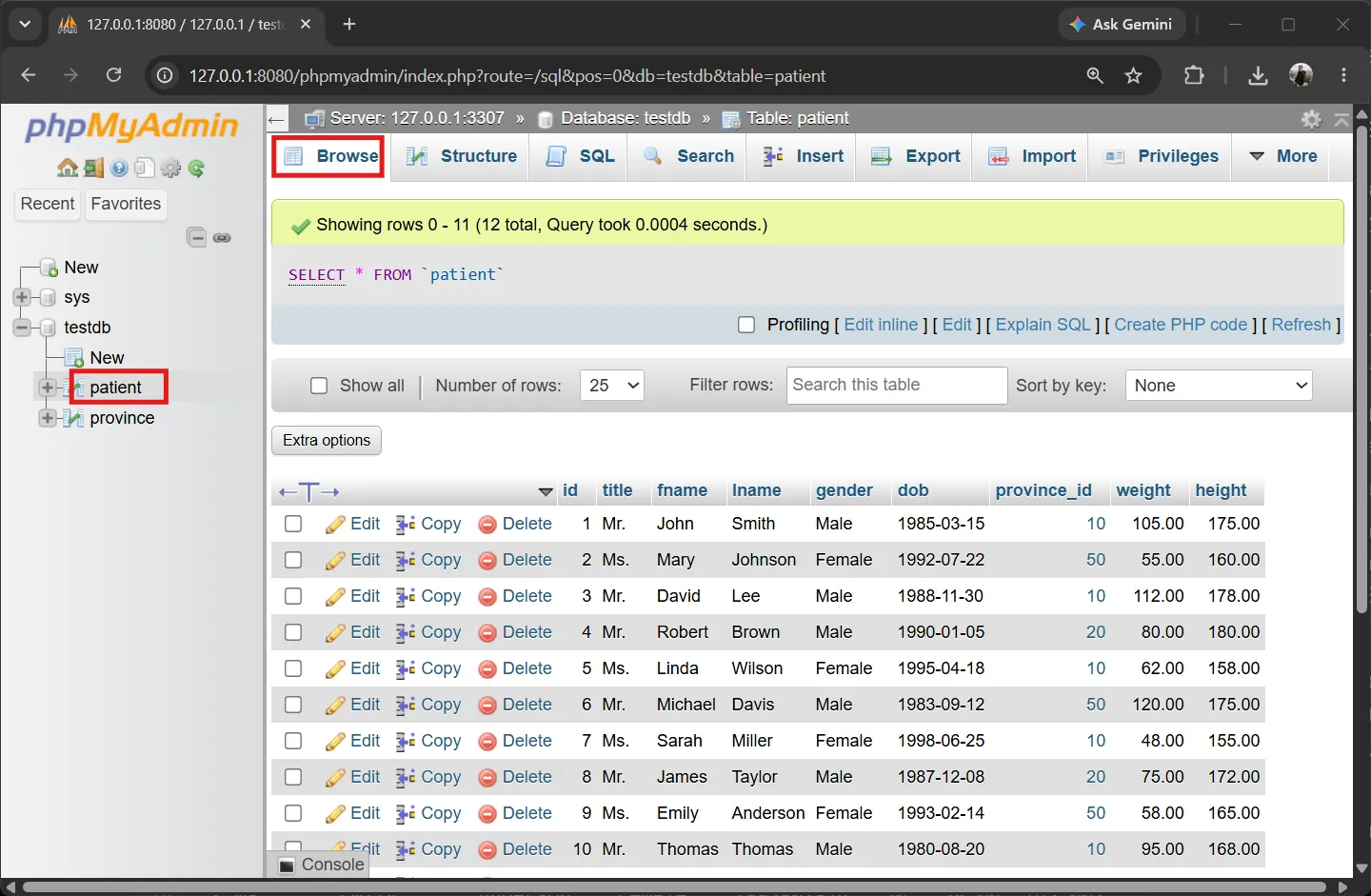
Notice we didn’t specify id for the patient table because it’s AUTO_INCREMENT. The database generates IDs automatically (1, 2, 3, …). For province_id, we specify the province code matching province.code.
Benefits of AUTO_INCREMENT: Prevents duplicate IDs, automatically generates identifiers, reduces human errors, and makes data entry easier.
This sample data supports query examples in following sections:
WHERE weight > 100→ John (105), David (112), Michael (120)WHERE weight > 100 AND height < 180→ John, David, Michael (all three have height < 180)GROUP BY gender→ Has both Male and Female for calculatingAVG/COUNT/SUMLEFT JOIN province→ John/David (Bangkok), Mary/Michael/Charles (Chiang Mai)
11. SELECT — Retrieving Data#
One of the main functions of RDBMS is data retrieval. SELECT is the most commonly used command because it lets us view data stored in tables.
Basic Syntax#
SELECT column1, column2, ...
FROM table_name
WHERE condition;Testing in phpMyAdmin#
- Select database
testdb, then selectpatienttable from left panel - Click SQL tab at top to open SQL editor
- Type command:
SELECT * FROM patient;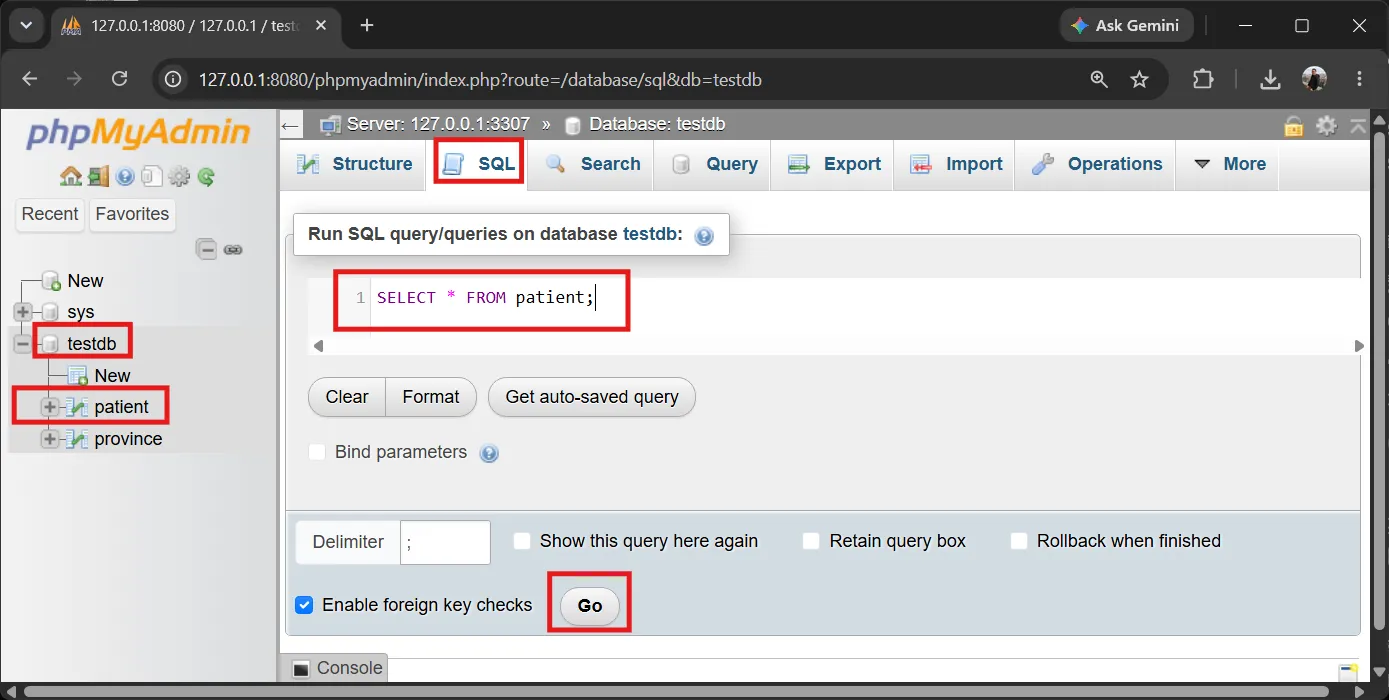
- Click Go button at bottom right to run
Explaining each part:
SELECT— Specifies data retrieval*— Means all columnsFROM patient— Retrieve data frompatienttable
Results will show all rows and columns in the table, the 12 sample records inserted in previous section:
Result:
| id | title | fname | lname | gender | dob | province_id | weight | height |
|---|---|---|---|---|---|---|---|---|
| 1 | Mr. | John | Smith | Male | 1985-03-15 | 10 | 105.00 | 175.00 |
| 2 | Ms. | Mary | Johnson | Female | 1992-07-22 | 50 | 55.00 | 160.00 |
| 3 | Mr. | David | Lee | Male | 1988-11-30 | 10 | 112.00 | 178.00 |
| 4 | Mr. | Robert | Brown | Male | 1990-01-05 | 20 | 80.00 | 180.00 |
| 5 | Ms. | Linda | Wilson | Female | 1995-04-18 | 10 | 62.00 | 158.00 |
| 6 | Mr. | Michael | Davis | Male | 1983-09-12 | 50 | 120.00 | 175.00 |
| 7 | Ms. | Sarah | Miller | Female | 1998-06-25 | 10 | 48.00 | 155.00 |
| 8 | Mr. | James | Taylor | Male | 1987-12-08 | 20 | 75.00 | 172.00 |
| 9 | Ms. | Emily | Anderson | Female | 1993-02-14 | 50 | 58.00 | 165.00 |
| 10 | Mr. | Thomas | Thomas | Male | 1980-08-20 | 10 | 95.00 | 168.00 |
| 11 | Ms. | Jessica | Jackson | Female | 1996-10-03 | 10 | 70.00 | 170.00 |
| 12 | Mr. | Charles | White | Male | 1982-05-17 | 50 | 88.00 | 185.00 |
Selecting Specific Columns#
Select one column:
SELECT fname FROM patient;SELECT fname returns only the first name column:
Result:
| fname |
|---|
| John |
| Mary |
| David |
| Robert |
| Linda |
| Michael |
| Sarah |
| James |
| Emily |
| Thomas |
| Jessica |
| Charles |
Select multiple columns:
SELECT fname, lname, dob FROM patient;Returns the three specified columns:
Result:
| fname | lname | dob |
|---|---|---|
| John | Smith | 1985-03-15 |
| Mary | Johnson | 1992-07-22 |
| David | Lee | 1988-11-30 |
| Robert | Brown | 1990-01-05 |
| Linda | Wilson | 1995-04-18 |
| Michael | Davis | 1983-09-12 |
| Sarah | Miller | 1998-06-25 |
| James | Taylor | 1987-12-08 |
| Emily | Anderson | 1993-02-14 |
| Thomas | Thomas | 1980-08-20 |
| Jessica | Jackson | 1996-10-03 |
| Charles | White | 1982-05-17 |
Select all columns:
SELECT * FROM patient;SELECT * gives the same result as the full table above (every row and column, all 12 records)
Selecting Specific Columns to Display#
SELECT fname, lname, weight
FROM patient;This query retrieves three columns: first name, last name, and weight from patient table, showing all records because there’s no WHERE condition.
Result:
| fname | lname | weight |
|---|---|---|
| John | Smith | 105.00 |
| Mary | Johnson | 55.00 |
| David | Lee | 112.00 |
| Robert | Brown | 80.00 |
| Linda | Wilson | 62.00 |
| Michael | Davis | 120.00 |
| Sarah | Miller | 48.00 |
| James | Taylor | 75.00 |
| Emily | Anderson | 58.00 |
| Thomas | Thomas | 95.00 |
| Jessica | Jackson | 70.00 |
| Charles | White | 88.00 |
12. WHERE — Filtering Data with Conditions#
WHERE is used to filter records to show only those matching specified conditions, enabling precise data searching from large databases.
Single Condition#
SELECT fname, lname, weight
FROM patient
WHERE weight > 100;Results will show only patients weighing more than 100 kg, like 105, 112, 120 kg. Those weighing 100 or less are excluded.
Result:
| fname | lname | weight |
|---|---|---|
| John | Smith | 105.00 |
| David | Lee | 112.00 |
| Michael | Davis | 120.00 |
Date Comparison#
WHERE also works with DATE columns, comparing with dates in YYYY-MM-DD format. For example, find patients born before 1990:
SELECT fname, lname, dob
FROM patient
WHERE dob < '1990-01-01';Results show only patients born before 1990-01-01: John (1985), David (1988), Michael (1983), James (1987), Charles (1982), and Thomas (1980). Those born in 1990 or later are excluded.
Result:
| fname | lname | dob |
|---|---|---|
| John | Smith | 1985-03-15 |
| David | Lee | 1988-11-30 |
| Michael | Davis | 1983-09-12 |
| James | Taylor | 1987-12-08 |
| Thomas | Thomas | 1980-08-20 |
| Charles | White | 1982-05-17 |
Multiple Conditions with AND / OR#
SELECT fname, lname, weight, height
FROM patient
WHERE weight > 100 AND height < 180;Result:
| fname | lname | weight | height |
|---|---|---|---|
| John | Smith | 105.00 | 175.00 |
| David | Lee | 112.00 | 178.00 |
| Michael | Davis | 120.00 | 175.00 |
AND— Both conditions must be true (weight > 100 and height < 180)OR— At least one condition must be true
Example using AND:
SELECT *
FROM patient
WHERE gender = 'Male' AND weight > 80;
-- Must be male AND weigh more than 80Result:
| id | title | fname | lname | gender | dob | province_id | weight | height |
|---|---|---|---|---|---|---|---|---|
| 1 | Mr. | John | Smith | Male | 1985-03-15 | 10 | 105.00 | 175.00 |
| 3 | Mr. | David | Lee | Male | 1988-11-30 | 10 | 112.00 | 178.00 |
| 6 | Mr. | Michael | Davis | Male | 1983-09-12 | 50 | 120.00 | 175.00 |
| 10 | Mr. | Thomas | Thomas | Male | 1980-08-20 | 10 | 95.00 | 168.00 |
| 12 | Mr. | Charles | White | Male | 1982-05-17 | 50 | 88.00 | 185.00 |
Example using OR:
SELECT *
FROM patient
WHERE gender = 'Male' OR weight > 100;
-- All males, plus anyone weighing more than 100Result (all males — no female weighs over 100):
| id | title | fname | lname | gender | dob | province_id | weight | height |
|---|---|---|---|---|---|---|---|---|
| 1 | Mr. | John | Smith | Male | 1985-03-15 | 10 | 105.00 | 175.00 |
| 3 | Mr. | David | Lee | Male | 1988-11-30 | 10 | 112.00 | 178.00 |
| 4 | Mr. | Robert | Brown | Male | 1990-01-05 | 20 | 80.00 | 180.00 |
| 6 | Mr. | Michael | Davis | Male | 1983-09-12 | 50 | 120.00 | 175.00 |
| 8 | Mr. | James | Taylor | Male | 1987-12-08 | 20 | 75.00 | 172.00 |
| 10 | Mr. | Thomas | Thomas | Male | 1980-08-20 | 10 | 95.00 | 168.00 |
| 12 | Mr. | Charles | White | Male | 1982-05-17 | 50 | 88.00 | 185.00 |
Summary:
WHEREfilters records,ANDrequires all conditions true,ORrequires at least one condition true. CombiningSELECTwithWHEREefficiently retrieves specific data.
13. ORDER BY — Sorting Results#
By default, records may display in unpredictable order. ORDER BY helps us sort data by one or multiple columns, making data easier to read and analyze.
Basic Syntax#
SELECT column1, column2, ...
FROM table_name
ORDER BY column1 ASC|DESC;ASC(Ascending) — Small to large / A to Z (default if not specified)DESC(Descending) — Large to small / Z to A
Example: Sort by weight descending#
SELECT fname, lname, weight, height
FROM patient
WHERE weight > 100 AND height < 180
ORDER BY weight DESC;Result (sorted by weight descending):
| fname | lname | weight | height |
|---|---|---|---|
| Michael | Davis | 120.00 | 175.00 |
| David | Lee | 112.00 | 178.00 |
| John | Smith | 105.00 | 175.00 |
This query filters patients with weight > 100 and height < 180, then sorts by weight descending. The heaviest person appears at top.
Example: Sort by birth date (age)#
SELECT fname, lname, dob
FROM patient
ORDER BY dob DESC;Result (newest birth date/youngest age at top):
| fname | lname | dob |
|---|---|---|
| Sarah | Miller | 1998-06-25 |
| Jessica | Jackson | 1996-10-03 |
| Linda | Wilson | 1995-04-18 |
| Emily | Anderson | 1993-02-14 |
| Mary | Johnson | 1992-07-22 |
| Robert | Brown | 1990-01-05 |
| David | Lee | 1988-11-30 |
| James | Taylor | 1987-12-08 |
| John | Smith | 1985-03-15 |
| Michael | Davis | 1983-09-12 |
| Charles | White | 1982-05-17 |
| Thomas | Thomas | 1980-08-20 |
Since larger DATE values are later birth dates (younger age), ORDER BY dob DESC sorts from young to old — the youngest person at top, like Sarah (1998), Jessica (1996). To sort from old to young, use ORDER BY dob ASC.
Sorting Multiple Columns#
SELECT fname, lname, gender, weight
FROM patient
ORDER BY gender ASC, weight DESC;Result (gender A→Z, then weight high→low within each gender):
| fname | lname | gender | weight |
|---|---|---|---|
| Jessica | Jackson | Female | 70.00 |
| Linda | Wilson | Female | 62.00 |
| Emily | Anderson | Female | 58.00 |
| Mary | Johnson | Female | 55.00 |
| Sarah | Miller | Female | 48.00 |
| Michael | Davis | Male | 120.00 |
| David | Lee | Male | 112.00 |
| John | Smith | Male | 105.00 |
| Thomas | Thomas | Male | 95.00 |
| Charles | White | Male | 88.00 |
| Robert | Brown | Male | 80.00 |
| James | Taylor | Male | 75.00 |
The system sorts by gender first (A→Z), then within each gender group sorts by weight descending. Multi-column sorting is very useful for reports and data analysis.
Summary:
ORDER BYsorts results,ASCfrom small to large/A→Z,DESCfrom large to small/Z→A, and can use multiple columns for advanced sorting.
14. Calculations in Queries — Computed Columns#
Besides retrieving stored columns, SQL can calculate new values directly within a query using arithmetic operators +, -, *, / and name the result with AS. This calculated value is called a computed column, letting us produce new data like BMI without storing a BMI column in the table.
Example: Calculate BMI for Each Patient#
BMI (Body Mass Index) is calculated as weight(kg) / (height(m))². Since we store height in centimeters, we must divide by 100 to convert to meters first.
SELECT fname,
       lname,
       weight,
       height,
       weight / ((height / 100) * (height / 100)) AS BMI
FROM patient;Explaining each part:
height / 100— Converts centimeters to metersweight / (meters²)— Divides weight by height squared to get BMIAS BMI— Names the result columnBMI
Result:
| fname | lname | weight | height | BMI |
|---|---|---|---|---|
| John | Smith | 105.00 | 175.00 | 34.29 |
| Mary | Johnson | 55.00 | 160.00 | 21.48 |
| David | Lee | 112.00 | 178.00 | 35.35 |
| Robert | Brown | 80.00 | 180.00 | 24.69 |
| Linda | Wilson | 62.00 | 158.00 | 24.84 |
| Michael | Davis | 120.00 | 175.00 | 39.18 |
| Sarah | Miller | 48.00 | 155.00 | 19.98 |
| James | Taylor | 75.00 | 172.00 | 25.35 |
| Emily | Anderson | 58.00 | 165.00 | 21.30 |
| Thomas | Thomas | 95.00 | 168.00 | 33.66 |
| Jessica | Jackson | 70.00 | 170.00 | 24.22 |
| Charles | White | 88.00 | 185.00 | 25.71 |
Instead of storing a BMI column redundantly in every record, we calculate it from existing weight and height — saving space and avoiding inconsistency (e.g., changing weight without BMI updating accordingly).
Next: We’ll reuse this BMI calculation with
GROUP BYto find the average BMI per gender (next section).
15. GROUP BY — Grouping and Summarizing Data#
GROUP BY is used to group rows with the same values in specified columns. Often used with aggregate functions like COUNT(), SUM(), AVG(), MIN(), MAX(). Instead of showing every record, GROUP BY helps create summarized data.
Basic Syntax#
SELECT column1, aggregate_function(column2)
FROM table_name
GROUP BY column1;Example: Find average weight and height by gender#
SELECT gender, AVG(weight), AVG(height)
FROM patient
GROUP BY gender;The system divides records into groups by gender (Male / Female) and calculates AVG() for each group separately. Results show one summary line per gender:
Result:
| gender | AVG(weight) | AVG(height) |
|---|---|---|
| Male | 96.43 | 176.14 |
| Female | 58.60 | 161.60 |
Males (7 people) have average weight 96.43 kg and average height 176.14 cm, while females (5 people) have average weight 58.60 kg and average height 161.60 cm.
Other Aggregate Functions#
All four commands return 2 lines (Male and Female), but summarize differently.
COUNT(*) — Count patients in each gender:
SELECT gender, COUNT(*) FROM patient GROUP BY gender;Result:
| gender | COUNT(*) |
|---|---|
| Male | 7 |
| Female | 5 |
SUM(weight) — Total weight in each gender:
SELECT gender, SUM(weight) FROM patient GROUP BY gender;Result:
| gender | SUM(weight) |
|---|---|
| Male | 675.00 |
| Female | 293.00 |
MAX(weight) — Maximum weight in each gender:
SELECT gender, MAX(weight) FROM patient GROUP BY gender;Result:
| gender | MAX(weight) |
|---|---|
| Male | 120.00 |
| Female | 70.00 |
MIN(weight) — Minimum weight in each gender:
SELECT gender, MIN(weight) FROM patient GROUP BY gender;Result:
| gender | MIN(weight) |
|---|---|
| Male | 75.00 |
| Female | 48.00 |
Calculate Before Summarizing: Find Average BMI by Gender#
SQL can do mathematical calculations within queries (+, -, *, /) and then use results with aggregate functions, like finding average BMI:
SELECT gender,
       AVG(weight / ((height / 100) * (height / 100))) AS BMI
FROM patient
GROUP BY gender;Explaining how it works:
- SQL calculates BMI for every patient first (
weight / (meters²)) - Separates records into groups by gender
AVG()calculates average BMI for each groupAS BMINames the result column asBMI
Result:
| gender | BMI |
|---|---|
| Male | 31.18 |
| Female | 22.37 |
Males have higher average BMI than females (consistent with their higher average weight), which helps compare overall physical fitness between groups.
Using with Dates: Find Oldest/Youngest in Each Gender#
Aggregate functions like MIN(), MAX() also work with DATE columns, like finding oldest birth date (oldest age) and newest birth date (youngest age) of patients in each gender:
SELECT gender,
       MIN(dob) AS oldest,
       MAX(dob) AS youngest
FROM patient
GROUP BY gender;Result:
| gender | oldest | youngest |
|---|---|---|
| Male | 1980-08-20 | 1990-01-05 |
| Female | 1992-07-22 | 1998-06-25 |
MIN(dob)— Oldest birth date (oldest age) in group, e.g., males:1980-08-20MAX(dob)— Newest birth date (youngest age) in group, e.g., females:1998-06-25
Tip: Using
ASto create alias names for result columns makes results easier to understand.
Real-world applications: Count patients by province, find average BMI by gender, count orders by customer, calculate total sales by product category, count students by faculty.
16. JOIN — Combining Multiple Tables#
In relational databases, data is often distributed across multiple tables to reduce redundancy. We use JOIN to view related data from multiple tables simultaneously.
LEFT JOIN#
LEFT JOIN returns all records from the left table and matching records from the right table. If no matching records exist in the right table, results still show left table data, with right table columns as NULL.
Basic Syntax#
SELECT column1, column2, ...
FROM table1
LEFT JOIN table2
ON table1.column = table2.column;Example: Show Patient Province Names#
SELECT patient.id,
       patient.fname,
       patient.dob,
       patient.province_id,
       province.name
FROM patient
LEFT JOIN province
ON patient.province_id = province.code;Result:
| id | fname | dob | province_id | name |
|---|---|---|---|---|
| 1 | John | 1985-03-15 | 10 | Bangkok |
| 2 | Mary | 1992-07-22 | 50 | Chiang Mai |
| 3 | David | 1988-11-30 | 10 | Bangkok |
| 4 | Robert | 1990-01-05 | 20 | Nakhon Ratchasima |
| 5 | Linda | 1995-04-18 | 10 | Bangkok |
| 6 | Michael | 1983-09-12 | 50 | Chiang Mai |
| 7 | Sarah | 1998-06-25 | 10 | Bangkok |
| 8 | James | 1987-12-08 | 20 | Nakhon Ratchasima |
| 9 | Emily | 1993-02-14 | 50 | Chiang Mai |
| 10 | Thomas | 1980-08-20 | 10 | Bangkok |
| 11 | Jessica | 1996-10-03 | 10 | Bangkok |
| 12 | Charles | 1982-05-17 | 50 | Chiang Mai |
Explaining how it works:
FROM patient—patienttable is the left tableLEFT JOIN province—provincetable is the right tableON patient.province_id = province.code— Specifies how the two tables connect, matching by province code
Instead of storing province names in every patient record, we store only province codes and use LEFT JOIN to retrieve province names from the province table when needed. Results like province code 10 → Bangkok, code 50 → Chiang Mai. If a province code doesn’t exist in the province table, patient data still shows but province name will be NULL.
Using Table Alias for Shorter, More Readable Queries#
Writing full table names repeatedly makes queries long and hard to read. We can use table alias (temporary short name) instead.
SELECT p.id,
       p.fname,
       p.dob,
       p.province_id,
       pr.name
FROM patient p
LEFT JOIN province pr
ON p.province_id = pr.code;Result: Same as query above (same 12 rows) — alias is just a short name that makes writing shorter, doesn’t change results.
patienthas aliaspprovincehas aliaspr
Instead of writing patient.id, we write p.id. Query is shorter but gives same result. Using aliases is considered best practice, especially when joining multiple tables, like student s, course c, enrollment e.
Summary:
LEFT JOINcombines data from two tables, always returning all records from the left table. If no matching data exists, right table columns will beNULL. Using table aliases makes queries cleaner and more readable.
17. UPDATE — Modifying Data#
UPDATE is used to modify existing records, unlike INSERT which adds new records.
Basic Syntax#
UPDATE table_name
SET column1 = value1,
    column2 = value2
WHERE condition;Example: Update weight for patient id = 1#
UPDATE patient
SET weight = 75
WHERE id = 1;The system finds the record where id = 1 and updates the weight column to 75. Other records remain unchanged.
Update Multiple Columns at Once#
UPDATE patient
SET weight = 75,
    height = 180
WHERE id = 1;⚠️ Important Warning: If you omit
WHERE, every record in the table will be updated!sqlUPDATE patient SET weight = 75; -- Everyone will have weight 75Usually not intended. Always check
WHEREcondition before runningUPDATE.
Summary:
UPDATEmodifies existing data,SETspecifies new values,WHEREcontrols which records are affected. UsingWHEREcorrectly is crucial to prevent unintended updates.
18. DELETE — Deleting Data#
DELETE is used to permanently remove records from a table. Unlike UPDATE which modifies data, since important data can be deleted, it must be used carefully.
Basic Syntax#
DELETE FROM table_name
WHERE condition;Example: Delete patient id = 1#
DELETE FROM patient
WHERE id = 1;The system finds the record where id = 1 and deletes it. Other records are not affected.
Delete Multiple Records#
DELETE FROM patient
WHERE weight > 100;This query deletes every patient weighing more than 100. Depending on data, more than one record might be deleted.
⚠️ Important Warning: If you omit
WHERE, every record in the table will be deleted!sqlDELETE FROM patient; -- Deletes all records. Table structure remains but all data is goneAlways check query before running
DELETE.
Summary:
DELETEremoves data from tables,DELETE FROMspecifies target table,WHEREspecifies which records to delete. UsingWHEREcarefully is essential to prevent unintended data loss.
19. Example Prompts for Generating SQL with Generative AI#
We can use ChatGPT or Claude to help generate SQL by providing clear context. For example:
Prompt 1 — Summarize Data with GROUP BY:
Here’s the data in the
patienttable:SELECT id, title, fname, lname, gender, province, weight, height FROM patient WHERE 1Create SQL to find average weight and height for each gender.
Prompt 2 — Create Table and Dummy Data:
Generate an SQL script that creates a doctor table with the columns doctor_id (AUTO_INCREMENT PRIMARY KEY), first_name, last_name, specialty, and phone, using appropriate SQL data types, and then generate SQL INSERT statements to populate the table with 10 realistic sample doctor records.
Tip: The more clearly you specify table structure and requirements, the more the resulting SQL matches your needs.
20. Summary#
This article covers Relational Database fundamentals from concepts to practice:
- DBMS — Software for creating, managing, securing, and recovering data
- RDBMS — Stores data in related tables, with examples of popular systems (MySQL, PostgreSQL, Oracle, etc.)
- CAMPP & phpMyAdmin — Tools for creating local development environments and managing databases
- Table, Primary Key, Foreign Key — Main components and relationships between tables
- Complete SQL Commands —
CREATE DATABASE,CREATE TABLE,ALTER TABLE,INSERT,SELECT,WHERE,ORDER BY,GROUP BY,JOIN,UPDATE,DELETE
Understanding these fundamentals enables you to design tables, manage data, and query relational databases with confidence, ready to advance to reporting, analytics, and application development connected to databases.