

HTML, CSS, JavaScript, React & Next.js 101
Learn web development fundamentals from HTML basics to React/Next.js for building modern web applications
This comprehensive tutorial will guide you through the fundamentals of web development, starting with HTML and CSS for building web pages, then progressing to JavaScript with React/Next.js for creating dynamic, interactive web applications.
Part 1: HTML Basics#
What is HTML?#
HTML (HyperText Markup Language) is a markup language used to create and design websites. The basic structure of HTML consists of elements that are combined to build a webpage.
Setting Up Your Environment#
Prerequisites: Install VS Code from code.visualstudio.com ↗
VS Code is an IDE (Integrated Development Environment) — a tool used for writing code.
Project Setup#
# Create a folder for your HTML project
mkdir html-css-tutorial
cd html-css-tutorial

# Create a folder for HTML files
mkdir 01_html
cd 01_html

# Launch VS Code in the current folder
code .HTML Basic Structure#
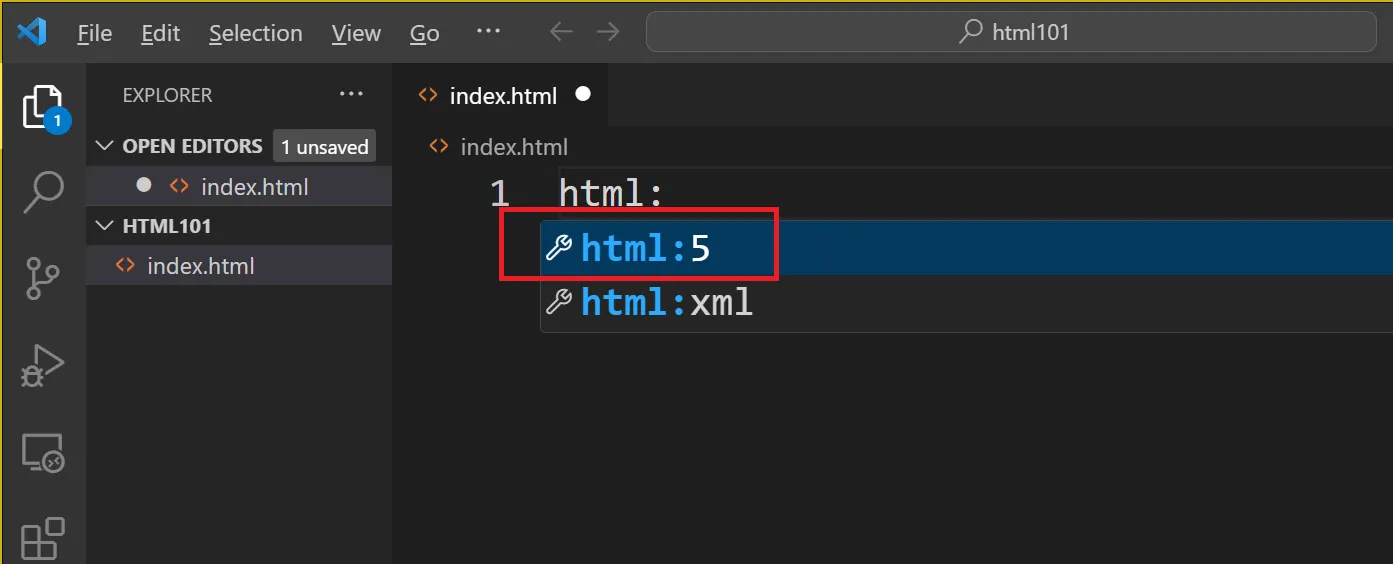
In VS Code, create a file named index.html. Type html:5 and press Enter/Tab to generate the default HTML boilerplate:
<!DOCTYPE html>
<html lang="en">
<head>
  <meta charset="UTF-8">
  <meta name="viewport" content="width=device-width, initial-scale=1.0">
  <title>My Website</title>
</head>
<body>

</body>
</html>HTML Element Reference#
| Element | Description |
|---|---|
<!DOCTYPE html> | Declares that this document is HTML5 |
<html> | The root of an HTML document |
<head> | Contains metadata about the document (not displayed on the webpage) |
<title> | Defines the title of the webpage, shown in the browser’s title bar |
<body> | Contains the content displayed on the webpage |
<h1> - <h6> | Headings of different sizes (h1 is largest) |
<p> | A paragraph of text |
<a href="URL"> | A link to another webpage |
<img src="..." alt="..."> | Embeds an image |
Headings and Paragraphs#
Add content inside the <body>:
<body>
  <h1>Website Karn Yongsiriwit</h1>
  <p>Welcome back to our website.</p>
  <h2>News</h2>
  <p>Read news from our website.</p>
  <h2>Activities</h2>
  <p>We have many activities.</p>
</body>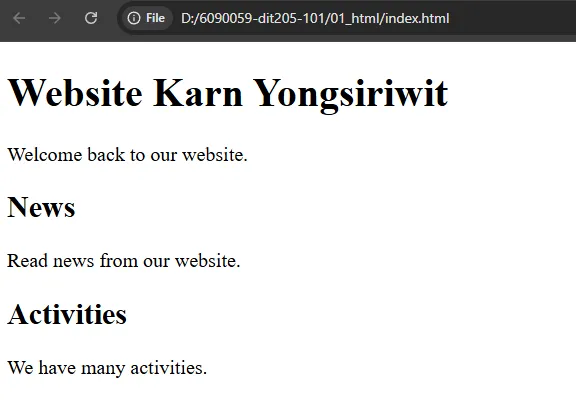
Links (Anchor Tag)#
Create a file named about.html:
<!DOCTYPE html>
<html lang="en">
<head>
  <meta charset="UTF-8">
  <meta name="viewport" content="width=device-width, initial-scale=1.0">
  <title>About</title>
</head>
<body>
  <h1>About Me</h1>
</body>
</html>In index.html, add links for both external and internal pages:
<!-- Internal link -->
<a href="about.html">About</a>

<!-- External link -->
<a href="https://melivecode.com">Visit MeLiveCode</a>Images#
The <img> tag embeds an image by specifying its source (src) and alternative text (alt):
<!-- Local image -->
<img src="cat_meme.jpg" alt="Cat Speechless" width="100px" height="150px" />

<!-- Remote image -->
<img src="https://melivecode.com/img/logo.png" alt="Bear is coding" height="150px" />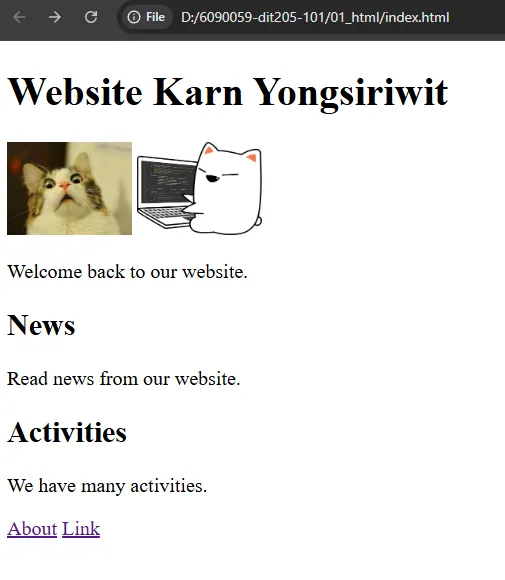
Lists#
HTML supports both unordered (bullet points) and ordered (numbered) lists:
<!-- Unordered List -->
<ul>
  <li>DIT has a new teacher.</li>
  <li>There's big rain in RSU.</li>
  <li>RSU Market at Building 6.</li>
</ul>

<!-- Ordered List -->
<ol>
  <li>Orientation</li>
  <li>National Holiday</li>
  <li>Term Break</li>
</ol>| Tag | Description |
|---|---|
<ul> | Unordered list (bullet points) |
<ol> | Ordered list (numbers) |
<li> | List item |
Forms#
The <form> element collects user input and sends data to a server.
Create a file named login.html:
<!DOCTYPE html>
<html lang="en">
<head>
  <meta charset="UTF-8">
  <meta name="viewport" content="width=device-width, initial-scale=1.0">
  <title>Login</title>
</head>
<body>
  <h1>Login</h1>
  <form action="login.php" method="POST">
    <label for="username">Username:</label>
    <input type="text" id="username" name="username" />
    <br />
    <label for="password">Password:</label>
    <input type="password" id="password" name="password" />
    <br />
    <input type="checkbox" id="remember" name="remember" />
    <label for="remember">Remember Me</label>
    <br/>
    <input type="submit" value="Login" />
  </form>
</body>
</html>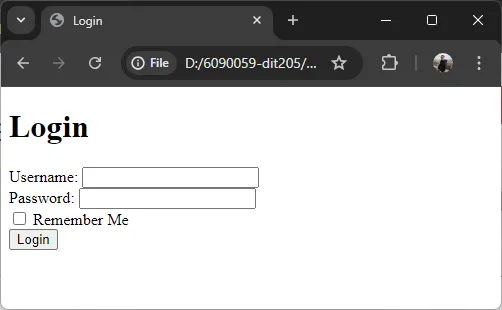
Form Element Reference#
| Element | Purpose |
|---|---|
<form action=""> | Defines a boundary for collecting inputs; action specifies where data is sent |
<label for="id"> | Specifies a name for an input; improves accessibility |
<input> | Various input types (text, password, checkbox, submit) |
id attribute | Links an input with its label |
name attribute | Variable/parameter name for form submission |
Note: For more HTML elements and examples, visit W3Schools HTML ↗
Part 2: CSS Basics#
Project Setup#
# Create a folder for CSS files
mkdir 02_css
cd 02_css

# Launch VS Code in the current folder
code .In VS Code, create a file named index.html. Type html:5 and press Enter/Tab to generate the default HTML boilerplate:
<!DOCTYPE html>
<html lang="en">
<head>
  <meta charset="UTF-8">
  <meta name="viewport" content="width=device-width, initial-scale=1.0">
  <title>CSS Practice</title>
</head>
<body>

</body>
</html>What is CSS?#
CSS (Cascading Style Sheet) is a language used to define the format and style (appearance) of a webpage, such as background color, positioning elements, fonts, and more.
Inline CSS#
You can add styles directly to elements using the style attribute:
<body style="background-color: beige;">
  <h1 style="color: darkblue;">Hello World</h1>
</body>CSS Syntax#
CSS rules follow this structure:
selector {
  property: value;
  property: value;
}| Part | Description |
|---|---|
selector | Chooses which HTML elements to style (element, class, or id) |
property | The attribute to define (background-color, color, font-size, margin, padding) |
value | The setting for that property (aqua, #FF0000, 16px) |
Internal CSS (Style Element)#
The <style> tag defines CSS within an HTML file:
<!DOCTYPE html>
<html lang="en">
<head>
  <meta charset="UTF-8">
  <meta name="viewport" content="width=device-width, initial-scale=1.0">
  <title>My Styled Page</title>
  <style>
    body {
      background-color: beige;
    }
    h1 {
      color: darkblue;
      font-size: 32px;
    }
  </style>
</head>
<body>
  <h1>Hello World</h1>
</body>
</html>External CSS (Recommended)#
Create a separate CSS file and link it in your HTML:
File: style.css
body {
  background-color: beige;
  margin: 0;
}

h1 {
  color: darkblue;
}File: index.html
<!DOCTYPE html>
<html lang="en">
<head>
  <meta charset="UTF-8">
  <meta name="viewport" content="width=device-width, initial-scale=1.0">
  <title>My Styled Page</title>
  <link rel="stylesheet" href="style.css" />
</head>
<body>
  <h1>Hello World</h1>
</body>
</html>Separating CSS into an external file is the most commonly used method because it makes managing styles easier.
Note: For CSS properties reference, visit W3Schools CSS Reference ↗
Live Server Extension#
Install the Five Server extension in VS Code to automatically reload the browser when code changes are made:
- Go to Extensions
- Search for “Five Server”
- Install the extension
- Right-click on
index.htmland select “Open with Five Server”
CSS Classes and Div Elements#
A class in CSS defines a style that can be applied to multiple elements.
File: style.css
body {
  background-color: beige;
}

.box {
  border: 2px solid brown;
  width: 200px;
  padding: 10px;
  margin: 10px;
}File: index.html
<!DOCTYPE html>
<html lang="en">
<head>
  <meta charset="UTF-8">
  <meta name="viewport" content="width=device-width, initial-scale=1.0">
  <title>CSS Classes</title>
  <link rel="stylesheet" href="style.css" />
</head>
<body>
  <div class="box">
    <h1>Box 1</h1>
    <p>This is content inside box 1</p>
  </div>
  <div class="box">
    <h1>Box 2</h1>
    <p>This is content inside box 2</p>
  </div>
</body>
</html>| Concept | Description |
|---|---|
<div> | Generic container used to group elements together |
.classname | CSS class selector (starts with a dot) |
#idname | CSS ID selector (starts with a hash) |
Navigation Bar#
Create a navigation bar using <ul> and <li>:
File: style.css
body {
  background-color: beige;
  margin: 0;
}

.navMenu {
  list-style-type: none;
  margin: 0;
  padding: 0;
  background-color: darkgreen;
  overflow: hidden;
}

.navItem {
  float: left;
}

.navItem a {
  color: white;
  text-decoration: none;
  display: block;
  padding: 14px 16px;
  text-align: center;
}

.navItem a:hover {
  background-color: #115511;
}File: index.html
<!DOCTYPE html>
<html lang="en">
<head>
  <meta charset="UTF-8">
  <meta name="viewport" content="width=device-width, initial-scale=1.0">
  <title>Navigation Bar</title>
  <link rel="stylesheet" href="style.css" />
</head>
<body>
  <ul class="navMenu">
    <li class="navItem"><a href="index.html">Home</a></li>
    <li class="navItem"><a href="about.html">About</a></li>
    <li class="navItem"><a href="contact.html">Contact</a></li>
  </ul>
  <h1>Welcome</h1>
</body>
</html>CSS Property Explanation#
| Property | Value | Description |
|---|---|---|
list-style-type | none | Removes bullet points from list |
margin | 0 | Removes outer spacing |
padding | 0 | Removes inner spacing |
background-color | darkgreen | Sets background color |
overflow | hidden | Contains floated elements within parent |
float | left | Places items horizontally |
text-decoration | none | Removes underline from links |
display | block | Makes entire area clickable |
Flexbox Layout#
Flexbox is used to arrange content dynamically for responsive layouts:
File: style.css
body {
  background-color: beige;
  margin: 0;
}

.container {
  display: flex;
  flex-wrap: wrap;
  justify-content: center;
  gap: 20px;
  padding: 20px;
}

.card {
  border: 1px solid #ccc;
  border-radius: 8px;
  padding: 10px;
  text-align: center;
  margin: 10px;
}

.card img {
  width: 100%;
  object-fit: cover;
  border-radius: 4px;
}File: index.html
<!DOCTYPE html>
<html lang="en">
<head>
  <meta charset="UTF-8">
  <meta name="viewport" content="width=device-width, initial-scale=1.0">
  <title>Flexbox Cards</title>
  <link rel="stylesheet" href="style.css" />
</head>
<body>
  <h1>Popular Tourist Attractions</h1>
  <div class="container">
    <div class="card">
      <img src="https://www.melivecode.com/attractions/1.jpg" alt="Phi Phi Island" />
      <h2>Phi Phi Islands</h2>
    </div>
    <div class="card">
      <img src="https://www.melivecode.com/attractions/2.jpg" alt="Eiffel Tower" />
      <h2>Eiffel Tower</h2>
    </div>
    <div class="card">
      <img src="https://www.melivecode.com/attractions/3.jpg" alt="Times Square" />
      <h2>Times Square</h2>
    </div>
    <div class="card">
      <img src="https://www.melivecode.com/attractions/4.jpg" alt="Mount Fuji" />
      <h2>Mount Fuji</h2>
    </div>
  </div>
</body>
</html>Flexbox Properties#
| Property | Description |
|---|---|
display: flex | Makes element a flex container |
flex-wrap: wrap | Allows items to wrap to new lines |
justify-content: center | Centers items horizontally |
gap | Adds space between flex items |
Note: For a comprehensive Flexbox guide, visit CSS-Tricks Flexbox Guide ↗
Useful Keyboard Shortcuts#
| Action | Windows/Linux | macOS |
|---|---|---|
| Copy | Ctrl + C | Cmd + C |
| Paste | Ctrl + V | Cmd + V |
| Save | Ctrl + S | Cmd + S |
| Cut | Ctrl + X | Cmd + X |
| Undo | Ctrl + Z | Cmd + Z |
| Redo | Ctrl + Y | Cmd + Y |
Part 3: JavaScript with Next.js#
What is Next.js?#
- React.js is a JavaScript library for building user interfaces (Frontend)
- Next.js is a framework built on top of React.js that makes creating complete web applications more convenient
- Node.js is a JavaScript runtime environment that allows JavaScript to run outside the browser
Setting Up Next.js#
Prerequisites: Install Node.js (LTS) from nodejs.org ↗
Project Setup#
# Create a new Next.js project
npx create-next-app@15 nextjs-tutorial

# Navigate to options when prompted:
# - Project name: nextjs-tutorial (or your preferred name)
# - TypeScript: No
# - ESLint: Yes
# - Tailwind CSS: No (for learning basics)
# - App Router: Yes
# - Customize default import alias: No

# Navigate into the project
cd nextjs-tutorial

# Launch VS Code in the current folder
code .

# Open Terminal in VS Code and start the development server
npm run devOpen your browser and go to http://localhost:3000 to view your application.
Recommended VS Code Extensions#
Install the ES7+ React/Redux/React-Native snippets extension for React support in VS Code.
React Component Structure#
In Next.js (App Router), pages are created as React components in the app directory.
File: app/page.js
export default function Page() {
  return (
    <div>
      <div className='box'>
        <h1>Hello World, Next.js</h1>
        <p>Welcome to React!</p>
      </div>
    </div>
  )
}Key Concepts#
| Concept | Description |
|---|---|
export default | Exports the component so it can be imported/used |
function Component() | Functional Component declaration |
return (...) | Returns JSX (UI markup) |
className | React uses className instead of class |
| JSX | JavaScript + XML — HTML-like syntax in JavaScript |
Note: In React/Next.js, use
classNameinstead ofclassfor styling elements.
Adding CSS#
File: app/style.css
.box {
  border: 2px solid brown;
  width: 200px;
  padding: 10px;
  margin: 10px;
  background-color: beige;
}File: app/layout.js
import './style.css'

export const metadata = {
  title: 'Next.js Tutorial',
  description: 'Learn JavaScript with Next.js',
}

export default function RootLayout({ children }) {
  return (
    <html lang="en">
      <body>{children}</body>
    </html>
  )
}JavaScript Basics in React/Next.js#
1. Variables#
Create the file app/01_var/page.js — Access at http://localhost:3000/01_var
export default function VarPage() {
  const name = "Karn";
  let age = 25;
  const isStudent = true;

  return (
    <div>
      <h1>Variables</h1>
      <p>Name: {name}</p>
      <p>Age: {age}</p>
      <p>Is Student: {isStudent ? "Yes" : "No"}</p>
    </div>
  );
}| Keyword | Use Case |
|---|---|
var | Avoid using — has scope issues |
let | Use for variables that need to change |
const | Use for variables that should not change |
2. Arrays#
Create the file app/02_array/page.js — Access at http://localhost:3000/02_array
export default function ArrayPage() {
  const fruits = ["Apple", "Banana", "Mango", "Orange"];

  return (
    <div>
      <h1>Arrays</h1>
      <ul>
        {fruits.map((fruit, index) => (
          <li key={index}>{fruit}</li>
        ))}
      </ul>
    </div>
  );
}Note: The
keyprop is required for list items to help React track which items have changed.
3. Objects#
Create the file app/03_object/page.js — Access at http://localhost:3000/03_object
export default function ObjectPage() {
  const user = {
    name: "Karn Yongsiriwut",
    role: "Developer",
    country: "Thailand"
  };

  return (
    <div>
      <h1>Objects</h1>
      <p>Name: {user.name}</p>
      <p>Role: {user.role}</p>
      <p>Country: {user.country}</p>
    </div>
  );
}Objects store data as key-value pairs. Use dot notation (user.name) to access properties.
4. Array of Objects#
Create the file app/04_array_objects/page.js — Access at http://localhost:3000/04_array_objects
export default function ArrayObjectsPage() {
  const attractions = [
    { id: 1, name: "Phi Phi Islands", country: "Thailand" },
    { id: 2, name: "Eiffel Tower", country: "France" },
    { id: 3, name: "Times Square", country: "USA" },
    { id: 4, name: "Mount Fuji", country: "Japan" }
  ];

  return (
    <div>
      <h1>Array of Objects</h1>
      {attractions.map((attraction) => (
        <div key={attraction.id} style={{ border: "1px solid #ccc", margin: "10px", padding: "10px" }}>
          <h2>{attraction.name}</h2>
          <p>Country: {attraction.country}</p>
        </div>
      ))}
    </div>
  );
}Array of objects is the most common way data is displayed on web pages. Use map() to loop through and display each item.
5. Functions#
Create the file app/05_function/page.js — Access at http://localhost:3000/05_function
export default function FunctionPage() {
  // Function to add two numbers
  function add(a, b) {
    return a + b;
  }

  // Arrow function to multiply two numbers
  const multiply = (a, b) => {
    return a * b;
  };

  // Arrow function with implicit return
  const subtract = (a, b) => a - b;

  // Function to check if a person is an adult
  const isAdult = (age) => {
    return age >= 18;
  };

  // Function to format a greeting
  const greet = (name, timeOfDay) => {
    return `Good ${timeOfDay}, ${name}!`;
  };

  return (
    <div>
      <h1>Functions</h1>
      <h2>Basic Calculations</h2>
      <p>5 + 3 = {add(5, 3)}</p>
      <p>4 × 6 = {multiply(4, 6)}</p>
      <p>10 - 4 = {subtract(10, 4)}</p>

      <h2>Conditional Logic</h2>
      <p>Age 20 is adult: {isAdult(20) ? "Yes" : "No"}</p>
      <p>Age 15 is adult: {isAdult(15) ? "Yes" : "No"}</p>

      <h2>String Templates</h2>
      <p>{greet("Karn", "morning")}</p>
      <p>{greet("John", "evening")}</p>
    </div>
  );
}Function Syntax#
| Type | Syntax | Use Case |
|---|---|---|
| Function Declaration | function name() {} | General use, can be called before declaration |
| Function Expression | const name = function() {} | When assigning to a variable |
| Arrow Function | const name = () => {} | Short, modern syntax, commonly used in React |
| Arrow (Implicit Return) | const name = () => value | One-line functions without return keyword |
Function Naming Conventions#
| Convention | Rule | Valid Examples | Invalid |
|---|---|---|---|
| camelCase | First word lowercase, subsequent words capitalized | getUserData, calculateTotal, isValid | GetUserData, get_user_data |
| Verb-first | Start with a verb describing the action | fetchUser, saveData, deleteItem | user, data, item |
| Booleans | Use is, has, can, should prefix | isLoggedIn, hasPermission, canEdit | logged, permission, editable |
Using Functions with map()#
Functions are very useful when working with arrays. You can pass a function to map():
export default function FunctionMapPage() {
  const products = [
    { id: 1, name: "Laptop", price: 25000 },
    { id: 2, name: "Mouse", price: 500 },
    { id: 3, name: "Keyboard", price: 1500 }
  ];

  // Function to calculate price with 10% discount
  const calculateDiscount = (price) => {
    return price * 0.9;
  };

  // Function to format currency
  const formatCurrency = (amount) => {
    return `฿${amount.toLocaleString()}`;
  };

  return (
    <div>
      <h1>Functions with Arrays</h1>
      <h2>Product Prices (with 10% discount)</h2>
      {products.map((product) => (
        <div key={product.id} style={{ border: "1px solid #ccc", margin: "10px", padding: "10px" }}>
          <h3>{product.name}</h3>
          <p>Original Price: {formatCurrency(product.price)}</p>
          <p>Discounted Price: {formatCurrency(calculateDiscount(product.price))}</p>
        </div>
      ))}
    </div>
  );
}Tip: Functions help you reuse code and keep your components organized. Break down complex logic into smaller, focused functions.
Table of Contents#
Update app/page.js to create links to all your pages:
import Link from 'next/link'

export default function Home() {
  return (
    <div style={{ padding: '20px' }}>
      <h1>JavaScript Tutorial</h1>
      <ul>
        <li><Link href="/01_var">Variables</Link></li>
        <li><Link href="/02_array">Arrays</Link></li>
        <li><Link href="/03_object">Objects</Link></li>
        <li><Link href="/04_array_objects">Array of Objects</Link></li>
        <li><Link href="/05_function">Functions</Link></li>
      </ul>
    </div>
  )
}Part 4: React Basics (Interactive Components)#
What is React State?#
State is data that can change over time in your component. When state changes, React automatically updates the UI to reflect those changes. This is what makes React “reactive” — the UI responds to data changes.
1. useState Hook (Show/Hide & Toggle)#
The useState hook lets you add state to functional components. It’s commonly used for toggling UI elements like accordions, modals, and like buttons.
Create the file app/06_show_hide/page.js — Access at http://localhost:3000/06_show_hide
'use client'

import { useState } from 'react'

export default function ShowHidePage() {
  const [isVisible, setIsVisible] = useState(false)
  const [faqOpen, setFaqOpen] = useState(null)
  const [liked, setLiked] = useState(false)

  const faqs = [
    { id: 1, question: 'What is React?', answer: 'React is a JavaScript library for building user interfaces.' },
    { id: 2, question: 'What is Next.js?', answer: 'Next.js is a framework built on top of React.' },
    { id: 3, question: 'What is useState?', answer: 'useState is a React hook for managing component state.' },
  ]

  return (
    <div style={{ padding: '20px' }}>
      <h1>Show/Hide & Toggle Examples</h1>

      {/* Example 1: Show/Hide Button */}
      <section style={{ marginBottom: '30px' }}>
        <h2>1. Show/Hide Content</h2>
        <button onClick={() => setIsVisible(!isVisible)}>
          {isVisible ? 'Hide' : 'Show'} Details
        </button>
        {isVisible && (
          <p style={{ marginTop: '10px', padding: '10px', backgroundColor: '#f0f0f0' }}>
            This content is hidden by default and shown when you click the button.
          </p>
        )}
      </section>

      {/* Example 2: FAQ Accordion */}
      <section style={{ marginBottom: '30px' }}>
        <h2>2. FAQ Accordion</h2>
        {faqs.map((faq) => (
          <div key={faq.id} style={{ border: '1px solid #ddd', marginBottom: '10px' }}>
            <button
              onClick={() => setFaqOpen(faqOpen === faq.id ? null : faq.id)}
              style={{ width: '100%', textAlign: 'left', padding: '10px' }}
            >
              {faq.question} {faqOpen === faq.id ? '▲' : '▼'}
            </button>
            {faqOpen === faq.id && (
              <p style={{ padding: '10px' }}>{faq.answer}</p>
            )}
          </div>
        ))}
      </section>

      {/* Example 3: Like Button */}
      <section>
        <h2>3. Like/Favorite Button</h2>
        <button
          onClick={() => setLiked(!liked)}
          style={{
            padding: '10px 20px',
            backgroundColor: liked ? 'red' : '#ddd',
            color: liked ? 'white' : 'black',
            border: 'none',
            borderRadius: '20px',
            cursor: 'pointer'
          }}
        >
          {liked ? '❤️ Liked' : '🤍 Like'}
        </button>
        {liked && <p style={{ marginTop: '10px' }}>Thanks for liking!</p>}
      </section>
    </div>
  )
}useState Concepts#
| Concept | Description |
|---|---|
'use client' | Directive required for components using hooks (useState, useEffect) |
useState(initialValue) | Creates state with an initial value |
[state, setState] | Array destructuring: current value and function to update it |
!isVisible | NOT operator — toggles boolean value |
isVisible && ... | Conditional rendering — shows content only if true |
2. Event Handling & Controlled Components#
React uses synthetic events that work consistently across browsers. Events are named using camelCase (onClick, onChange) rather than lowercase.
Create the file app/07_forms/page.js — Access at http://localhost:3000/07_forms
'use client'

import { useState } from 'react'

export default function FormsPage() {
  const [name, setName] = useState('')
  const [email, setEmail] = useState('')
  const [category, setCategory] = useState('electronics')
  const [message, setMessage] = useState('')

  const handleSubmit = (e) => {
    e.preventDefault() // Prevent page refresh
    setMessage(`Thank you ${name}! We'll contact you at ${email}.`)
  }

  return (
    <div style={{ padding: '20px' }}>
      <h1>Form Examples</h1>

      <form onSubmit={handleSubmit} style={{ maxWidth: '400px' }}>
        {/* Text Input */}
        <div style={{ marginBottom: '15px' }}>
          <label htmlFor="name">Name:</label>
          <input
            id="name"
            type="text"
            value={name}
            onChange={(e) => setName(e.target.value)}
            placeholder="Enter your name"
            style={{ marginLeft: '10px', padding: '5px' }}
          />
        </div>

        {/* Email Input */}
        <div style={{ marginBottom: '15px' }}>
          <label htmlFor="email">Email:</label>
          <input
            id="email"
            type="email"
            value={email}
            onChange={(e) => setEmail(e.target.value)}
            placeholder="your@email.com"
            style={{ marginLeft: '10px', padding: '5px' }}
          />
        </div>

        {/* Select Dropdown */}
        <div style={{ marginBottom: '15px' }}>
          <label htmlFor="category">Category:</label>
          <select
            id="category"
            value={category}
            onChange={(e) => setCategory(e.target.value)}
            style={{ marginLeft: '10px', padding: '5px' }}
          >
            <option value="electronics">Electronics</option>
            <option value="clothing">Clothing</option>
            <option value="books">Books</option>
            <option value="other">Other</option>
          </select>
        </div>

        {/* Submit Button */}
        <button type="submit" style={{ padding: '10px 20px' }}>
          Submit
        </button>
      </form>

      {/* Form Preview */}
      {name && (
        <div style={{ marginTop: '20px', padding: '15px', backgroundColor: '#f0f0f0' }}>
          <h3>Preview:</h3>
          <p>Name: {name}</p>
          <p>Email: {email}</p>
          <p>Category: {category}</p>
        </div>
      )}

      {/* Success Message */}
      {message && (
        <p style={{ marginTop: '20px', color: 'green', fontWeight: 'bold' }}>
          {message}
        </p>
      )}
    </div>
  )
}Event Handling Concepts#
| Concept | Description |
|---|---|
onClick | Fires when element is clicked |
onChange | Fires when input value changes |
onSubmit | Fires when form is submitted |
e.preventDefault() | Prevents default form behavior (page refresh) |
e.target.value | Gets the current value from input |
value={state} | Controlled component — value tied to state |
htmlFor | React equivalent of for attribute (for labels) |
3. Conditional Rendering#
React provides multiple ways to conditionally render content based on state or props.
Create the file app/08_conditional/page.js — Access at http://localhost:3000/08_conditional
'use client'

import { useState } from 'react'

export default function ConditionalPage() {
  const [isLoggedIn, setIsLoggedIn] = useState(false)

  const user = {
    name: 'Karn Yongsiriwut',
    email: 'karn@example.com'
  }

  return (
    <div style={{ padding: '20px' }}>
      <h1>Conditional Rendering</h1>

      {/* Toggle Login */}
      <button onClick={() => setIsLoggedIn(!isLoggedIn)}>
        {isLoggedIn ? 'Logout' : 'Login'}
      </button>

      {/* Ternary Operator - Either A or B */}
      {!isLoggedIn ? (
        <p style={{ marginTop: '20px' }}>Please log in to continue</p>
      ) : (
        <p style={{ marginTop: '20px' }}>Welcome back, {user.name}!</p>
      )}

      {/* AND Operator - Shows only if true */}
      {isLoggedIn && (
        <div style={{ marginTop: '20px', padding: '15px', backgroundColor: '#e8f5e9' }}>
          <p>You are now logged in!</p>
          <p>Email: {user.email}</p>
        </div>
      )}
    </div>
  )
}Conditional Rendering Methods#
| Method | Syntax | Use Case |
|---|---|---|
| Ternary | {condition ? A : B} | When you need to show either A or B |
| AND operator | {condition && A} | When you only need to show A if true |
4. React Components Basics#
Components are reusable building blocks in React. You can create your own components and pass data to them using props (properties).
First, create a reusable Card component:
File: components/Card.js
export default function Card({ title, description, image, color }) {
  return (
    <div style={{
      border: '1px solid #ddd',
      borderRadius: '8px',
      padding: '15px',
      margin: '10px',
      backgroundColor: color || 'white',
      boxShadow: '0 2px 4px rgba(0,0,0,0.1)'
    }}>
      {image && (
        <img
          src={image}
          alt={title}
          style={{ width: '100%', height: '150px', objectFit: 'cover', borderRadius: '4px' }}
        />
      )}
      <h3 style={{ margin: '10px 0' }}>{title}</h3>
      <p style={{ color: '#666' }}>{description}</p>
    </div>
  )
}Now use the Card component:
File: app/09_components/page.js — Access at http://localhost:3000/09_components
import Card from "@/components/Card"

export default function ComponentsPage() {
  return (
    <div style={{ padding: '20px' }}>
      <h1>Reusable Components</h1>
      <p>Components can be reused with different props.</p>

      <div style={{ display: 'flex', flexWrap: 'wrap' }}>
        <Card
          title="React"
          description="A JavaScript library for building user interfaces."
          color="#e3f2fd"
        />
        <Card
          title="Next.js"
          description="A React framework for production-ready applications."
          color="#f3e5f5"
        />
        <Card
          title="Node.js"
          description="JavaScript runtime for building server-side applications."
          color="#e8f5e9"
        />
      </div>

      <h2>With Images</h2>
      <div style={{ display: 'flex', flexWrap: 'wrap' }}>
        <Card
          title="Phi Phi Islands"
          description="Beautiful islands in Thailand."
          image="https://www.melivecode.com/attractions/1.jpg"
        />
        <Card
          title="Eiffel Tower"
          description="Famous landmark in Paris, France."
          image="https://www.melivecode.com/attractions/2.jpg"
        />
      </div>
    </div>
  )
}Component Concepts#
| Concept | Description |
|---|---|
| Component | A reusable piece of UI |
| Props | Data passed to components (read-only) |
| Export | Makes component available for import |
| Import | Brings component into another file |
{title} | Destructuring props in function parameters |
| `{color |
5. List Rendering with Components#
Rendering lists is one of the most common patterns in React. Use .map() to transform arrays into JSX elements.
Create the file app/10_list/page.js — Access at http://localhost:3000/10_list
import Card from "@/components/Card"

export default function ListPage() {
  const blogs = [
    {
      id: 1,
      title: 'Getting Started with React',
      excerpt: 'Learn the basics of React and start building interactive UIs.',
      author: 'John Doe',
      date: '2025-01-15'
    },
    {
      id: 2,
      title: 'Next.js App Router Guide',
      excerpt: 'Understanding the new App Router in Next.js 13+.',
      author: 'Jane Smith',
      date: '2025-01-20'
    },
    {
      id: 3,
      title: 'CSS Tips and Tricks',
      excerpt: 'Master modern CSS with Flexbox and Grid.',
      author: 'Bob Wilson',
      date: '2025-01-25'
    }
  ]

  const products = [
    { id: 1, name: 'Laptop', price: 25000, category: 'Electronics' },
    { id: 2, name: 'Mouse', price: 500, category: 'Electronics' },
    { id: 3, name: 'Desk', price: 8000, category: 'Furniture' },
    { id: 4, name: 'Chair', price: 3000, category: 'Furniture' }
  ]

  return (
    <div style={{ padding: '20px' }}>
      <h1>List Rendering</h1>

      <h2>Blog Posts</h2>
      {blogs.map((blog) => (
        <article key={blog.id} style={{ border: '1px solid #ddd', padding: '15px', margin: '10px 0' }}>
          <h3>{blog.title}</h3>
          <p>{blog.excerpt}</p>
          <small>
            By {blog.author} | {blog.date}
          </small>
        </article>
      ))}

      <h2>Product List</h2>
      <div style={{ display: 'grid', gridTemplateColumns: 'repeat(auto-fill, minmax(200px, 1fr))', gap: '15px' }}>
        {products.map((product) => (
          <div key={product.id} style={{ border: '1px solid #ddd', padding: '15px', borderRadius: '8px' }}>
            <h4>{product.name}</h4>
            <p>Category: {product.category}</p>
            <p style={{ fontSize: '20px', fontWeight: 'bold', color: 'green' }}>
              ฿{product.price.toLocaleString()}
            </p>
          </div>
        ))}
      </div>
    </div>
  )
}List Rendering Concepts#
| Concept | Description |
|---|---|
.map() | Transforms each item in an array |
key prop | Required for React to track list items efficiently |
key={item.id} | Best practice: use unique ID from data |
key={index} | Fallback: use index (only if list is static) |
Important: Always provide a unique
keyprop when rendering lists. This helps React efficiently update the DOM.
6. useEffect Hook (Live Price Ticker)#
The useEffect hook is commonly used for real-time data updates like stock prices, cryptocurrency values, or trading data. It lets you run code at specific times and clean up when done.
Create the file app/11_ticker/page.js — Access at http://localhost:3000/11_ticker
'use client'

import { useState, useEffect } from 'react'

export default function TickerPage() {
  const [goldPrice, setGoldPrice] = useState(65000)
  const [previousPrice, setPreviousPrice] = useState(null)
  const [isRunning, setIsRunning] = useState(true)

  // Simulate gold price updates
  useEffect(() => {
    if (!isRunning) return

    const interval = setInterval(() => {
      setGoldPrice((currentPrice) => {
        setPreviousPrice(currentPrice)

        // Generate random price change (-2% to +2%)
        const changePercent = (Math.random() - 0.5) * 0.04
        const newPrice = Math.max(0, currentPrice * (1 + changePercent))

        return Math.round(newPrice)
      })
    }, 1000) // Update every 1 second

    return () => clearInterval(interval)
  }, [isRunning])

  const priceChange = previousPrice ? goldPrice - previousPrice : 0
  const isUp = priceChange >= 0

  return (
    <div style={{ padding: '20px', backgroundColor: '#f5f5f5', minHeight: '100vh' }}>
      <h1>💰 Live Gold Price</h1>
      <p style={{ color: '#666' }}>Simulated real-time gold trading price</p>

      <div style={{
        maxWidth: '500px',
        margin: '30px auto',
        padding: '30px',
        backgroundColor: 'white',
        borderRadius: '12px',
        boxShadow: '0 4px 6px rgba(0,0,0,0.1)'
      }}>
        {/* Current Price */}
        <div style={{ textAlign: 'center' }}>
          <p style={{ fontSize: '14px', color: '#666', marginBottom: '10px' }}>
            GOLD PRICE (THB/oz)
          </p>
          <p style={{
            fontSize: '48px',
            fontWeight: 'bold',
            color: isUp ? '#22c55e' : '#ef4444'
          }}>
            ฿{goldPrice?.toLocaleString()}
          </p>

          {/* Price Change Indicator */}
          {previousPrice && (
            <div style={{
              display: 'flex',
              alignItems: 'center',
              justifyContent: 'center',
              gap: '5px',
              marginTop: '10px'
            }}>
              <span style={{ fontSize: '24px' }}>
                {isUp ? '📈' : '📉'}
              </span>
              <span style={{
                fontSize: '18px',
                color: isUp ? '#22c55e' : '#ef4444',
                fontWeight: 'bold'
              }}>
                {isUp ? '+' : ''}{priceChange.toLocaleString()}
              </span>
              <span style={{ fontSize: '14px', color: '#666' }}>
                ({((priceChange / previousPrice) * 100).toFixed(2)}%)
              </span>
            </div>
          )}
        </div>

        {/* Control Button */}
        <div style={{ textAlign: 'center', marginTop: '20px' }}>
          <button
            onClick={() => setIsRunning(!isRunning)}
            style={{
              padding: '10px 20px',
              fontSize: '16px',
              backgroundColor: isRunning ? '#ef4444' : '#22c55e',
              color: 'white',
              border: 'none',
              borderRadius: '8px',
              cursor: 'pointer'
            }}
          >
            {isRunning ? '⏸ Pause' : '▶ Resume'}
          </button>
        </div>
      </div>
    </div>
  )
}useEffect Concepts#
| Dependency Array | Behavior | Use Case |
|---|---|---|
useEffect(() => {}) | Runs after every render | Rarely used |
useEffect(() => {}, []) | Runs once on mount | Initial data fetch, setup |
useEffect(() => {}, [dep]) | Runs when dep changes | Responding to specific changes |
return cleanup | Runs before unmount/next effect | Clear timers, cancel requests |
Live Price Ticker Concepts#
| Concept | Description |
|---|---|
setInterval(callback, ms) | Runs code repeatedly every X milliseconds |
clearInterval() | Stops the interval (cleanup) |
Math.random() | Generates random number between 0 and 1 |
Math.max(0, value) | Ensures price doesn’t go below zero |
isUp ? '📈' : '📉' | Ternary for conditional emoji display |
optional chaining (?.) | Safely access properties (goldPrice?.toLocaleString()) |
Real-World Use Cases#
This pattern is used for:
- Stock/Trading apps - Real-time price updates
- Crypto exchanges - Bitcoin, Ethereum prices
- Auction sites - Live bidding updates
- Sports scores - Live game updates
- Notification counts - Refreshing unread counts
7. Array Manipulation (Filter & Sort)#
Working with arrays is essential for data-driven applications. Common operations include filtering and sorting.
Create the file app/12_products/page.js — Access at http://localhost:3000/12_products
'use client'

import { useState } from 'react'

const products = [
  { id: 1, name: 'Laptop', category: 'Electronics', price: 25000 },
  { id: 2, name: 'Mouse', category: 'Electronics', price: 500 },
  { id: 3, name: 'Desk', category: 'Furniture', price: 8000 },
  { id: 4, name: 'Chair', category: 'Furniture', price: 3000 },
  { id: 5, name: 'Notebook', category: 'Stationery', price: 50 },
  { id: 6, name: 'Pen', category: 'Stationery', price: 20 },
  { id: 7, name: 'Monitor', category: 'Electronics', price: 5000 },
  { id: 8, name: 'Bookshelf', category: 'Furniture', price: 4500 },
]

export default function ProductsPage() {
  const [category, setCategory] = useState('All')
  const [sortBy, setSortBy] = useState('default')

  // Filter products by category
  const filtered = category === 'All'
    ? products
    : products.filter(p => p.category === category)

  // Sort products
  const sorted = [...filtered].sort((a, b) => {
    if (sortBy === 'price-asc') return a.price - b.price
    if (sortBy === 'price-desc') return b.price - a.price
    if (sortBy === 'name') return a.name.localeCompare(b.name)
    return 0
  })

  return (
    <div style={{ padding: '20px' }}>
      <h1>Product Catalog</h1>

      {/* Filters */}
      <div style={{ marginBottom: '20px', display: 'flex', gap: '15px', alignItems: 'center' }}>
        <div>
          <label>Category: </label>
          <select
            value={category}
            onChange={(e) => setCategory(e.target.value)}
            style={{ padding: '8px' }}
          >
            <option value="All">All Categories</option>
            <option value="Electronics">Electronics</option>
            <option value="Furniture">Furniture</option>
            <option value="Stationery">Stationery</option>
          </select>
        </div>

        <div>
          <label>Sort by: </label>
          <select
            value={sortBy}
            onChange={(e) => setSortBy(e.target.value)}
            style={{ padding: '8px' }}
          >
            <option value="default">Default</option>
            <option value="price-asc">Price: Low to High</option>
            <option value="price-desc">Price: High to Low</option>
            <option value="name">Name: A to Z</option>
          </select>
        </div>
      </div>

      {/* Results Info */}
      <p style={{ color: '#666' }}>
        Showing {sorted.length} products
      </p>

      {/* Product Grid */}
      <div style={{
        display: 'grid',
        gridTemplateColumns: 'repeat(auto-fill, minmax(250px, 1fr))',
        gap: '20px'
      }}>
        {sorted.map((product) => (
          <div
            key={product.id}
            style={{
              border: '1px solid #ddd',
              borderRadius: '8px',
              padding: '15px',
              boxShadow: '0 2px 4px rgba(0,0,0,0.1)'
            }}
          >
            <h3>{product.name}</h3>
            <p style={{ color: '#666' }}>{product.category}</p>
            <p style={{ fontSize: '24px', fontWeight: 'bold', color: 'green' }}>
              ฿{product.price.toLocaleString()}
            </p>
          </div>
        ))}
      </div>
    </div>
  )
}Array Manipulation Concepts#
| Operation | Method | Description |
|---|---|---|
| Filter | .filter(item => condition) | Creates new array with items that match |
| Sort | .sort((a, b) => a - b) | Sorts array (modifies original) |
| Spread | [...array] | Creates copy of array |
8. API Fetching#
Real applications often need to fetch data from external APIs. React uses useEffect combined with fetch to get data.
First, create an AttractionCard component with a link to the detail page:
File: components/AttractionCard.js
import Link from 'next/link'

export default function AttractionCard({ attraction }) {
  return (
    <div
      style={{
        border: '1px solid #ddd',
        borderRadius: '8px',
        overflow: 'hidden',
        boxShadow: '0 2px 4px rgba(0,0,0,0.1)'
      }}
    >
      <Link href={`/13_api/${attraction.id}`}>
        <img
          src={attraction.coverimage}
          alt={attraction.name}
          style={{
            width: '100%',
            height: '200px',
            objectFit: 'cover'
          }}
        />
      </Link>
      <div style={{ padding: '15px' }}>
        <Link href={`/13_api/${attraction.id}`}>
          <h3 style={{ margin: '0 0 10px 0' }}>{attraction.name}</h3>
        </Link>
        <p style={{
          fontSize: '14px',
          color: '#666',
          margin: '0 0 10px 0',
          lineHeight: '1.5'
        }}>
          {attraction.detail}
        </p>
        <div style={{ fontSize: '12px', color: '#999' }}>
          📍 {attraction.latitude}, {attraction.longitude}
        </div>
      </div>
    </div>
  )
}Now use the component:
File: app/13_api/page.js — Access at http://localhost:3000/13_api
'use client'

import { useState, useEffect } from 'react'
import AttractionCard from '@/components/AttractionCard'

export default function ApiPage() {
  const [attractions, setAttractions] = useState([])
  const [loading, setLoading] = useState(true)
  const [error, setError] = useState(null)

  useEffect(() => {
    // Function to fetch data
    const fetchAttractions = async () => {
      try {
        const response = await fetch('https://www.melivecode.com/api/attractions')

        if (!response.ok) {
          throw new Error('Failed to fetch data')
        }

        const data = await response.json()
        setAttractions(data)
      } catch (err) {
        setError(err.message)
      } finally {
        setLoading(false)
      }
    }

    fetchAttractions()
  }, []) // Empty dependency array = runs once on component mount

  return (
    <div style={{ padding: '20px' }}>
      <h1>Tourist Attractions</h1>
      <p>Fetched from API</p>

      {/* Loading State */}
      {loading && (
        <div style={{ textAlign: 'center', padding: '20px' }}>
          <p>Loading...</p>
        </div>
      )}

      {/* Error State */}
      {error && (
        <div style={{ backgroundColor: '#ffebee', padding: '20px', borderRadius: '8px' }}>
          <p style={{ color: '#c62828' }}>Error: {error}</p>
        </div>
      )}

      {/* Data Display */}
      {!loading && !error && (
        <div style={{
          display: 'grid',
          gridTemplateColumns: 'repeat(auto-fill, minmax(300px, 1fr))',
          gap: '20px',
          marginTop: '20px'
        }}>
          {attractions.map((attraction) => (
            <AttractionCard
              key={attraction.id}
              attraction={attraction}
            />
          ))}
        </div>
      )}

      {/* Empty State */}
      {!loading && !error && attractions.length === 0 && (
        <p>No attractions found.</p>
      )}
    </div>
  )
}API Fetching Concepts#
| Concept | Description |
|---|---|
useState([]) | Initial state as empty array for data |
useState(true) | Loading state starts as true |
useState(null) | Error state starts as null |
async/await | Modern way to handle asynchronous operations |
try/catch/finally | Error handling: try executes, catch handles errors, finally always runs |
fetch(url) | Makes HTTP request to API |
response.json() | Parses response as JSON |
response.ok | Checks if request was successful (status 200-299) |
States of Data Fetching#
| State | Purpose | UI Shows |
|---|---|---|
loading: true | While waiting for response | Loading indicator/spinner |
error: message | When request fails | Error message |
data: [] | When request succeeds | Actual data/content |
data.length === 0 | Successful but no results | Empty state message |
9. URL Parameters & Dynamic Routes#
Next.js App Router uses folder structure with square brackets [param] to create dynamic routes.
Note: Update the AttractionCard component (from section 8) to include links to the detail pages using the id parameter:
import Link from 'next/link'

export default function AttractionCard({ attraction }) {
  return (
    <div>
      <Link href={`/13_api/${attraction.id}`}>
        <img src={attraction.coverimage} alt={attraction.name} />
      </Link>
      <div>
        <Link href={`/13_api/${attraction.id}`}>
          <h3>{attraction.name}</h3>
        </Link>
        {/* ... rest of the card content */}
      </div>
    </div>
  )
}Create the folder structure app/13_api/[id]/ and the file page.js:
File: app/13_api/[id]/page.js — Access at http://localhost:3000/13_api/1, /13_api/2, etc.
// This file uses Server Component by default (no 'use client' needed)
// The params prop is automatically provided by Next.js

export default async function AttractionDetailPage({ params }) {
  const { id } = await params

  // Fetch data for specific attraction
  const response = await fetch(`https://www.melivecode.com/api/attractions/${id}`)
  const data = await response.json()

  // Handle error case
  if (response.status === 404 || !data.attraction.id) {
    return (
      <div style={{ padding: '20px' }}>
        <h1>Attraction Not Found</h1>
        <p>The attraction with ID "{id}" does not exist.</p>
        <a href="/13_api">← Back to all attractions</a>
      </div>
    )
  }

  return (
    <div style={{ padding: '20px', maxWidth: '800px', margin: '0 auto' }}>
      <a href="/13_api" style={{ textDecoration: 'none', color: '#0070f3' }}>
        ← Back to all attractions
      </a>

      <img
        src={data.attraction.coverimage}
        alt={data.attraction.name}
        style={{
          width: '100%',
          height: '400px',
          objectFit: 'cover',
          borderRadius: '8px',
          marginTop: '20px'
        }}
      />

      <h1 style={{ fontSize: '36px', margin: '20px 0 10px' }}>{data.attraction.name}</h1>

      <p style={{
        fontSize: '18px',
        lineHeight: '1.8',
        color: '#333'
      }}>
        {data.attraction.detail}
      </p>

      <div style={{
        marginTop: '30px',
        padding: '20px',
        backgroundColor: '#f5f5f5',
        borderRadius: '8px'
      }}>
        <h3>Location</h3>
        <p>Latitude: {data.attraction.latitude}</p>
        <p>Longitude: {data.attraction.longitude}</p>
        <a
          href={`https://www.google.com/maps?q=${data.attraction.latitude},${data.attraction.longitude}`}
          target="_blank"
          rel="noopener noreferrer"
          style={{ color: '#0070f3' }}
        >
          View on Google Maps →
        </a>
      </div>

      <p style={{ marginTop: '20px', fontSize: '14px', color: '#999' }}>
        Created: {new Date(data.attraction.createdAt).toLocaleDateString()}
      </p>
    </div>
  )
}Dynamic Route Concepts#
| Concept | Description |
|---|---|
[id] folder | Creates dynamic route segment |
params prop | Contains route parameters (auto-provided by Next.js) |
await params | Required in Next.js 15+ to access params |
data.attraction | API response wraps data in an attraction object |
| Server Component | Default, no 'use client' needed |
async function | Can use async/await in Server Components |
10. Client vs Server Components (Next.js)#
Next.js 13+ introduced two types of components:
Server Components (Default)#
- No directive needed - Components are Server Components by default
- Renders on the server - HTML is generated server-side
- Can access databases and APIs directly - Safe from exposing secrets
- Smaller bundle size - Less JavaScript sent to the browser
- Better SEO - Content is rendered in HTML
- Cannot use hooks - No
useState,useEffect, or event handlers - Use for: Data fetching, database queries, static content, API routes
Client Components#
- Requires
'use client'directive - Must be at the top of the file - Renders in the browser - Interactivity happens client-side
- Can use React hooks -
useState,useEffect,useContext, etc. - Event handlers -
onClick,onChange,onSubmit, etc. - Browser APIs -
localStorage,window,navigator, etc. - Larger bundle size - More JavaScript sent to the browser
- Use for: Interactive UI, forms, real-time updates, browser APIs
When to Use Each#
| Use Server Components for | Use Client Components for |
|---|---|
| Fetching data from APIs | useState, useEffect hooks |
| Database queries | Event handlers (onClick, onChange) |
| Static content | Real-time updates |
| SEO-critical pages | Browser APIs (localStorage) |
| Sensitive operations (API keys) | Interactive forms |
Tip: Use Server Components by default, and only add
'use client'when you need interactivity or browser-only features.
Updated Table of Contents#
Update app/page.js to include all the new pages:
import Link from 'next/link'

export default function Home() {
  return (
    <div style={{ padding: '20px' }}>
      <h1>JavaScript & React Tutorial</h1>

      <h2>Part 3: JavaScript Basics</h2>
      <ul>
        <li><Link href="/01_var">Variables</Link></li>
        <li><Link href="/02_array">Arrays</Link></li>
        <li><Link href="/03_object">Objects</Link></li>
        <li><Link href="/04_array_objects">Array of Objects</Link></li>
        <li><Link href="/05_function">Functions</Link></li>
      </ul>

      <h2>Part 4: React Basics</h2>
      <ul>
        <li><Link href="/06_show_hide">Show/Hide & Toggle (useState)</Link></li>
        <li><Link href="/07_forms">Forms & Controlled Components</Link></li>
        <li><Link href="/08_conditional">Conditional Rendering</Link></li>
        <li><Link href="/09_components">Reusable Components</Link></li>
        <li><Link href="/10_list">List Rendering</Link></li>
        <li><Link href="/11_ticker">useEffect Hook (Live Ticker)</Link></li>
        <li><Link href="/12_products">Filter & Sort</Link></li>
        <li><Link href="/13_api">API Fetching</Link></li>
        <li><Link href="/13_api/1">Dynamic Routes [id]</Link></li>
        <li><Link href="/15_client_server">Client vs Server Components</Link></li>
      </ul>
    </div>
  )
}Summary#
Part 1: HTML#
- Used for creating webpage structure and content
- Key elements: headings, paragraphs, links, images, lists, forms
- Use semantic HTML for better accessibility
Part 2: CSS#
- Used for styling web pages
- Three ways to apply CSS: inline, internal, external
- Use external CSS files for better organization
- Flexbox for responsive layouts
Part 3: JavaScript with Next.js#
- React/Next.js for dynamic web applications
- Variables:
const(unchanging),let(changeable) - Arrays for lists of data
- Objects for key-value data
- Array of objects for complex data structures
- Functions for reusable code (regular functions and arrow functions)
- Use
map()to display lists in React
Part 4: React Basics#
useStatehook for managing component state (toggle buttons, show/hide)- Event handling:
onClick,onChange,onSubmit,onKeyPress - Controlled components with
valueandonChange - Conditional rendering: ternary,
&&operator - Creating reusable components with props
- Component composition and import/export
- List rendering with
.map()and keys useEffecthook for side effects and timers- Array manipulation: filtering, sorting, pagination
- Fetching data from APIs with
fetchanduseEffect - Handling loading, error, and success states
- Dynamic routes with URL parameters
[id] - Client Components vs Server Components
Next Steps#
- Practice creating HTML pages with different elements
- Experiment with CSS styling and Flexbox layouts
- Build a small React/Next.js project using what you’ve learned
- Explore more advanced JavaScript concepts (conditionals, loops, async/await)
- Learn more about React hooks (
useContext,useReducer,useCallback,useMemo) - Study form validation and error handling
- Explore authentication and authorization patterns
- Learn about database integration with Prisma or other ORMs
- Build a full-stack application with Next.js API routes