

คลิปประกอบบทความ#
สร้าง VPS บน Hostinger (รับสิทธิพิเศษ)#
-
สมัครผ่านลิงก์พิเศษ: https://www.hostinger.com/melivecode ↗ เพื่อรับส่วนลดพิเศษสำหรับผู้ติดตามช่องหมีไลฟ์โค้ด
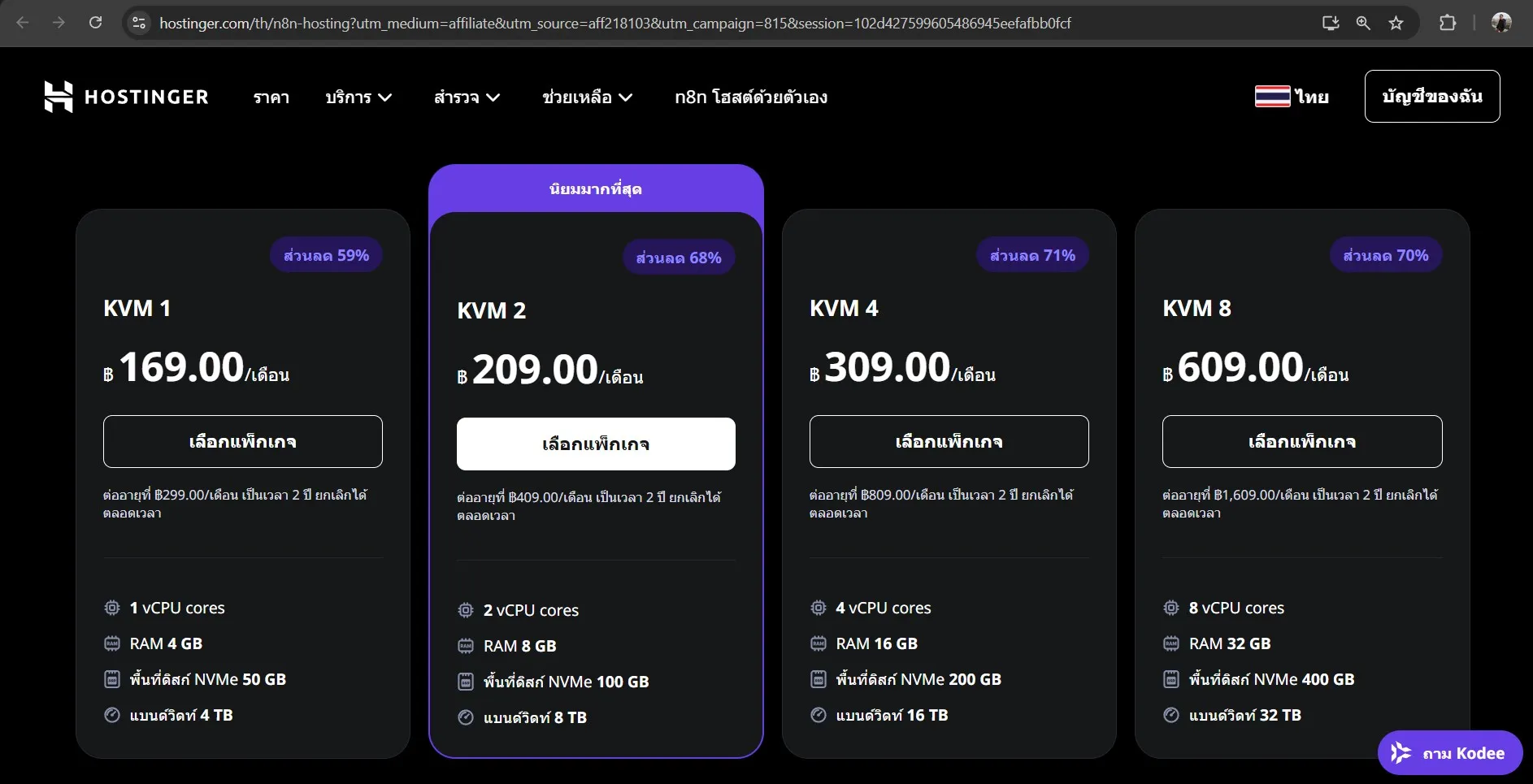
-
ใส่โค้ด
MELIVECODEเพื่อรับส่วนลดเพิ่มเติม อีก 20%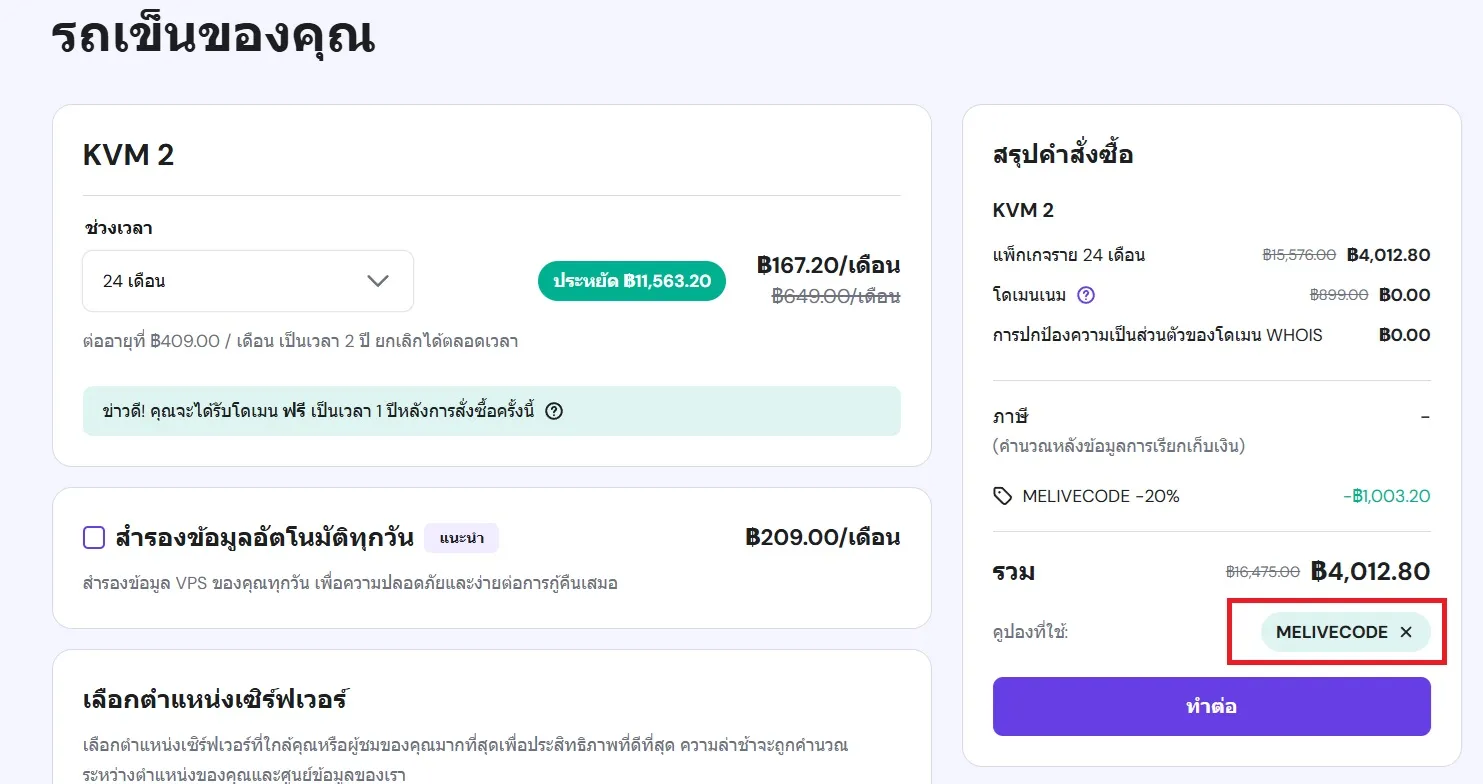
-
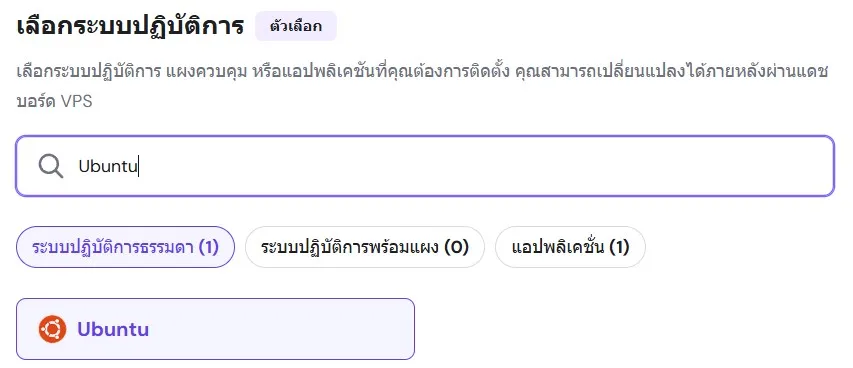
ในขั้นตอนการติดตั้งระบบปฏิบัติการ เลือก Ubuntu Linux
-
เมื่อสร้าง VPS เสร็จ จะได้ IP สาธารณะสำหรับผู้ใช้
root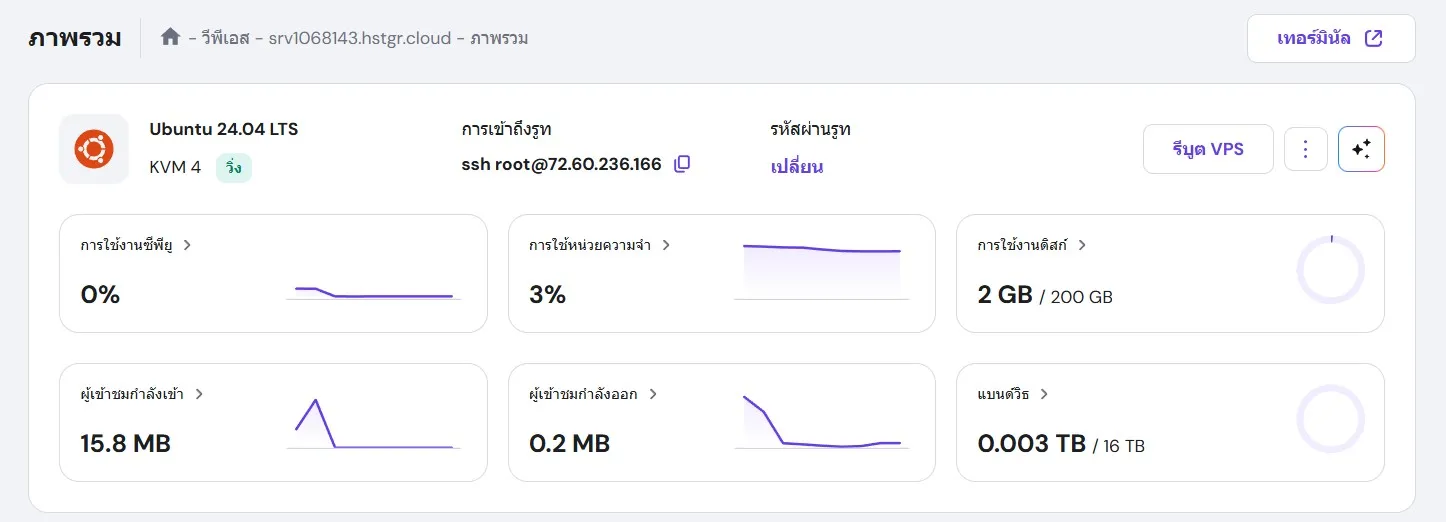
-
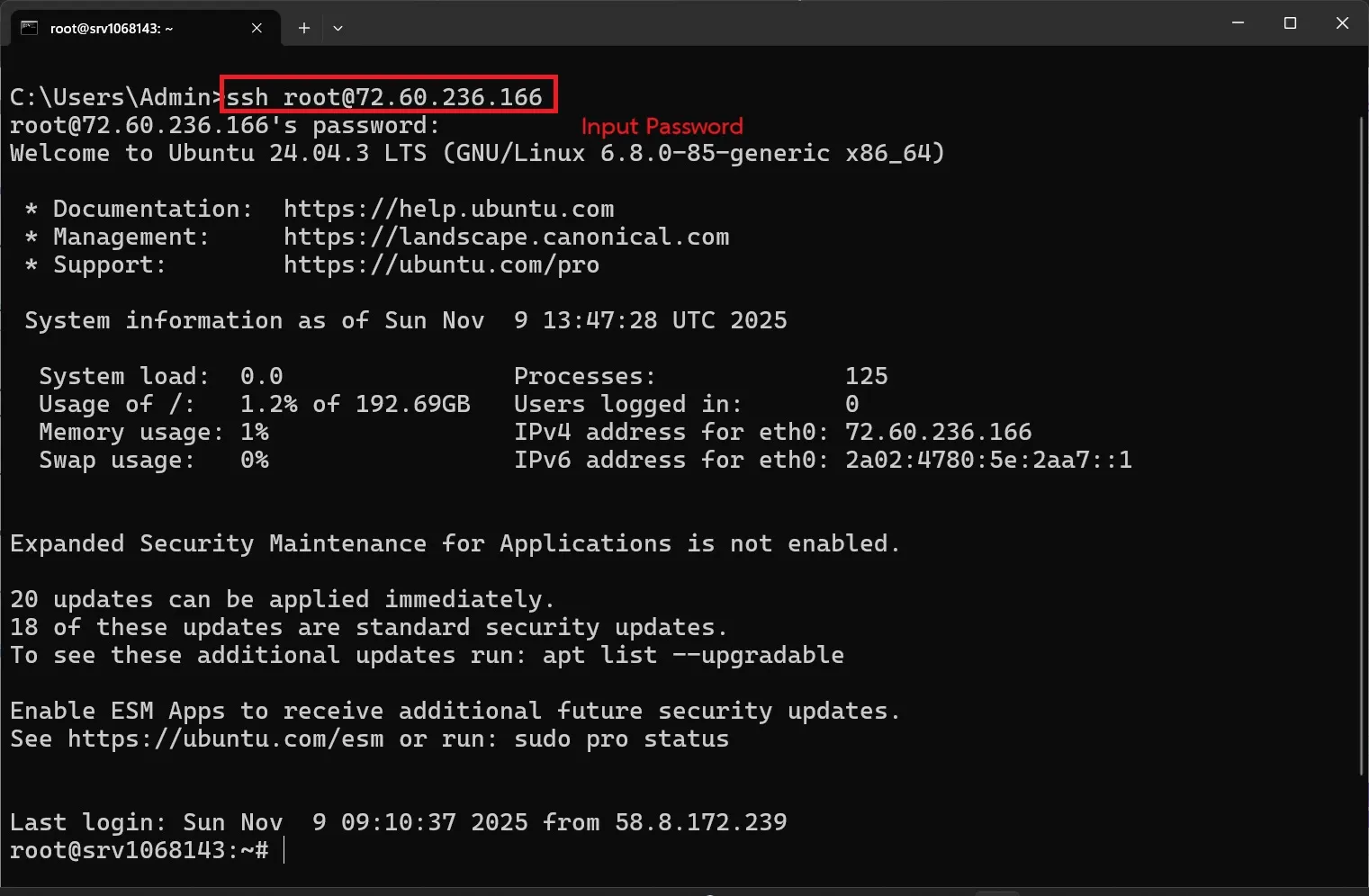
เปิด Command Prompt/Terminal แล้วเชื่อมต่อด้วยคำสั่ง ssh ด้วย
root
เชื่อมต่อเข้าเซิร์ฟเวอร์ผ่าน SSH Protocol
ssh <User>@<VPS_IP>ใส่รหัสผ่านเพื่อเข้าสู่เซิร์ฟเวอร์
1. วัตถุประสงค์#
บทความนี้:
- สร้างโปรเจกต์ Next.js พร้อม Prisma ORM และ MySQL/MariaDB
- พัฒนาหน้าเว็บและ API บน Local
- Dockerize แอปพลิเคชันด้วย Multi-stage Build
- ใช้ GitHub Actions ในการทำ CI/CD เพื่อ Automate Build และ Deploy ขึ้น Cloud VPS
- ใช้ GitHub Container Registry (ghcr.io) เก็บ Docker Image
2. CI/CD ด้วย GitHub Actions#
2.1 CI/CD คืออะไร?#
CI/CD คือกระบวนการอัตโนมัติสำหรับ Build, Test, Deploy โค้ด CI (Continuous Integration) = Build + Test อัตโนมัติทุกครั้งที่ Push โค้ด CD (Continuous Delivery/Deployment) = ปล่อยแอปใหม่ทุกครั้งที่โค้ดผ่าน CI
2.2 GitHub Actions คืออะไร?#
GitHub Actions คือบริการ CI/CD ในตัวของ GitHub ที่ช่วยให้เราสามารถ:
- สร้าง Workflow อัตโนมัติเมื่อมี Push, Pull Request หรือ Event อื่นๆ
- Build และ Test โค้ดอัตโนมัติ
- Deploy แอปพลิเคชันไปยัง Server หรือ Cloud
- ใช้งานร่วมกับ Docker, Kubernetes และบริการ Cloud ต่างๆ ได้
ข้อดีของ GitHub Actions:
- ✅ ฟรีสำหรับ Public Repository
- ✅ ไม่ต้องติดตั้ง Server แยก (ต่างจาก Jenkins)
- ✅ รวมอยู่ใน GitHub พร้อมใช้งานทันที
- ✅ มี Marketplace ที่มี Actions สำเร็จรูปมากมาย
3. สร้างโปรเจกต์ Next.js#
3.1 สร้างโปรเจกต์ใหม่#
สร้างโปรเจกต์ Next.js 16 และเข้าไปยังโฟลเดอร์โปรเจกต์
npx create-next-app@16.0.5 nextjs-github-action
cd nextjs-github-action3.2 ติดตั้ง Dependencies สำหรับ Prisma#
ติดตั้ง Prisma Client และ MariaDB Adapter สำหรับเชื่อมต่อฐานข้อมูล
npm install @prisma/client @prisma/adapter-mariadb dotenv
npm install prisma tsx @types/node --save-dev3.3 เริ่มต้น Prisma#
สร้างไฟล์ config ของ Prisma พร้อมกำหนด output path
npx prisma init --datasource-provider mysql --output ../app/generated/prisma4. ตั้งค่า Database และ Prisma#
4.1 สร้างไฟล์ .env#
สร้างไฟล์ .env ที่ root ของโปรเจกต์:
ตั้งค่าตัวแปรสำหรับเชื่อมต่อ MySQL บน Local (XAMPP)
DATABASE_URL="mysql://root:@localhost:3306/mydb"
DATABASE_USER="root"
DATABASE_PASSWORD=""
DATABASE_NAME="mydb"
DATABASE_HOST="localhost"
DATABASE_PORT=3306
4.2 แก้ไข Prisma Schema#
แก้ไขไฟล์ prisma/schema.prisma:
กำหนดโครงสร้างตาราง Attraction และ Like พร้อมความสัมพันธ์ One-to-Many
// This is your Prisma schema file,
// learn more about it in the docs: https://pris.ly/d/prisma-schema

generator client {
  provider = "prisma-client"
  output   = "../app/generated/prisma"
}

datasource db {
  provider = "mysql"
}

model Attraction {
  id         Int      @id @default(autoincrement())
  name       String   @db.VarChar(255)
  detail     String   @db.Text
  coverimage String   @db.Text
  latitude   Float
  longitude  Float
  createdAt  DateTime @default(now())
  likes      Like[]
}

model Like {
  id           Int        @id @default(autoincrement())
  createdAt    DateTime   @default(now())
  attractionId Int
  attraction   Attraction @relation(fields: [attractionId], references: [id], onDelete: Cascade)
}4.3 สร้าง Database บน phpMyAdmin#
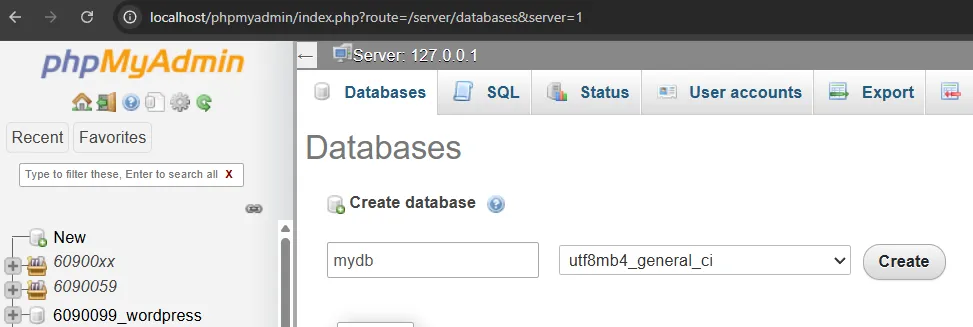
- เปิด XAMPP → Start Apache & MySQL
- เปิด phpMyAdmin:
http://localhost/phpmyadmin/ - สร้างฐานข้อมูลใหม่ชื่อ:
mydb
4.4 รัน Migration#
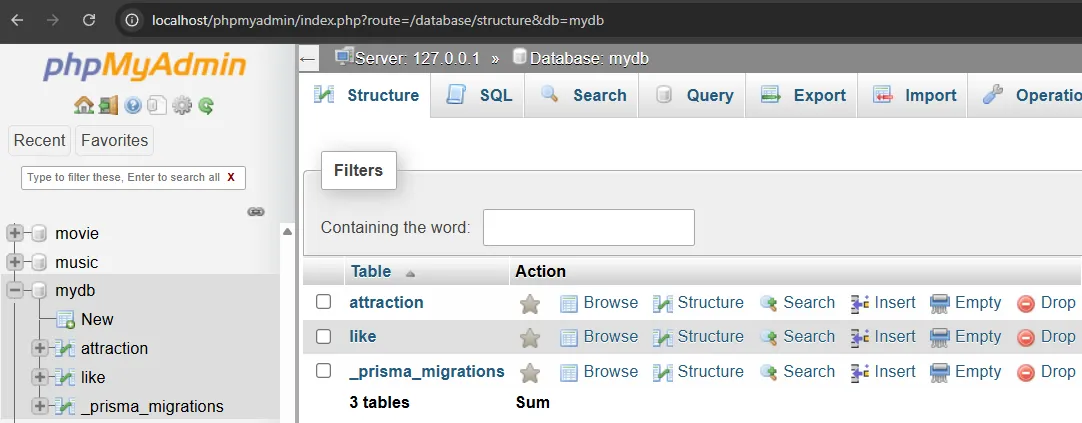
สร้างตารางในฐานข้อมูลตาม Schema ที่กำหนด
npx prisma migrate dev --name initตรวจสอบบน phpMyAdmin จะเห็นตาราง Attraction และ Like ถูกสร้างขึ้น
4.5 Generate Prisma Client#
สร้างไฟล์ Prisma Client สำหรับใช้งานใน TypeScript
npx prisma generate5. สร้าง Prisma Client Singleton#
5.1 สร้างไฟล์ lib/prisma.ts#
สร้างโฟลเดอร์ lib และไฟล์ lib/prisma.ts:
สร้าง Singleton Pattern ป้องกันการสร้าง Connection ซ้ำใน Development Mode
import { PrismaClient } from "../app/generated/prisma/client";
import { PrismaMariaDb } from "@prisma/adapter-mariadb";

const adapter = new PrismaMariaDb({
  host: process.env.DATABASE_HOST,
  port: Number(process.env.DATABASE_PORT) || 3306,
  user: process.env.DATABASE_USER,
  password: process.env.DATABASE_PASSWORD,
  database: process.env.DATABASE_NAME,
});

const globalForPrisma = globalThis as unknown as { prisma: PrismaClient };

export const prisma = globalForPrisma.prisma || new PrismaClient({ adapter });

if (process.env.NODE_ENV !== "production") globalForPrisma.prisma = prisma;

export default prisma;6. สร้าง Seed Data#
6.1 สร้างไฟล์ prisma/seed.ts#
สร้างข้อมูลตัวอย่างสถานที่ท่องเที่ยว 12 แห่งทั่วโลก พร้อมฟังก์ชัน upsert
import "dotenv/config";
import prisma from "../lib/prisma";

const attractions = [
  {
    id: 1,
    name: "Phi Phi Islands",
    detail:
      "Phi Phi Islands are a group of islands in Thailand between the large island of Phuket and the Malacca Coastal Strait of Thailand.",
    coverimage: "https://www.melivecode.com/attractions/1.jpg",
    latitude: 7.737619,
    longitude: 98.7068755,
  },
  {
    id: 2,
    name: "Eiffel Tower",
    detail:
      "Eiffel Tower is one of the most famous structures in the world. Eiffel Tower is named after a leading French architect and engineer. It was built as a symbol of the World Fair in 1889.",
    coverimage: "https://www.melivecode.com/attractions/2.jpg",
    latitude: 48.8583736,
    longitude: 2.2922926,
  },
  {
    id: 3,
    name: "Times Square",
    detail:
      "Times Square has become a global landmark and has become a symbol of New York City. This is a result of Times Square being a modern, futuristic venue, with huge advertising screens dotting its surroundings.",
    coverimage: "https://www.melivecode.com/attractions/3.jpg",
    latitude: 40.7589652,
    longitude: -73.9893574,
  },
  {
    id: 4,
    name: "Mount Fuji",
    detail:
      "Mount Fuji is the highest mountain in Japan, about 3,776 meters (12,388 feet) situated to the west of Tokyo. Mount Fuji can be seen from Tokyo on clear days.",
    coverimage: "https://www.melivecode.com/attractions/4.jpg",
    latitude: 35.3606422,
    longitude: 138.7186086,
  },
  {
    id: 5,
    name: "Big Ben",
    detail:
      "Westminster Palace Clock Tower which is most often referred to as Big Ben. This is actually the nickname for the largest bell that hangs in the vent above the clock face.",
    coverimage: "https://www.melivecode.com/attractions/5.jpg",
    latitude: 51.5007325,
    longitude: -0.1268141,
  },
  {
    id: 6,
    name: "Taj Mahal",
    detail:
      "The Taj Mahal or Tachomhal is a burial building made of ivory white marble. The Taj Mahal began to be built in 1632 and was completed in 1643.",
    coverimage: "https://www.melivecode.com/attractions/6.jpg",
    latitude: 27.1751496,
    longitude: 78.0399535,
  },
  {
    id: 7,
    name: "Stonehenge",
    detail:
      "Stonehenge is a monument prehistoric In the middle of a vast plain in the southern part of the British. The monument itself consists of 112 gigantic stone blocks arranged in 3 overlapping circles.",
    coverimage: "https://www.melivecode.com/attractions/7.jpg",
    latitude: 51.1788853,
    longitude: -1.8284037,
  },
  {
    id: 8,
    name: "Statue of Liberty",
    detail:
      "The Statue of Liberty is a colossal neoclassical sculpture on Liberty Island in New York Harbor in New York City, in the United States. The copper statue, a gift from the people of France to the people of the United States.",
    coverimage: "https://www.melivecode.com/attractions/8.jpg",
    latitude: 40.689167,
    longitude: -74.044444,
  },
  {
    id: 9,
    name: "Sydney Opera House",
    detail:
      "The Sydney Opera House is a multi-venue performing arts centre in Sydney. Located on the banks of the Sydney Harbour, it is often regarded as one of the most famous and distinctive buildings and a masterpiece of 20th century architecture.",
    coverimage: "https://www.melivecode.com/attractions/9.jpg",
    latitude: -33.858611,
    longitude: 151.214167,
  },
  {
    id: 10,
    name: "Great Pyramid of Giza",
    detail:
      "The Great Pyramid of Giza is the oldest and largest of the pyramids in the Giza pyramid complex bordering present-day Giza in Greater Cairo, Egypt. It is the oldest of the Seven Wonders of the Ancient World, and the only one to remain largely intact.",
    coverimage: "https://www.melivecode.com/attractions/10.jpg",
    latitude: 29.979167,
    longitude: 31.134167,
  },
  {
    id: 11,
    name: "Hollywood Sign",
    detail:
      "The Hollywood Sign is an American landmark and cultural icon overlooking Hollywood, Los Angeles, California. It is situated on Mount Lee, in the Beachwood Canyon area of the Santa Monica Mountains. Spelling out the word Hollywood in 45 ft (13.7 m)-tall white capital letters and 350 feet (106.7 m) long.",
    coverimage: "https://www.melivecode.com/attractions/11.jpg",
    latitude: 34.134061,
    longitude: -118.321592,
  },
  {
    id: 12,
    name: "Wat Phra Kaew",
    detail:
      "Wat Phra Kaew, commonly known in English as the Temple of the Emerald Buddha and officially as Wat Phra Si Rattana Satsadaram, is regarded as the most sacred Buddhist temple in Thailand. The complex consists of a number of buildings within the precincts of the Grand Palace in the historical centre of Bangkok.",
    coverimage: "https://www.melivecode.com/attractions/12.jpg",
    latitude: 13.751389,
    longitude: 100.4925,
  },
];

async function main() {
  console.log("Start seeding...");

  for (const attraction of attractions) {
    const result = await prisma.attraction.upsert({
      where: { id: attraction.id },
      update: {},
      create: attraction,
    });
    console.log(`Created attraction: ${result.name}`);
  }

  console.log("Seeding finished.");
}

main()
  .then(async () => {
    await prisma.$disconnect();
  })
  .catch(async (e) => {
    console.error(e);
    await prisma.$disconnect();
    process.exit(1);
});6.2 สร้างไฟล์ prisma.config.ts#
สร้างไฟล์ prisma.config.ts ที่ root:
กำหนด config สำหรับ Prisma รวมถึงคำสั่ง seed
import "dotenv/config";
import { defineConfig, env } from "prisma/config";

export default defineConfig({
  schema: "prisma/schema.prisma",
  migrations: {
    path: "prisma/migrations",
    seed: "npx tsx prisma/seed.ts",
  },
  datasource: {
    url: env("DATABASE_URL"),
  },
});6.3 รัน Seed#
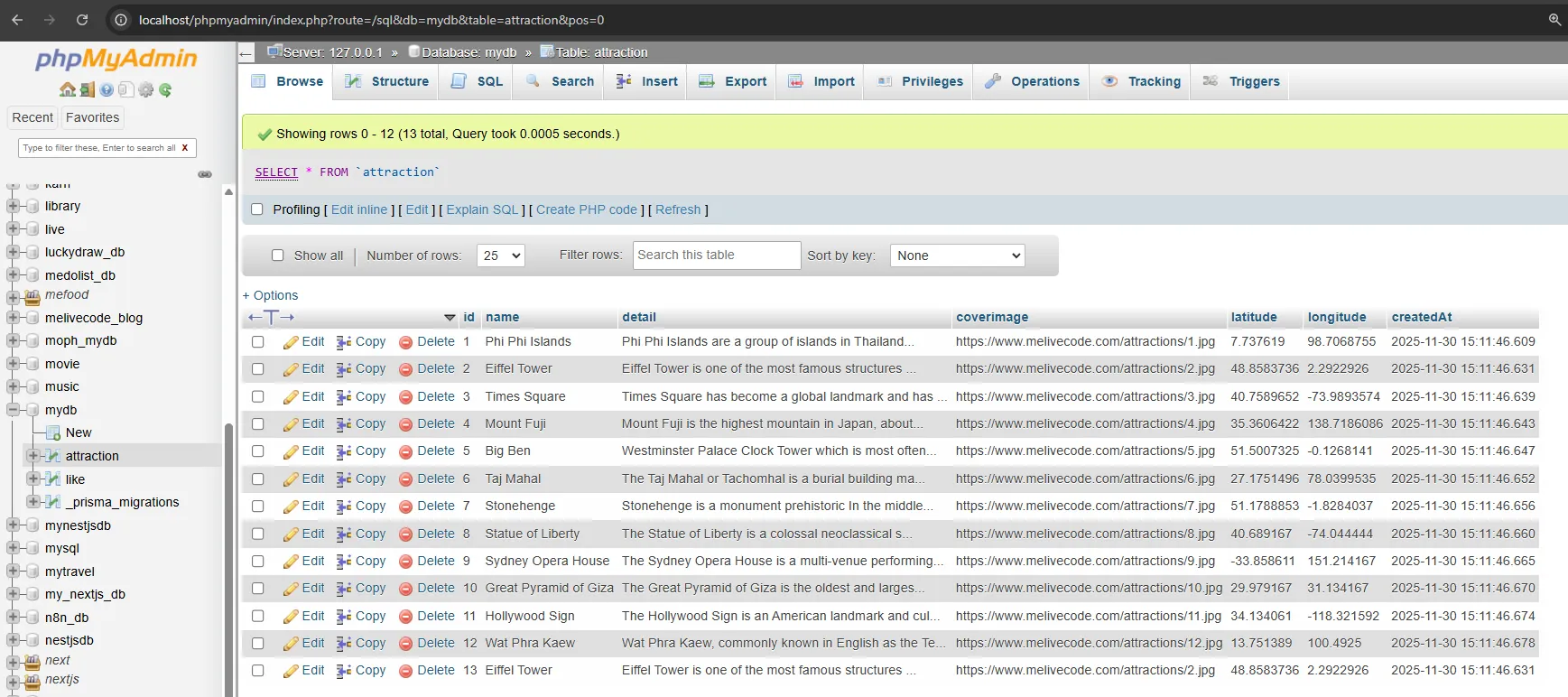
Generate Client และรันคำสั่ง seed เพื่อเพิ่มข้อมูลตัวอย่าง
npx prisma generate
npx prisma db seedตรวจสอบบน phpMyAdmin จะเห็นข้อมูล 12 รายการในตาราง Attraction
7. พัฒนาหน้าเว็บและ API#
7.1 แก้ไข next.config.ts#
เปิดใช้ standalone mode สำหรับ Docker และอนุญาตโหลดรูปจาก melivecode.com
import type { NextConfig } from "next";

const nextConfig: NextConfig = {
  output: "standalone",
  images: {
    remotePatterns: [
      {
        protocol: "https",
        hostname: "www.melivecode.com",
      },
    ],
  },
};

export default nextConfig;7.2 สร้างหน้า Home (app/page.tsx)#
หน้าแสดงรายการสถานที่ท่องเที่ยวทั้งหมดแบบ Grid พร้อมจำนวน Like
import Image from "next/image";
import Link from "next/link";
import prisma from "@/lib/prisma";

export const revalidate = 0;

export default async function Home() {
  const attractions = await prisma.attraction.findMany({
    orderBy: { id: "asc" },
    include: { _count: { select: { likes: true } } },
  });

  return (
    <div className="min-h-screen bg-zinc-50 dark:bg-zinc-950">
      <div className="mx-auto max-w-7xl px-4 py-12 sm:px-6 lg:px-8">
        <h1 className="mb-8 text-3xl font-bold text-zinc-900 dark:text-zinc-50">
          Attractions
        </h1>

        <div className="grid grid-cols-1 gap-6 sm:grid-cols-2 lg:grid-cols-3">
          {attractions.map((attraction) => (
            <Link
              key={attraction.id}
              href={`/attractions/${attraction.id}`}
              className="group overflow-hidden rounded-xl bg-white shadow-md transition-shadow hover:shadow-lg dark:bg-zinc-900"
            >
              <div className="relative h-48 w-full overflow-hidden">
                <Image
                  src={attraction.coverimage}
                  alt={attraction.name}
                  fill
                  className="object-cover transition-transform group-hover:scale-105"
                />
              </div>
              <div className="p-4">
                <h2 className="mb-2 text-xl font-semibold text-zinc-900 dark:text-zinc-50">
                  {attraction.name}
                </h2>
                <p className="line-clamp-2 text-sm text-zinc-600 dark:text-zinc-400">
                  {attraction.detail}
                </p>
                <div className="mt-3 flex items-center gap-1 text-sm text-pink-600 dark:text-pink-400">
                  <svg className="h-4 w-4" fill="currentColor" viewBox="0 0 24 24">
                    <path d="M12 21.35l-1.45-1.32C5.4 15.36 2 12.28 2 8.5 2 5.42 4.42 3 7.5 3c1.74 0 3.41.81 4.5 2.09C13.09 3.81 14.76 3 16.5 3 19.58 3 22 5.42 22 8.5c0 3.78-3.4 6.86-8.55 11.54L12 21.35z" />
                  </svg>
                  <span>{attraction._count.likes}</span>
                </div>
              </div>
            </Link>
          ))}
        </div>

        {attractions.length === 0 && (
          <p className="text-center text-zinc-500">No attractions found.</p>
        )}
      </div>
    </div>
  );
}7.3 สร้างหน้า Detail (app/attractions/[id]/page.tsx)#
สร้างโฟลเดอร์ app/attractions/[id] และไฟล์ page.tsx:
หน้ารายละเอียดสถานที่พร้อมปุ่ม Like และลิงก์ Google Maps
import Image from "next/image";
import Link from "next/link";
import { notFound } from "next/navigation";
import prisma from "@/lib/prisma";
import LikeButton from "@/app/components/LikeButton";

export const revalidate = 0;

interface Props {
  params: Promise<{ id: string }>;
}

export default async function AttractionDetailPage({ params }: Props) {
  const { id } = await params;
  const attraction = await prisma.attraction.findUnique({
    where: { id: Number(id) },
    include: { _count: { select: { likes: true } } },
  });

  if (!attraction) {
    notFound();
  }

  return (
    <div className="min-h-screen bg-zinc-50 dark:bg-zinc-950">
      <div className="mx-auto max-w-4xl px-4 py-12 sm:px-6 lg:px-8">
        <Link
          href="/"
          className="mb-6 inline-flex items-center text-sm text-zinc-600 hover:text-zinc-900 dark:text-zinc-400 dark:hover:text-zinc-50"
        >
          <svg
            className="mr-2 h-4 w-4"
            fill="none"
            stroke="currentColor"
            viewBox="0 0 24 24"
          >
            <path
              strokeLinecap="round"
              strokeLinejoin="round"
              strokeWidth={2}
              d="M15 19l-7-7 7-7"
            />
          </svg>
          Back to Attractions
        </Link>

        <div className="overflow-hidden rounded-xl bg-white shadow-lg dark:bg-zinc-900">
          <div className="relative h-64 w-full sm:h-96">
            <Image
              src={attraction.coverimage}
              alt={attraction.name}
              fill
              className="object-cover"
              priority
            />
          </div>

          <div className="p-6 sm:p-8">
            <h1 className="mb-4 text-3xl font-bold text-zinc-900 dark:text-zinc-50">
              {attraction.name}
            </h1>

            <p className="mb-6 text-lg leading-relaxed text-zinc-600 dark:text-zinc-400">
              {attraction.detail}
            </p>

            <div className="flex flex-wrap gap-4 border-t border-zinc-200 pt-6 dark:border-zinc-800">
              <div className="flex items-center gap-2 text-sm text-zinc-500 dark:text-zinc-400">
                <svg
                  className="h-5 w-5"
                  fill="none"
                  stroke="currentColor"
                  viewBox="0 0 24 24"
                >
                  <path
                    strokeLinecap="round"
                    strokeLinejoin="round"
                    strokeWidth={2}
                    d="M17.657 16.657L13.414 20.9a1.998 1.998 0 01-2.827 0l-4.244-4.243a8 8 0 1111.314 0z"
                  />
                  <path
                    strokeLinecap="round"
                    strokeLinejoin="round"
                    strokeWidth={2}
                    d="M15 11a3 3 0 11-6 0 3 3 0 016 0z"
                  />
                </svg>
                <span>
                  {attraction.latitude.toFixed(6)}, {attraction.longitude.toFixed(6)}
                </span>
              </div>

              <a
                href={`https://www.google.com/maps?q=${attraction.latitude},${attraction.longitude}`}
                target="_blank"
                rel="noopener noreferrer"
                className="inline-flex items-center gap-2 rounded-lg bg-blue-600 px-4 py-2 text-sm font-medium text-white transition-colors hover:bg-blue-700"
              >
                View on Google Maps
              </a>

              <LikeButton
                attractionId={attraction.id}
                initialLikes={attraction._count.likes}
              />
            </div>
          </div>
        </div>
      </div>
    </div>
  );
}7.4 สร้าง LikeButton Component (app/components/LikeButton.tsx)#
สร้างโฟลเดอร์ app/components และไฟล์ LikeButton.tsx:
Client Component สำหรับกดปุ่ม Like พร้อม Loading State
"use client";

import { useState } from "react";

interface LikeButtonProps {
  attractionId: number;
  initialLikes: number;
}

export default function LikeButton({
  attractionId,
  initialLikes,
}: LikeButtonProps) {
  const [likes, setLikes] = useState(initialLikes);
  const [isLoading, setIsLoading] = useState(false);

  const handleLike = async () => {
    setIsLoading(true);
    try {
      const res = await fetch(`/api/attractions/${attractionId}/like`, {
        method: "POST",
      });
      if (res.ok) {
        const data = await res.json();
        setLikes(data.likes);
      }
    } catch (error) {
      console.error("Failed to like:", error);
    } finally {
      setIsLoading(false);
    }
  };

  return (
    <button
      onClick={handleLike}
      disabled={isLoading}
      className="inline-flex items-center gap-2 rounded-lg bg-pink-600 px-4 py-2 text-sm font-medium text-white transition-colors hover:bg-pink-700 disabled:opacity-50"
    >
      <svg
        className="h-5 w-5"
        fill="currentColor"
        viewBox="0 0 24 24"
      >
        <path d="M12 21.35l-1.45-1.32C5.4 15.36 2 12.28 2 8.5 2 5.42 4.42 3 7.5 3c1.74 0 3.41.81 4.5 2.09C13.09 3.81 14.76 3 16.5 3 19.58 3 22 5.42 22 8.5c0 3.78-3.4 6.86-8.55 11.54L12 21.35z" />
      </svg>
      <span>{likes}</span>
    </button>
  );
}7.5 สร้าง Like API (app/api/attractions/[id]/like/route.ts)#
สร้างโฟลเดอร์ app/api/attractions/[id]/like และไฟล์ route.ts:
API Route สำหรับดึงและเพิ่มจำนวน Like ของสถานที่
import { NextRequest, NextResponse } from "next/server";
import prisma from "@/lib/prisma";

interface Params {
  params: Promise<{ id: string }>;
}

export async function GET(request: NextRequest, { params }: Params) {
  const { id } = await params;
  const attractionId = Number(id);

  if (isNaN(attractionId)) {
    return NextResponse.json({ error: "Invalid ID" }, { status: 400 });
  }

  const count = await prisma.like.count({
    where: { attractionId },
  });

  return NextResponse.json({ likes: count });
}

export async function POST(request: NextRequest, { params }: Params) {
  const { id } = await params;
  const attractionId = Number(id);

  if (isNaN(attractionId)) {
    return NextResponse.json({ error: "Invalid ID" }, { status: 400 });
  }

  await prisma.like.create({
    data: { attractionId },
  });

  const count = await prisma.like.count({
    where: { attractionId },
  });

  return NextResponse.json({ likes: count });
}7.6 ทดสอบบน Local#
เปิด Development Server เพื่อทดสอบแอปพลิเคชัน
npm run devเปิด Browser: http://localhost:3000
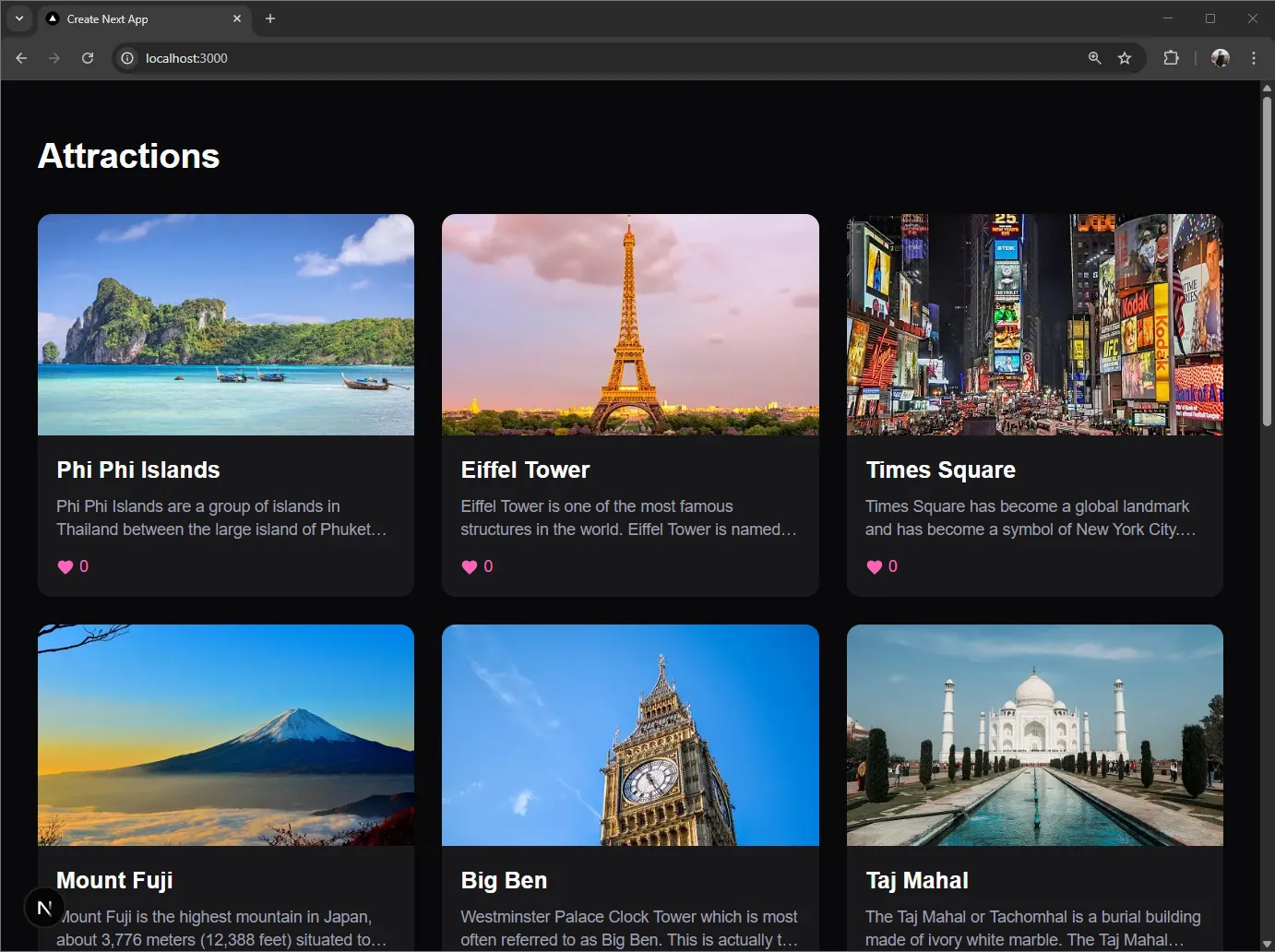
8. Push to GitHub#
8.1 สร้าง Repository บน GitHub#
- ไปที่ GitHub → New Repository
- ตั้งชื่อ:
nextjs-github-action - เลือก Public
8.2 Push Code#
เริ่มต้น Git Repository และ Push ขึ้น GitHub
git init
git add .
git commit -m "Initial commit"
git branch -M main
git remote add origin https://github.com/<username>/nextjs-github-action.git
git push -u origin main9. ตั้งค่า GitHub Secrets#
9.1 สร้าง SSH Key บน Server#
SSH เข้า VPS แล้วรันคำสั่ง:
สร้าง SSH Key สำหรับให้ GitHub Actions เชื่อมต่อเซิร์ฟเวอร์ได้อัตโนมัติ
# 1. Generate SSH key pair
ssh-keygen -t ed25519 -C "github-actions"
# Press Enter for default location (~/.ssh/id_ed25519)
# Press Enter for no passphrase (required for automation)

# 2. Add public key to authorized_keys
cat ~/.ssh/id_ed25519.pub >> ~/.ssh/authorized_keys
chmod 600 ~/.ssh/authorized_keys

# 3. Get the private key (copy this to GitHub secret)
cat ~/.ssh/id_ed25519Copy ทั้งหมดรวมถึง:
-----BEGIN OPENSSH PRIVATE KEY-----
...
-----END OPENSSH PRIVATE KEY-----
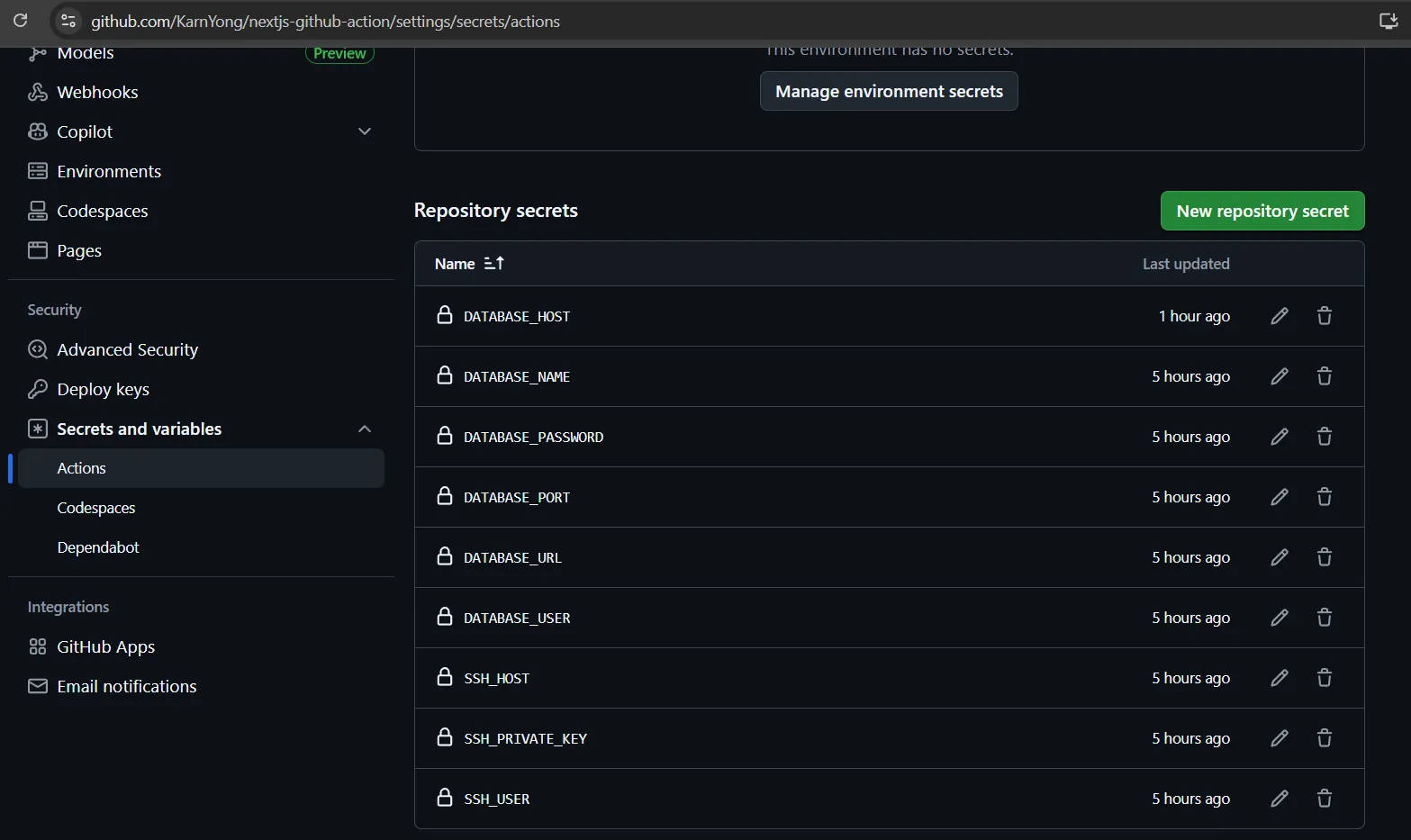
9.2 เพิ่ม Secrets ใน GitHub#
ไปที่ Repository → Settings → Secrets and variables → Actions → New repository secret
| Secret Name | ค่า |
|---|---|
SSH_HOST | 72.60.236.166 (IP ของ VPS) |
SSH_USER | root |
SSH_PRIVATE_KEY | -----BEGIN OPENSSH PRIVATE KEY-----... |
DATABASE_HOST | 72.60.236.166 |
DATABASE_PORT | 3306 |
DATABASE_USER | app_user |
DATABASE_PASSWORD | secure_password |
DATABASE_NAME | attractions |
10. ตั้งค่า Database บน Server#
10.1 ติดตั้ง Docker บน Ubuntu#
ติดตั้ง Docker Engine พร้อม Compose Plugin จาก Official Repository
# Add Docker's official GPG key:
sudo apt update
sudo apt install ca-certificates curl
sudo install -m 0755 -d /etc/apt/keyrings
sudo curl -fsSL https://download.docker.com/linux/ubuntu/gpg -o /etc/apt/keyrings/docker.asc
sudo chmod a+r /etc/apt/keyrings/docker.asc

# Add the repository to Apt sources:
sudo tee /etc/apt/sources.list.d/docker.sources <<EOF
Types: deb
URIs: https://download.docker.com/linux/ubuntu
Suites: $(. /etc/os-release && echo "${UBUNTU_CODENAME:-$VERSION_CODENAME}")
Components: stable
Signed-By: /etc/apt/keyrings/docker.asc
EOF

sudo apt update
sudo apt install docker-ce docker-ce-cli containerd.io docker-buildx-plugin docker-compose-plugin10.2 สร้างไฟล์ docker-compose.yml บน Server#
สร้างโฟลเดอร์และเปิดไฟล์ docker-compose.yml
mkdir ~/database
cd ~/database
nano docker-compose.ymlใส่เนื้อหา:
รัน MariaDB และ phpMyAdmin ด้วย Docker Compose พร้อม Volume สำหรับเก็บข้อมูล
services:
  db:
    image: mariadb:10.11
    ports:
      - "3306:3306"
    environment:
      - MYSQL_ROOT_PASSWORD=${DATABASE_PASSWORD}
      - MYSQL_DATABASE=${DATABASE_NAME}
      - MYSQL_USER=${DATABASE_USER}
      - MYSQL_PASSWORD=${DATABASE_PASSWORD}
    volumes:
      - db_data:/var/lib/mysql
    restart: unless-stopped

  phpmyadmin:
    image: phpmyadmin:latest
    ports:
      - "8080:80"
    environment:
      - PMA_HOST=db
    depends_on:
      - db
    restart: unless-stopped

volumes:
db_data:10.3 สร้างไฟล์ .env บน Server#
เปิดไฟล์ .env เพื่อตั้งค่าตัวแปร
nano .envใส่เนื้อหา:
ตั้งค่า credentials สำหรับฐานข้อมูลบน Production
DATABASE_USER=app_user
DATABASE_PASSWORD=secure_password
DATABASE_NAME=attractions
10.4 รัน Database#
เริ่มต้น Container ฐานข้อมูลแบบ Background
docker compose up -d10.5 Migrate Database จาก Local#
กลับมาที่ Local Machine สร้างไฟล์ .env.production:
ตั้งค่าตัวแปรสำหรับเชื่อมต่อฐานข้อมูลบน Server จาก Local
DATABASE_URL="mysql://app_user:secure_password@72.60.236.166:3306/attractions"
DATABASE_USER="app_user"
DATABASE_PASSWORD="secure_password"
DATABASE_NAME="attractions"
DATABASE_HOST="72.60.236.166"
DATABASE_PORT=3306
เพิ่ม scripts ใน package.json:
เพิ่มคำสั่งสำหรับรัน Prisma กับฐานข้อมูล Production
{
  "scripts": {
    "db:push:prod": "npx dotenv-cli -e .env.production -- prisma db push",
    "db:seed:prod": "npx dotenv-cli -e .env.production -- prisma db seed",
    "db:studio:prod": "npx dotenv-cli -e .env.production -- prisma studio"
  }
}ติดตั้ง dotenv-cli:
ติดตั้ง CLI สำหรับโหลดไฟล์ .env ต่างๆ
npm install dotenv-cli --save-devรัน Migration และ Seed:
Push Schema และ Seed ข้อมูลไปยังฐานข้อมูล Production
npm run db:push:prod
npm run db:seed:prodตรวจสอบข้อมูลที่ Seed Data บน VPS ด้วย phpMyAdmin: http://<VPS_IP>:8080/ ด้วย account app_user/secure_password
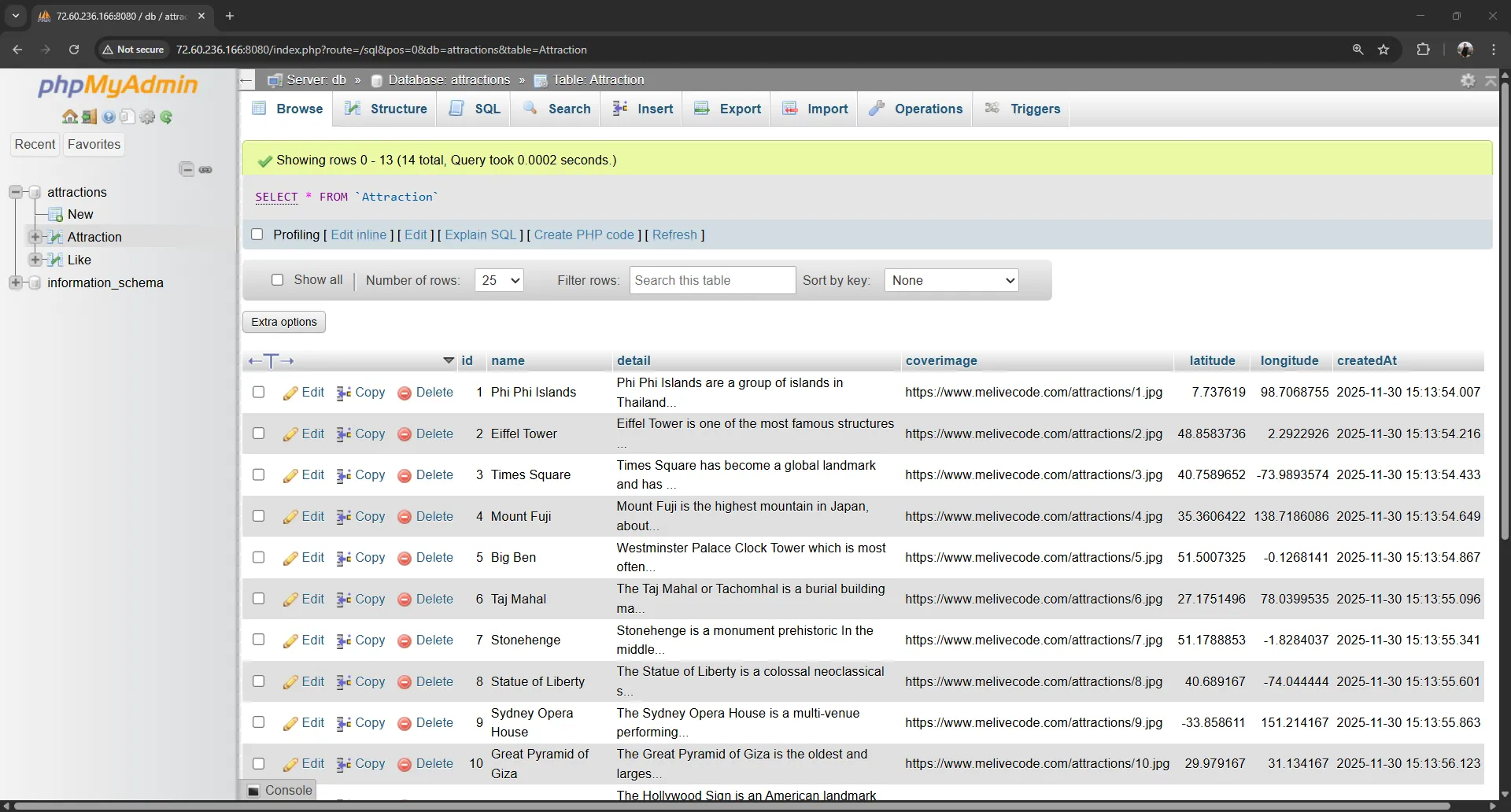
11. สร้าง Dockerfile#
กลับมาที่โปรเจค สร้างไฟล์ Dockerfile ที่ root:
Multi-stage Build: แบ่งเป็น deps → builder → runner เพื่อลดขนาด Image
FROM node:20-alpine AS base

# Install dependencies only when needed
FROM base AS deps
RUN apk add --no-cache libc6-compat
WORKDIR /app

COPY package.json package-lock.json ./
RUN npm ci

# Rebuild the source code only when needed
FROM base AS builder
WORKDIR /app
COPY --from=deps /app/node_modules ./node_modules
COPY . .

# Dummy env vars for build (pages rendered at runtime with revalidate=0)
ENV DATABASE_URL="mysql://user:pass@localhost:3306/db"
ENV DATABASE_HOST="localhost"
ENV DATABASE_PORT="3306"
ENV DATABASE_USER="user"
ENV DATABASE_PASSWORD="pass"
ENV DATABASE_NAME="db"

# Generate Prisma Client
RUN npx prisma generate

ENV NEXT_TELEMETRY_DISABLED=1

RUN npm run build

# Production image, copy all the files and run next
FROM base AS runner
WORKDIR /app

ENV NODE_ENV=production
ENV NEXT_TELEMETRY_DISABLED=1

RUN addgroup --system --gid 1001 nodejs
RUN adduser --system --uid 1001 nextjs

COPY --from=builder /app/public ./public

# Set the correct permission for prerender cache
RUN mkdir .next
RUN chown nextjs:nodejs .next

# Automatically leverage output traces to reduce image size
COPY --from=builder --chown=nextjs:nodejs /app/.next/standalone ./
COPY --from=builder --chown=nextjs:nodejs /app/.next/static ./.next/static

USER nextjs

EXPOSE 3000

ENV PORT=3000
ENV HOSTNAME="0.0.0.0"

CMD ["node", "server.js"]12. สร้าง GitHub Actions Workflow#
12.1 สร้างไฟล์ .github/workflows/deploy.yml#
Workflow สำหรับ Build Docker Image, Push ไป ghcr.io และ Deploy ผ่าน SSH
name: Build and Deploy

on:
  push:
    branches: [main, master]
  pull_request:
    branches: [main, master]

env:
  REGISTRY: ghcr.io

jobs:
  build:
    runs-on: ubuntu-latest

    permissions:
      contents: read
      packages: write

    outputs:
      image_name: ${{ steps.lowercase.outputs.image_name }}

    steps:
      - name: Checkout repository
        uses: actions/checkout@v4

      - name: Set lowercase image name
        id: lowercase
        run: echo "image_name=$(echo '${{ github.repository }}' | tr '[:upper:]' '[:lower:]')" >> $GITHUB_OUTPUT

      - name: Log in to Container Registry
        uses: docker/login-action@v3
        with:
          registry: ${{ env.REGISTRY }}
          username: ${{ github.actor }}
          password: ${{ secrets.GITHUB_TOKEN }}

      - name: Extract metadata for Docker
        id: meta
        uses: docker/metadata-action@v5
        with:
          images: ${{ env.REGISTRY }}/${{ steps.lowercase.outputs.image_name }}
          tags: |
            type=ref,event=branch
            type=sha,prefix=

      - name: Build and push Docker image
        uses: docker/build-push-action@v5
        with:
          context: .
          push: ${{ github.event_name == 'push' }}
          tags: ${{ steps.meta.outputs.tags }}
          labels: ${{ steps.meta.outputs.labels }}

  deploy:
    needs: build
    runs-on: ubuntu-latest
    if: github.event_name == 'push'

    steps:
      - name: Deploy to server via SSH
        uses: appleboy/ssh-action@v1.0.3
        with:
          host: ${{ secrets.SSH_HOST }}
          username: ${{ secrets.SSH_USER }}
          key: ${{ secrets.SSH_PRIVATE_KEY }}
          script: |
            docker pull ${{ env.REGISTRY }}/${{ needs.build.outputs.image_name }}:${{ github.ref_name }}
            docker stop nextjs-app || true
            docker rm nextjs-app || true
            docker run -d \
              --name nextjs-app \
              --restart unless-stopped \
              -p 3000:3000 \
              -e DATABASE_HOST=${{ secrets.DATABASE_HOST }} \
              -e DATABASE_PORT=${{ secrets.DATABASE_PORT }} \
              -e DATABASE_USER=${{ secrets.DATABASE_USER }} \
              -e DATABASE_PASSWORD=${{ secrets.DATABASE_PASSWORD }} \
              -e DATABASE_NAME=${{ secrets.DATABASE_NAME }} \
              -e DATABASE_URL=mysql://${{ secrets.DATABASE_USER }}:${{ secrets.DATABASE_PASSWORD }}@${{ secrets.DATABASE_HOST }}:${{ secrets.DATABASE_PORT }}/${{ secrets.DATABASE_NAME }} \
${{ env.REGISTRY }}/${{ needs.build.outputs.image_name }}:${{ github.ref_name }}12.2 Push และทดสอบ#
Commit และ Push เพื่อ Trigger Workflow อัตโนมัติ
git add .
git commit -m "Add GitHub Actions CI/CD"
git push origin mainไปที่ GitHub Repository → Actions เพื่อดู Workflow ทำงาน
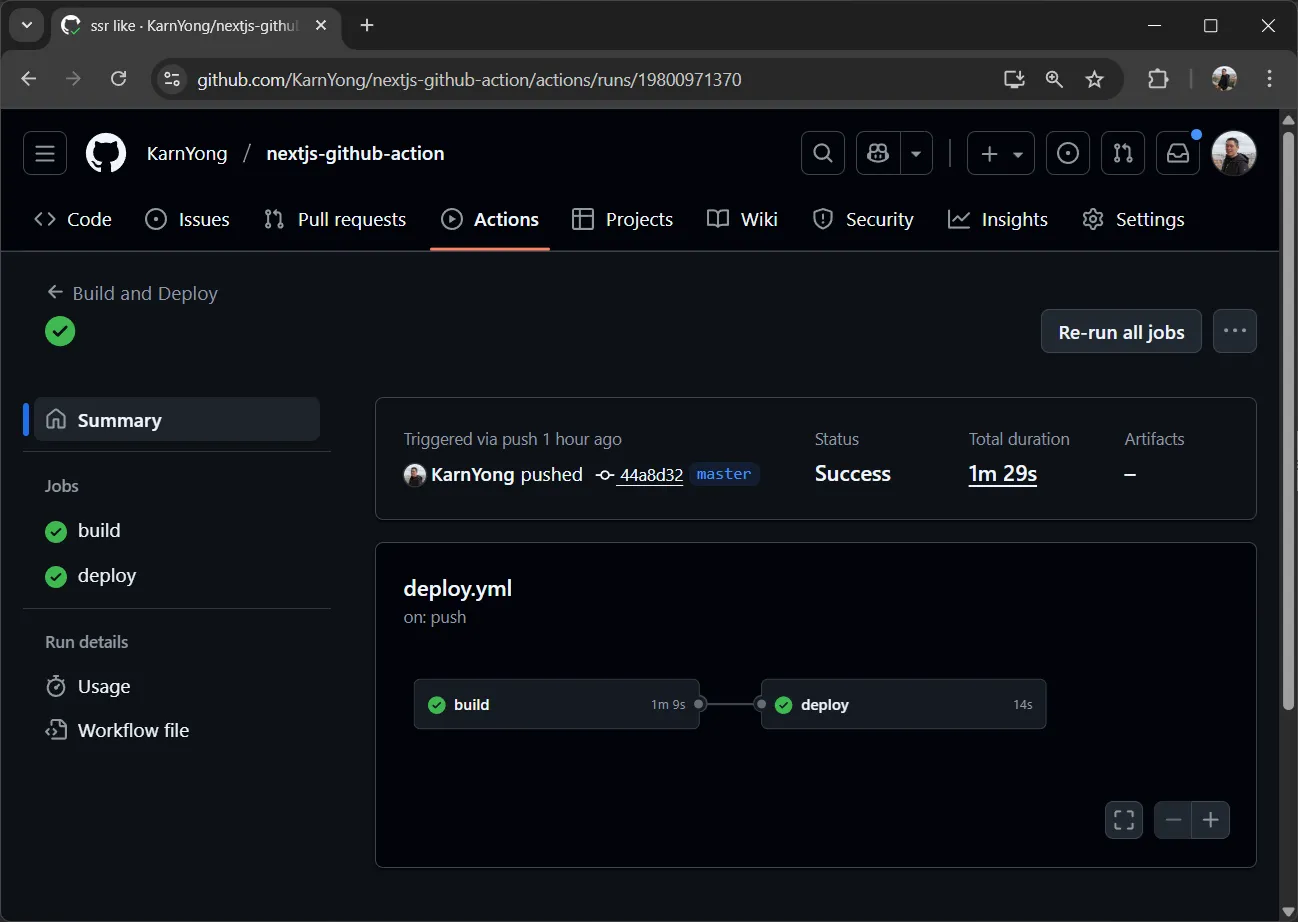
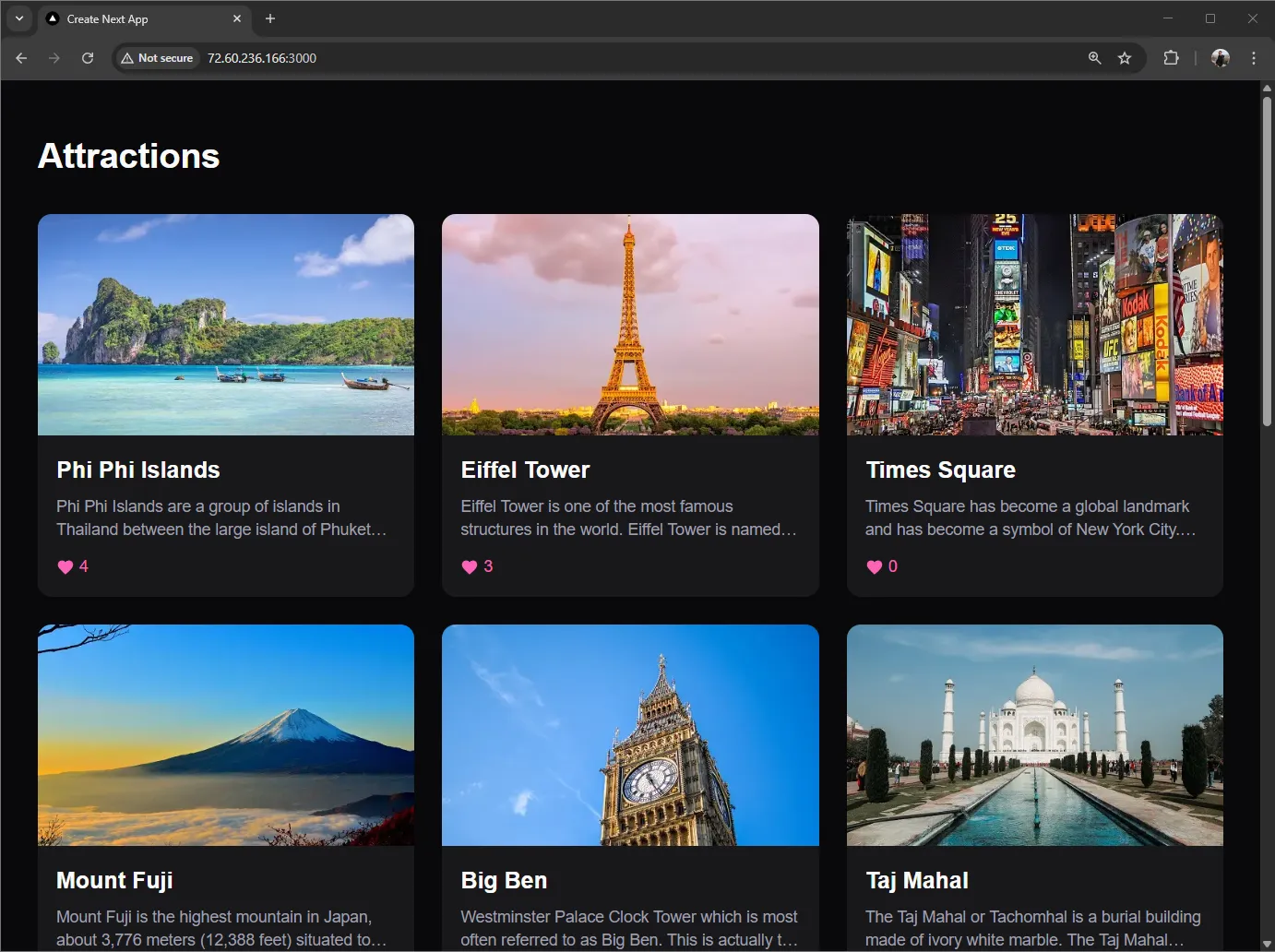
13. ทดสอบแอปพลิเคชัน#
เปิด Browser:
- Frontend:
http://<VPS_IP>:3000/ - phpMyAdmin:
http://<VPS_IP>:8080/
14. สรุป#
| หัวข้อ | เทคโนโลยี |
|---|---|
| Frontend | Next.js 16 + TypeScript |
| ORM | Prisma 7 + MariaDB Adapter |
| Database | MySQL/MariaDB |
| Container | Docker (Multi-stage Build) |
| Registry | GitHub Container Registry (ghcr.io) |
| CI/CD | GitHub Actions |
| Deploy | SSH + Docker |
Flow การทำงาน:
Developer Push Code
        ↓
GitHub Actions Trigger
        ↓
Build Docker Image → Push to ghcr.io
        ↓
SSH to VPS → Pull & Run Container
        ↓
✅ Application Updated!
🎉 ยินดีด้วย! ตอนนี้คุณมีระบบ CI/CD อัตโนมัติที่ทุกครั้งที่ Push Code จะ Build และ Deploy อัตโนมัติ!