
Build Full-Stack Apps with Claude Code (GLM), ORM
Build a full-stack app with Claude Code (GLM), Next.js 15 App Router, TypeScript, Prisma, and MySQL - all in one project!
1. Introduction#
Building a full-stack application used to take weeks of coding. Today, with AI tools like Claude Code, you can build a complete application in hours.
This tutorial will show you how to:
- Install and configure Claude Code with GLM
- Design the system with roles (admin/customer) and RBAC
- Build the app incrementally with 3 prompts — user management, products & orders, customer storefront
- Use Prisma migrations to evolve your database schema
- Set up a local database with CAMPP (MySQL)
What we’ll build: A full-stack E-Commerce application with:
- Backend API: Next.js App Router route handlers (Customers, Products, Orders with transaction support)
- Frontend: Next.js 15 with TypeScript and Tailwind CSS for managing the e-commerce data
- Database: Prisma ORM with MySQL for type-safe database access
- Everything in a single Next.js project with TypeScript!
2. System Design#
Before writing any code, let’s design the system. This helps Claude Code understand the big picture and generate better code.
Roles (RBAC)#
- admin — can manage everything (users, products, orders) via the admin panel at
/admin - customer — can browse products and place orders via the storefront
Admin Panel (/admin)#
Pages:
- Dashboard — overview
- Users — manage customer accounts (full CRUD)
- Products — manage product catalog (full CRUD)
- Orders — manage all orders (full CRUD)
Customer Storefront (public)#
Pages:
- Home — landing page
- Products — browse product catalog
- Product Detail — view single product
- Cart — shopping cart with quantity controls and checkout
- Orders — customer’s own order history (requires login)
Database Models#
- User — single model with role field (admin/customer)
- Product — product catalog
- CartItem — products added to cart before checkout
- Order — orders with relation to User and OrderItems
- OrderItem — individual items within an order
API Routes#
/api/auth/*— authentication (login, register)/api/customers/*— admin manages users (CRUD)/api/products/*— admin manages products (CRUD)/api/cart/*— customer shopping cart (CRUD)/api/store/products— public product listing/api/store/checkout— customer checkout (cart → order)/api/orders/*— admin manages orders (CRUD)
Note: We are not focusing on the design or prettiness of the app yet. The goal is to build a working system with proper functionality first. We can improve the UI later.
3. Install Claude Code#
Native Install (Recommended)#
Install directly via command line for macOS, Linux, and Windows:
macOS, Linux, WSL:
curl -fsSL https://claude.ai/install.sh | bashWindows PowerShell:
irm https://claude.ai/install.ps1 | iexWindows CMD:
curl -fsSL https://claude.ai/install.cmd -o install.cmd && install.cmd && del install.cmd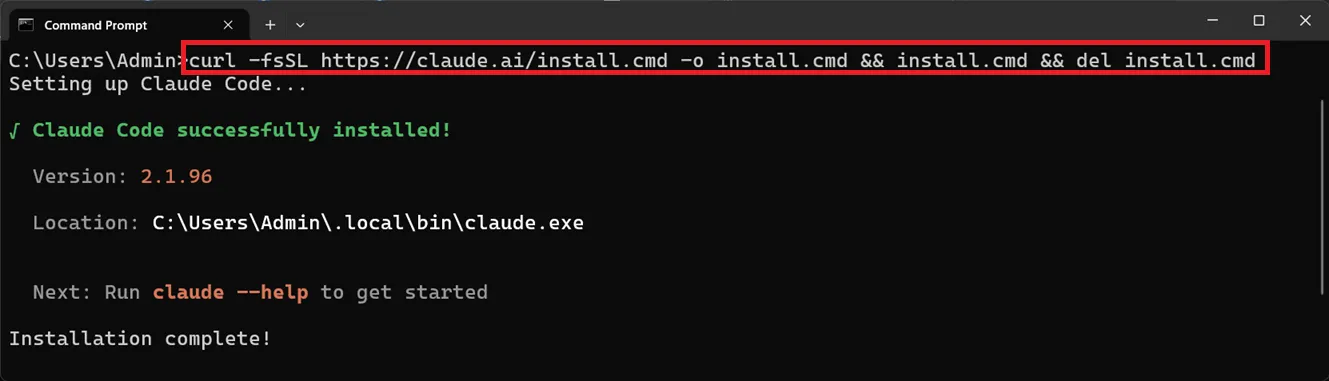
Configure GLM as the Model Provider#
To use GLM with Claude Code, you’ll need to configure the GLM Coding Plan.
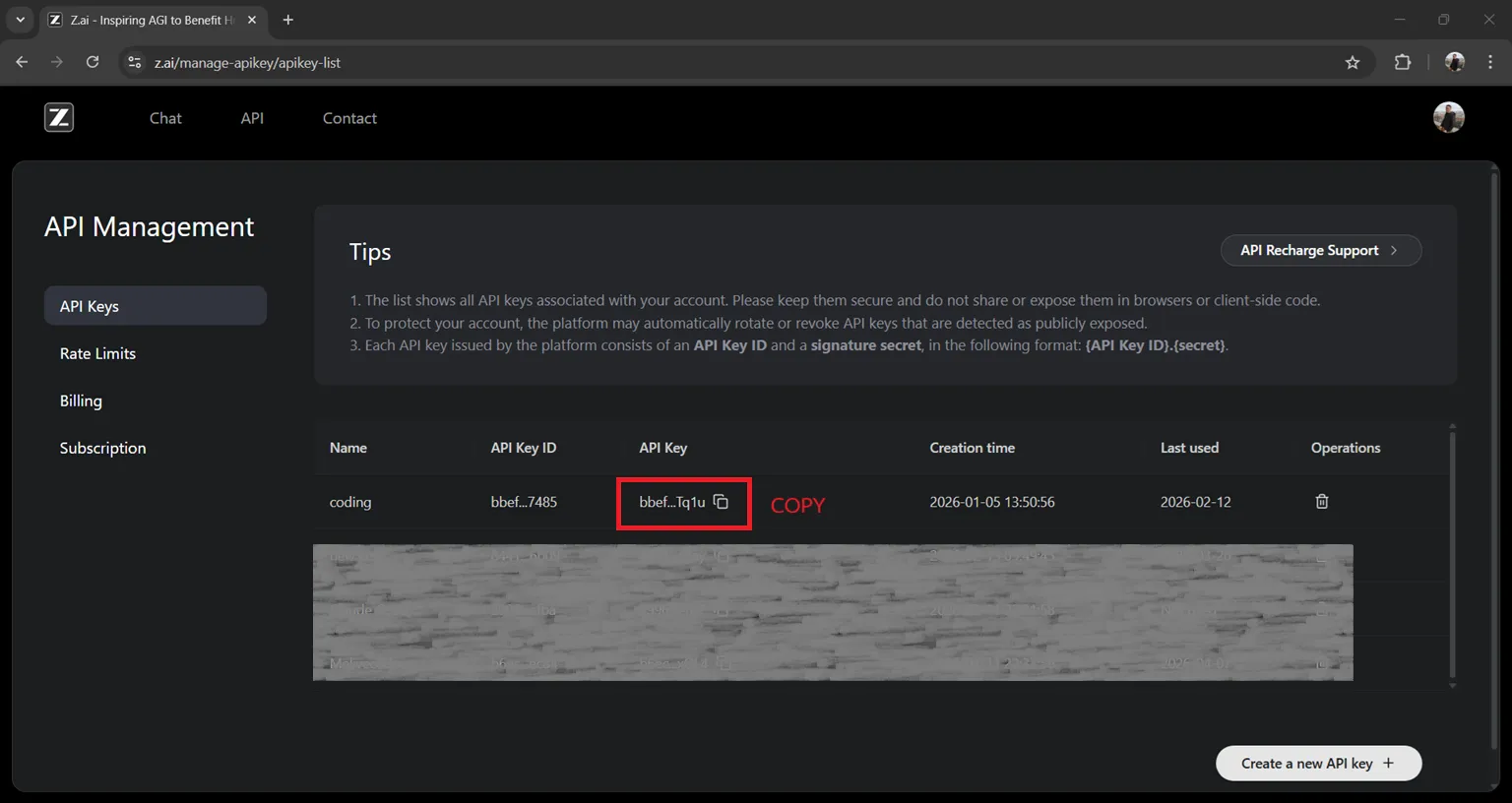
Step 1: Get API Key from Z.AI#
- Access Z.AI Platform ↗ and register or login
- Navigate to the API Keys management page
- Create a new API Key
- Copy your API Key for use in the next step
Step 2: Configure GLM Coding Plan#
Use the Coding Tool Helper to automatically configure GLM:
# Run Coding Tool Helper directly in your terminal
npx @z_ai/coding-helper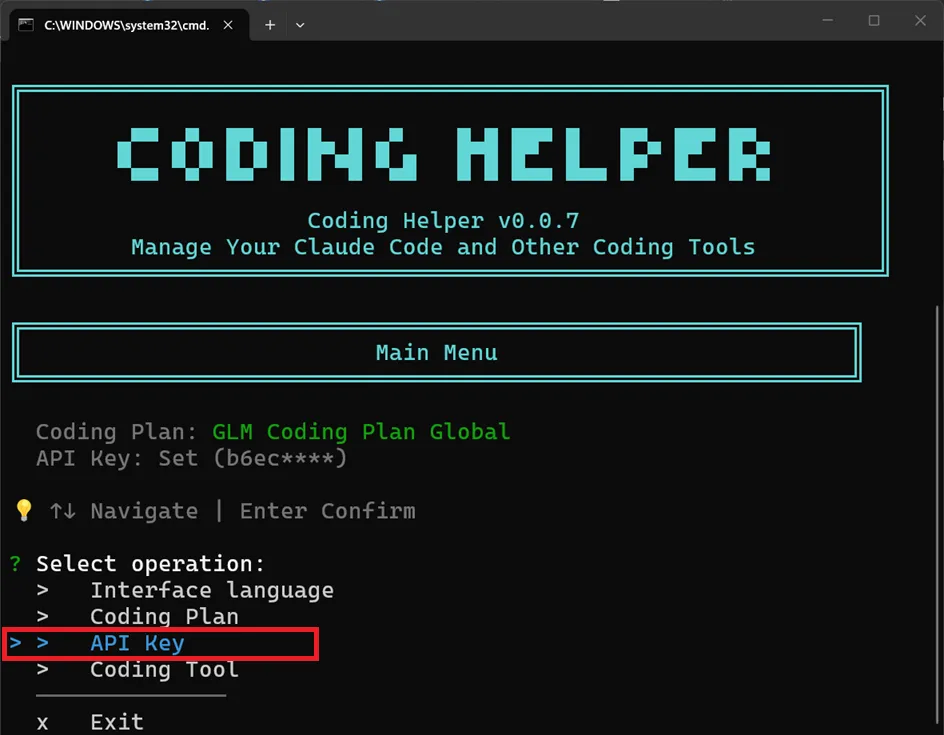
Press Enter to select the API Key option.
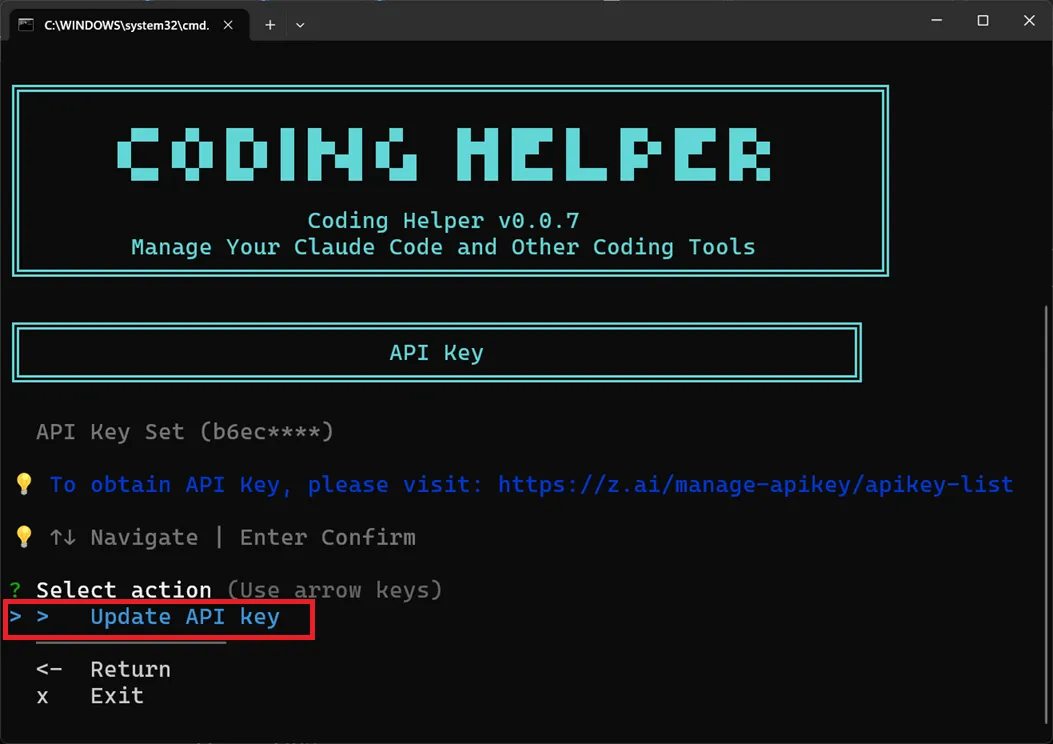
Paste your API Key when prompted.
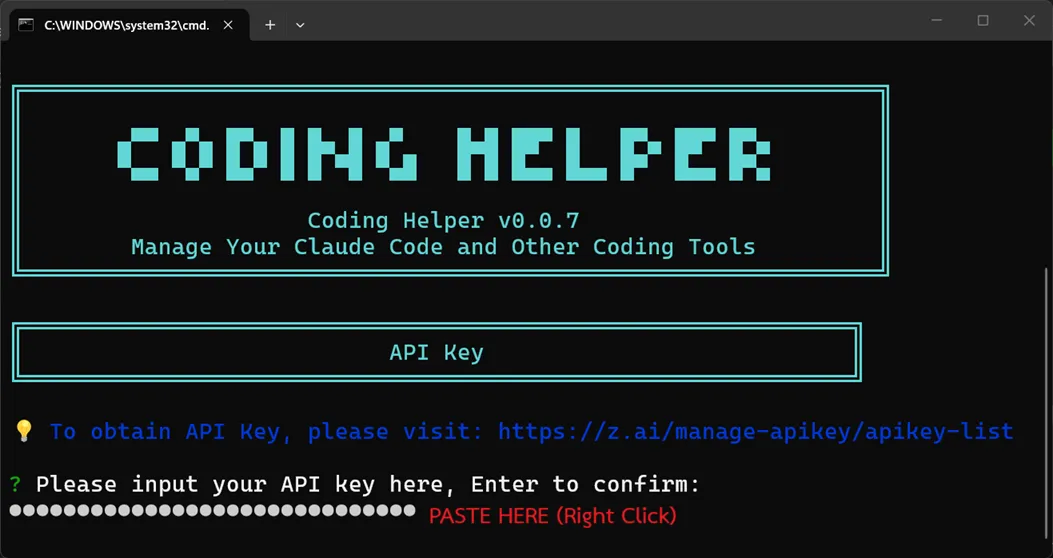
Once configured, restart Claude Code to use GLM as your AI model provider.
4. Prerequisites#
Tools you’ll need:
- Node.js installed on your computer
- Claude Code with GLM configured (see above)
- CAMPP ↗ - Local web development stack (Caddy, PHP, MySQL)
- A terminal (VS Code recommended)
5. Set Up the Project#
Step 1: Create the Next.js Project#
Open your terminal and run:
mkdir ecommerce-prisma-app
cd ecommerce-prisma-app
npx create-next-app@15 . --tailwind --app --typescriptThis will create a Next.js 15 project with:
- TypeScript enabled
- Tailwind CSS for styling
- App Router
Step 2: Install Prisma#
Reference: Prisma ORM with MySQL Quickstart ↗
What is an ORM? An ORM (Object-Relational Mapping) lets you interact with your database using code instead of writing raw SQL. You define your tables as models in a schema file, and the ORM generates a type-safe client to query your data — no SQL strings needed.
npm install typescript tsx @types/node --save-dev

npm install prisma @types/node --save-dev
npm install @prisma/client @prisma/adapter-mariadb dotenv
npm install bcryptjs joseHere’s what each package does:
typescript— TypeScript compiler for type checkingtsx— Run TypeScript files directly without compiling first (used for the seed script)@types/node— TypeScript type definitions for Node.js built-in modulesprisma— The Prisma CLI for commands likeprisma init,prisma migrate, andprisma generate@prisma/client— The generated Prisma Client for type-safe database queries@prisma/adapter-mariadb— Driver adapter that connects Prisma Client to MySQL/MariaDBdotenv— Loads environment variables from a.env.localfile intoprocess.envbcryptjs— Password hashing for user authenticationjose— JWT library for authentication (edge-compatible, works with Next.js App Router)
Step 3: Set Up the Database#
Start CAMPP#
- Download CAMPP ↗ and install it
- Open CAMPP and click Start for Caddy, PHP, and MySQL
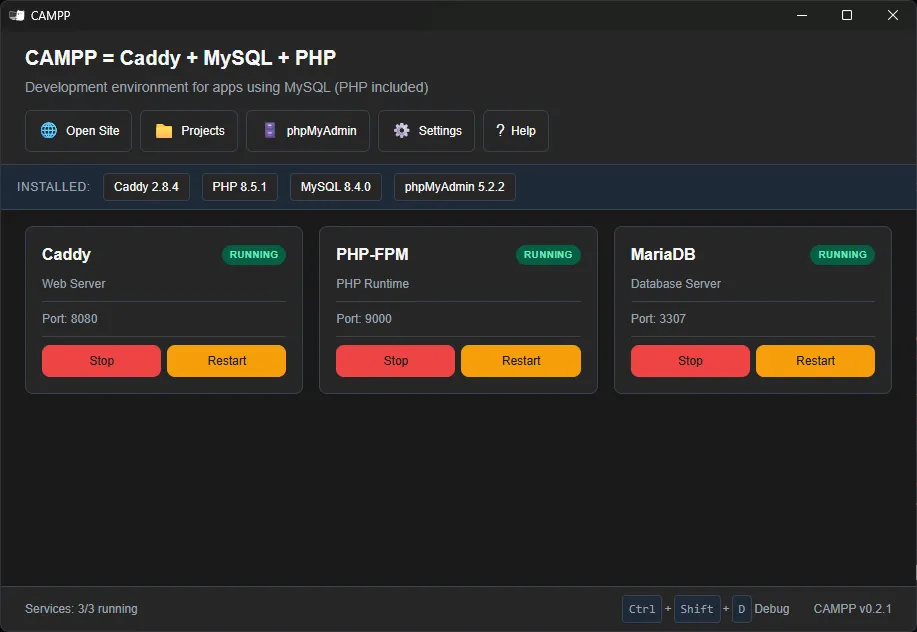
Default MySQL connection settings for CAMPP:
| Setting | Value |
|---|---|
| Host | localhost |
| Port | 3307 (not 3306 to avoid conflicts) |
| Username | root |
| Password | (as specified in CAMPP) |
Note: CAMPP uses port 3307 for MySQL to avoid conflicts with other MySQL services on your machine.
Create the Database#
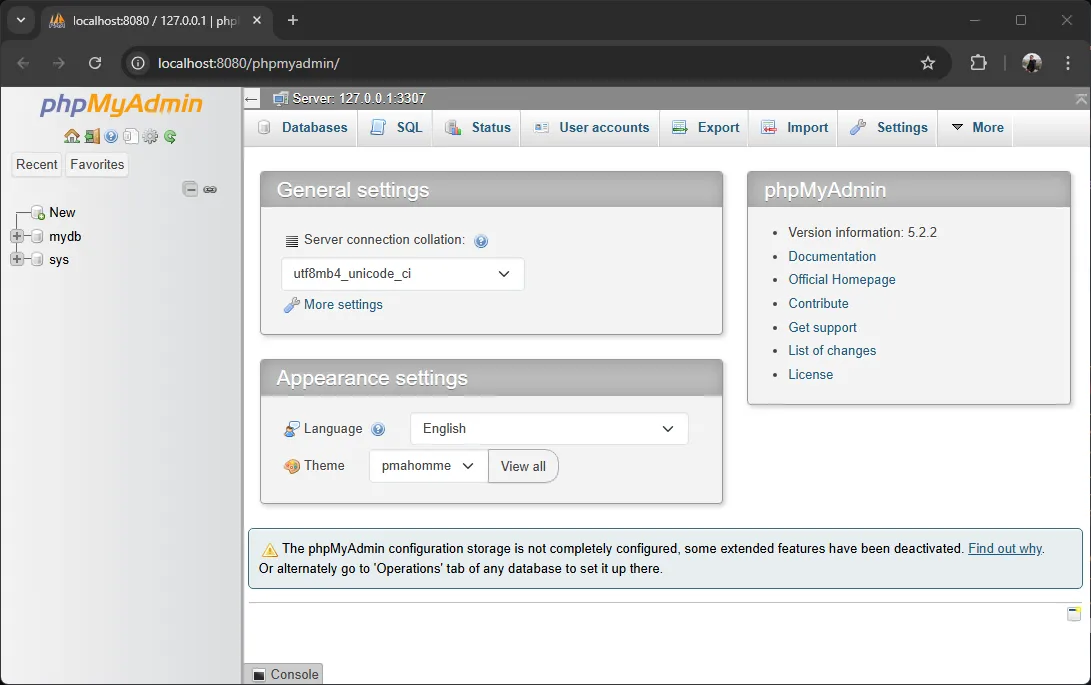
- Click the phpMyAdmin button on the CAMPP Dashboard
- Click New in phpMyAdmin
- Name the database:
ecommerce_prisma - Click Create
Step 4: Configure Claude Code for GLM#
Before using Claude Code, configure it to use GLM models. Create .claude/settings.local.json in your project root:
{
  "env": {
    "ANTHROPIC_DEFAULT_HAIKU_MODEL": "glm-4.5-air",
    "ANTHROPIC_DEFAULT_SONNET_MODEL": "glm-5-turbo",
    "ANTHROPIC_DEFAULT_OPUS_MODEL": "glm-5.1"
  }
}6. Prompt 1: Customer Management#
Open Claude Code in Your Project#
Make sure you’re in your project directory, then open Claude Code:
Using terminal:
cd ecommerce-prisma-app
claude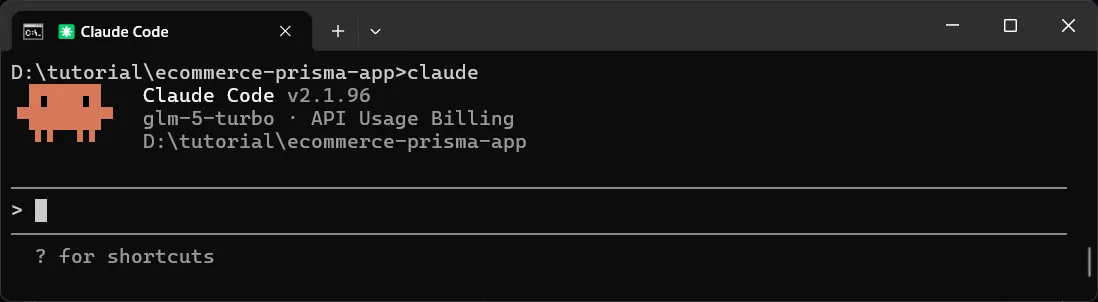
Or from VS Code:
- Open your project folder in VS Code
- Press
Ctrl+Shift+P(Windows/Linux) orCmd+Shift+P(macOS) - Type “Claude Code: Start New Chat” and press Enter
Initialize the Project Context#
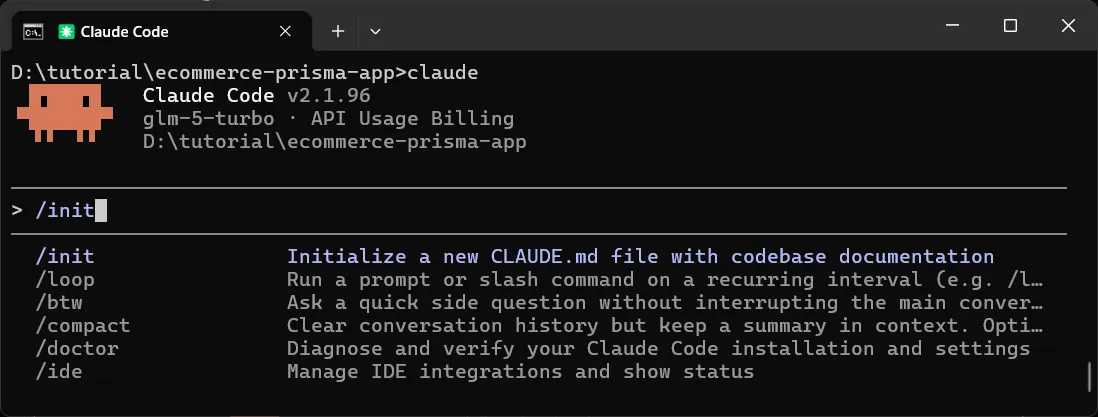
Before using the prompt, let Claude Code understand your project structure by running:
/initThis will scan your project and help Claude Code generate code that fits perfectly with your existing setup.
Use This Exact Prompt#
After /init completes, paste this prompt:
Create an e-commerce application using Next.js 15 with App Router, TypeScript, and Prisma ORM with MySQL.

Before writing any code, read https://www.prisma.io/docs/prisma-orm/quickstart/mysql and follow the Prisma setup instructions exactly as documented (prisma.config.ts, schema.prisma, lib/prisma.ts, generator config, etc.).

We are building the app incrementally. Start with user management first — products and orders will be added later.

Use the /admin path for admin pages and /api/ for API routes.

The frontend and API must be in the same Next.js project using App Router route handlers.

Use this exact project structure:

ecommerce-prisma-app/
├── prisma/
│   └── schema.prisma
├── prisma.config.ts
├── middleware.ts
├── .env.local
├── lib/
│   ├── prisma.ts
│   └── auth.ts
├── seed.ts
└── app/
    ├── layout.tsx
    ├── page.tsx
    ├── api/
    │   ├── auth/
    │   │   └── route.ts
    │   └── customers/
    │       ├── route.ts
    │       └── [id]/
    │           └── route.ts
    └── admin/
        ├── login/
        │   └── page.tsx
        ├── layout.tsx
        ├── page.tsx
        └── customers/
            └── page.tsx

=== DATABASE REQUIREMENTS ===

Database: MySQL (via Prisma ORM)
Database name: ecommerce_prisma

Prisma schema — a single User model with role-based access control (RBAC):

- id — auto-incrementing integer, primary key
- username — unique string, used for login
- password — hashed password string (using bcryptjs)
- name — display name
- email — email address
- role — either `"admin"` or `"customer"`, defaults to `"customer"`
- createdAt — timestamp, auto-generated on creation

=== API REQUIREMENTS ===

Use Next.js App Router route handlers with TypeScript and Prisma Client.

Auth:
- POST /api/auth → login with username and password, return JWT token in a cookie (httpOnly). Only allow users with role "admin" to login.

Customers (full CRUD):
- GET /api/customers → return all customers
- GET /api/customers/[id] → return one customer or 404
- POST /api/customers → create customer
- PUT /api/customers/[id] → update customer
- DELETE /api/customers/[id] → delete customer

API rules:
- use Prisma Client for all database operations
- return JSON only
- use proper status codes: 200, 201, 400, 401, 404, 500
- include error handling
- use NextResponse
- use proper TypeScript types/interfaces
- all /api/* routes (except /api/auth) must verify JWT from httpOnly cookie, return 401 if not authenticated

=== FRONTEND REQUIREMENTS ===

Use Next.js 15 + App Router + TypeScript + Tailwind CSS.

Pages:
- Login (/admin/login — username/password form, redirect to /admin on success)
- Dashboard (/admin — home page with a welcome message)
- Users (/admin/customers — table with user list + form to add)

All /admin/* pages (except /admin/login) must be protected — redirect to /admin/login if not authenticated.

UI requirements:
- responsive table
- simple form to add customer
- loading states
- error messages
- fetch using relative URLs like /api/customers
- clean modern UI
- navigation using Next.js Link
- proper TypeScript interfaces
- **NO dark mode toggle - use light theme only**

=== PRISMA SETUP ===

Create prisma/schema.prisma with:
- generator client using "prisma-client" provider with output "../generated/prisma"
- datasource db with mysql provider
- User model with role-based access control

Create prisma.config.ts:
- import dotenv/config
- use defineConfig from "prisma/config"
- configure datasource url from env("DATABASE_URL")

Create lib/prisma.ts:
- import PrismaMariaDb from @prisma/adapter-mariadb
- import PrismaClient from the generated client path
- pass adapter to PrismaClient constructor
- export singleton prisma instance

Create lib/auth.ts:
- helper functions to verify JWT from cookies using jose
- export function to get the authenticated admin user from the request

Create middleware.ts:
- protect all /admin/* routes except /admin/login
- check for JWT in cookies, redirect to /admin/login if not found

Environment variables:
JWT_SECRET=your-secret-key
DATABASE_URL="mysql://root:@localhost:3307/ecommerce_prisma"
DATABASE_HOST=localhost
DATABASE_PORT=3307
DATABASE_USER=root
DATABASE_PASSWORD=(as specified in CAMPP)
DATABASE_NAME=ecommerce_prisma

Create seed.ts using Prisma Client to seed:
- 1 admin user (username: admin, password: admin123, role: "admin" — hash with bcryptjs)
- 5 sample users (role: "customer")

Add to package.json: "prisma": { "seed": "npx tsx seed.ts" }

Also configure the seed command in prisma.config.ts under migrations:
migrations: {
  path: "prisma/migrations",
  seed: "npx tsx seed.ts",
}

=== OUTPUT REQUIREMENTS ===

Provide:
1. Complete code for every file in the structure above
2. .env.local template
3. prisma/schema.prisma
4. seed.ts
5. prisma.config.ts
6. lib/prisma.ts
7. Commands to initialize Prisma, run migration, seed data, and run the project
8. Ensure the code is build-ready and TypeScript-safe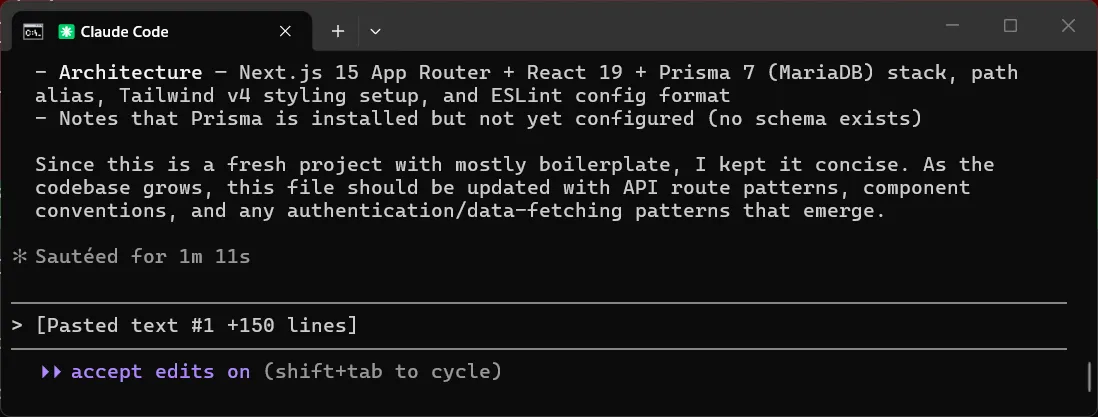
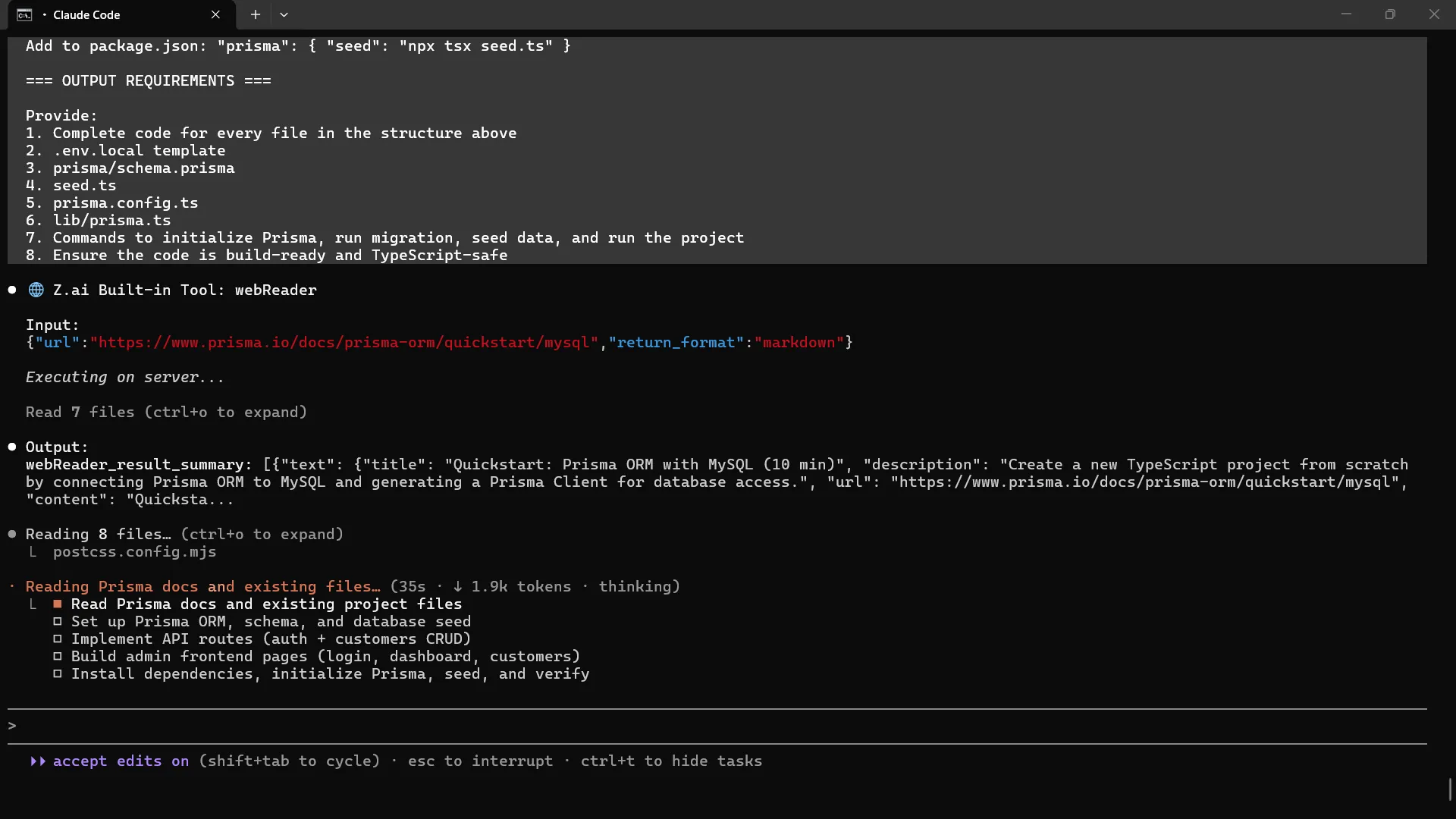
During coding, Claude Code may ask to run commands like npx prisma generate — this generates the Prisma Client based on your schema, so your code can use type-safe database queries. Allow it.
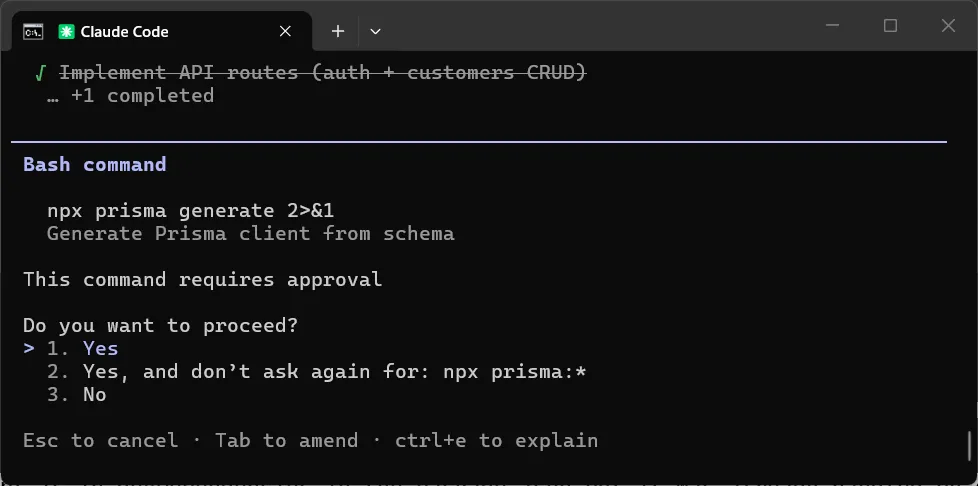
Step 5: Run the First Migration#
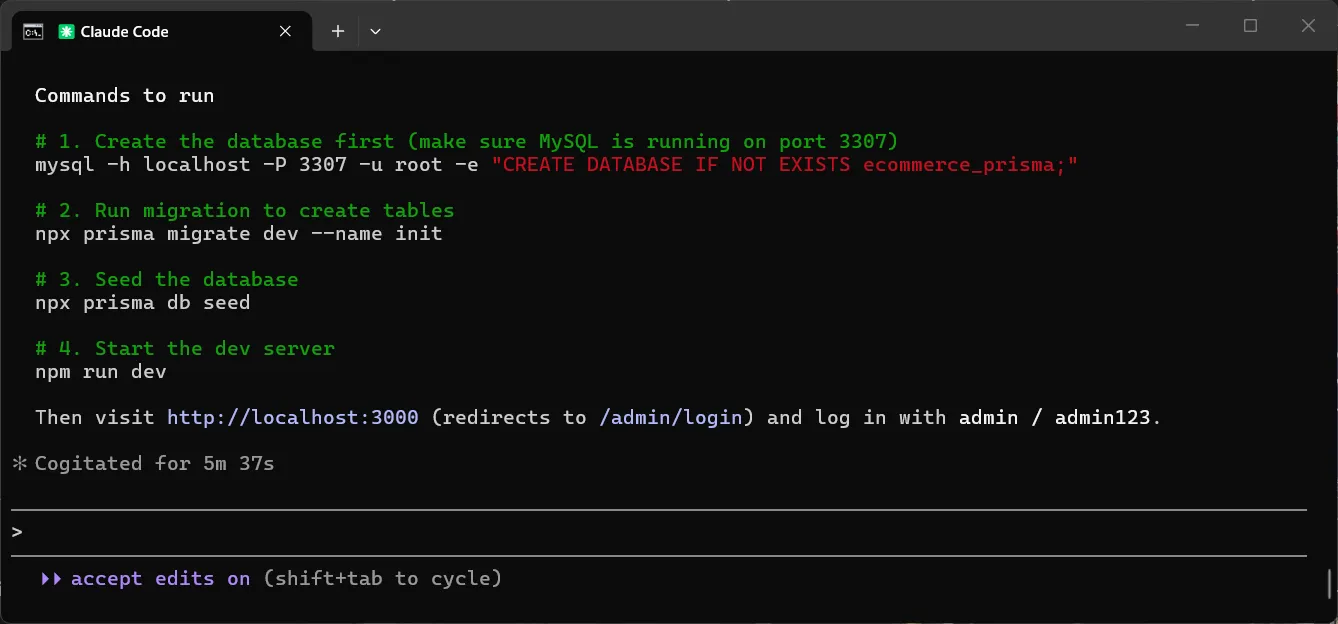
Claude Code may give you instructions to run prisma generate, prisma migrate, and prisma db seed — you can follow those instructions, or follow the steps below in this article.
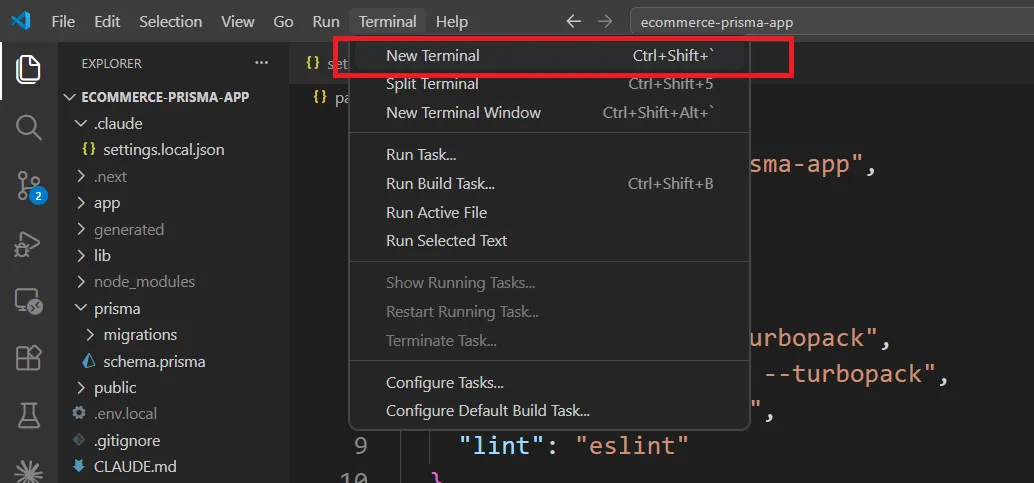
Once Claude Code finishes coding, open a new terminal in VS Code by pressing Ctrl+` (or going to Terminal → New Terminal).
Before running the migration, make sure the Prisma Client is generated. If Claude Code didn’t run it for you, run it manually:
npx prisma generate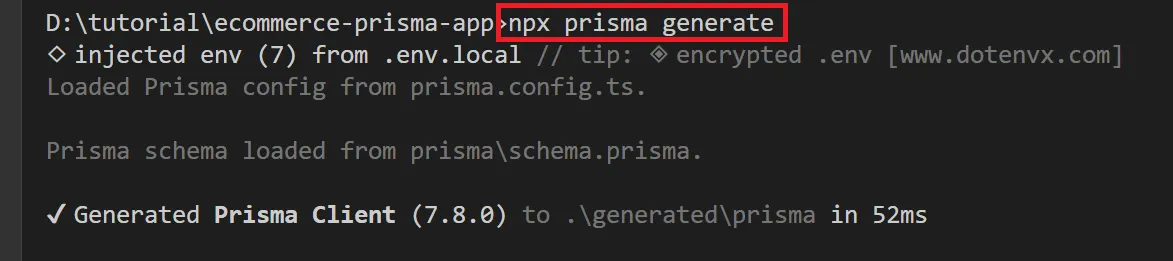
This generates the Prisma Client from your schema so your code can use type-safe database queries.
Then run the migration to create the User table:
npx prisma migrate dev --name create_user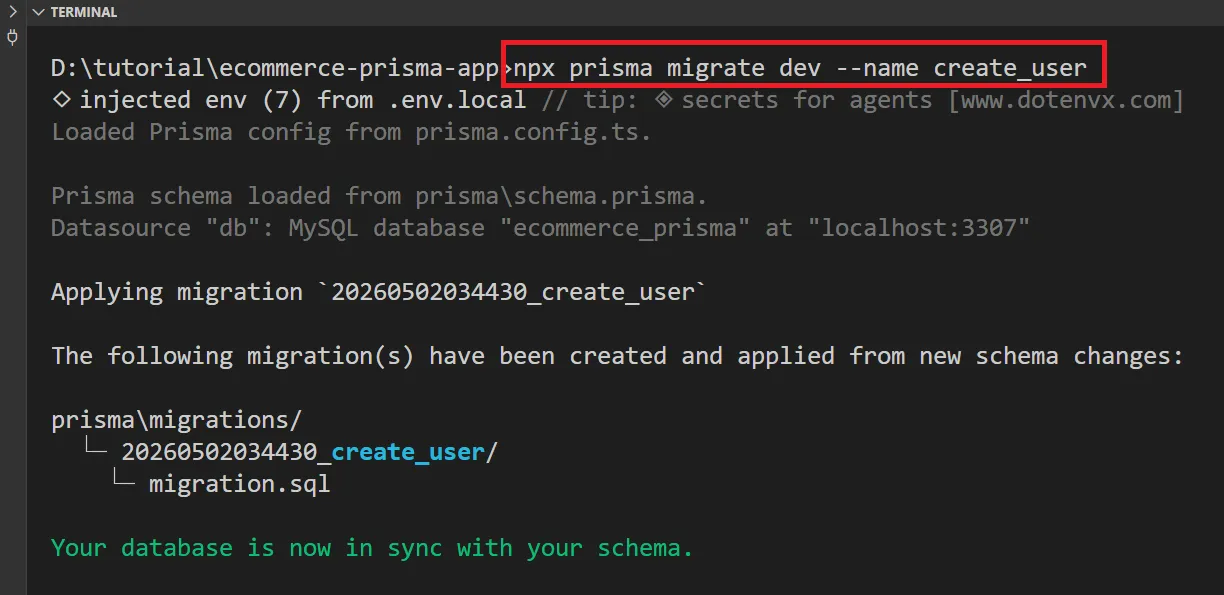
This command will:
- Read your
prisma/schema.prismafile - Create the SQL migration file under
prisma/migrations/ - Apply the migration to create the
Usertable in your database - Generate the Prisma Client
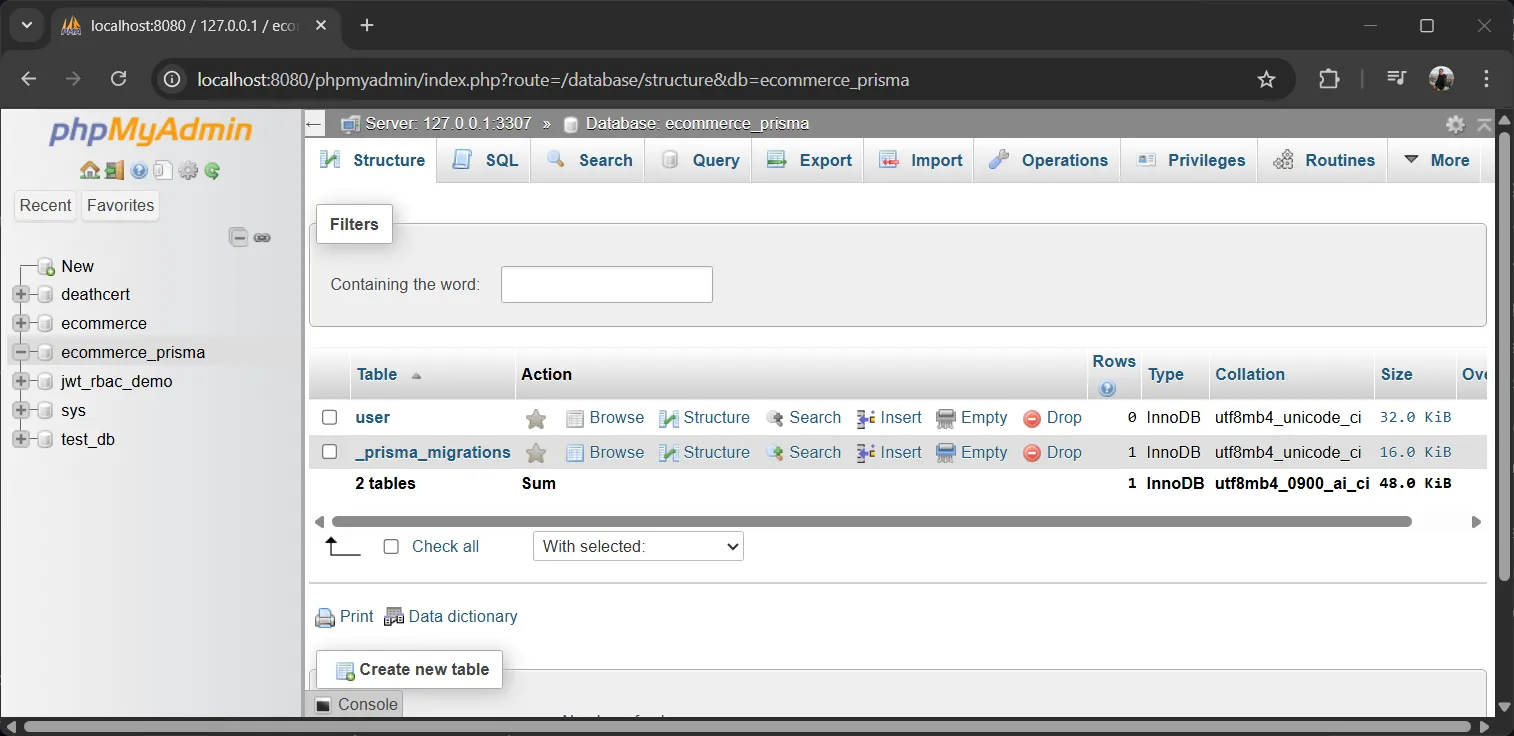
You can verify the table was created by opening http://localhost:8080/phpmyadmin ↗ and checking the ecommerce_prisma database.
Step 6: Seed the Database#
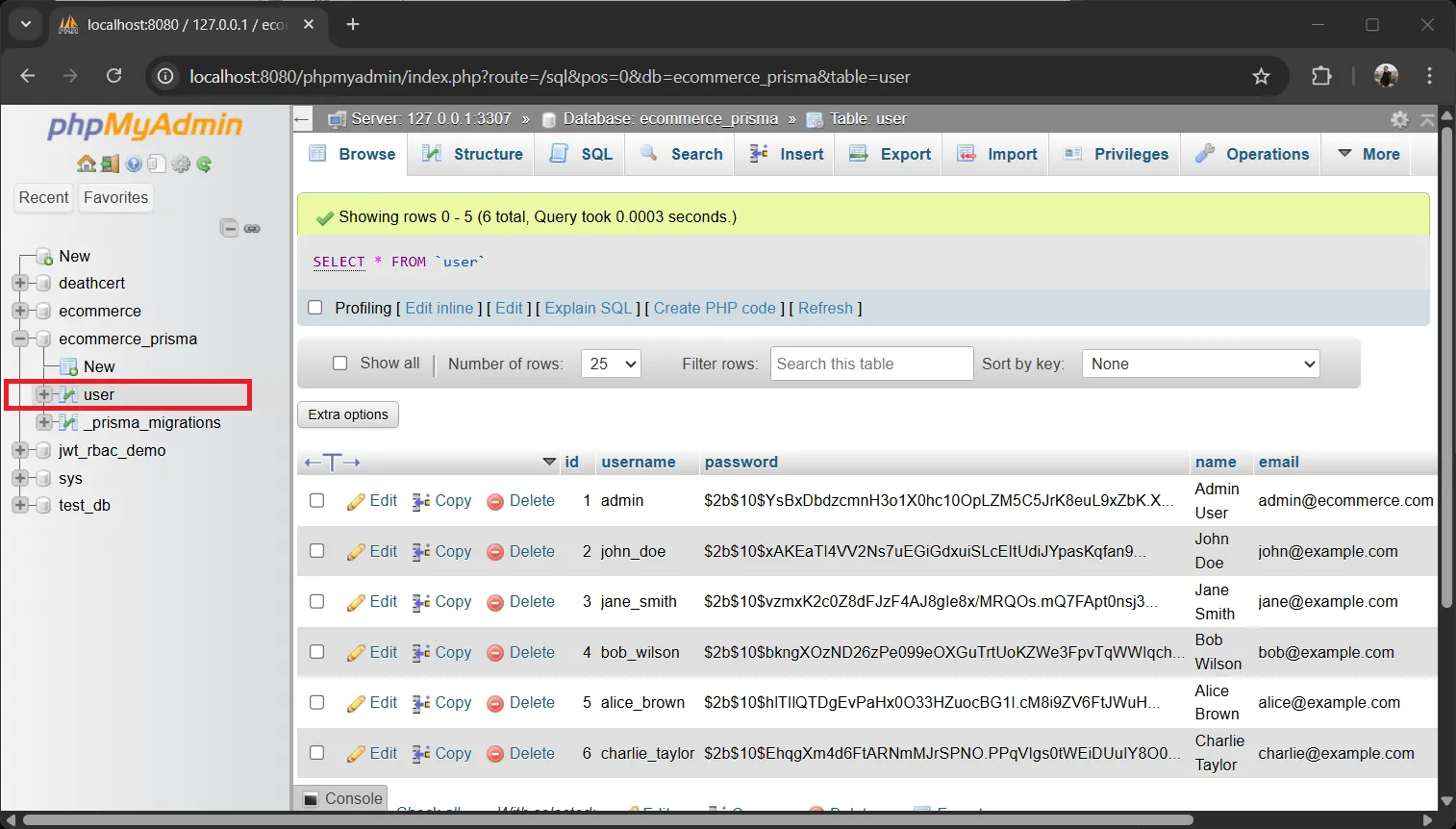
Populate your database with sample users:
npx prisma db seed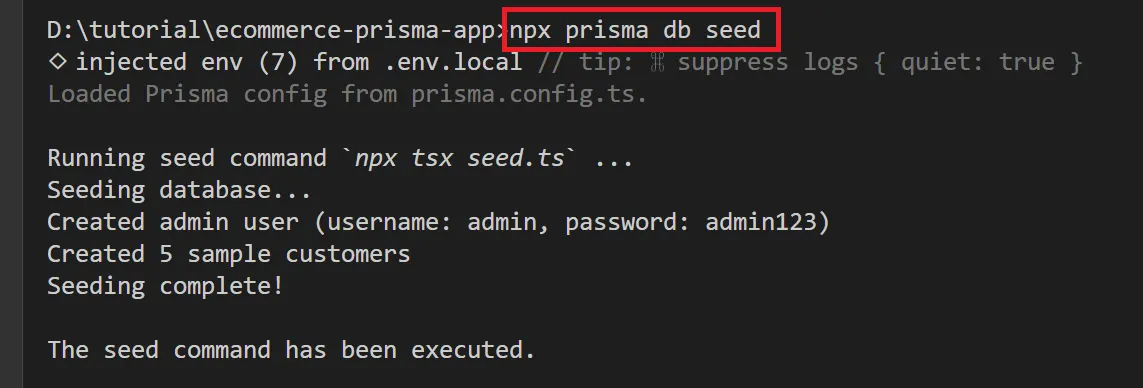
Step 7: Test the Application#
Start the development server:
npm run devOpen http://localhost:3000/admin ↗ in your browser.
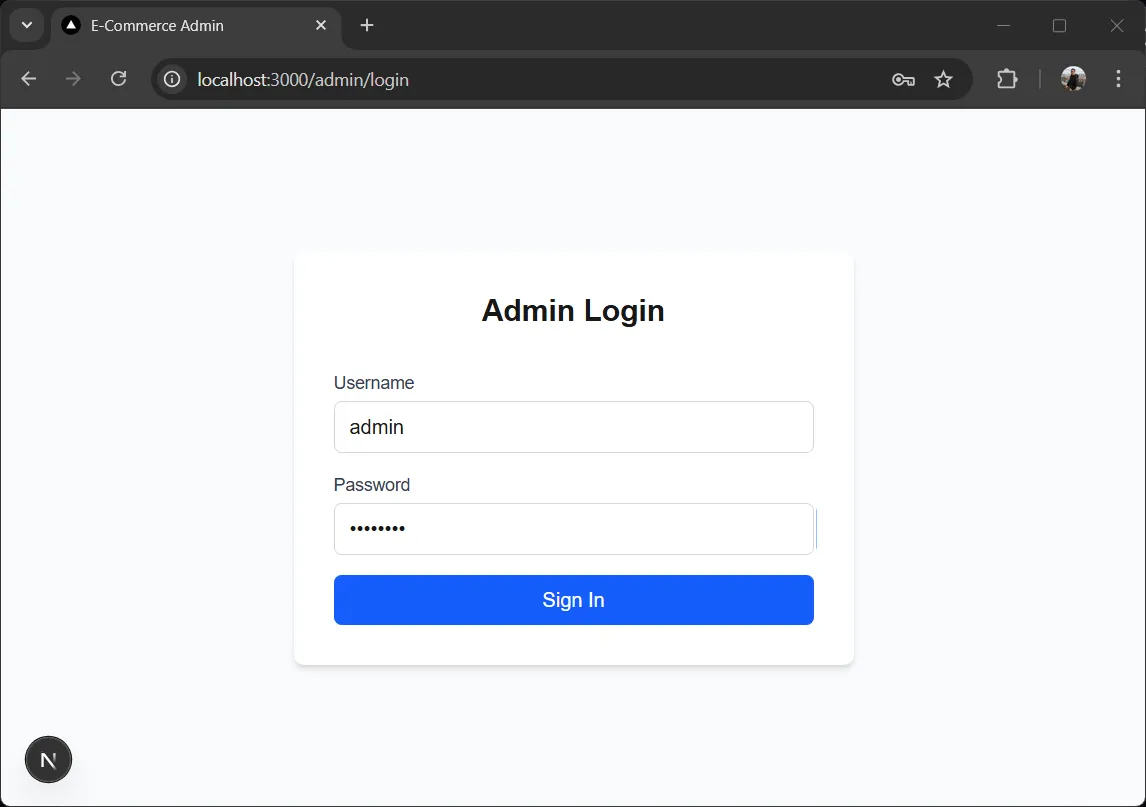
Login#
You should be redirected to the login page. Enter the credentials:
- Username:
admin - Password:
admin123
Dashboard#
After login, the dashboard page loads with a welcome message.
Customer Management#
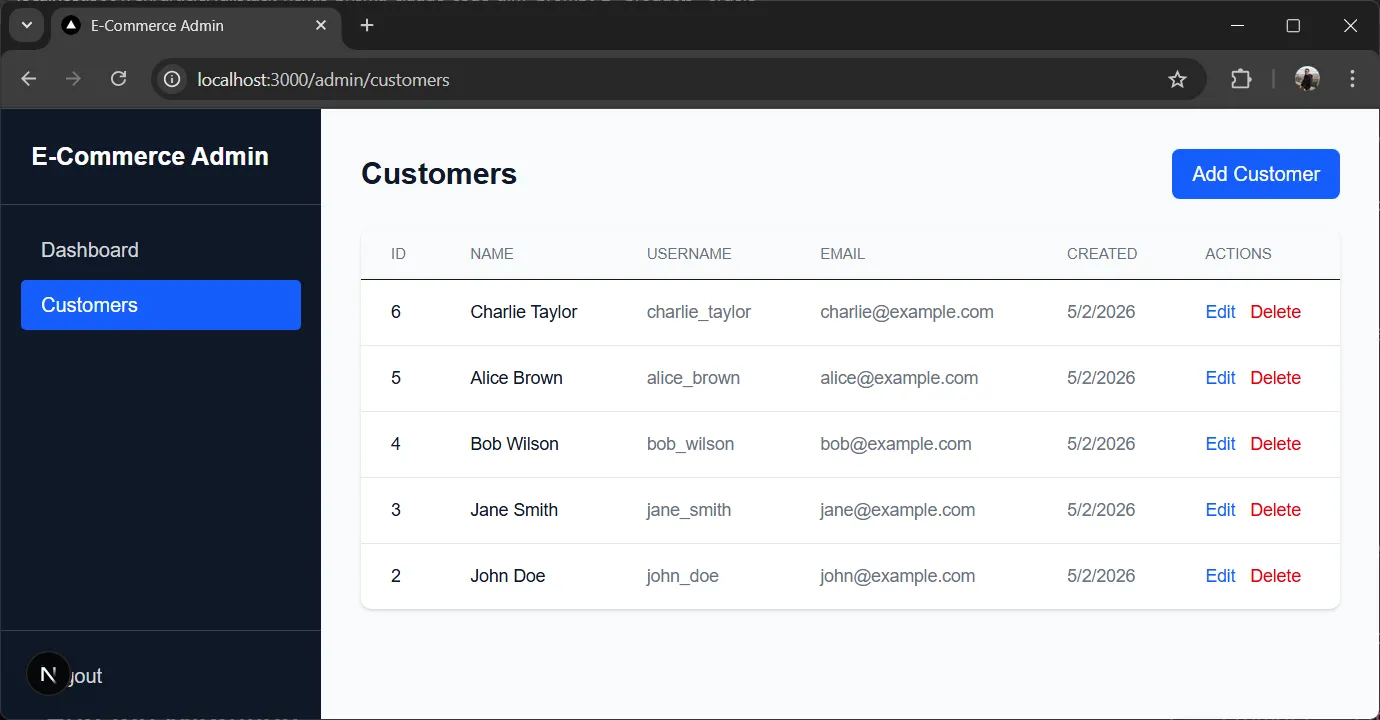
Navigate to the Customers page. You should see the seeded customer data in a table. From here you can:
- View all customers
- Add a new customer using the form
- Edit an existing customer
- Delete a customer
Logout#
Test the logout button — it should clear your session and redirect back to the login page.
7. Prompt 2: Products & Orders#
Now that customer management is working, let’s expand the app with products and orders. This is where Prisma migrations shine — you update the schema and Prisma handles the rest.
Open Claude Code again (or continue in the same session):
claudePaste this prompt:
Add Products and Orders to the existing e-commerce application. The User model and customer API already exist and work.

Before writing any code, look at the existing API implementation in app/api/customers/[id]/route.ts to follow the same patterns and coding style.

=== UPDATE PRISMA SCHEMA ===

Add these models to prisma/schema.prisma:

- Product (id, name, price Decimal, stock Int, createdAt)
- Order (id, total Decimal, status String, createdAt, relation to User as customer, relation to OrderItem[])
- OrderItem (id, quantity Int, price Decimal, relation to Order, relation to Product)

Keep the existing User model unchanged.

=== NEW API ROUTES ===

Add to app/api/:

Products (full CRUD):
- GET /api/products → return all products
- GET /api/products/[id] → return one product or 404
- POST /api/products → create product
- PUT /api/products/[id] → update product
- DELETE /api/products/[id] → delete product

Orders (full CRUD):
- GET /api/orders → return all orders with customer and items
- GET /api/orders/[id] → return one order with items and customer or 404
- POST /api/orders → create order
- PUT /api/orders/[id] → update order
- DELETE /api/orders/[id] → delete order

POST /api/orders must:
- use Prisma transactions (prisma.$transaction)
- validate product stock before creating the order
- decrease stock after order creation
- rollback on any error

=== NEW FRONTEND PAGES ===

Add to app/admin/:

- products/page.tsx — table with product list, form to add, edit and delete buttons
- orders/page.tsx — table with order list, form to create new order
  - allow selecting customer from dropdown
  - allow selecting products and quantity
  - calculate order total
  - submit order to /api/orders

Update app/admin/layout.tsx navigation to include Products and Orders links.

=== UPDATE SEED ===

Update seed.ts to also seed 5 products and 3 orders with items (using existing customers).

=== API RULES ===

Same as existing: Prisma Client, JSON only, proper status codes, error handling, NextResponse, TypeScript types.

=== OUTPUT REQUIREMENTS ===

1. Complete code for all new and modified files
2. Updated prisma/schema.prisma
3. Updated seed.ts
4. Commands to run migration and re-seed
5. Ensure the code is build-ready and TypeScript-safeRun Prisma Generate and Migration#
If Claude Code didn’t run npx prisma generate during coding, run it first:
npx prisma generateThen run the migration to create the new tables:
npx prisma migrate dev --name add_products_ordersThis will:
- Detect the new Product, Order, and OrderItem models in your schema
- Create a new SQL migration that adds those tables
- Apply the migration to your database
- Regenerate the Prisma Client with the new models
This is the power of Prisma migrations — you just update your schema file and Prisma generates and applies the SQL for you!
Re-seed the Database#
Update the seed data with products and orders:
npx prisma db seedTest the Full Application#
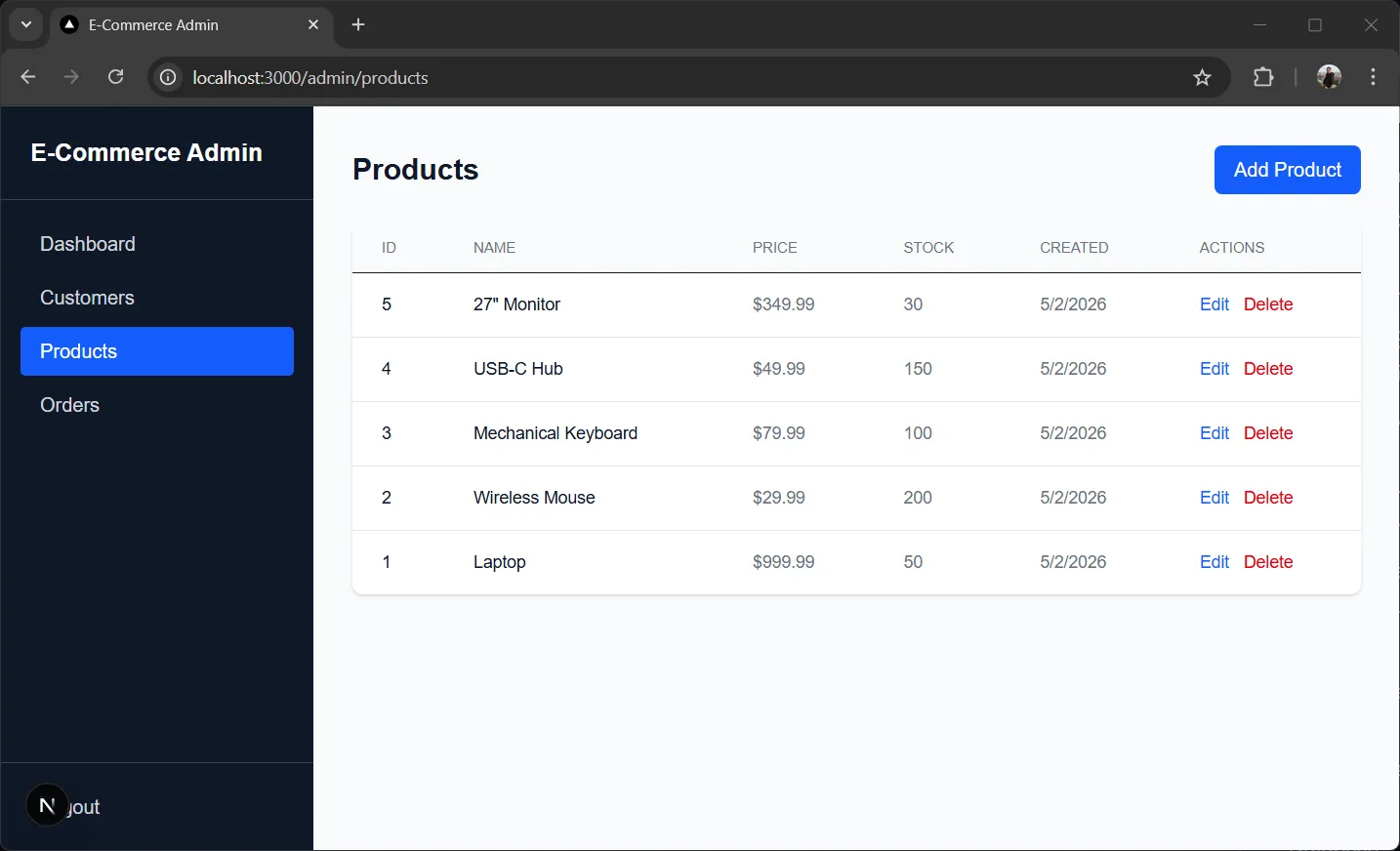
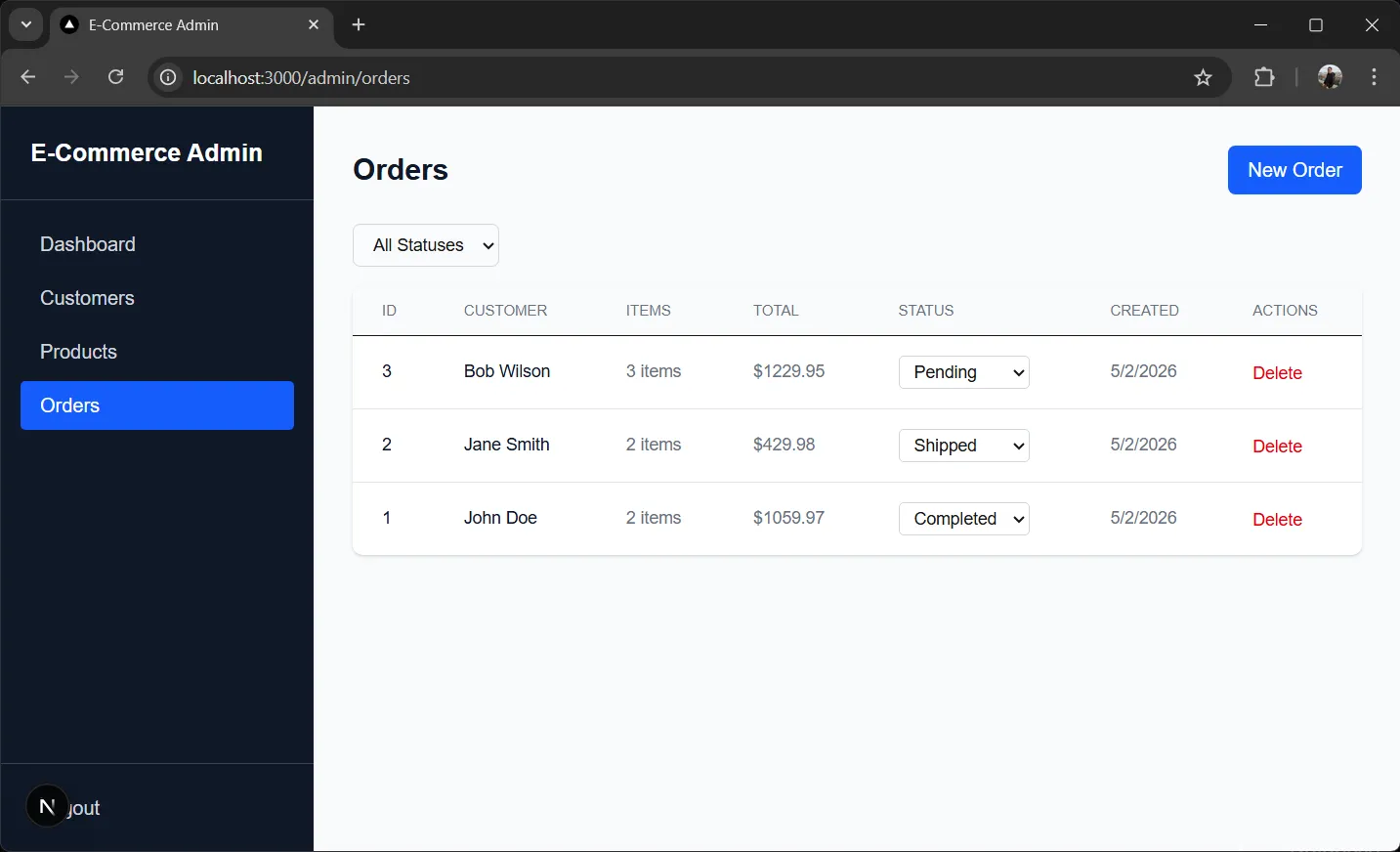
npm run devOpen http://localhost:3000/admin ↗ and verify:
- Login with username
adminand passwordadmin123 - Customers still work from Prompt 1 — full CRUD (create, read, update, delete)
- Products page shows products — full CRUD (create, read, update, delete)
- Orders page shows orders — full CRUD (create, read, update, delete)
- Creating an order decreases product stock
- Navigation includes all pages
Tip: You can browse your database visually with Prisma Studio:
bashnpx prisma studio
8. Prompt 3: Customer Storefront#
Now let’s add a storefront where customer users can browse products, add them to a cart, and place orders. This adds the public-facing side of the e-commerce app.
Open Claude Code in Your Project#
claudePaste this prompt:
Add a customer storefront with shopping cart to the existing e-commerce application. The admin panel with Users, Products, and Orders already exists and works.

=== NEW PRISMA MODEL ===

Add a CartItem model to prisma/schema.prisma:

- CartItem (id, quantity Int, relation to User as customer, relation to Product, createdAt)

A CartItem represents a product added to a customer's cart. When the customer checks out, the cart items become order items and the cart is cleared.

=== NEW PAGES ===

Add to app/ (public pages, no auth required for browsing):

- page.tsx — homepage/landing page with a welcome message and link to /products
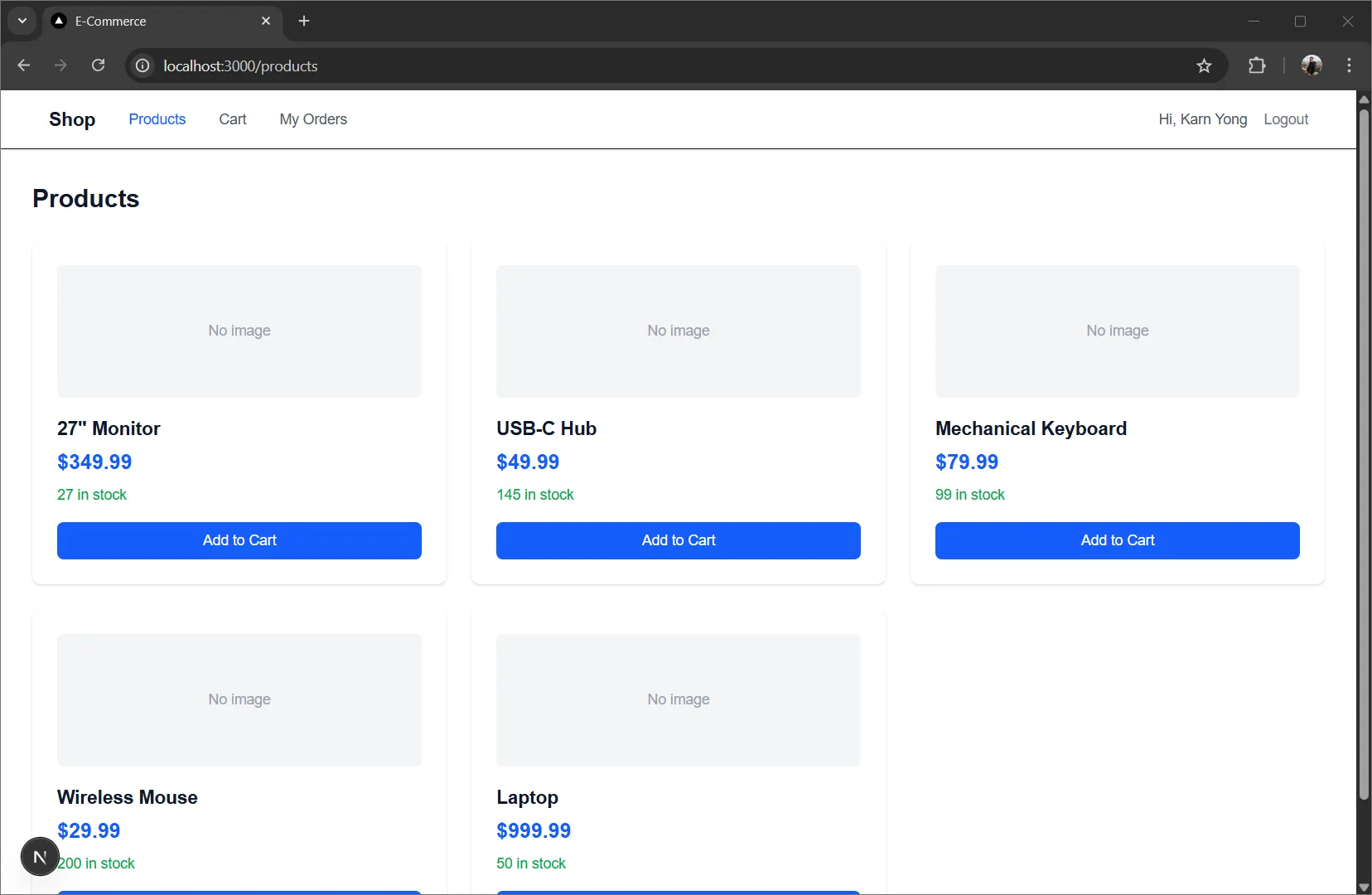
- products/page.tsx — browse all products with name, price, stock, and "Add to Cart" button
- products/[id]/page.tsx — product detail page with "Add to Cart" button
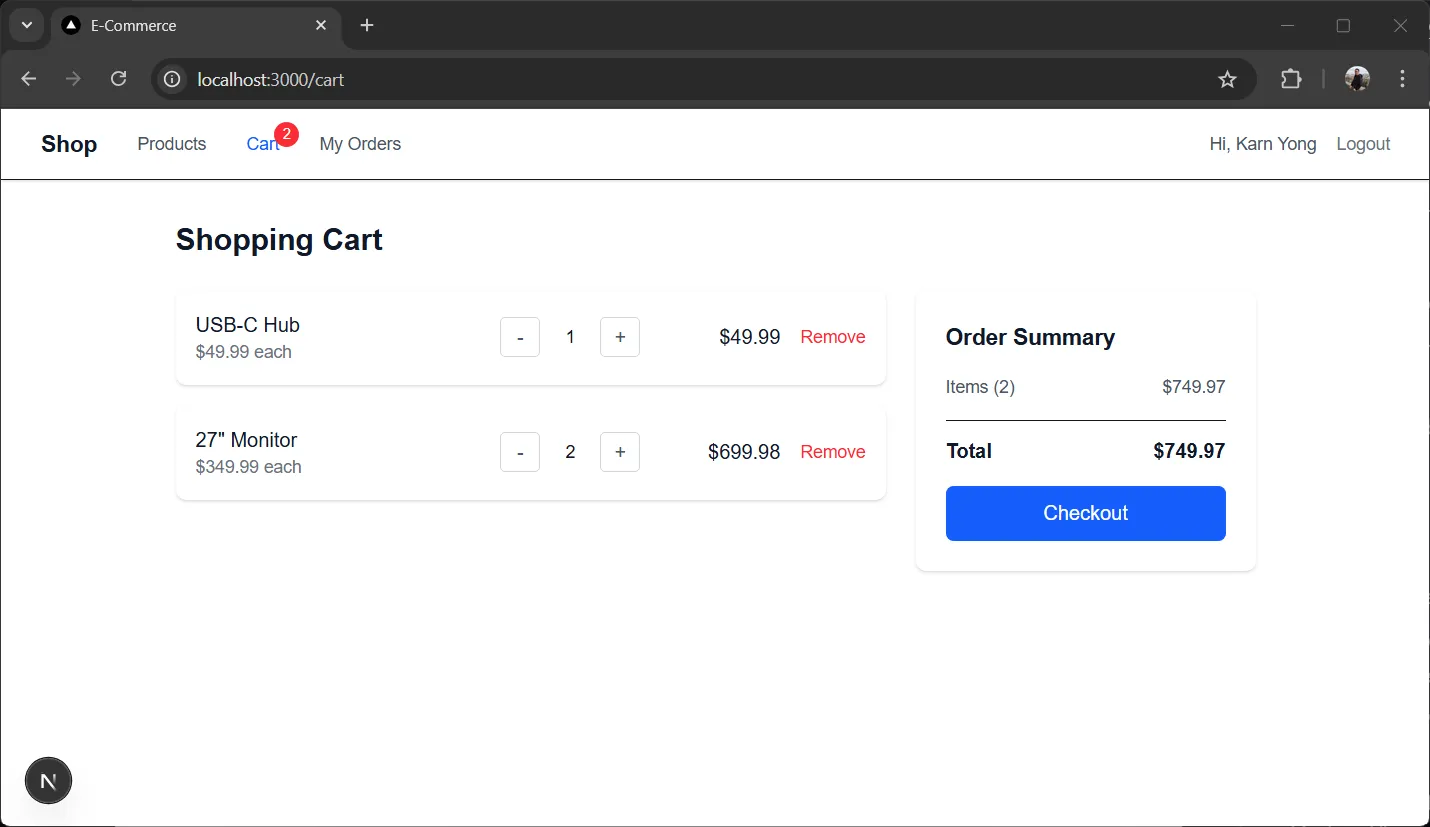
- cart/page.tsx — shopping cart page showing all cart items, quantity controls, total price, and "Checkout" button
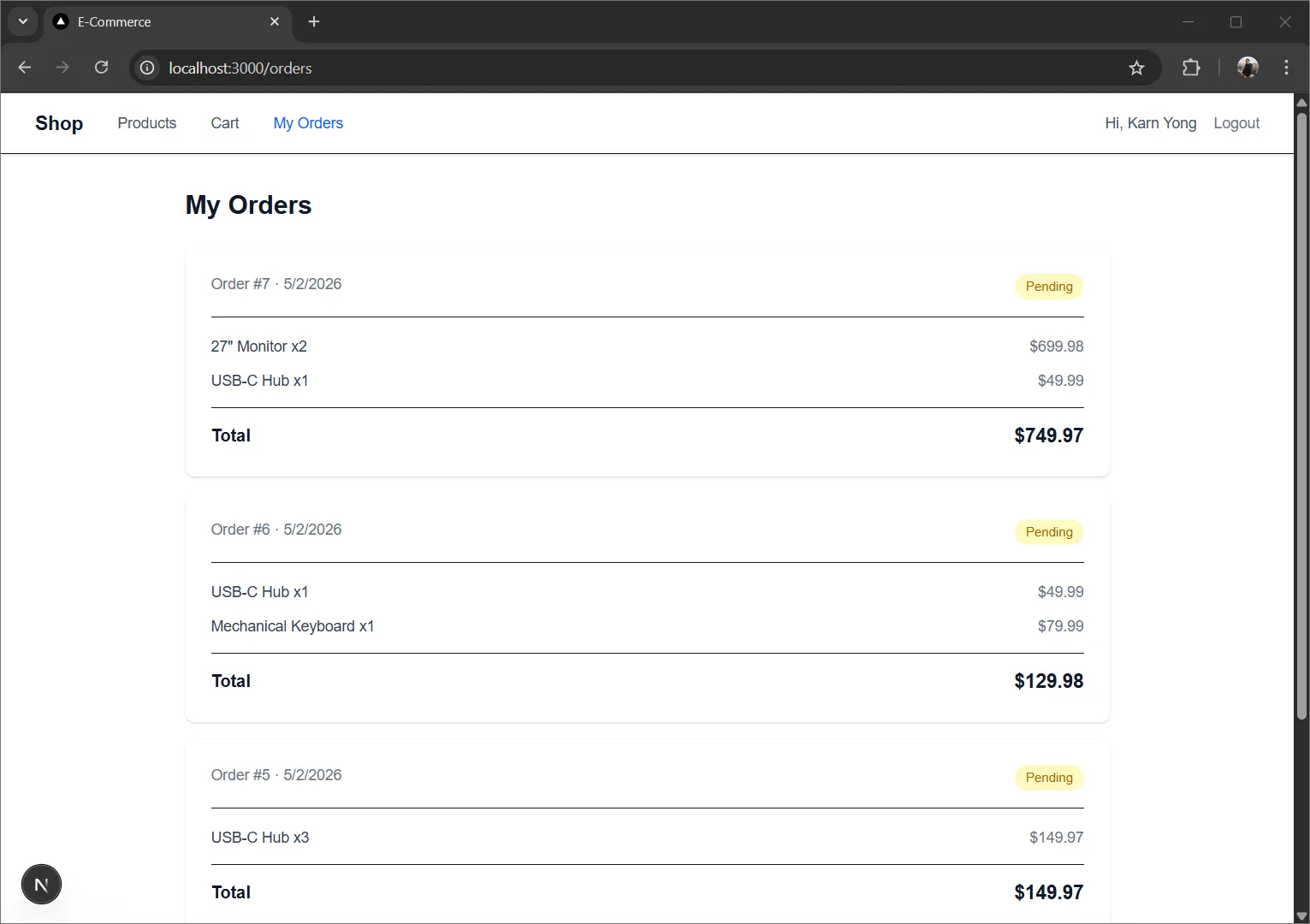
- orders/page.tsx — customer's order history (requires login)

=== NEW API ROUTES ===

Add to app/api/:

Auth:
- POST /api/auth/register → register a new customer user (role: "customer"), return JWT token in a cookie (httpOnly)
- POST /api/auth/login → login for customer users (role: "customer"), return JWT token in a cookie (httpOnly)

Store:
- GET /api/store/products → return all products (public, no auth required)

Cart (requires auth):
- GET /api/cart → return all cart items for the logged-in customer
- POST /api/cart → add a product to the cart (body: { productId, quantity })
- PUT /api/cart/[id] → update cart item quantity
- DELETE /api/cart/[id] → remove item from cart
- DELETE /api/cart → clear the entire cart

Checkout:
- POST /api/store/checkout → create an order from cart items
  - verify JWT from httpOnly cookie to get the customer user id
  - read all cart items for the customer
  - validate product stock for each item
  - use Prisma transactions (prisma.$transaction) to:
    - create the Order record
    - create OrderItem records from cart items
    - decrease product stock
    - delete all cart items for the customer
  - rollback on any error

=== MIGRATION ===

After adding the CartItem model, run: npx prisma migrate dev --name add_cart

=== CUSTOMER AUTH ===

Create middleware to protect /cart and /orders pages:
- if not authenticated, redirect to /products

The existing middleware for /admin/* routes should remain unchanged.

=== FRONTEND REQUIREMENTS ===

- Add navigation to app/layout.tsx with links: Home, Products, Cart (with item count badge), Orders, Login/Register
- Products page shows a grid/list of products with name, price, stock status, and "Add to Cart" button
- Product detail page shows full info and "Add to Cart" button
- Cart page shows:
  - list of items with product name, price, quantity, subtotal
  - +/- buttons to adjust quantity
  - remove button for each item
  - total price at the bottom
  - "Checkout" button to place the order
- After checkout, redirect to /orders with a success message
- Orders page shows the logged-in customer's order history
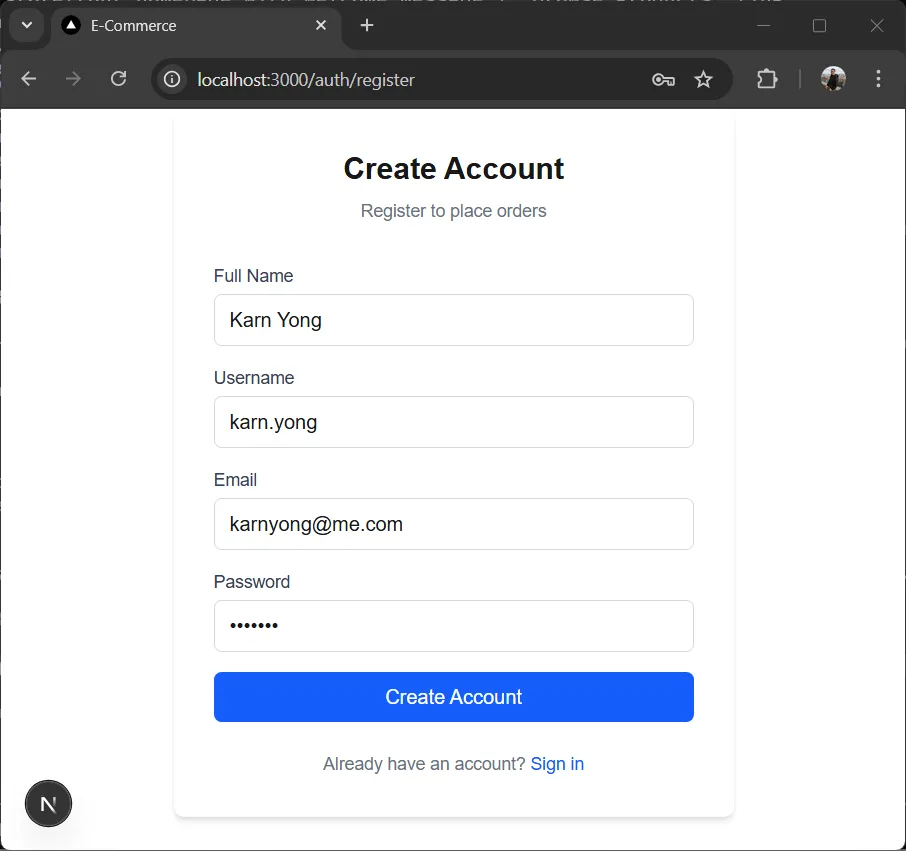
- Login and Register forms for customer users
- After login, redirect to /products
- clean modern UI, responsive, **NO dark mode toggle - use light theme only**

=== API RULES ===

Same as existing: Prisma Client, JSON only, proper status codes, error handling, NextResponse, TypeScript types.

=== OUTPUT REQUIREMENTS ===

1. Complete code for all new and modified files
2. Updated prisma/schema.prisma with CartItem model
3. Commands to run migration
4. Ensure the code is build-ready and TypeScript-safeRun Prisma Generate and Migration#
If Claude Code didn’t run npx prisma generate during coding, run it first:
npx prisma generateThen run the migration to create the CartItem table:
npx prisma migrate dev --name add_cartTest the Storefront#
npm run devOpen http://localhost:3000 ↗ and verify:
- The homepage loads with navigation
- Products page shows all products from the database
- Click “Add to Cart” on a product — cart count updates in the navigation
- Go to Cart page — see the item with quantity and price
- Adjust quantity with +/- buttons
- Click “Checkout” — order is created, cart is cleared, redirected to Orders page
- View order history on the Orders page
- Register and login flow works for customer users
- Admin panel at /admin still works separately
9. Summary#
What you’ve built:
| Component | Technology | Cost |
|---|---|---|
| Full-Stack App | Next.js 15 (App Router + TypeScript) | Free |
| API | Route Handlers | Built-in |
| ORM | Prisma | Free |
| Database | MySQL (via CAMPP) | Free |
What you learned:
- How to design a system with RBAC (admin/customer roles)
- How to build incrementally — 3 prompts, each expanding the app
- How Prisma migrations evolve your database schema automatically
- How Prisma Client provides type-safe database access
- How to use
prisma.$transactionfor order creation with stock validation - How to build both an admin panel and a customer storefront
Next Steps:
- Implement pagination
- Add search and filtering
- Set up custom domain
Tips for Better Claude Code Prompts:
- Be specific about your tech stack
- Include sample request/response formats
- Mention security requirements
- Ask for error handling
- Request the complete file structure
The key to building with Claude Code is providing clear specifications. The more detailed your prompt, the better the generated code.
Happy building!