
พัฒนา Full-Stack E-Commerce ด้วย Claude Code (GLM), ORM
พัฒนา E-Commerce app ด้วย Claude Code (GLM), Next.js 15, TypeScript, Prisma ORM, และ MySQL — 3 prompts, RBAC, cart, and migrations
1. Introduction#
การสร้าง Full-stack application เคยใช้เวลาหลายสัปดาห์ แต่วันนี้ด้วยเครื่องมือ AI อย่าง Claude Code สามารถสร้างแอปพลิเคชันได้ภายในไม่กี่ชั่วโมง
บทความนี้จะแนะนำวิธี:
- ติดตั้งและตั้งค่า Claude Code กับ GLM
- ออกแบบระบบด้วย Roles (admin/customer) และ RBAC
- สร้างแอปแบบเป็นขั้นตอนด้วย 3 prompts — จัดการผู้ใช้, สินค้าและคำสั่งซื้อ, หน้าร้านค้าสำหรับลูกค้า
- ใช้ Prisma migrations ในการพัฒนา database schema
- ตั้งค่า database ภายในเครื่องด้วย CAMPP (MySQL)
สิ่งที่จะสร้าง: Full-stack E-Commerce application ประกอบด้วย:
- Backend API: Next.js App Router route handlers (Customers, Products, Orders พร้อม transaction support)
- Frontend: Next.js 15 พร้อม TypeScript และ Tailwind CSS สำหรับจัดการข้อมูล E-commerce
- Database: Prisma ORM กับ MySQL สำหรับเข้าถึง database แบบ type-safe
- ทั้งหมดอยู่ใน Next.js project เดียวกับ TypeScript!
2. System Design#
ก่อนเริ่มเขียนโค้ด มาออกแบบระบบกันก่อน การออกแบบจะช่วยให้ Claude Code เข้าใจภาพรวมและสร้างโค้ดที่ดีขึ้น
Roles (RBAC)#
- admin — จัดการทุกอย่าง (ผู้ใช้, สินค้า, คำสั่งซื้อ) ผ่าน admin panel ที่
/admin - customer — เลือกดูสินค้าและสั่งซื้อผ่านหน้าร้านค้า (storefront)
Admin Panel (/admin)#
Pages:
- Dashboard — ภาพรวม
- Users — จัดการบัญชีลูกค้า (full CRUD)
- Products — จัดการสินค้า (full CRUD)
- Orders — จัดการคำสั่งซื้อทั้งหมด (full CRUD)
Customer Storefront (public)#
Pages:
- Home — หน้าแรก
- Products — เลือกดูสินค้า
- Product Detail — ดูรายละเอียดสินค้า
- Cart — ตะกร้าสินค้า พร้อมปรับจำนวนและชำระเงิน
- Orders — ประวัติคำสั่งซื้อของลูกค้า (ต้อง login)
Database Models#
- User — model เดียวพร้อม role field (admin/customer)
- Product — ข้อมูลสินค้า
- CartItem — สินค้าที่เพิ่มในตะกร้าก่อนชำระเงิน
- Order — คำสั่งซื้อ มี relation กับ User และ OrderItems
- OrderItem — รายการสินค้าในแต่ละคำสั่งซื้อ
API Routes#
/api/auth/*— authentication (login, register)/api/customers/*— admin จัดการผู้ใช้ (CRUD)/api/products/*— admin จัดการสินค้า (CRUD)/api/cart/*— ตะกร้าสินค้าของลูกค้า (CRUD)/api/store/products— แสดงสินค้า (public)/api/store/checkout— ลูกค้าชำระเงิน (cart → order)/api/orders/*— admin จัดการคำสั่งซื้อ (CRUD)
หมายเหตุ: ในบทความนี้ยังไม่เน้นการออกแบบหรือความสวยงาพระกอบของแอป จุดมุ่งหมายคือสร้างระบบที่ทำงานได้อย่างสมบูรณ์ก่อน จากนั้นจึงค่อยปรับปรุง UI ได้ในภายหลัง
3. Install Claude Code#
Native Install (Recommended)#
ติดตั้งผ่าน command line สำหรับ macOS, Linux และ Windows:
macOS, Linux, WSL:
curl -fsSL https://claude.ai/install.sh | bashWindows PowerShell:
irm https://claude.ai/install.ps1 | iexWindows CMD:
curl -fsSL https://claude.ai/install.cmd -o install.cmd && install.cmd && del install.cmd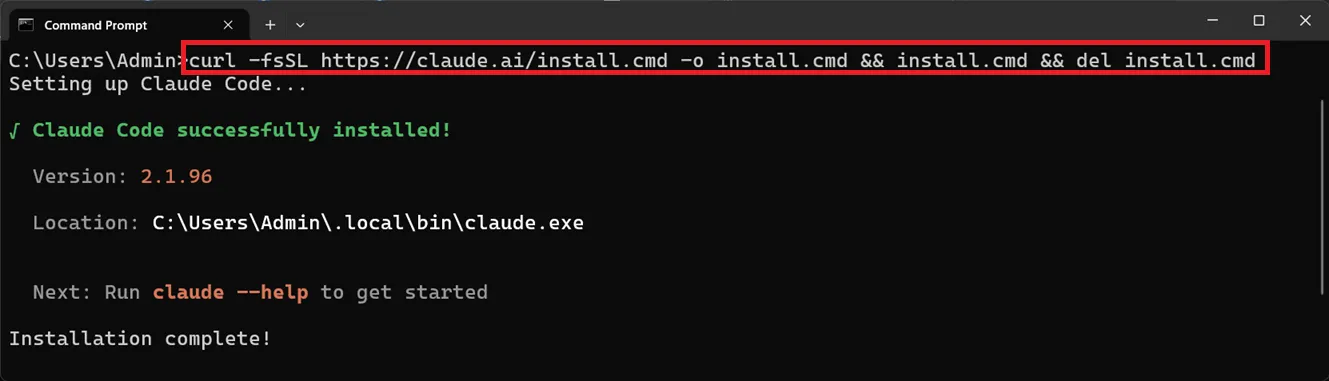
Configure GLM as the Model Provider#
ในการใช้ GLM กับ Claude Code จะต้องตั้งค่า GLM Coding Plan
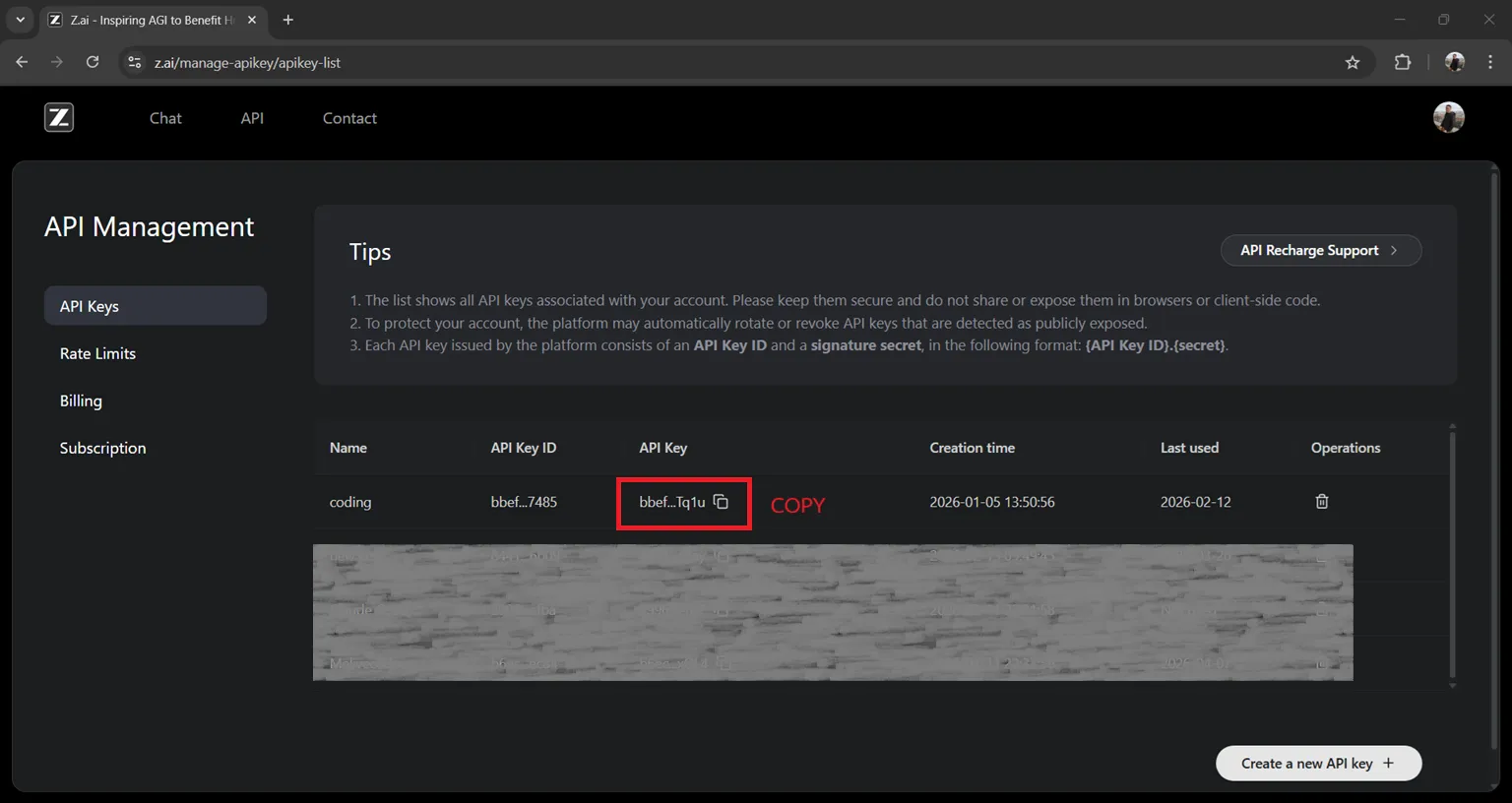
Step 1: Get API Key from Z.AI#
- เข้า Z.AI Platform ↗ แล้วสมัครหรือ login
- ไปที่หน้าจัดการ API Keys
- สร้าง API Key ใหม่
- คัดลอก API Key เก็บไว้
Step 2: Configure GLM Coding Plan#
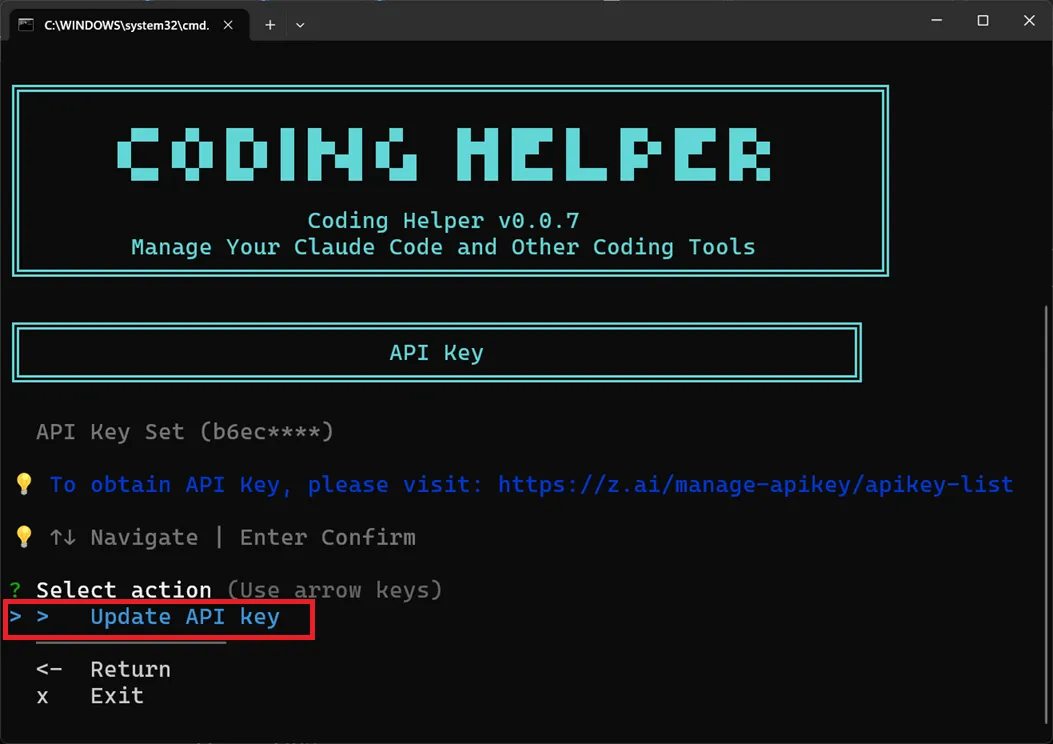
ใช้ Coding Tool Helper ตั้งค่า GLM อัตโนมัติ:
# Run Coding Tool Helper directly in your terminal
npx @z_ai/coding-helper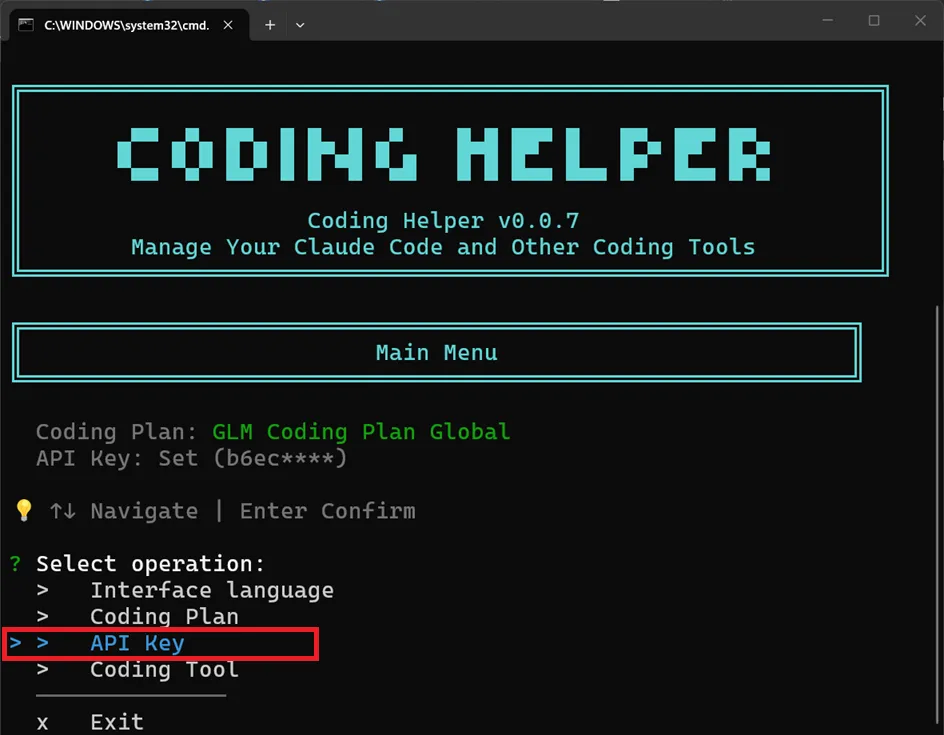
กด Enter เพื่อเลือก API Key option
วาง API Key เมื่อถูกถาม
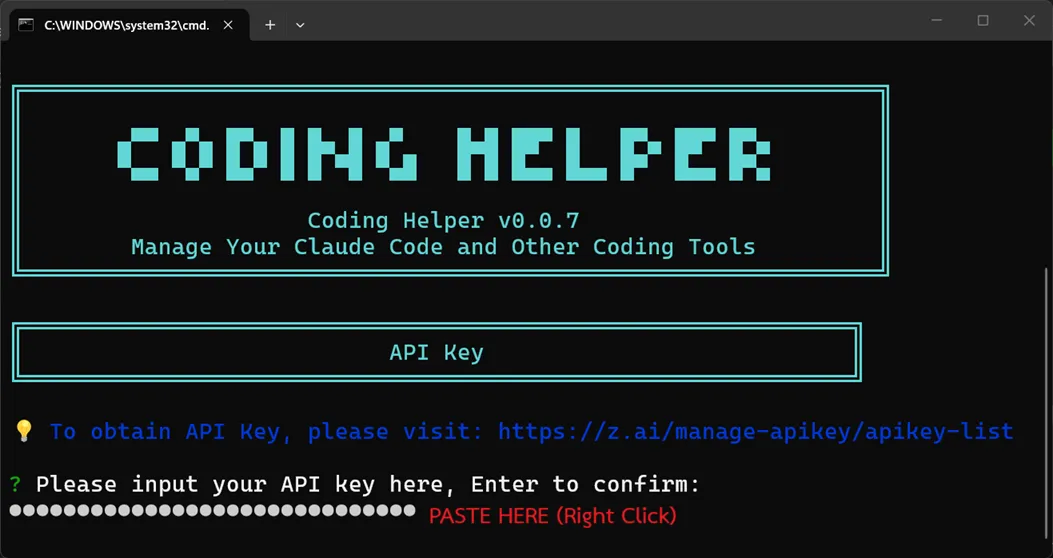
เมื่อตั้งค่าเสร็จแล้ว ให้ restart Claude Code เพื่อใช้ GLM เป็น AI model provider
4. Prerequisites#
เครื่องมือที่ต้องมี:
- Node.js ติดตั้งอยู่ในเครื่อง
- Claude Code ที่ตั้งค่า GLM แล้ว (ดูด้านบน)
- CAMPP ↗ - Local web development stack (Caddy, PHP, MySQL)
- Terminal (แนะนำ VS Code)
5. Set Up the Project#
Step 1: Create the Next.js Project#
เปิด terminal แล้วรันคำสั่ง:
mkdir ecommerce-prisma-app
cd ecommerce-prisma-app
npx create-next-app@15 . --tailwind --app --typescriptจะได้ Next.js 15 project พร้อม:
- TypeScript เปิดใช้งาน
- Tailwind CSS สำหรับ styling
- App Router
Step 2: Install Prisma#
Reference: Prisma ORM with MySQL Quickstart ↗
ORM คืออะไร? ORM (Object-Relational Mapping) ช่วยให้ interact กับ database ด้วยโค้ดแทนการเขียน SQL โดยตรง กำหนด tables เป็น models ใน schema file แล้ว ORM จะสร้าง type-safe client สำหรับ query ข้อมูล — ไม่ต้องเขียน SQL string เอง
npm install typescript tsx @types/node --save-dev

npm install prisma @types/node --save-dev
npm install @prisma/client @prisma/adapter-mariadb dotenv
npm install bcryptjs joseแต่ละ package ทำอะไร:
typescript— TypeScript compiler สำหรับ type checkingtsx— Run TypeScript files โดยตรงโดยไม่ต้อง compile ก่อน (ใช้กับ seed script)@types/node— TypeScript type definitions สำหรับ Node.js built-in modulesprisma— Prisma CLI สำหรับคำสั่งเช่นprisma init,prisma migrate, และprisma generate@prisma/client— Prisma Client ที่สร้างขึ้นสำหรับ query database แบบ type-safe@prisma/adapter-mariadb— Driver adapter เชื่อมต่อ Prisma Client กับ MySQL/MariaDBdotenv— โหลด environment variables จาก.env.localเข้าสู่process.envbcryptjs— Hash รหัสผ่านสำหรับ authenticationjose— JWT library สำหรับ authentication (รองรับ edge environment, ใช้กับ Next.js App Router ได้)
Step 3: Set Up the Database#
Start CAMPP#
- ดาวนโหลด CAMPP ↗ แล้วติดตั้ง
- เปิด CAMPP แล้วกด Start สำหรับ Caddy, PHP และ MySQL
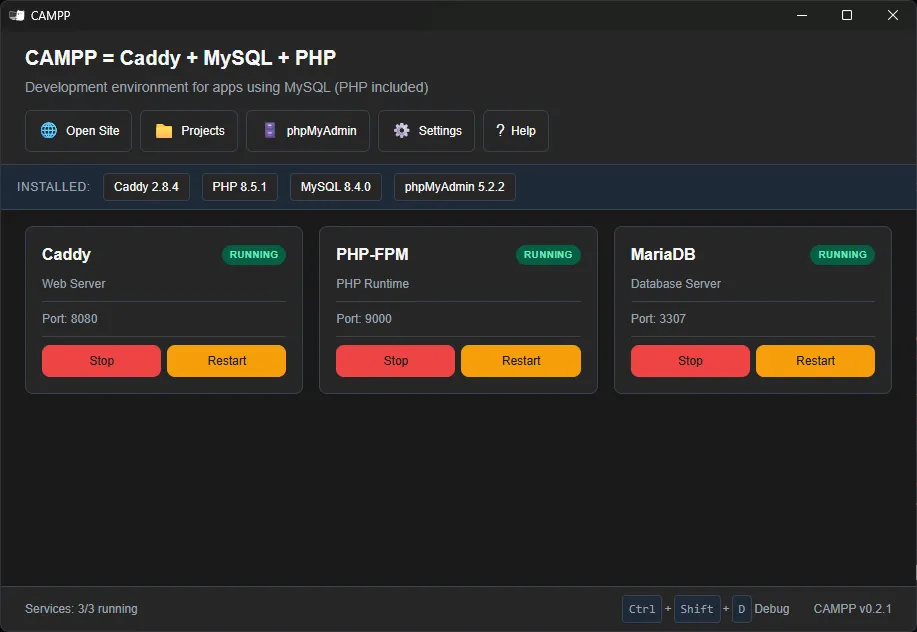
ค่า default ของ MySQL บน CAMPP:
| Setting | Value |
|---|---|
| Host | localhost |
| Port | 3307 (ไม่ใช่ 3306 เพื่อหลีกเลี่ยง conflict) |
| Username | root |
| Password | (ตามที่ระบุใน CAMPP) |
หมายเหตุ: CAMPP ใช้ port 3307 สำหรับ MySQL เพื่อหลีกเลี่ยงการ conflict กับ MySQL service อื่นบนเครื่อง
Create the Database#
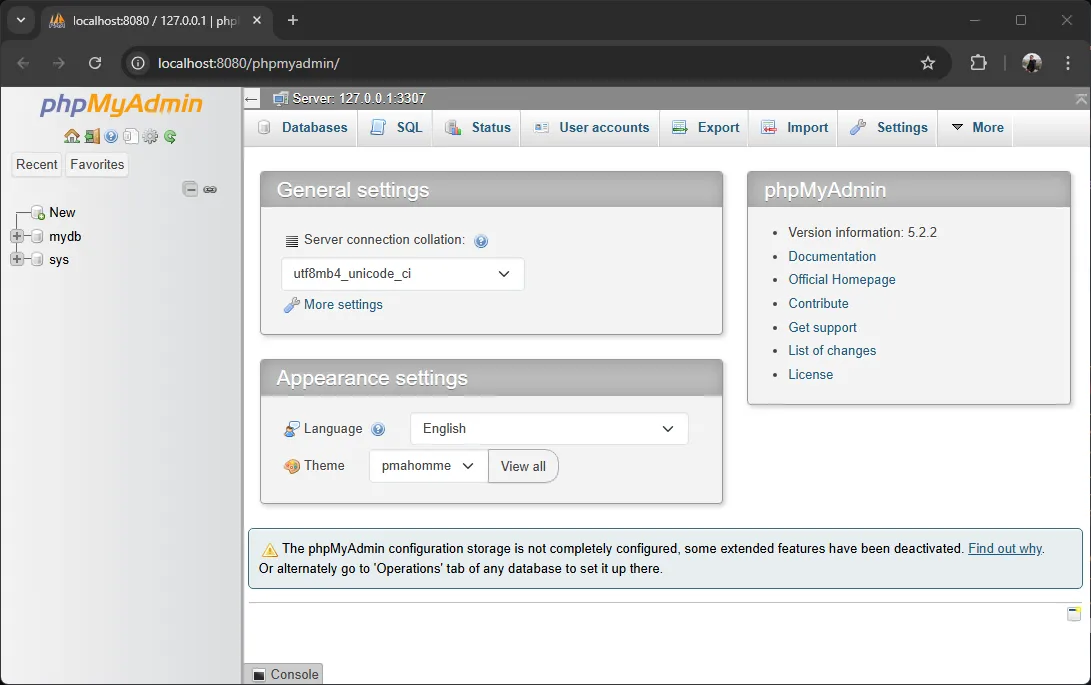
- กดปุ่ม phpMyAdmin บน CAMPP Dashboard
- กด New ใน phpMyAdmin
- ตั้งชื่อ database:
ecommerce_prisma - กด Create
Step 4: Configure Claude Code for GLM#
ก่อนใช้ Claude Code ให้ตั้งค่าให้ใช้ GLM models ก่อน สร้าง .claude/settings.local.json ใน project root:
{
  "env": {
    "ANTHROPIC_DEFAULT_HAIKU_MODEL": "glm-4.5-air",
    "ANTHROPIC_DEFAULT_SONNET_MODEL": "glm-5-turbo",
    "ANTHROPIC_DEFAULT_OPUS_MODEL": "glm-5.1"
  }
}6. Prompt 1: Customer Management#
Open Claude Code in Your Project#
ให้แน่ใจว่าอยู่ใน project directory แล้วจึงเปิด Claude Code:
ผ่าน terminal:
cd ecommerce-prisma-app
claude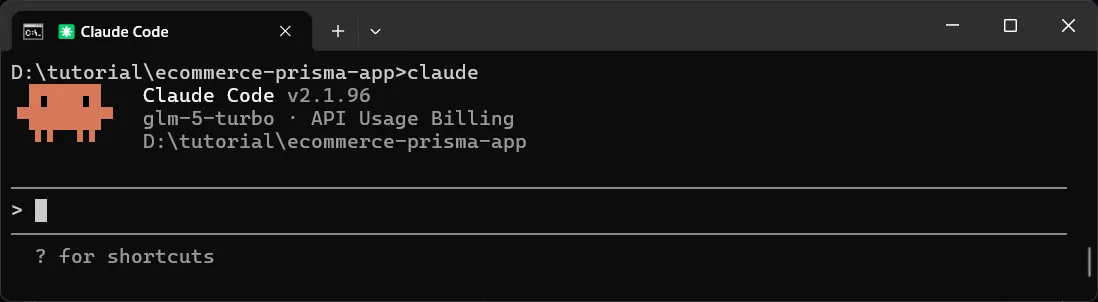
หรือจาก VS Code:
- เปิด project folder ใน VS Code
- กด
Ctrl+Shift+P(Windows/Linux) หรือCmd+Shift+P(macOS) - พิมพ์ “Claude Code: Start New Chat” แล้วกด Enter
Initialize the Project Context#
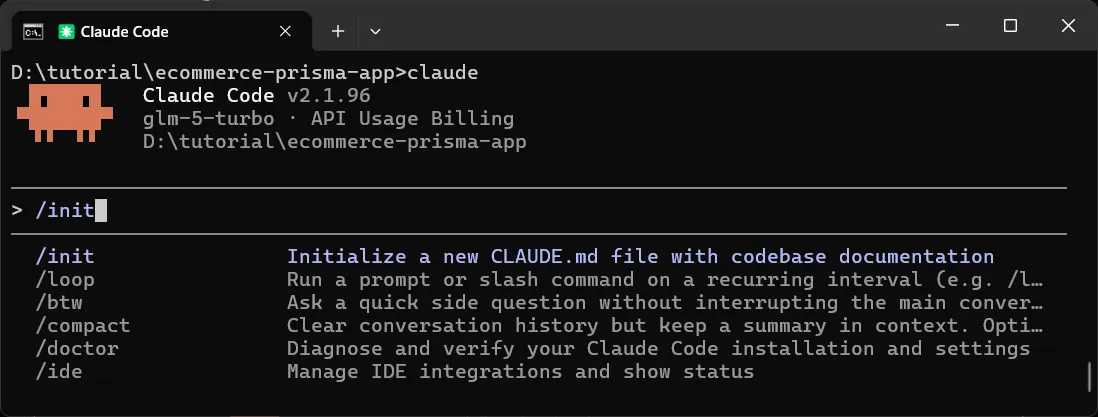
ก่อนใช้ prompt ให้ Claude Code เข้าใจ project structure ก่อนด้วยคำสั่ง:
/initจะสแกน project และช่วยให้ Claude Code สร้างโค้ดที่เข้ากับ setup ที่มีอยู่
Use This Exact Prompt#
หลังจาก /init เสร็จ ให้วาง prompt นี้:
Create an e-commerce application using Next.js 15 with App Router, TypeScript, and Prisma ORM with MySQL.

Before writing any code, read https://www.prisma.io/docs/prisma-orm/quickstart/mysql and follow the Prisma setup instructions exactly as documented (prisma.config.ts, schema.prisma, lib/prisma.ts, generator config, etc.).

We are building the app incrementally. Start with user management first — products and orders will be added later.

Use the /admin path for admin pages and /api/ for API routes.

The frontend and API must be in the same Next.js project using App Router route handlers.

Use this exact project structure:

ecommerce-prisma-app/
├── prisma/
│   └── schema.prisma
├── prisma.config.ts
├── middleware.ts
├── .env.local
├── lib/
│   ├── prisma.ts
│   └── auth.ts
├── seed.ts
└── app/
    ├── layout.tsx
    ├── page.tsx
    ├── api/
    │   ├── auth/
    │   │   └── route.ts
    │   └── customers/
    │       ├── route.ts
    │       └── [id]/
    │           └── route.ts
    └── admin/
        ├── login/
        │   └── page.tsx
        ├── layout.tsx
        ├── page.tsx
        └── customers/
            └── page.tsx

=== DATABASE REQUIREMENTS ===

Database: MySQL (via Prisma ORM)
Database name: ecommerce_prisma

Prisma schema — a single User model with role-based access control (RBAC):

- id — auto-incrementing integer, primary key
- username — unique string, used for login
- password — hashed password string (using bcryptjs)
- name — display name
- email — email address
- role — either `"admin"` or `"customer"`, defaults to `"customer"`
- createdAt — timestamp, auto-generated on creation

=== API REQUIREMENTS ===

Use Next.js App Router route handlers with TypeScript and Prisma Client.

Auth:
- POST /api/auth → login with username and password, return JWT token in a cookie (httpOnly). Only allow users with role "admin" to login.

Customers (full CRUD):
- GET /api/customers → return all customers
- GET /api/customers/[id] → return one customer or 404
- POST /api/customers → create customer
- PUT /api/customers/[id] → update customer
- DELETE /api/customers/[id] → delete customer

API rules:
- use Prisma Client for all database operations
- return JSON only
- use proper status codes: 200, 201, 400, 401, 404, 500
- include error handling
- use NextResponse
- use proper TypeScript types/interfaces
- all /api/* routes (except /api/auth) must verify JWT from httpOnly cookie, return 401 if not authenticated

=== FRONTEND REQUIREMENTS ===

Use Next.js 15 + App Router + TypeScript + Tailwind CSS.

Pages:
- Login (/admin/login — username/password form, redirect to /admin on success)
- Dashboard (/admin — home page with a welcome message)
- Users (/admin/customers — table with user list + form to add)

All /admin/* pages (except /admin/login) must be protected — redirect to /admin/login if not authenticated.

UI requirements:
- responsive table
- simple form to add customer
- loading states
- error messages
- fetch using relative URLs like /api/customers
- clean modern UI
- navigation using Next.js Link
- proper TypeScript interfaces
- **NO dark mode toggle - use light theme only**

=== PRISMA SETUP ===

Create prisma/schema.prisma with:
- generator client using "prisma-client" provider with output "../generated/prisma"
- datasource db with mysql provider
- User model with role-based access control

Create prisma.config.ts:
- import dotenv/config
- use defineConfig from "prisma/config"
- configure datasource url from env("DATABASE_URL")

Create lib/prisma.ts:
- import PrismaMariaDb from @prisma/adapter-mariadb
- import PrismaClient from the generated client path
- pass adapter to PrismaClient constructor
- export singleton prisma instance

Create lib/auth.ts:
- helper functions to verify JWT from cookies using jose
- export function to get the authenticated admin user from the request

Create middleware.ts:
- protect all /admin/* routes except /admin/login
- check for JWT in cookies, redirect to /admin/login if not found

Environment variables:
JWT_SECRET=your-secret-key
DATABASE_URL="mysql://root:@localhost:3307/ecommerce_prisma"
DATABASE_HOST=localhost
DATABASE_PORT=3307
DATABASE_USER=root
DATABASE_PASSWORD=(as specified in CAMPP)
DATABASE_NAME=ecommerce_prisma

Create seed.ts using Prisma Client to seed:
- 1 admin user (username: admin, password: admin123, role: "admin" — hash with bcryptjs)
- 5 sample users (role: "customer")

Add to package.json: "prisma": { "seed": "npx tsx seed.ts" }

Also configure the seed command in prisma.config.ts under migrations:
migrations: {
  path: "prisma/migrations",
  seed: "npx tsx seed.ts",
}

=== OUTPUT REQUIREMENTS ===

Provide:
1. Complete code for every file in the structure above
2. .env.local template
3. prisma/schema.prisma
4. seed.ts
5. prisma.config.ts
6. lib/prisma.ts
7. Commands to initialize Prisma, run migration, seed data, and run the project
8. Ensure the code is build-ready and TypeScript-safe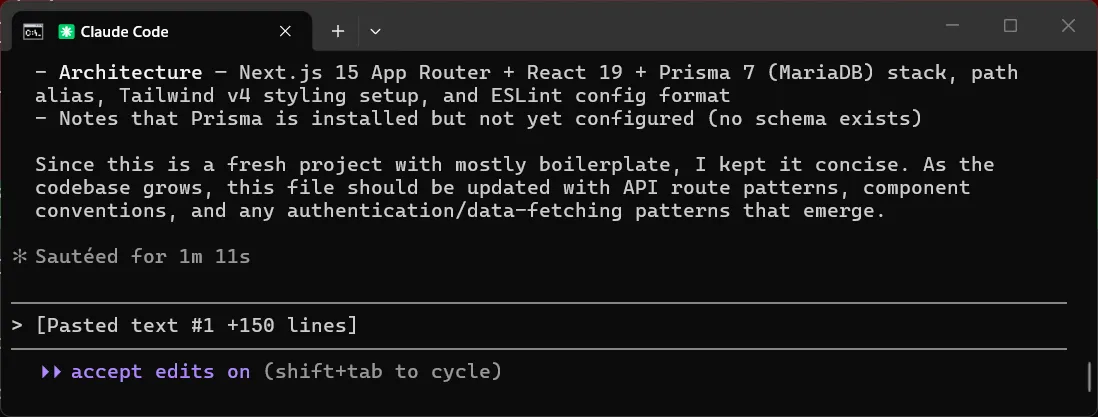
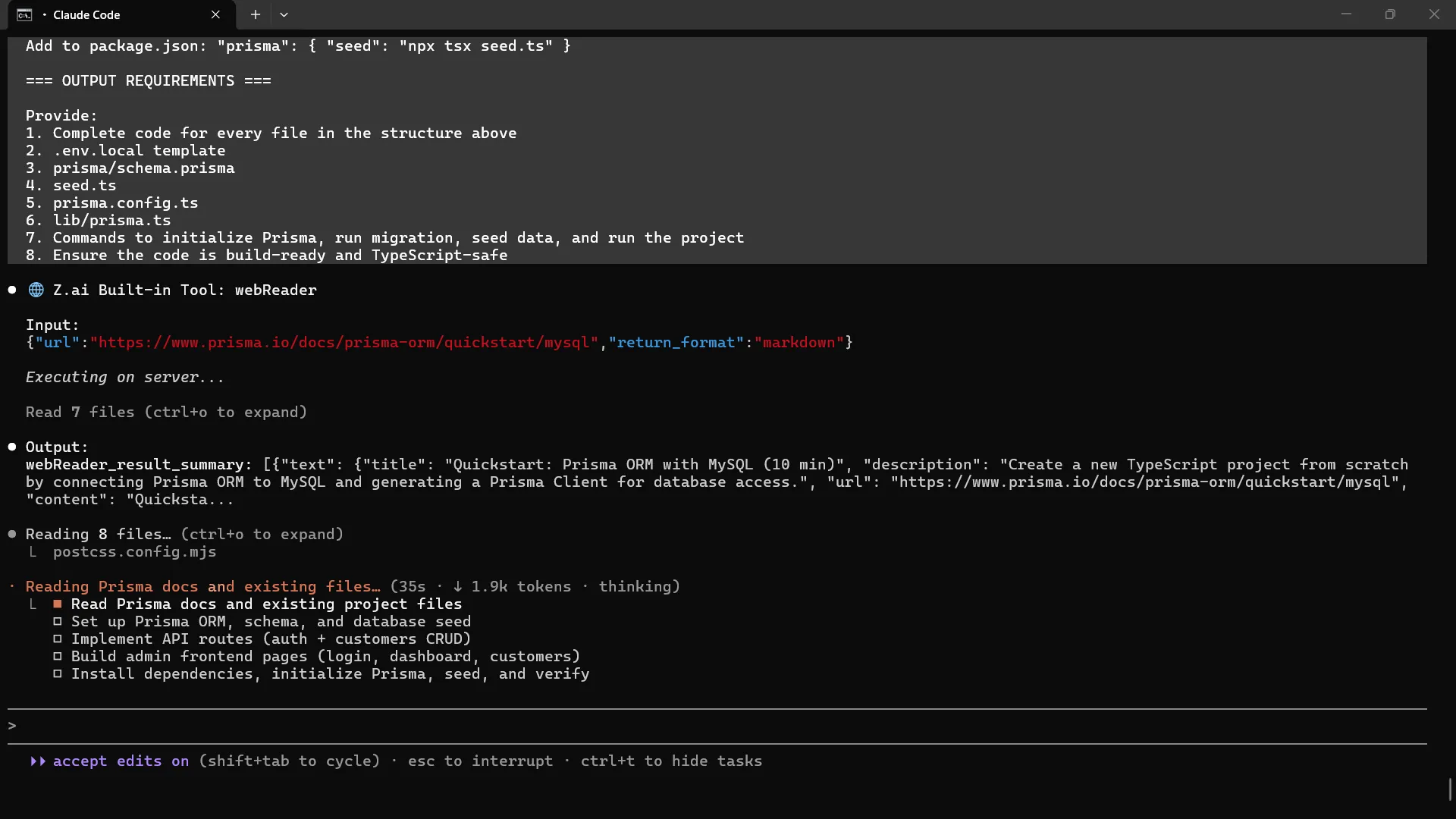
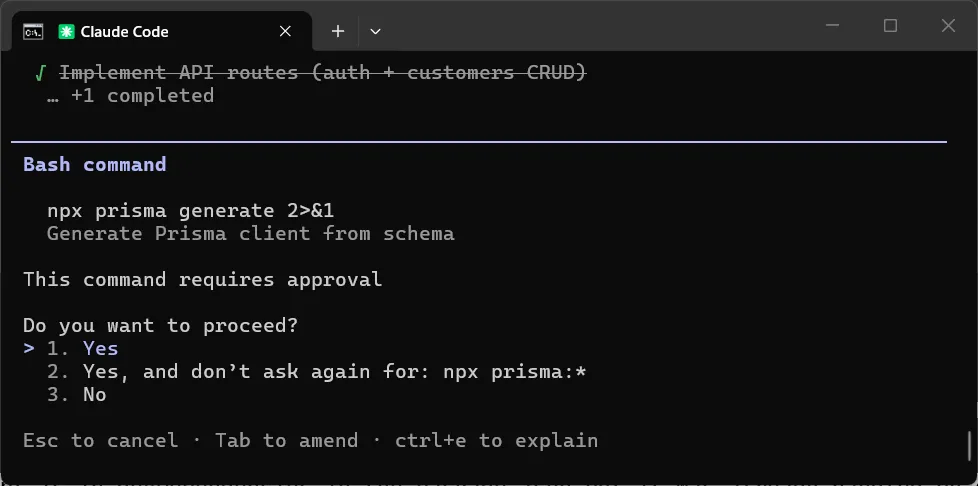
ระหว่าง Claude Code เขียนโค้ด อาจจะขอ run คำสั่งเช่น npx prisma generate — คำสั่งนี้สร้าง Prisma Client จาก schema เพื่อให้โค้ดสามารถ query database แบบ type-safe ได้ ให้อนุญาต
Step 5: Run the First Migration#
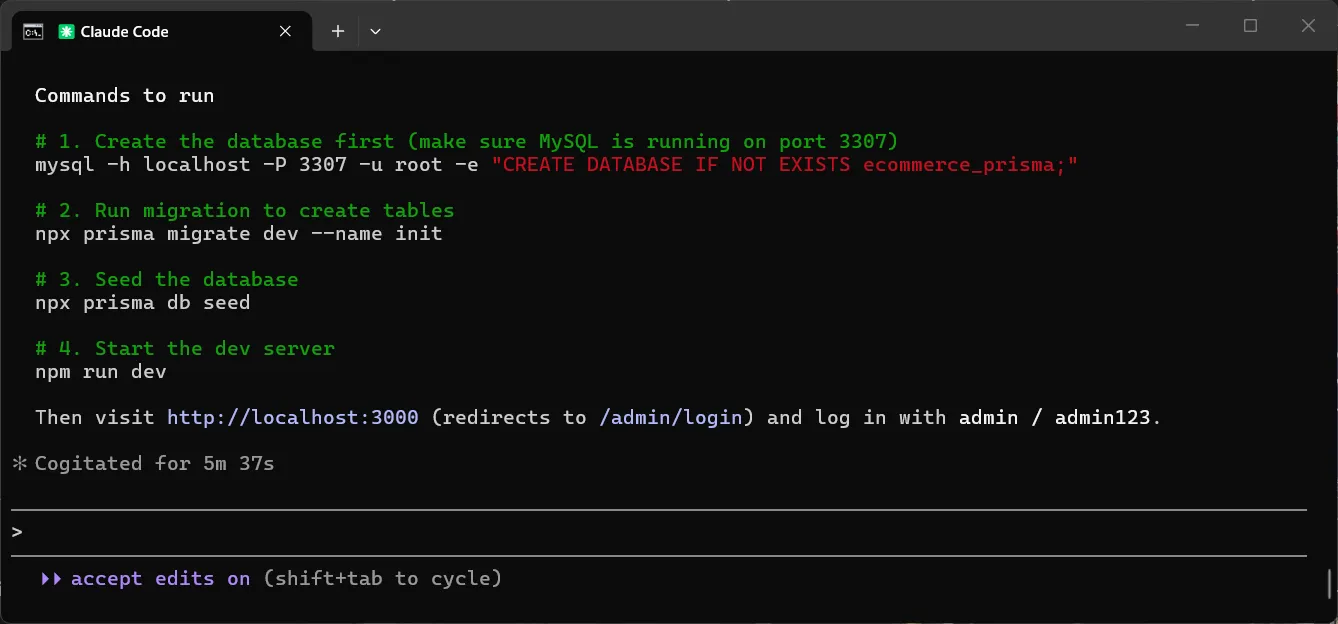
Claude Code อาจแนะนำให้ run prisma generate, prisma migrate, และ prisma db seed — สามารถทำตามคำแนะนำได้ หรือทำตามขั้นตอนด้านล่างในบทความนี้ก็ได้
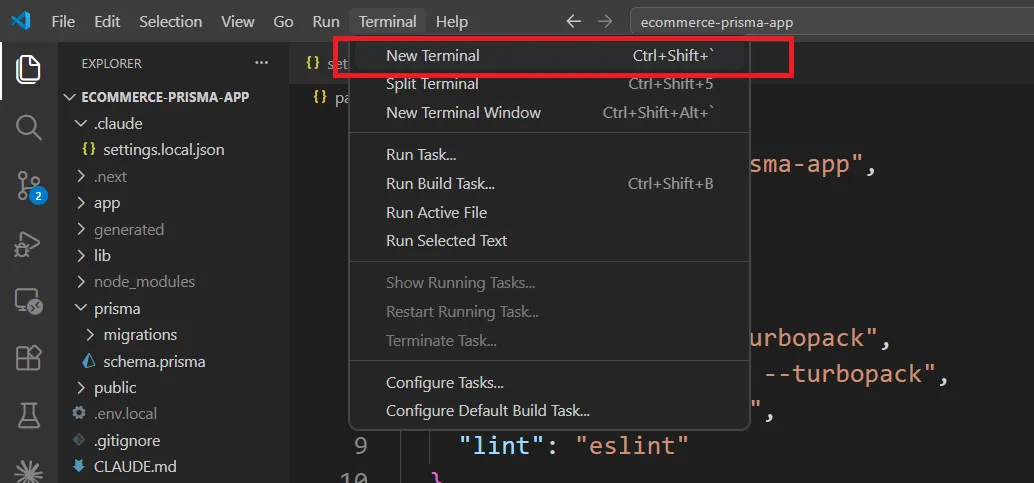
เมื่อ Claude Code เขียนโค้ดเสร็จ ให้เปิด terminal ใหม่ใน VS Code โดยกด Ctrl+` (หรือไปที่ Terminal → New Terminal)
ก่อน run migration ให้แน่ใจว่า Prisma Client ถูก generate แล้ว ถ้า Claude Code ไม่ได้ run ให้ run เอง:
npx prisma generate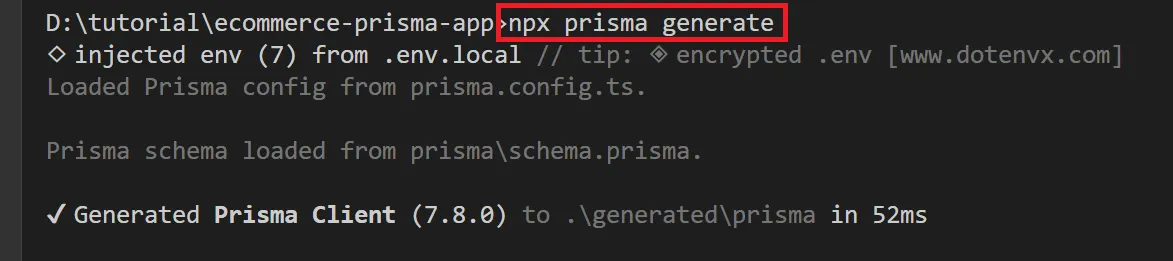
คำสั่งนี้สร้าง Prisma Client จาก schema เพื่อให้โค้ดสามารถ query database แบบ type-safe ได้
จากนั้น run migration เพื่อสร้าง User table:
npx prisma migrate dev --name create_user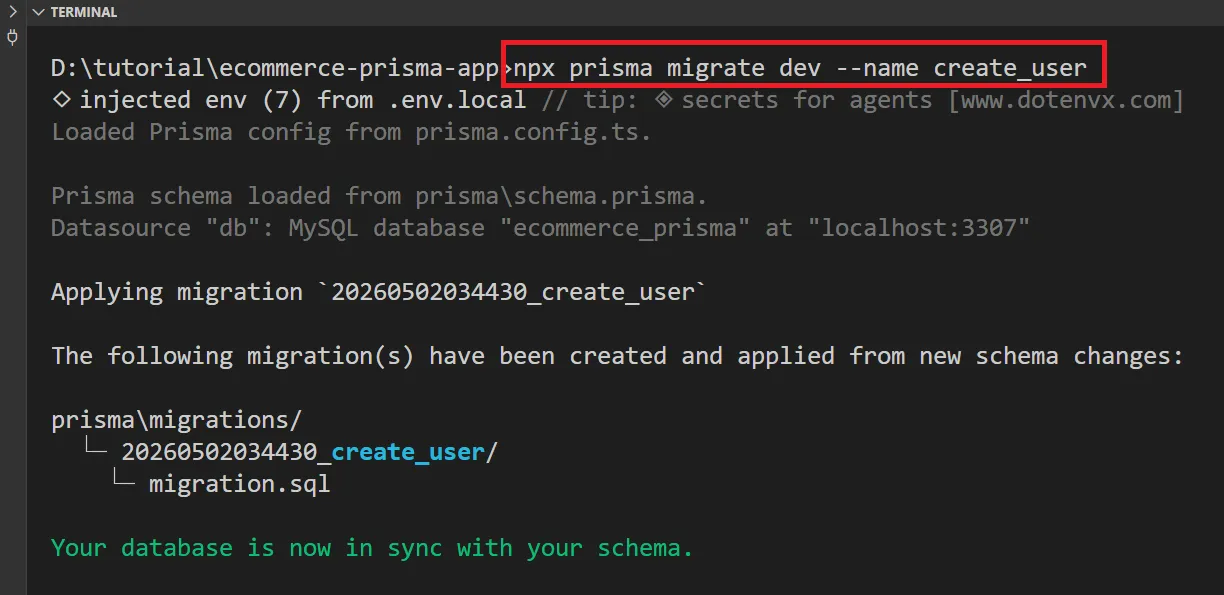
คำสั่งนี้จะ:
- อ่านไฟล์
prisma/schema.prisma - สร้าง SQL migration file ใต้
prisma/migrations/ - Apply migration เพื่อสร้าง
Usertable ใน database - Generate Prisma Client
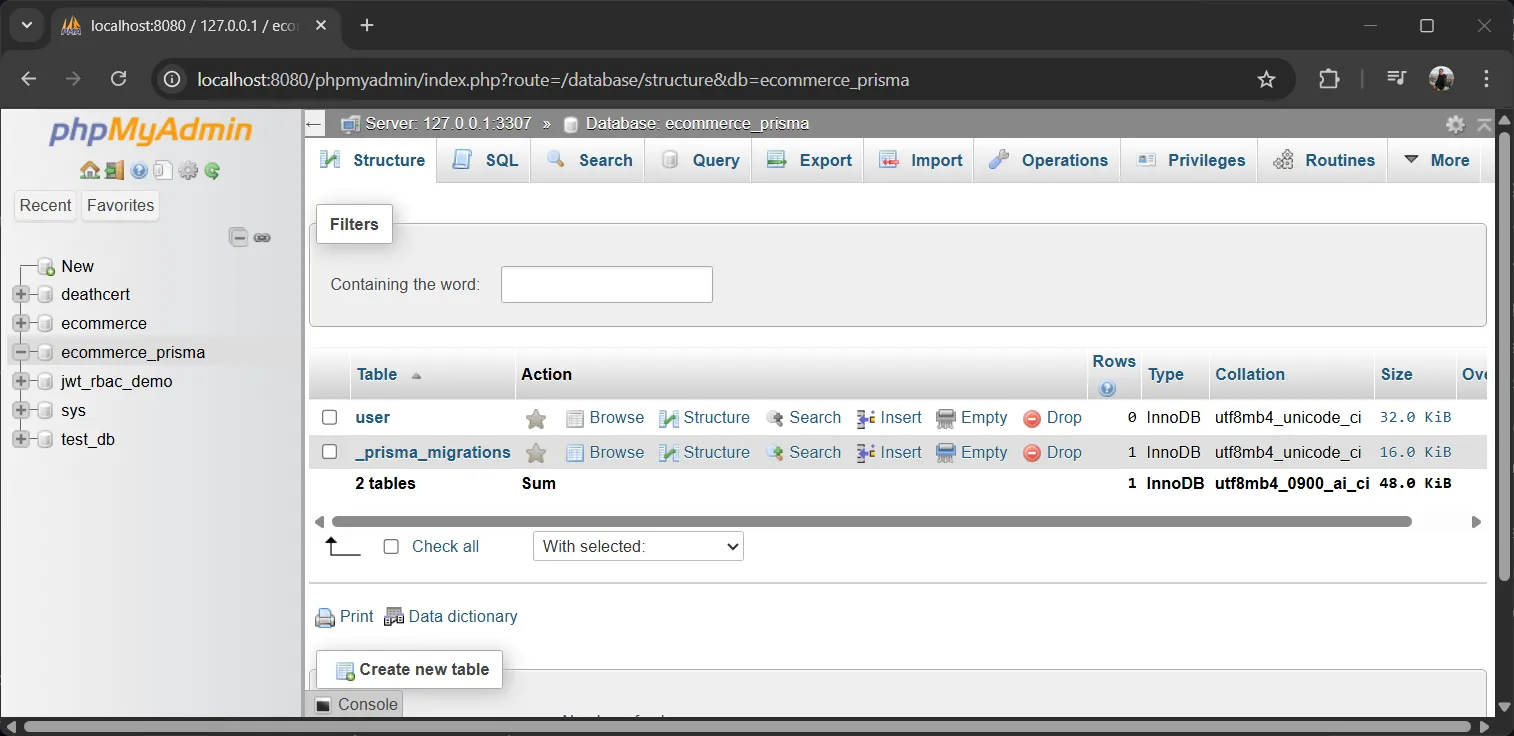
สามารถตรวจสอบว่า table ถูกสร้างแล้วได้โดยเปิด http://localhost:8080/phpmyadmin ↗ แล้วดูที่ database ecommerce_prisma
Step 6: Seed the Database#
เพิ่มข้อมูลตัวอย่างลง database:
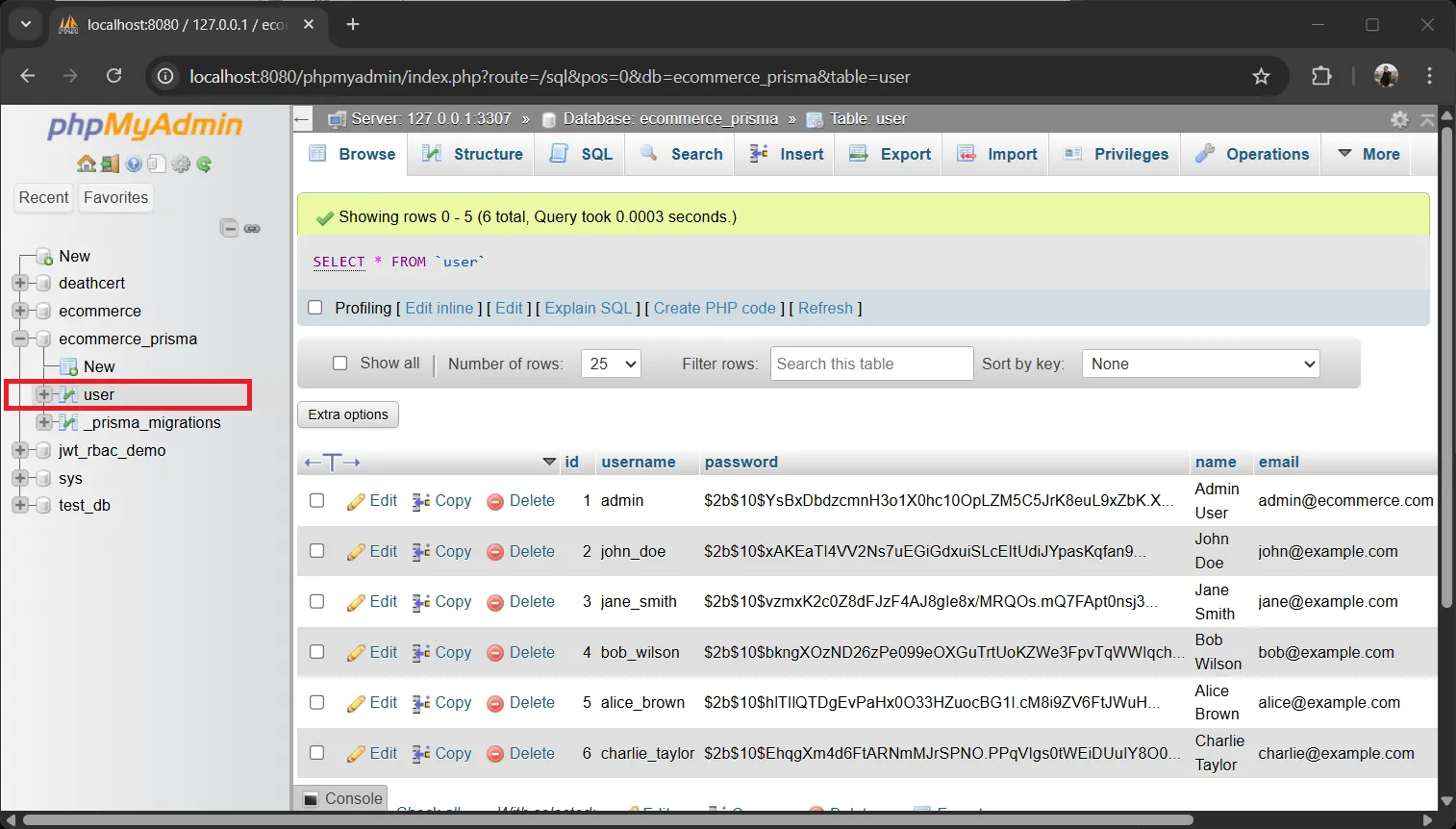
npx prisma db seed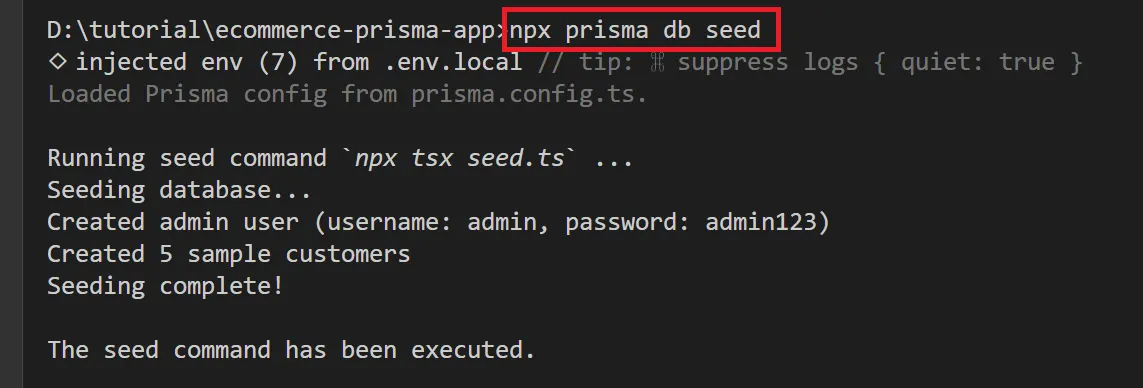
Step 7: Test the Application#
เริ่ม development server:
npm run devเปิด http://localhost:3000/admin ↗ ใน browser
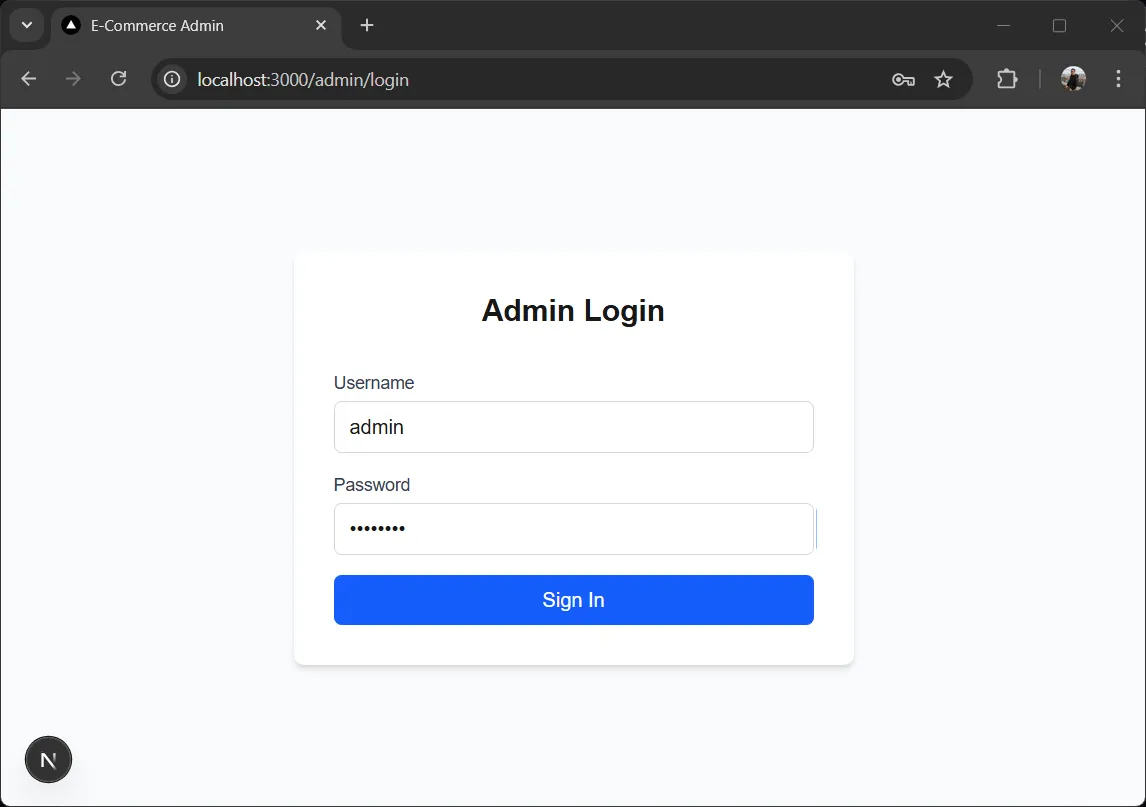
Login#
จะถูก redirect ไปหน้า login ให้ใส่ข้อม:
- Username:
admin - Password:
admin123
Dashboard#
หลัง login แล้ว หน้า dashboard จะแสดงขึ้นมา
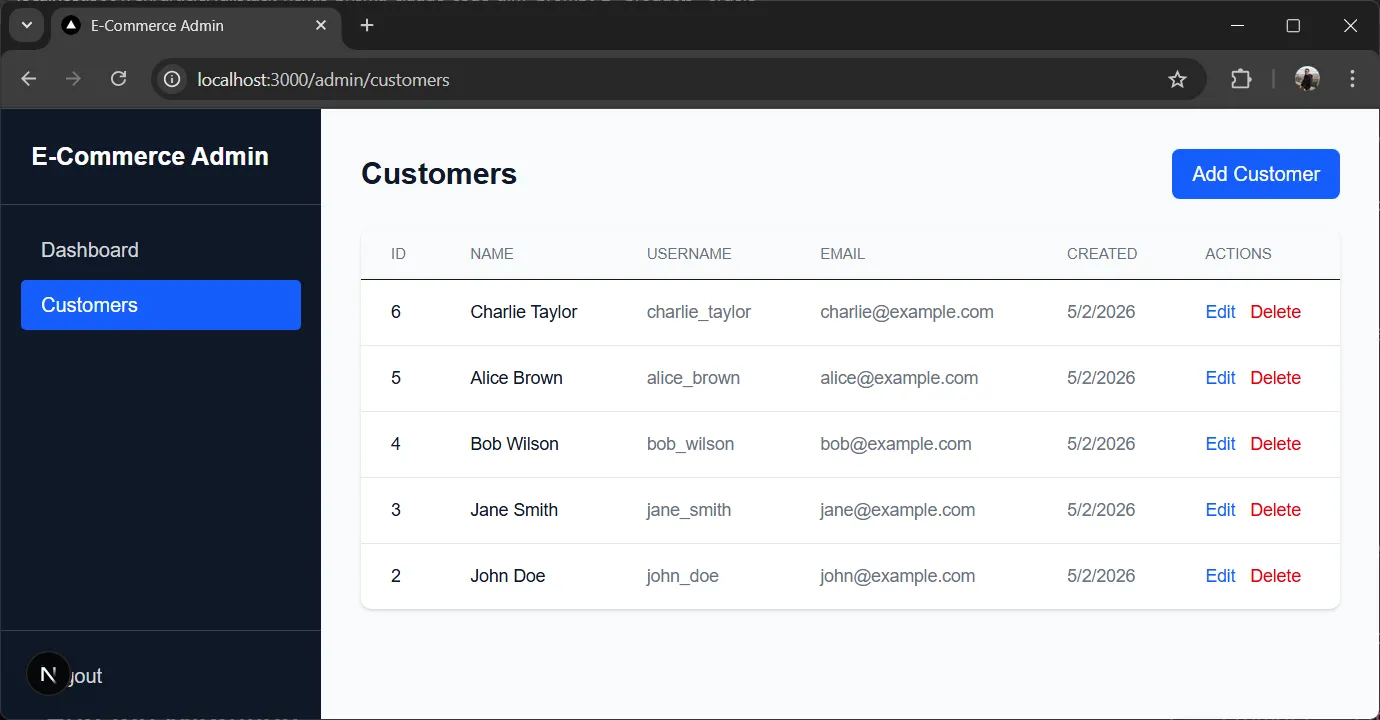
Customer Management#
ไปที่หน้า Customers จะเห็นข้อมูลลูกค้าตัวอย่างในรูปแบบตาราง สามารถทำได้:
- ดูรายชื่อลูกค้าทั้งหมด
- เพิ่มลูกค้าใหม่ด้วยฟอร์ม
- แก้ไขข้อมูลลูกค้า
- ลบลูกค้า
Logout#
ทดสอบปุ่ม logout — ควรลบ session แล้ว redirect กลับไปหน้า login
7. Prompt 2: Products & Orders#
เมื่อระบบจัดการลูกค้าทำงานแล้ว มาเพิ่มสินค้าและคำสั่งซื้อกัน นี่คือจุดเด่นของ Prisma migrations — เพียงแค่อัปเดต schema file แล้ว Prisma จะจัดการส่วนที่เหลือให้
เปิด Claude Code อีกครั้ง (หรือใช้ session เดิมต่อ):
claudeวาง prompt นี้:
Add Products and Orders to the existing e-commerce application. The User model and customer API already exist and work.

Before writing any code, look at the existing API implementation in app/api/customers/[id]/route.ts to follow the same patterns and coding style.

=== UPDATE PRISMA SCHEMA ===

Add these models to prisma/schema.prisma:

- Product (id, name, price Decimal, stock Int, createdAt)
- Order (id, total Decimal, status String, createdAt, relation to User as customer, relation to OrderItem[])
- OrderItem (id, quantity Int, price Decimal, relation to Order, relation to Product)

Keep the existing User model unchanged.

=== NEW API ROUTES ===

Add to app/api/:

Products (full CRUD):
- GET /api/products → return all products
- GET /api/products/[id] → return one product or 404
- POST /api/products → create product
- PUT /api/products/[id] → update product
- DELETE /api/products/[id] → delete product

Orders (full CRUD):
- GET /api/orders → return all orders with customer and items
- GET /api/orders/[id] → return one order with items and customer or 404
- POST /api/orders → create order
- PUT /api/orders/[id] → update order
- DELETE /api/orders/[id] → delete order

POST /api/orders must:
- use Prisma transactions (prisma.$transaction)
- validate product stock before creating the order
- decrease stock after order creation
- rollback on any error

=== NEW FRONTEND PAGES ===

Add to app/admin/:

- products/page.tsx — table with product list, form to add, edit and delete buttons
- orders/page.tsx — table with order list, form to create new order
  - allow selecting customer from dropdown
  - allow selecting products and quantity
  - calculate order total
  - submit order to /api/orders

Update app/admin/layout.tsx navigation to include Products and Orders links.

=== UPDATE SEED ===

Update seed.ts to also seed 5 products and 3 orders with items (using existing customers).

=== API RULES ===

Same as existing: Prisma Client, JSON only, proper status codes, error handling, NextResponse, TypeScript types.

=== OUTPUT REQUIREMENTS ===

1. Complete code for all new and modified files
2. Updated prisma/schema.prisma
3. Updated seed.ts
4. Commands to run migration and re-seed
5. Ensure the code is build-ready and TypeScript-safeRun Prisma Generate and Migration#
ถ้า Claude Code ไม่ได้ run npx prisma generate ระหว่างเขียนโค้ด ให้ run เองก่อน:
npx prisma generateจากนั้น run migration เพื่อสร้าง table ใหม่:
npx prisma migrate dev --name add_products_ordersจะ:
- ตรวจพบ model ใหม่ Product, Order และ OrderItem ใน schema
- สร้าง SQL migration ที่เพิ่ม table เหล่านั้น
- Apply migration เข้าสู่ database
- Regenerate Prisma Client พร้อม model ใหม่
นี่คือพลังของ Prisma migrations — เพียงอัปเดต schema file แล้ว Prisma จะสร้างและ apply SQL ให้!
Re-seed the Database#
อัปเดตข้อมูลตัวอย่างด้วยสินค้าและคำสั่งซื้อ:
npx prisma db seedTest the Full Application#
npm run devเปิด http://localhost:3000/admin ↗ แล้วตรวจสอบ:
- Login ด้วย username
adminและ passwordadmin123 - ระบบลูกค้าจาก Prompt 1 ยังทำงาน — full CRUD (create, read, update, delete)
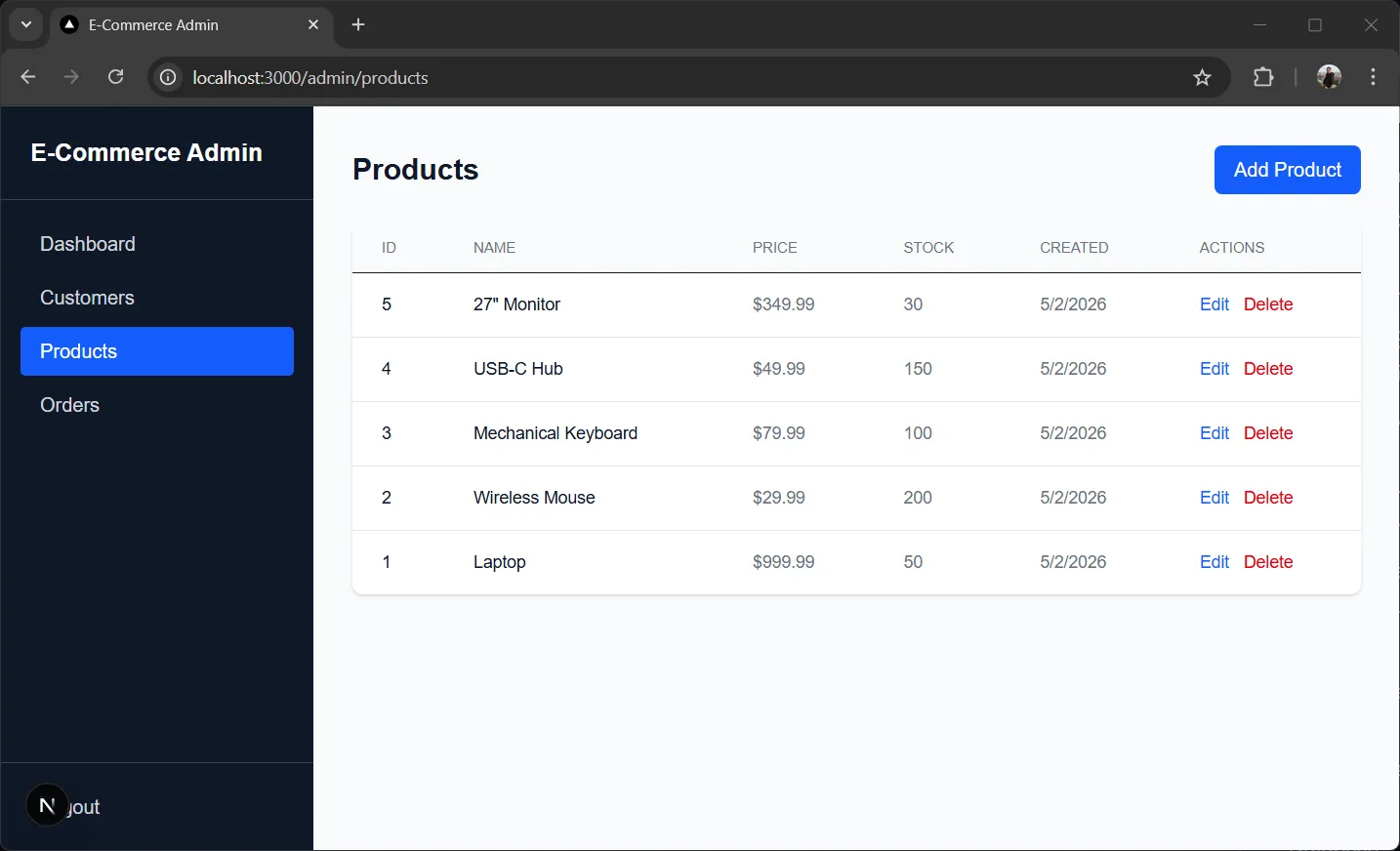
- หน้าสินค้าแสดงสินค้า — full CRUD (create, read, update, delete)
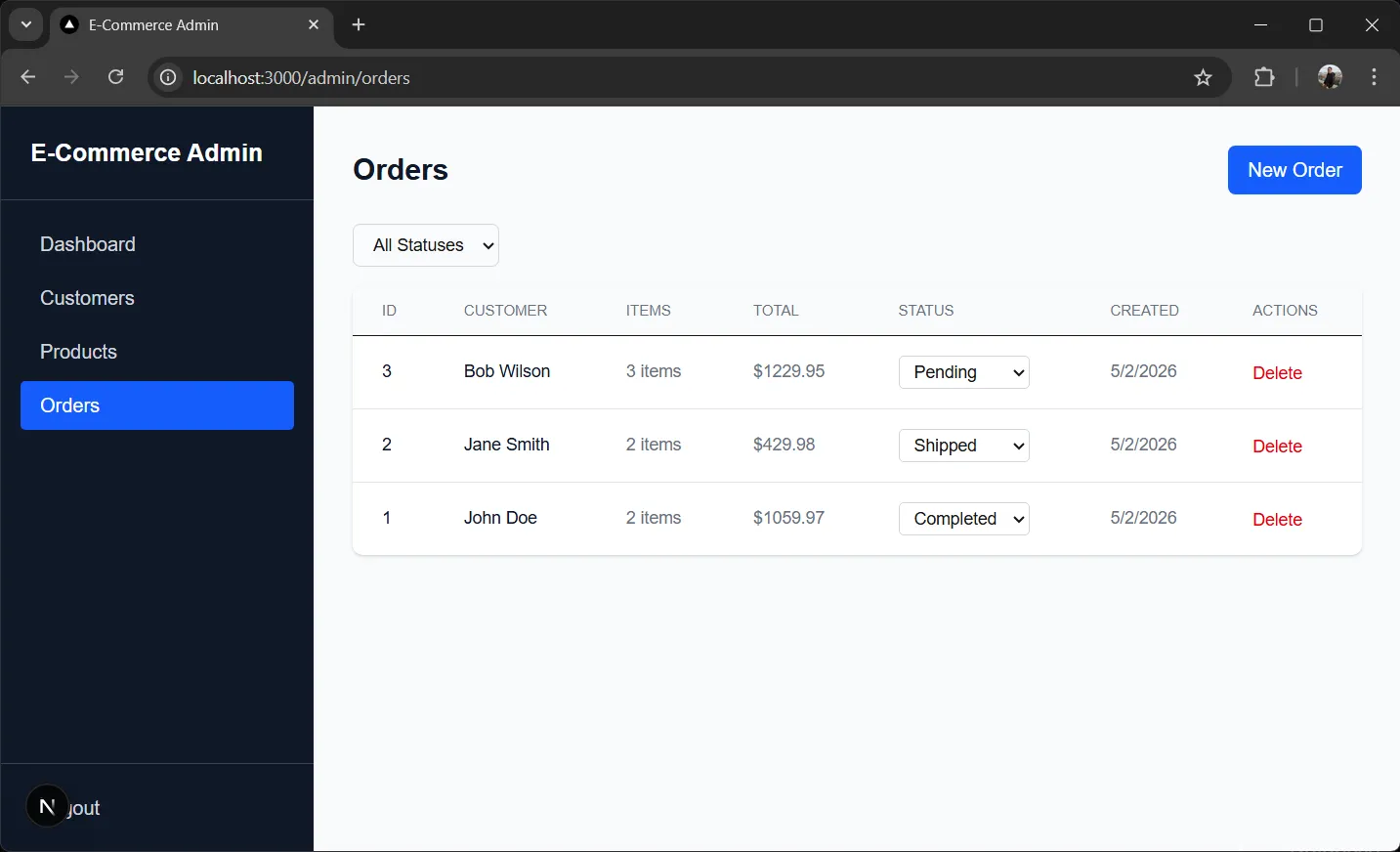
- หน้าคำสั่งซื้อแสดงคำสั่งซื้อ — full CRUD (create, read, update, delete)
- การสร้างคำสั่งซื้อจะลด stock สินค้า
- Navigation มีทุกหน้า
Tip: สามารถดู database แบบ visual ด้วย Prisma Studio:
bashnpx prisma studio
8. Prompt 3: Customer Storefront#
ตอนนี้มาเพิ่มหน้าร้านค้า (storefront) ที่ลูกค้าสามารถเลือกดูสินค้า, เพิ่มลงตะกร้า และสั่งซื้อได้ นี่คือส่วน public-facing ของ E-commerce app
Open Claude Code in Your Project#
claudeวาง prompt นี้:
Add a customer storefront with shopping cart to the existing e-commerce application. The admin panel with Users, Products, and Orders already exists and works.

=== NEW PRISMA MODEL ===

Add a CartItem model to prisma/schema.prisma:

- CartItem (id, quantity Int, relation to User as customer, relation to Product, createdAt)

A CartItem represents a product added to a customer's cart. When the customer checks out, the cart items become order items and the cart is cleared.

=== NEW PAGES ===

Add to app/ (public pages, no auth required for browsing):

- page.tsx — homepage/landing page with a welcome message and link to /products
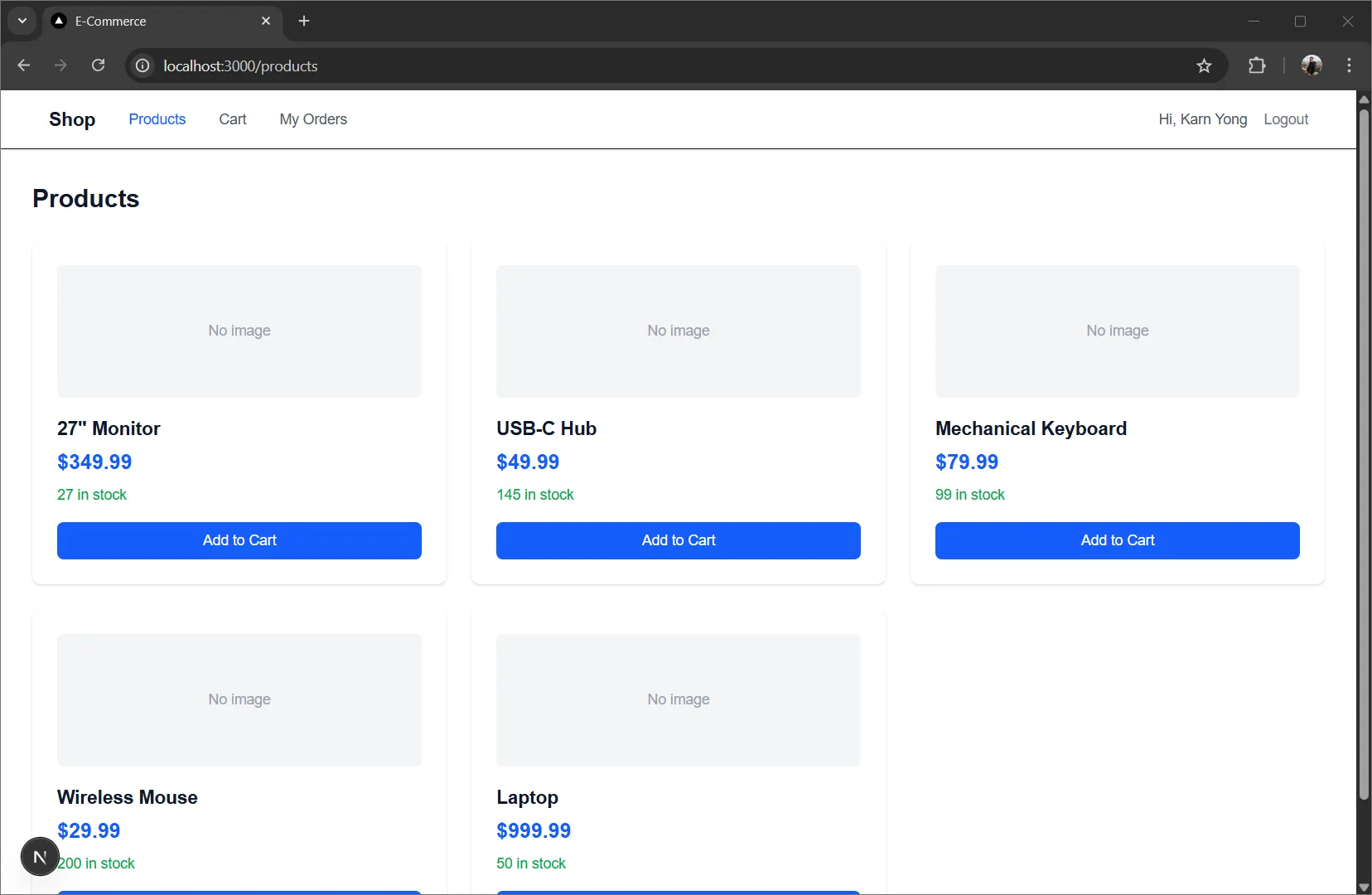
- products/page.tsx — browse all products with name, price, stock, and "Add to Cart" button
- products/[id]/page.tsx — product detail page with "Add to Cart" button
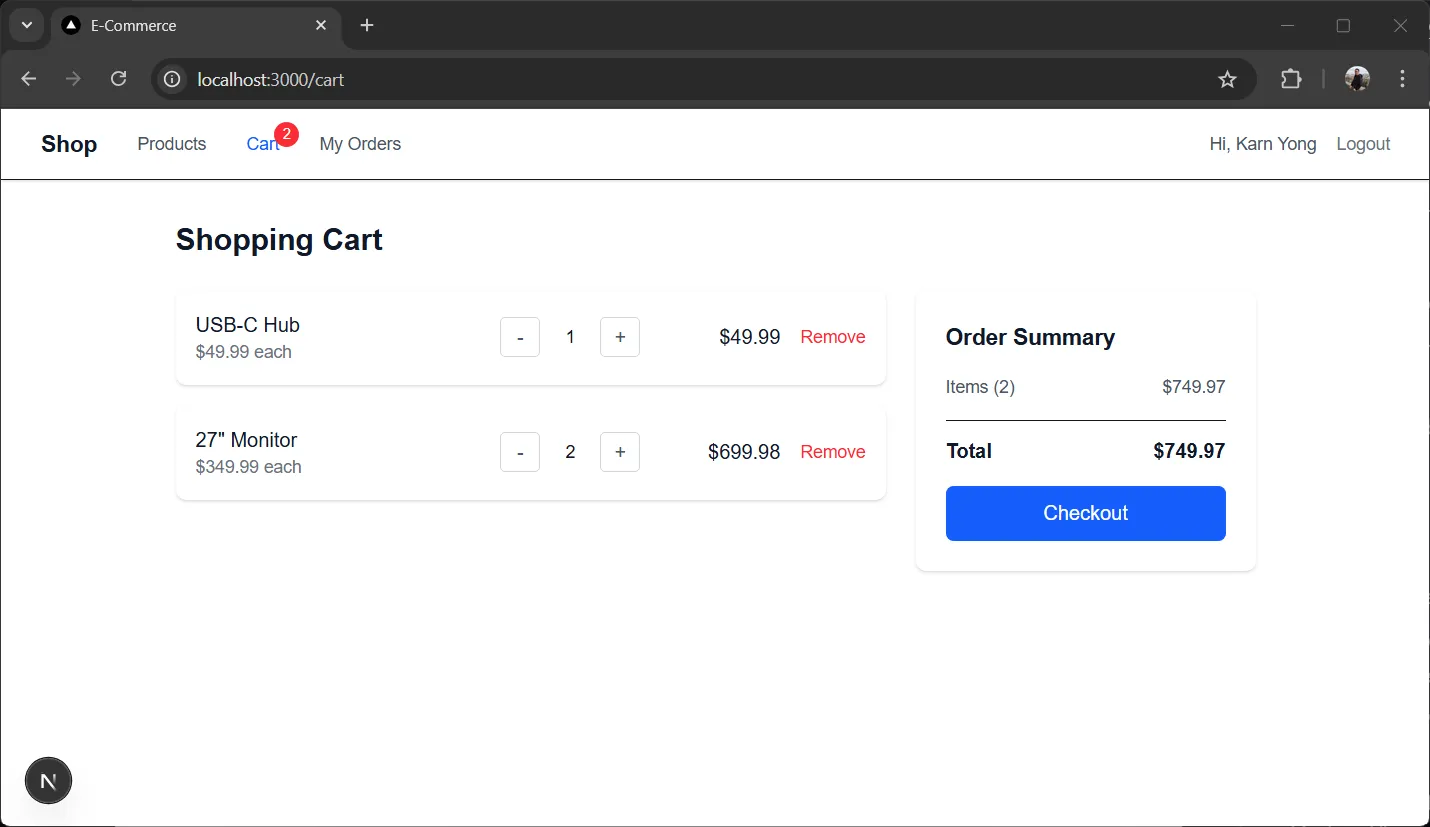
- cart/page.tsx — shopping cart page showing all cart items, quantity controls, total price, and "Checkout" button
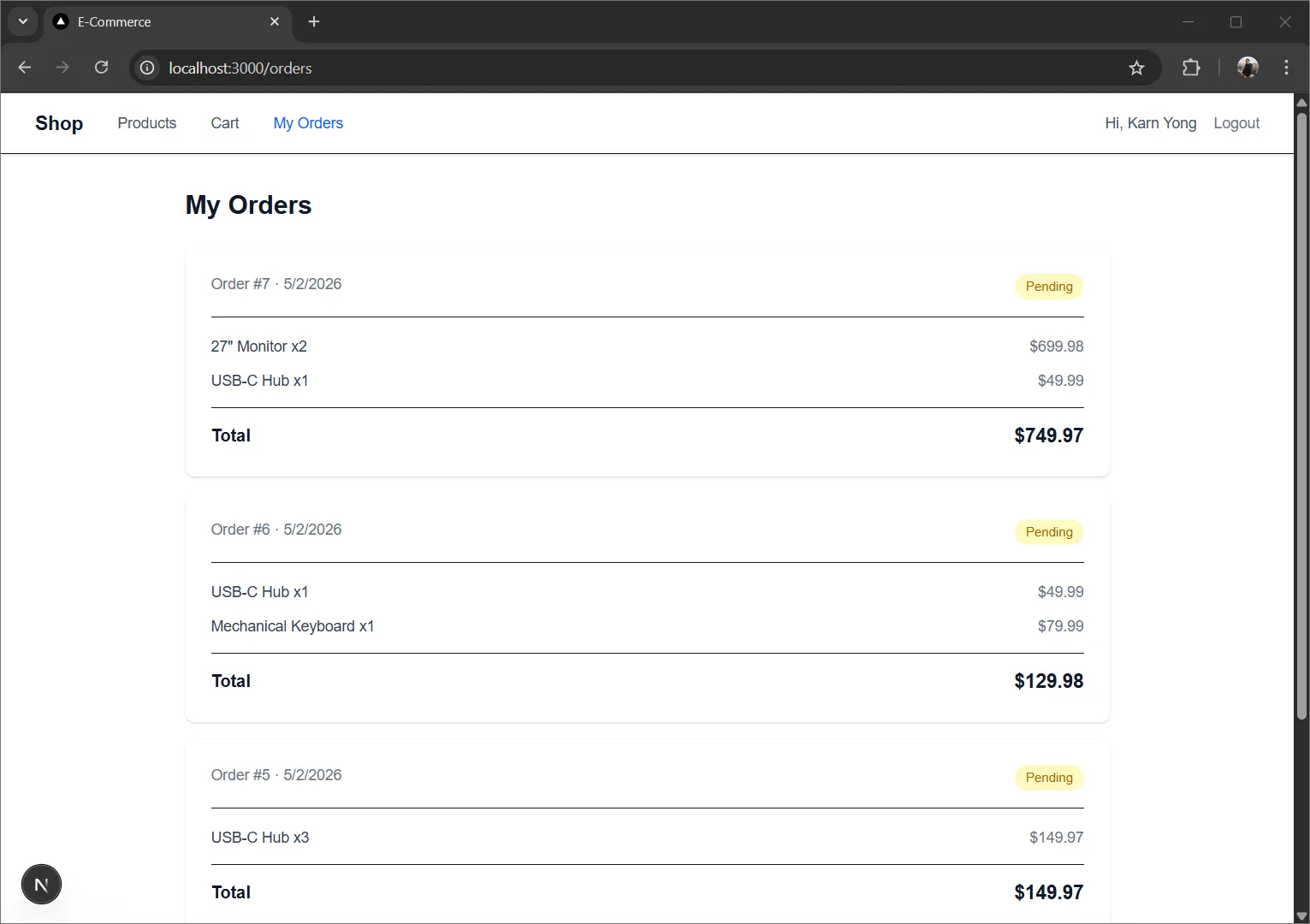
- orders/page.tsx — customer's order history (requires login)

=== NEW API ROUTES ===

Add to app/api/:

Auth:
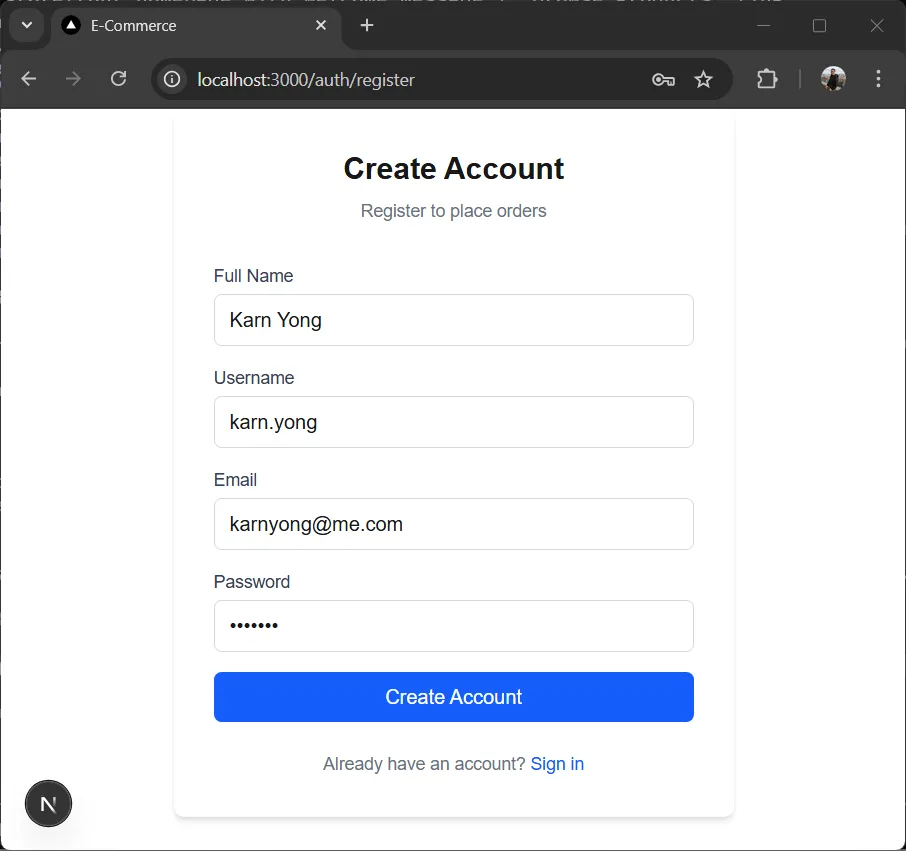
- POST /api/auth/register → register a new customer user (role: "customer"), return JWT token in a cookie (httpOnly)
- POST /api/auth/login → login for customer users (role: "customer"), return JWT token in a cookie (httpOnly)

Store:
- GET /api/store/products → return all products (public, no auth required)

Cart (requires auth):
- GET /api/cart → return all cart items for the logged-in customer
- POST /api/cart → add a product to the cart (body: { productId, quantity })
- PUT /api/cart/[id] → update cart item quantity
- DELETE /api/cart/[id] → remove item from cart
- DELETE /api/cart → clear the entire cart

Checkout:
- POST /api/store/checkout → create an order from cart items
  - verify JWT from httpOnly cookie to get the customer user id
  - read all cart items for the customer
  - validate product stock for each item
  - use Prisma transactions (prisma.$transaction) to:
    - create the Order record
    - create OrderItem records from cart items
    - decrease product stock
    - delete all cart items for the customer
  - rollback on any error

=== MIGRATION ===

After adding the CartItem model, run: npx prisma migrate dev --name add_cart

=== CUSTOMER AUTH ===

Create middleware to protect /cart and /orders pages:
- if not authenticated, redirect to /products

The existing middleware for /admin/* routes should remain unchanged.

=== FRONTEND REQUIREMENTS ===

- Add navigation to app/layout.tsx with links: Home, Products, Cart (with item count badge), Orders, Login/Register
- Products page shows a grid/list of products with name, price, stock status, and "Add to Cart" button
- Product detail page shows full info and "Add to Cart" button
- Cart page shows:
  - list of items with product name, price, quantity, subtotal
  - +/- buttons to adjust quantity
  - remove button for each item
  - total price at the bottom
  - "Checkout" button to place the order
- After checkout, redirect to /orders with a success message
- Orders page shows the logged-in customer's order history
- Login and Register forms for customer users
- After login, redirect to /products
- clean modern UI, responsive, **NO dark mode toggle - use light theme only**

=== API RULES ===

Same as existing: Prisma Client, JSON only, proper status codes, error handling, NextResponse, TypeScript types.

=== OUTPUT REQUIREMENTS ===

1. Complete code for all new and modified files
2. Updated prisma/schema.prisma with CartItem model
3. Commands to run migration
4. Ensure the code is build-ready and TypeScript-safeRun Prisma Generate and Migration#
ถ้า Claude Code ไม่ได้ run npx prisma generate ระหว่างเขียนโค้ด ให้ run เองก่อน:
npx prisma generateจากนั้น run migration เพื่อสร้าง CartItem table:
npx prisma migrate dev --name add_cartTest the Storefront#
npm run devเปิด http://localhost:3000 ↗ แล้วตรวจสอบ:
- หน้าแรกโหลดขึ้นมาพร้อม navigation
- หน้าสินค้าแสดงสินค้าทั้งหมดจาก database
- กด “Add to Cart” ที่สินค้า — จำนวนในตะกร้าอัปเดตใน navigation
- ไปที่หน้า Cart — เห็นสินค้าพร้อมจำนวนและราคา
- ปรับจำนวนด้วยปุ่ม +/-
- กด “Checkout” — สร้างคำสั่งซื้อ, ล้างตะกร้า, redirect ไปหน้า Orders
- ดูประวัติคำสั่งซื้อที่หน้า Orders
- การสมัครและ login สำหรับลูกค้าทำงานปกติ
- Admin panel ที่ /admin ยังทำงานปกติ
9. Summary#
สิ่งที่สร้าง:
| Component | Technology | Cost |
|---|---|---|
| Full-Stack App | Next.js 15 (App Router + TypeScript) | Free |
| API | Route Handlers | Built-in |
| ORM | Prisma | Free |
| Database | MySQL (via CAMPP) | Free |
สิ่งที่ได้เรียนรู้:
- วิธีออกแบบระบบด้วย RBAC (admin/customer roles)
- วิธีสร้างแอปแบบเป็นขั้นตอน — 3 prompts แต่ละอันขยายความสามารถของแอป
- Prisma migrations พัฒนา database schema ได้อัตโนมัติ
- Prisma Client ให้การเข้าถึง database แบบ type-safe
- การใช้
prisma.$transactionสำหรับสร้างคำสั่งซื้อพร้อมตรวจสอบ stock - วิธีสร้างทั้ง admin panel และหน้าร้านค้าสำหรับลูกค้า
Next Steps:
- Implement pagination
- Add search and filtering
- Set up custom domain
Tips for Better Claude Code Prompts:
- ระบุ tech stack ให้ชัดเจน
- ระบุรูปแบบ request/response ตัวอย่าง
- ระบุข้อกำหนดด้านความปลอดภัย
- ขอ error handling
- ระบุ file structure ที่ต้องการ
สิ่งสำคัญในการสร้างแอปด้วย Claude Code คือการให้ specifications ที่ชัดเจน prompt ยิ่งละเอียด โค้ดที่สร้างจะยิ่งดี
Happy building!