
RESTful API การยืนยันตัวตน ด้วย JWT และกำหนดสิทธิ์ RBAC
การพัฒนา RESTful API ที่ยืนยันตัวตนด้วย JWT พร้อมการกำหนดสิทธิ์ RBAC
1. ภาพรวม#
บทความนี้จะแสดงวิธีการสร้าง RESTful API โดยให้มี การยืนยันตัวตนและการอนุญาต (Authentication and Authorization) ด้วย JWT (JSON Web Tokens) พร้อมกับ Role-Based Access Control (RBAC) โดยระบบประกอบด้วย:
- JWT Authentication (Access token)
- สิทธิ์ตาม Role: ADMIN, EDITOR, READER
- mysql2 สำหรับเชื่อมต่อฐานข้อมูล MySQL โดยตรง
- Articles API พร้อม CRUD operations และสิทธิ์เฉพาะ Role
ตารางสิทธิ์ (Permission Matrix)#
| การกระทำ (Action) | ADMIN | EDITOR | READER |
|---|---|---|---|
| สร้าง Article | ✅ | ✅ | ❌ |
| อ่าน Articles | ✅ | ✅ | ✅ |
| แก้ไข Article | ✅ | ✅ | ❌ |
| ลบ Article | ✅ | ❌ | ❌ |
2. การตั้งค่าโปรเจค#
2.1. เริ่มต้นโปรเจค#
สร้างโฟลเดอร์โปรเจคใหม่และเริ่มต้น npm:
mkdir jwt-rbac-demo
cd jwt-rbac-demo
npm init -y2.2. ติดตั้ง Dependencies#
ติดตั้งPackageที่จำเป็น:
npm install express jsonwebtoken bcryptjs cors body-parser
npm install mysql2คำอธิบาย Package ที่ติดตั้ง:
| Package | วัตถุประสงค์ |
|---|---|
express | เฟรมเวิร์ก API |
jsonwebtoken | สร้าง/ตรวจสอบ JWT tokens |
bcryptjs | เข้ารหัสรหัสผ่านอย่างปลอดภัย |
cors | เปิดใช้งาน cross-origin requests |
body-parser | แยกวิเคราะห์ JSON request bodies |
mysql2 | MySQL driver สำหรับเชื่อมต่อฐานข้อมูลโดยตรง |
3. การตั้งค่าฐานข้อมูล MySQL ด้วย CAMPP#
3.1. ติดตั้งและเริ่มต้น CAMPP#
CAMPP เป็น Local Web Development Stack ที่รวม Caddy, PHP, MySQL และ phpMyAdmin ไว้ด้วยกัน สามารถดาวน์โหลดได้จาก https://campp.melivecode.com/ ↗
ขั้นตอนการติดตั้ง:
- ดาวน์โหลด CAMPP จากเว็บไซต์
- ติดตั้งตามประเภทระบบปฏิบัติการที่ใช้อยู่
- เปิด CAMPP และกด Start Caddy, PHP, และ MySQL
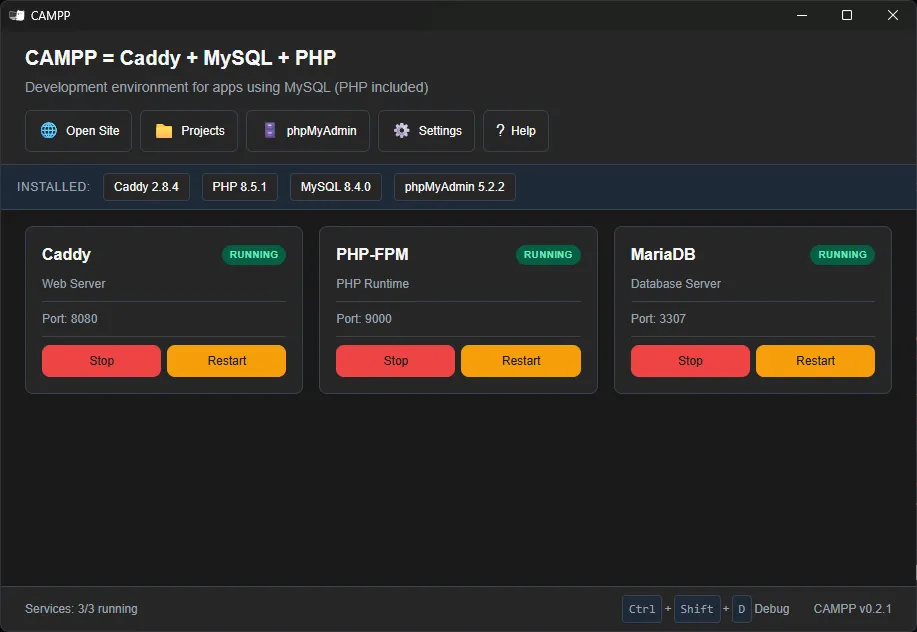
ข้อมูลการเชื่อมต่อ MySQL เริ่มต้นของ CAMPP:
| การตั้งค่า | ค่า |
|---|---|
| Host | localhost |
| Port | 3307 (ไม่ใช่ 3306 เพื่อหลีกเลี่ยงความขัดแย้ง) |
| Username | root |
| Password | (ตามที่ระบุใน CAMPP) |
หมายเหตุ: CAMPP ใช้พอร์ต 3307 สำหรับ MySQL เพื่อหลีกเลี่ยงความขัดแย้งกับบริการ MySQL อื่นที่อาจทำงานอยู่บนเครื่อง
3.2. สร้างฐานข้อมูล#
เข้าถึง phpMyAdmin ผ่าน CAMPP:
- กดปุ่ม phpMyAdmin ที่ Dashboard ของ CAMPP
- จะเปิด http://localhost:8080/phpmyadmin ↗ ขึ้นมา
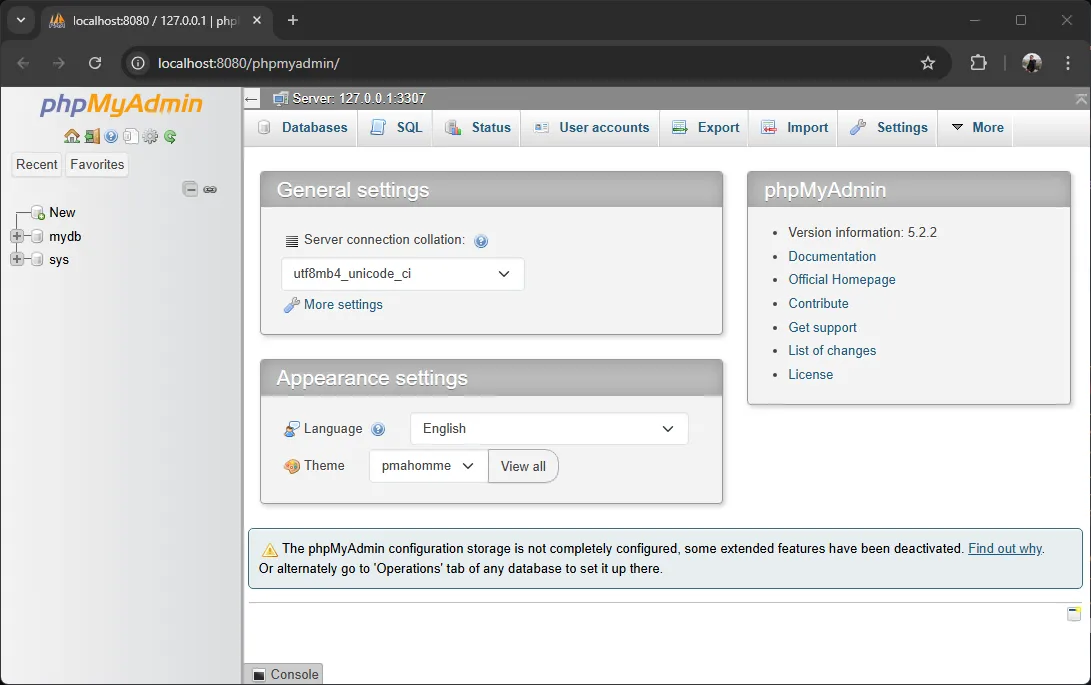
สร้างฐานข้อมูลใหม่:
- คลิกที่ New ใน phpMyAdmin
- ตั้งชื่อฐานข้อมูล:
jwt_rbac_demo - คลิก Create
3.3. สร้างตารางด้วย SQL#
ใน phpMyAdmin เลือกฐานข้อมูล jwt_rbac_demo แล้วคลิกที่ SQL วางคำสั่ง SQL ต่อไปนี้:
-- สร้างตาราง Users
CREATE TABLE users (
  id INT AUTO_INCREMENT PRIMARY KEY,
  username VARCHAR(255) NOT NULL UNIQUE,
  password VARCHAR(255) NOT NULL,
  role ENUM('ADMIN', 'EDITOR', 'READER') DEFAULT 'READER',
  created_at TIMESTAMP DEFAULT CURRENT_TIMESTAMP
);

-- สร้างตาราง Articles
CREATE TABLE articles (
  id INT AUTO_INCREMENT PRIMARY KEY,
  title VARCHAR(255) NOT NULL,
  content TEXT NOT NULL,
  author_id INT NOT NULL,
  created_at TIMESTAMP DEFAULT CURRENT_TIMESTAMP,
  FOREIGN KEY (author_id) REFERENCES users(id) ON DELETE CASCADE
);คลิก Go เพื่อสร้างตาราง
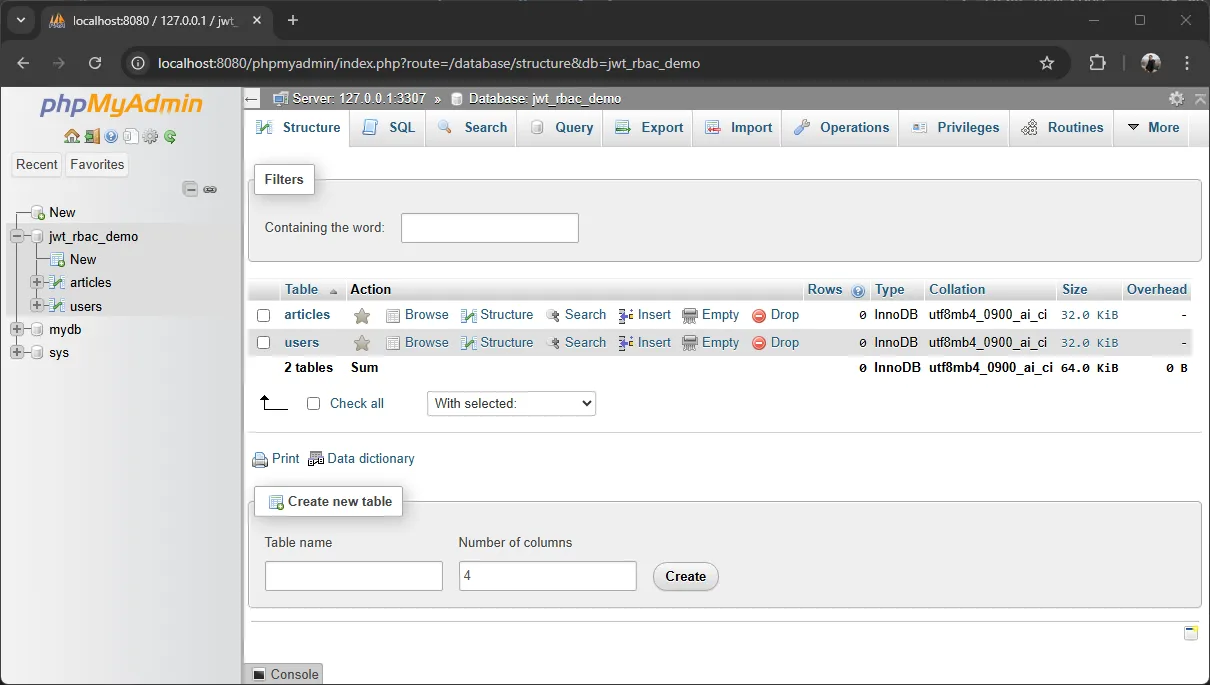
3.4. การกำหนดค่า Environment#
สร้างไฟล์ .env ในโปรเจค:
DB_HOST=localhost
DB_PORT=3307
DB_USER=root
DB_PASSWORD=your-password
DB_NAME=jwt_rbac_demo
JWT_ACCESS_TOKEN_SECRET=supersecretaccesstokenสำคัญ: CAMPP ใช้พอร์ต 3307 ไม่ใช่ 3306
3.5. Seed ผู้ใช้ Admin เริ่มต้น#
สร้างไฟล์ seed-admin.js เพื่อเพิ่มผู้ใช้ admin:
// seed-admin.js
const bcrypt = require('bcryptjs');
const mysql = require('mysql2/promise');

async function seedAdmin() {
  const connection = await mysql.createConnection({
    host: process.env.DB_HOST || 'localhost',
    port: process.env.DB_PORT || 3307,
    user: process.env.DB_USER || 'root',
    password: process.env.DB_PASSWORD || '',
    database: process.env.DB_NAME || 'jwt_rbac_demo'
  });

  const hashedPassword = bcrypt.hashSync("admin", 10);

  await connection.execute(
    'INSERT INTO users (username, password, role) VALUES (?, ?, ?)',
    ['admin', hashedPassword, 'ADMIN']
  );

  console.log('Admin user created successfully!');
  await connection.end();
}

seedAdmin().catch(console.error);รัน seed script:
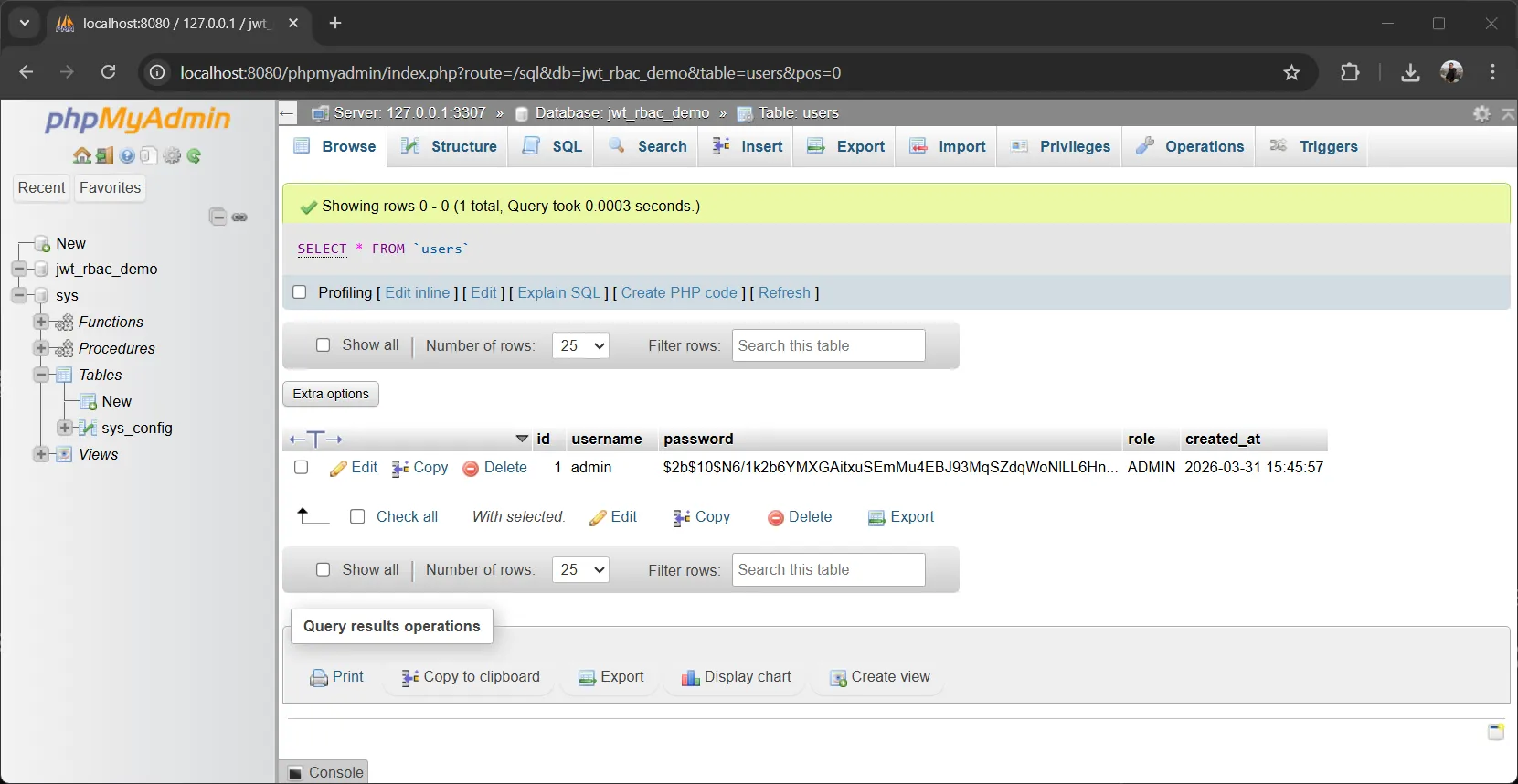
node --env-file=.env seed-admin.jsตรวจสอบผู้ใช้ admin ใน phpMyAdmin:
- เปิดตาราง
users - จะเห็นผู้ใช้ admin ที่สร้างขึ้น
4. การพัฒนา API#
4.1. การตั้งค่า Server#
สร้าง index.js พร้อมการตั้งค่า Express พื้นฐาน:
// นำเข้า modules ที่จำเป็น
const express = require("express");          // Web framework สำหรับ Node.js
const jwt = require("jsonwebtoken");         // ไลบรารีสำหรับสร้างและตรวจสอบ JWT tokens
const bcrypt = require("bcryptjs");           // ไลบรารีสำหรับเข้ารหัสรหัสผ่าน
const bodyParser = require("body-parser");   // Middleware เพื่อแยกวิเคราะห์ JSON request bodies
const cors = require("cors");                // Middleware เพื่อเปิดใช้งาน Cross-Origin Resource Sharing
const mysql = require("mysql2/promise");     // MySQL driver พร้อม Promise support

// สร้าง MySQL connection pool
// การใช้ pool ช่วยให้จัดการ connection ได้อย่างมีประสิทธิภาพ
const pool = mysql.createPool({
  host: process.env.DB_HOST || 'localhost',
  port: process.env.DB_PORT || 3307,
  user: process.env.DB_USER || 'root',
  password: process.env.DB_PASSWORD || '',
  database: process.env.DB_NAME || 'jwt_rbac_demo',
  waitForConnections: true,
  connectionLimit: 10,
  queueLimit: 0
});

// เริ่มต้น Express application
const app = express();

// การตั้งค่า Middleware
app.use(bodyParser.json()); // แยกวิเคราะห์ JSON payloads ที่เข้ามา
app.use(cors());            // เปิดใช้งาน CORS สำหรับทุก routes

// JWT secrets จาก environment variables
// ค่าเหล่านี้ควรเป็น string ที่แข็งแกร่งและสุ่มใน production
const ACCESS_TOKEN_SECRET = process.env.JWT_ACCESS_TOKEN_SECRET;

// เริ่มต้น server
const PORT = 4000;
app.listen(PORT, () => {
  console.log(`Server running at http://localhost:${PORT}`);
  console.log(`MySQL connected via CAMPP at localhost:${process.env.DB_PORT || 3307}`);
});จุดสำคัญที่อธิบาย:
- MySQL Connection Pool: ใช้ pool เพื่อจัดการ database connections อย่างมีประสิทธิภาพ ไม่ต้องเปิด-ปิด connection ทุกครั้ง
- CAMPP Port: ใช้พอร์ต 3307 สำหรับ MySQL (ไม่ใช่ 3306)
- JWT Secrets: ใช้สำหรับ sign และ verify tokens - รักษาความปลอดภัยไว้!
- ลำดับ Middleware: Body parser และ CORS ถูกใช้ก่อน routes
เริ่มต้น server:
# เริ่มต้น server พร้อม environment variables ที่โหลดแล้ว
node --env-file=.env --watch index.js5. Authentication Endpoints#
5.1. การลงทะเบียนผู้ใช้ (User Registration)#
// POST /register - สร้างบัญชีผู้ใช้ใหม่
app.post("/register", async (req, res) => {
  // ดึงข้อมูลผู้ใช้จาก request body
  const { username, password, role } = req.body;

  // ตรวจสอบข้อมูลที่จำเป็น
  if (!username || !password) {
    return res.status(400).json({
      message: "Username and password are required"
    });
  }

  // เข้ารหัสรหัสผ่านด้วย bcrypt (salt rounds = 10)
  // rounds ที่สูงขึ้น = ปลอดภัยมากขึ้นแต่ช้าลง
  const hashedPassword = await bcrypt.hash(password, 10);

  try {
    // สร้างผู้ใช้ใหม่ในฐานข้อมูลโดยใช้ raw SQL
    const userRole = role || 'READER'; // ค่าเริ่มต้นเป็น READER
    const [result] = await pool.execute(
      'INSERT INTO users (username, password, role) VALUES (?, ?, ?)',
      [username, hashedPassword, userRole]
    );

    // ดึงข้อมูลผู้ใช้ที่เพิ่งสร้าง
    const [rows] = await pool.execute(
      'SELECT id, username, role FROM users WHERE id = ?',
      [result.insertId]
    );

    const user = rows[0];

    // ส่งคืน response สำเร็จ (ไม่รวมข้อมูลที่ละเอียดอ่อนเช่นรหัสผ่าน)
    res.status(201).json({
      message: "User registration successful",
      user: {
        id: user.id,
        username: user.username,
        role: user.role
      }
    });
  } catch (err) {
    // จัดการข้อผิดพลาดของฐานข้อมูล (เช่น ชื่อผู้ใช้ซ้ำ)
    if (err.code === 'ER_DUP_ENTRY') {
      return res.status(400).json({
        message: "Username already exists"
      });
    }
    res.status(500).json({
      message: "User registration failed",
      error: err.message
    });
  }
});หมายเหตุความปลอดภัย:
- การเข้ารหัสรหัสผ่าน: ไม่เก็บรหัสผ่านที่เป็นข้อความธรรมดา (plaintext)
- Salt Rounds: 10 rounds ให้ความสมดุลที่ดีระหว่างความปลอดภัยและประสิทธิภาพ
- Prepared Statements: ใช้
?placeholder เพื่อป้องกัน SQL Injection - การจัดการข้อผิดพลาด: ตรวจสอบ
ER_DUP_ENTRYสำหรับชื่อผู้ใช้ซ้ำ - การกรอง Response: ไม่ส่งคืนรหัสผ่านใน API responses
ทดสอบด้วย Postman:
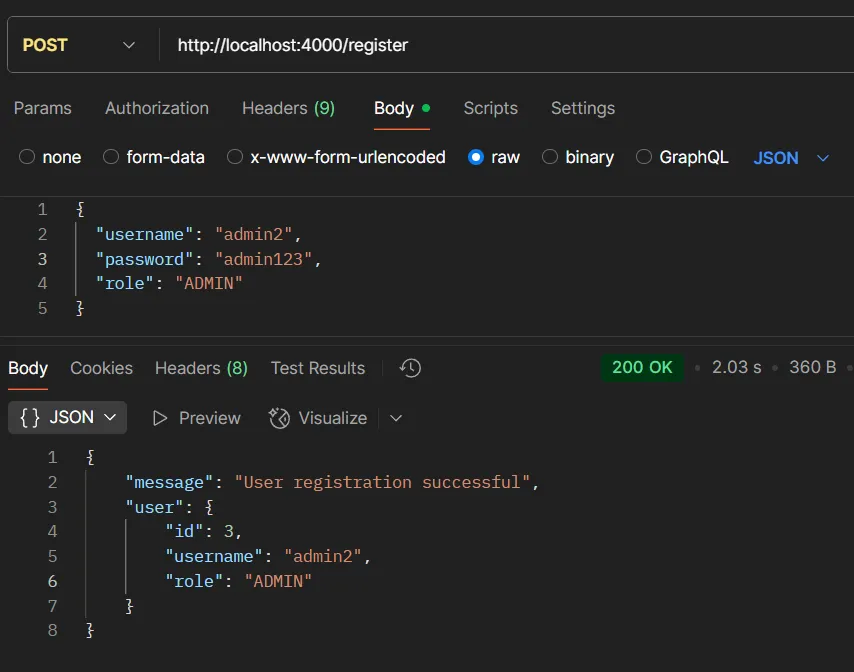
1. ลงทะเบียนผู้ใช้ ADMIN:
- Method:
POST - URL:
http://localhost:4000/register - Headers:
Content-Type: application/json
- Body:
{
  "username": "admin2",
  "password": "admin123",
  "role": "ADMIN"
}- ผลลัพธ์ที่คาดหวัง:
200 OKพร้อมข้อมูลผู้ใช้ที่สร้าง
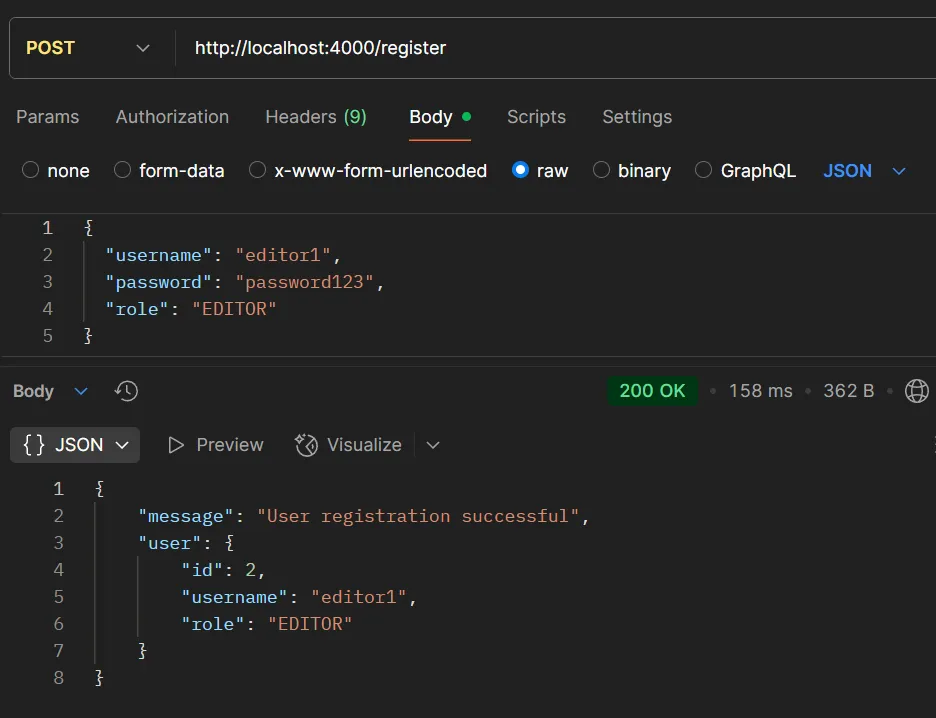
2. ลงทะเบียนผู้ใช้ EDITOR:
- Method:
POST - URL:
http://localhost:4000/register - Headers:
Content-Type: application/json
- Body:
{
  "username": "editor1",
  "password": "password123",
  "role": "EDITOR"
}- ผลลัพธ์ที่คาดหวัง:
200 OK
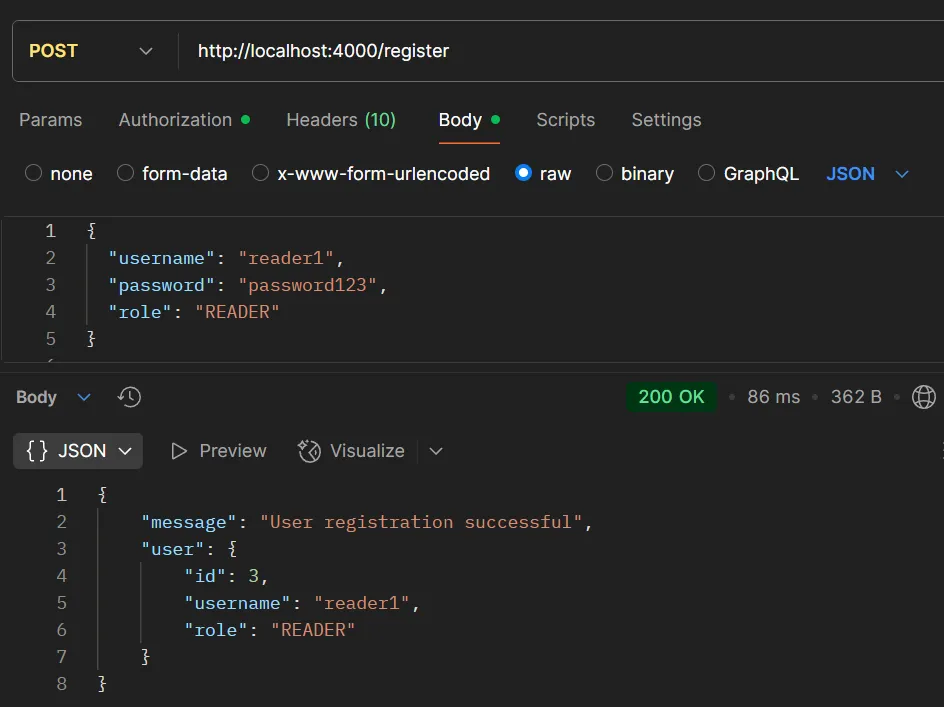
3. ลงทะเบียนผู้ใช้ READER:
- Method:
POST - URL:
http://localhost:4000/register - Headers:
Content-Type: application/json
- Body:
{
  "username": "reader1",
  "password": "reader123",
  "role": "READER"
}- ผลลัพธ์ที่คาดหวัง:
200 OK
5.2. การเข้าสู่ระบบผู้ใช้ (User Login)#
// POST /login - เข้าสู่ระบบและรับ JWT tokens
app.post("/login", async (req, res) => {
  try {
    // ดึงข้อมูลผู้ใช้จาก request body
    const { username, password } = req.body;

    // ตรวจสอบ input
    if (!username || !password) {
      return res.status(400).json({
        message: "Username and password are required"
      });
    }

    // ค้นหาผู้ใช้ในฐานข้อมูลด้วย username
    const [rows] = await pool.execute(
      'SELECT id, username, password, role FROM users WHERE username = ?',
      [username]
    );

    const user = rows[0];

    // ตรวจสอบว่าผู้ใช้มีอยู่และรหัสผ่านถูกต้อง
    if (!user || !await bcrypt.compare(password, user.password)) {
      return res.status(401).json({
        message: "Invalid username or password"
      });
    }

    // สร้าง JWT payload (ข้อมูลที่จะเก็บใน token)
    const tokenPayload = {
      id: user.id,
      username: user.username,
      role: user.role
    };

    // สร้าง access token (อายุ 15 นาที)
    const accessToken = jwt.sign(
      tokenPayload,
      ACCESS_TOKEN_SECRET,
      { expiresIn: "15m" }
    );

    // ส่งคืน response สำเร็จพร้อม tokens
    res.json({
      message: "Login successful",
      accessToken,
      user: {
        id: user.id,
        username: user.username,
        role: user.role
      }
    });

  } catch (err) {
    console.error('Login error:', err);
    res.status(500).json({
      message: "Login failed",
      error: err.message
    });
  }
});คุณสมบัติหลักของ Login Endpoint:
- การตรวจสอบข้อมูล: ตรวจสอบว่ามีทั้ง username และ password
- การค้นหาผู้ใช้: ใช้ raw SQL พร้อม prepared statement เพื่อค้นหาผู้ใช้
- การตรวจสอบรหัสผ่าน: ใช้ bcrypt.compare() เพื่อตรวจสอบรหัสผ่านที่เข้ารหัส
- การสร้าง JWT: สร้าง access token พร้อมข้อมูลผู้ใช้และอายุการใช้งาน
- การจัดการข้อผิดพลาด: จัดการกับข้อผิดพลาดต่างๆ อย่างเหมาะสม
Token Payload ประกอบด้วย:
- id: User ID สำหรับอ้างอิง
- username: ชื่อผู้ใช้
- role: บทบาทของผู้ใช้ (ADMIN, EDITOR, READER)
ความปลอดภัย:
- ใช้ Prepared Statements ด้วย
?placeholder เพื่อป้องกัน SQL Injection - ไม่ส่งคืนรหัสผ่านใน response
- ใช้ข้อความข้อผิดพลาดทั่วไปเพื่อป้องกันการรั่วไหลของข้อมูล
- Token มีอายุสั้น (15 นาที) เพื่อลดความเสี่ยง
ทดสอบด้วย Postman:
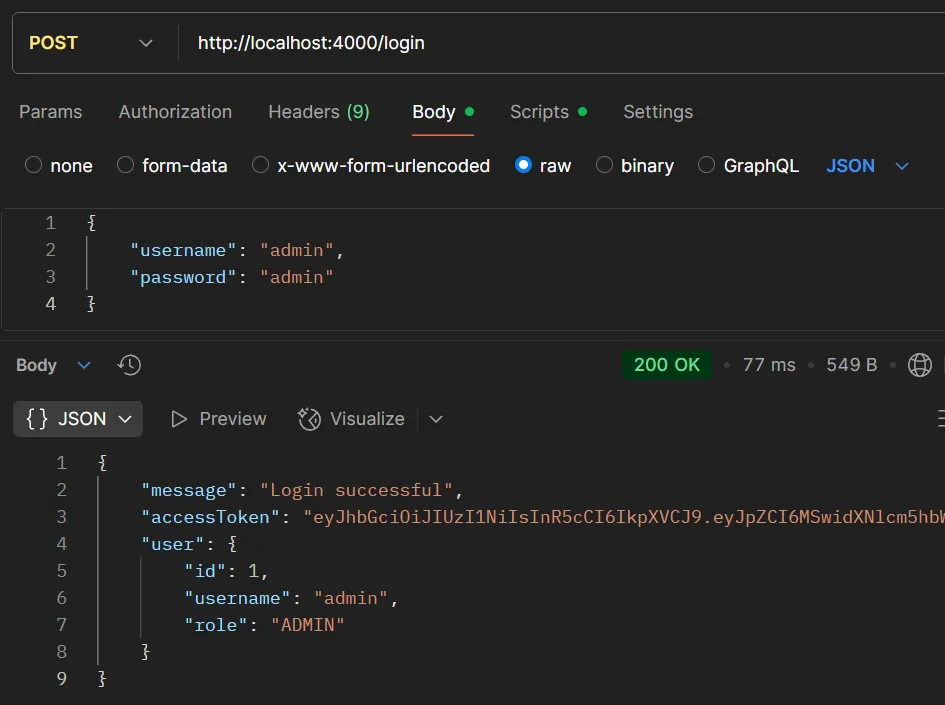
1. เข้าสู่ระบบ ADMIN:
- Method:
POST - URL:
http://localhost:4000/login - Headers:
Content-Type: application/json
- Body:
{
  "username": "admin",
  "password": "admin"
}- ผลลัพธ์ที่คาดหวัง:
200 OKพร้อม access token
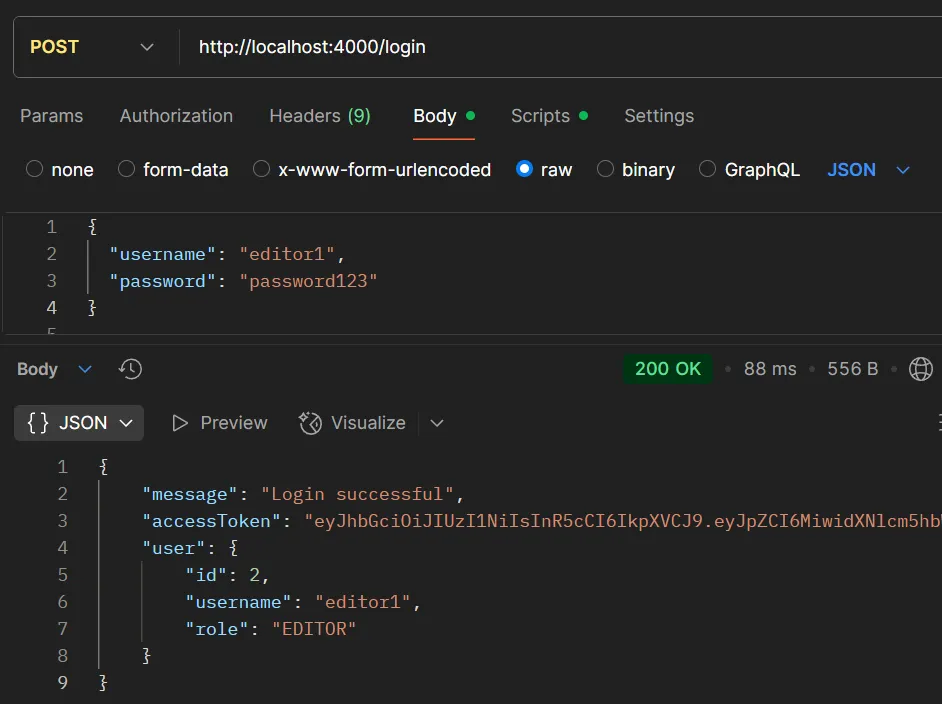
2. เข้าสู่ระบบ EDITOR:
- Method:
POST - URL:
http://localhost:4000/login - Headers:
Content-Type: application/json
- Body:
{
  "username": "editor1",
  "password": "password123"
}- ผลลัพธ์ที่คาดหวัง:
200 OKพร้อม access token
3. เข้าสู่ระบบ READER:
- Method:
POST - URL:
http://localhost:4000/login - Headers:
Content-Type: application/json
- Body:
{
  "username": "reader1",
  "password": "reader123"
}- ผลลัพธ์ที่คาดหวัง:
200 OKพร้อม access token
6. Authentication & Authorization Middleware#
Middleware functions เป็นกระดูกสันหลังของความปลอดภัย Express.js พวกมันทำงานก่อน route handlers และสามารถ:
- ยืนยันตัวตน (Authenticate): ตรวจสอบว่าผู้ใช้คือใคร
- อนุญาตตามสิทธิ์ (Authorize): ตรวจสอบว่าผู้ใช้สามารถทำอะไรได้บ้าง
- แปลง (Transform): แก้ไขข้อมูล request/response
- บันทึก (Log): ติดตามการเข้าถึงและการกระทำ
ระบบ RBAC นี้ใช้ middleware functions สองตัวหลักที่ทำงานร่วมกันเพื่อให้การควบคุมการเข้าถึงที่ปลอดภัย
6.1. Token Authentication Middleware#
/**
 * Middleware เพื่อยืนยันตัวตน JWT tokens
 * ดึงและตรวจสอบ Bearer token จาก Authorization header
 * แนบข้อมูลผู้ใช้ที่ถอดรหัสแล้วไปยัง req.user เพื่อใช้ใน middleware/routes ต่อไป
 */
function authenticateToken(req, res, next) {
  // รับ Authorization header (รูปแบบ: "Bearer <token>")
  const authHeader = req.headers["authorization"];

  // ดึง token จากรูปแบบ "Bearer <token>"
  // authHeader?.split(" ")[1] รับส่วน token หลัง "Bearer "
  const token = authHeader && authHeader.split(" ")[1];

  // ตรวจสอบว่า token มีอยู่
  if (!token) {
    return res.status(401).json({
      message: "Access denied. No token provided.",
      hint: "Include 'Authorization: Bearer <token>' header"
    });
  }

  // ตรวจสอบลายเซ็นและการหมดอายุของ token
  jwt.verify(token, ACCESS_TOKEN_SECRET, (err, user) => {
    if (err) {
      // Token ไม่ถูกต้องหรือหมดอายุ
      const message = err.name === 'TokenExpiredError'
        ? "Token has expired. Please refresh your token."
        : "Invalid token. Please log in again.";

      return res.status(403).json({
        message,
        error: err.name
      });
    }

    // Token ถูกต้อง - แนบข้อมูลผู้ใช้ไปยัง request object
    // สิ่งนี้ทำให้ข้อมูลผู้ใช้พร้อมใช้งานใน middleware/routes ต่อไป
    req.user = user;

    // ดำเนินการต่อไปยัง middleware/route handler ถัดไป
    next();
  });
}วิธีการทำงานของ Authentication Middleware:
- การดึง Header: มองหา
Authorization: Bearer <token> - การตรวจสอบ Token: ตรวจสอบลายเซ็นโดยใช้ secret key
- การตรวจสอบการหมดอายุ: ตรวจสอบให้แน่ใจว่า token ยังไม่หมดอายุ
- การแนบผู้ใช้: เพิ่มข้อมูลผู้ใช้ที่ถอดรหัสแล้วไปยัง
req.user - การควบคุมการไหล: เรียก
next()เพื่อดำเนินการต่อหรือส่งคืนข้อผิดพลาด
6.2. Role-Based Authorization Middleware#
/**
 * Middleware factory เพื่อตรวจสอบ roles ที่อนุญาต
 * ส่งคืน middleware function ที่ตรวจสอบ role ของผู้ใช้เทียบกับ allowed roles
 * ต้องใช้หลัง authenticateToken middleware เสมอเนื่องจากต้องการ req.user
 *
 * @param {...string} allowedRoles - Roles ที่อนุญาตให้เข้าถึง (เช่น 'ADMIN', 'EDITOR')
 * @returns {Function} Express middleware function
 */
function authorizeRoles(...allowedRoles) {
  return (req, res, next) => {
    // ตรวจสอบว่าผู้ใช้ถูกยืนยันตัวตนแล้ว (จาก authenticateToken middleware)
    if (!req.user) {
      return res.status(401).json({
        message: "Authentication required. Please log in first."
      });
    }

    // ตรวจสอบว่า role ของผู้ใช้อยู่ใน allowed roles
    if (!allowedRoles.includes(req.user.role)) {
      return res.status(403).json({
        message: "Access forbidden. Insufficient permissions.",
        required: allowedRoles,
        userRole: req.user.role
      });
    }

    // Role ของผู้ใช้ได้รับอนุญาต - ดำเนินการต่อ
    next();
  };
}กระบวนการ Role Authorization:
- Middleware Factory:
authorizeRoles()สร้าง middleware ที่กำหนดเอง - การตรวจสอบผู้ใช้: ตรวจสอบให้แน่ใจว่า
req.userมีอยู่ (จากการยืนยันตัวตน) - การตรวจสอบ Role: เปรียบเทียบ role ของผู้ใช้กับ allowed roles
- การควบคุมการเข้าถึง: อนุญาตหรือปฏิเสธการเข้าถึงตาม role
รูปแบบการใช้งาน:
// Role เดียว
app.get('/admin', authenticateToken, authorizeRoles('ADMIN'), handler);

// หลาย roles
app.post('/articles', authenticateToken, authorizeRoles('ADMIN', 'EDITOR'), handler);

// ผู้ใช้ที่ยืนยันตัวตนแล้วทุกคน (ไม่ต้องตรวจสอบ role)
app.get('/profile', authenticateToken, handler);ตัวอย่าง Middleware Chain:
// ตัวอย่าง 1: Route เฉพาะ admin
app.post("/admin-only",
  authenticateToken,           // ก่อน: ตรวจสอบ JWT token
  authorizeRoles("ADMIN"),     // สอง: ตรวจสอบ role
  (req, res) => {
    res.json({
      message: "Access granted to Admin",
      user: req.user.username    // ข้อมูลผู้ใช้พร้อมใช้งานจาก token
    });
  }
);

// ตัวอย่าง 2: Route หลาย role (ผู้สร้างเนื้อหา)
app.post("/create-content",
  authenticateToken,
  authorizeRoles("ADMIN", "EDITOR"),
  (req, res) => {
    res.json({ message: "Permission granted to create content" });
  }
);

// ตัวอย่าง 3: Route สาธารณะ (ไม่ต้องใช้ middleware)
app.get("/public", (req, res) => {
  res.json({ message: "This is public information" });
});

// ตัวอย่าง 4: ยืนยันตัวตนแต่ role ใดก็ได้
app.get("/profile",
  authenticateToken,           // ต้องยืนยันตัวตนเท่านั้น
  (req, res) => {
    res.json({
      profile: {
        id: req.user.id,
        username: req.user.username,
        role: req.user.role
      }
    });
  }
);ลำดับ Middleware มีความสำคัญ:
- ใช้
authenticateTokenก่อนauthorizeRolesเสมอ - การยืนยันตัวตนตั้งค่า
req.userที่การอนุญาตต้องการ - ทั้งสองต้องมาก่อน route handler
7. Articles API พร้อม RBAC#
ในส่วนนี้จะสร้าง CRUD (Create, Read, Update, Delete) API สำหรับ articles โดยแสดงให้เห็นว่าสิทธิ์ตาม role ทำงานอย่างไรในทางปฏิบัติ แต่ละ endpoint จะมีความต้องการสิทธิ์ที่แตกต่างกันตามโมเดลความปลอดภัย
7.1. สร้าง Article (ADMIN, EDITOR)#
// POST /articles - สร้าง article ใหม่
// สิทธิ์: ADMIN และ EDITOR สามารถสร้าง articles ได้
app.post("/articles",
  authenticateToken,                    // ตรวจสอบ JWT token
  authorizeRoles("ADMIN", "EDITOR"),   // ตรวจสอบ role ของผู้ใช้
  async (req, res) => {
    try {
      // ดึงข้อมูล article จาก request body
      const { title, content } = req.body;

      // ตรวจสอบ input
      if (!title || !content) {
        return res.status(400).json({
          message: "Title and content are required"
        });
      }

      // สร้าง article ในฐานข้อมูล
      // authorId มาจากผู้ใช้ที่ยืนยันตัวตนแล้ว (req.user.id)
      const [result] = await pool.execute(
        'INSERT INTO articles (title, content, author_id) VALUES (?, ?, ?)',
        [title, content, req.user.id]
      );

      // ดึงข้อมูล article ที่เพิ่งสร้างพร้อมข้อมูลผู้เขียน
      const [rows] = await pool.execute(
        `SELECT a.id, a.title, a.content, a.created_at,
                u.id as author_id, u.username, u.role
         FROM articles a
         JOIN users u ON a.author_id = u.id
         WHERE a.id = ?`,
        [result.insertId]
      );

      const article = rows[0];

      // จัดรูปแบบ response
      const responseArticle = {
        id: article.id,
        title: article.title,
        content: article.content,
        createdAt: article.created_at,
        authorId: article.author_id,
        author: {
          id: article.author_id,
          username: article.username,
          role: article.role
        }
      };

      // ส่งคืน article ที่สร้างแล้วพร้อมข้อมูลผู้เขียน
      res.status(201).json({
        message: "Article created successfully",
        article: responseArticle
      });

    } catch (err) {
      console.error('Create article error:', err);
      res.status(500).json({
        message: "Failed to create article",
        error: err.message
      });
    }
  }
);คุณสมบัติหลัก:
- การตรวจสอบ Input: ตรวจสอบฟิลด์ที่จำเป็น
- Prepared Statements: ใช้
?placeholder เพื่อป้องกัน SQL Injection - การกำหนดผู้เขียน: เชื่อมโยงกับผู้ใช้ที่ยืนยันตัวตนแล้วโดยอัตโนมัติ
- การเพิ่มเติม Response: ใช้ JOIN เพื่อรวมรายละเอียดผู้เขียน
- การจัดการข้อผิดพลาด: จับข้อผิดพลาดของฐานข้อมูลอย่างงดงาม
ทดสอบด้วย Postman:
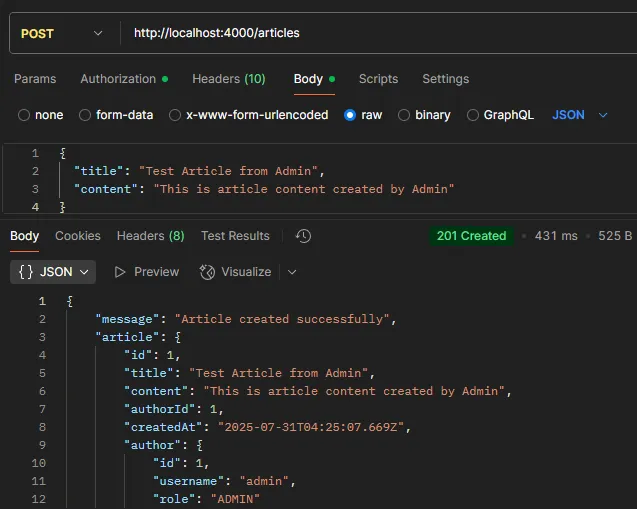
1. สร้าง Article โดย ADMIN:
- Method:
POST - URL:
http://localhost:4000/articles - Headers:
Authorization: Bearer {{accessToken_admin}}Content-Type: application/json
- Body:
{
  "title": "Test Article from Admin",
  "content": "This is article content created by Admin"
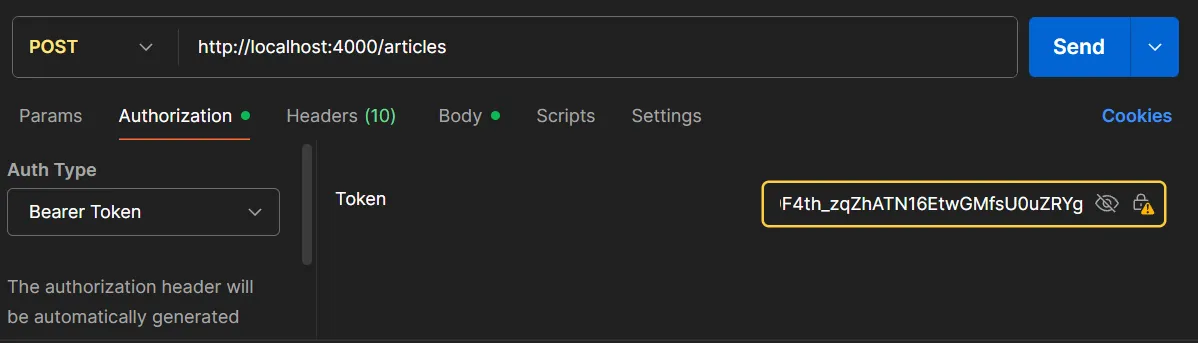
}- การใส่ Token ใน Request เลือก Auth > Bearer Token
- ผลลัพธ์ที่คาดหวัง:
201 Createdพร้อมข้อมูล article ที่สร้าง
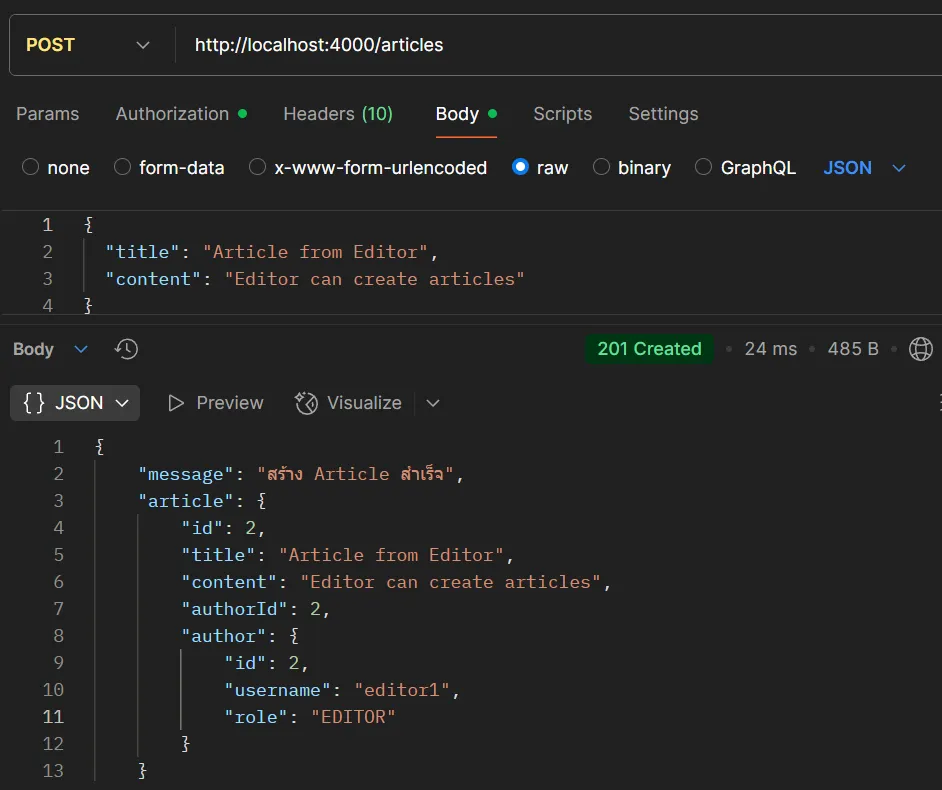
2. สร้าง Article โดย EDITOR:
- Method:
POST - URL:
http://localhost:4000/articles - Headers:
Authorization: Bearer {{accessToken_editor}}Content-Type: application/json
- Body:
{
  "title": "Article from Editor",
  "content": "Editor can create articles"
}- ผลลัพธ์ที่คาดหวัง:
201 Created
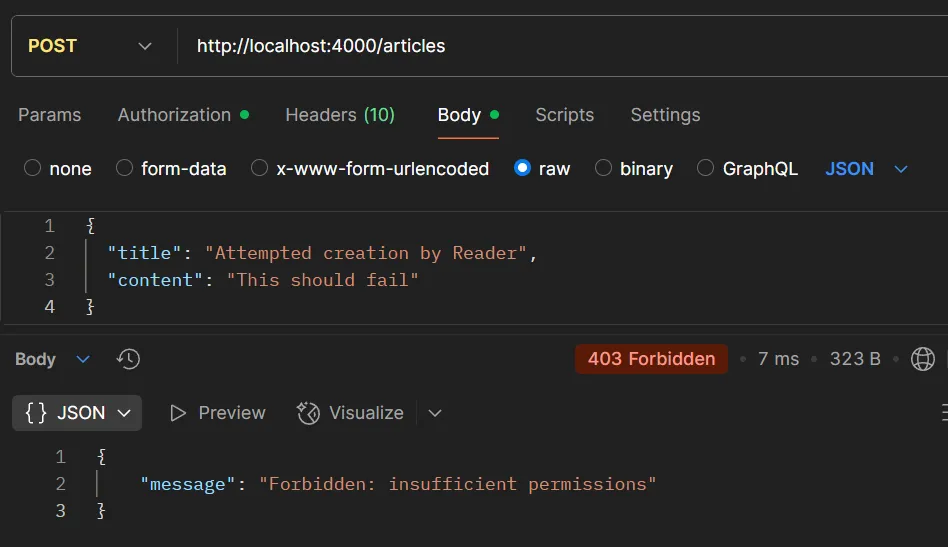
3. สร้าง Article โดย READER (ควรล้มเหลว):
- Method:
POST - URL:
http://localhost:4000/articles - Headers:
Authorization: Bearer {{accessToken_reader}}Content-Type: application/json
- Body:
{
  "title": "Attempted creation by Reader",
  "content": "This should fail"
}- ผลลัพธ์ที่คาดหวัง:
403 Forbidden- “Access forbidden. Insufficient permissions”
7.2. อ่าน Articles (ทุก ROLES)#
// GET /articles - ดึงข้อมูล articles ทั้งหมด
// สิทธิ์: ผู้ใช้ที่ยืนยันตัวตนแล้วทุกคนสามารถอ่าน articles ได้
app.get("/articles",
  authenticateToken,    // ต้องยืนยันตัวตนเท่านั้น ไม่จำกัด role
  async (req, res) => {
    try {
      // ดึง articles ทั้งหมดจากฐานข้อมูลพร้อมข้อมูลผู้เขียน
      const [rows] = await pool.execute(
        `SELECT a.id, a.title, a.content, a.created_at, a.author_id,
                u.id as author_id, u.username, u.role
         FROM articles a
         JOIN users u ON a.author_id = u.id
         ORDER BY a.created_at DESC`
      );

      // จัดรูปแบบข้อมูล articles
      const articles = rows.map(row => ({
        id: row.id,
        title: row.title,
        content: row.content,
        createdAt: row.created_at,
        authorId: row.author_id,
        author: {
          id: row.author_id,
          username: row.username,
          role: row.role
        }
      }));

      // ส่งคืน articles ทั้งหมด
      res.json({
        articles,
        total: articles.length
      });

    } catch (err) {
      console.error('Fetch articles error:', err);
      res.status(500).json({
        message: "Failed to fetch articles",
        error: err.message
      });
    }
  }
);คุณสมบัติ:
- การดึงข้อมูลง่าย: ดึง articles ทั้งหมดจากฐานข้อมูลด้วย JOIN
- รวมข้อมูลผู้เขียน: แสดงรายละเอียดผู้เขียนแต่ละ article
- ความปลอดภัย: ไม่แสดงรหัสผ่านในข้อมูลผู้เขียน (เลือกเฉพาะฟิลด์ที่ต้องการ)
ทดสอบด้วย Postman:
1. อ่าน Article โดย ADMIN:
- Method:
GET - URL:
http://localhost:4000/articles - Headers:
Authorization: Bearer {{accessToken_admin}}
- ผลลัพธ์ที่คาดหวัง:
200 OKพร้อมรายการ articles ทั้งหมด
2. อ่าน Article โดย EDITOR:
- Method:
GET - URL:
http://localhost:4000/articles - Headers:
Authorization: Bearer {{accessToken_editor}}
- ผลลัพธ์ที่คาดหวัง:
200 OKพร้อมรายการ articles ทั้งหมด
3. อ่าน Article โดย READER:
- Method:
GET - URL:
http://localhost:4000/articles - Headers:
Authorization: Bearer {{accessToken_reader}}
- ผลลัพธ์ที่คาดหวัง:
200 OKพร้อมรายการ articles ทั้งหมด
4. อ่าน Article โดยไม่มี Token (ควรล้มเหลว):
- Method:
GET - URL:
http://localhost:4000/articles - Headers: ไม่มี Authorization header
- ผลลัพธ์ที่คาดหวัง:
401 Unauthorized- “Access denied. No token provided.”
ตัวอย่าง Response สำเร็จ:
{
  "articles": [
    {
      "id": 1,
      "title": "Test Article from Admin",
      "content": "This is article content created by Admin",
      "authorId": 1,
      "createdAt": "2025-07-27T10:00:00.000Z",
      "author": {
        "id": 1,
        "username": "admin",
        "role": "ADMIN"
      }
    }
  ],
  "total": 1
}7.3. แก้ไข Article (ADMIN, EDITOR)#
// PUT /articles/:id - แก้ไข article ที่มีอยู่
// สิทธิ์: ADMIN และ EDITOR สามารถแก้ไข articles ได้
app.put("/articles/:id",
  authenticateToken,
  authorizeRoles("ADMIN", "EDITOR"),
  async (req, res) => {
    try {
      // ดึง article ID จาก URL parameters
      const { id } = req.params;
      const { title, content } = req.body;

      // เตรียมข้อมูลการอัปเดต (รวมเฉพาะฟิลด์ที่ระบุ)
      const updateFields = [];
      const updateValues = [];

      if (title !== undefined) {
        updateFields.push('title = ?');
        updateValues.push(title);
      }
      if (content !== undefined) {
        updateFields.push('content = ?');
        updateValues.push(content);
      }

      // ถ้าไม่มีฟิลด์ที่จะอัปเดต
      if (updateFields.length === 0) {
        return res.status(400).json({
          message: "No fields to update"
        });
      }

      updateValues.push(parseInt(id)); // เพิ่ม id สำหรับ WHERE clause

      // อัปเดต article ในฐานข้อมูล
      await pool.execute(
        `UPDATE articles SET ${updateFields.join(', ')} WHERE id = ?`,
        updateValues
      );

      // ดึงข้อมูล article ที่อัปเดตพร้อมข้อมูลผู้เขียน
      const [rows] = await pool.execute(
        `SELECT a.id, a.title, a.content, a.created_at,
                u.id as author_id, u.username, u.role
         FROM articles a
         JOIN users u ON a.author_id = u.id
         WHERE a.id = ?`,
        [parseInt(id)]
      );

      if (rows.length === 0) {
        return res.status(404).json({
          message: "Article not found"
        });
      }

      const article = rows[0];

      // จัดรูปแบบ response
      const responseArticle = {
        id: article.id,
        title: article.title,
        content: article.content,
        createdAt: article.created_at,
        authorId: article.author_id,
        author: {
          id: article.author_id,
          username: article.username,
          role: article.role
        }
      };

      res.json({
        message: "Article updated successfully",
        article: responseArticle
      });

    } catch (err) {
      console.error('Update article error:', err);
      res.status(500).json({
        message: "Failed to update article",
        error: err.message
      });
    }
  }
);ตรรกะการอนุญาต:
- ADMIN: สามารถอัปเดต article ใดก็ได้
- EDITOR: สามารถอัปเดต article ใดก็ได้
- READER: ไม่สามารถอัปเดต articles ได้ (ถูกบล็อกโดย middleware)
คุณสมบัติเพิ่มเติม:
- การอัปเดตบางส่วน: อัปเดตเฉพาะฟิลด์ที่ระบุ ด้วย dynamic SQL
- Prepared Statements: ป้องกัน SQL Injection แม้ใน dynamic queries
ทดสอบด้วย Postman:
1. แก้ไข Article โดย ADMIN:
- Method:
PUT - URL:
http://localhost:4000/articles/1 - Headers:
Authorization: Bearer {{accessToken_admin}}Content-Type: application/json
- Body:
{
  "title": "Article edited by Admin",
  "content": "Content updated by Admin"
}- ผลลัพธ์ที่คาดหวัง:
200 OKพร้อมข้อมูล article ที่อัปเดต
2. แก้ไข Article โดย EDITOR:
- Method:
PUT - URL:
http://localhost:4000/articles/2 - Headers:
Authorization: Bearer {{accessToken_editor}}Content-Type: application/json
- Body:
{
  "title": "Updated article title",
  "content": "Updated article content"
}- ผลลัพธ์ที่คาดหวัง:
200 OK
3. แก้ไข Article โดย READER (ควรล้มเหลว):
- Method:
PUT - URL:
http://localhost:4000/articles/1 - Headers:
Authorization: Bearer {{accessToken_reader}}Content-Type: application/json
- Body:
{
  "title": "Reader attempting to edit"
}- ผลลัพธ์ที่คาดหวัง:
403 Forbidden- “Access forbidden. Insufficient permissions”
7.4. ลบ Article (เฉพาะ ADMIN)#
// DELETE /articles/:id - ลบ article
// สิทธิ์: เฉพาะ ADMIN เท่านั้นที่สามารถลบ articles ได้
app.delete("/articles/:id",
  authenticateToken,
  authorizeRoles("ADMIN"),
  async (req, res) => {
    try {
      const { id } = req.params;

      // ตรวจสอบว่า article มีอยู่จริง
      const [rows] = await pool.execute(
        'SELECT id FROM articles WHERE id = ?',
        [parseInt(id)]
      );

      if (rows.length === 0) {
        return res.status(404).json({
          message: "Article not found"
        });
      }

      // ลบ article
      await pool.execute(
        'DELETE FROM articles WHERE id = ?',
        [parseInt(id)]
      );

      res.json({ message: "Article deleted successfully" });
    } catch (err) {
      console.error('Delete article error:', err);
      res.status(500).json({
        message: "Failed to delete article",
        error: err.message
      });
    }
  }
);ทำไมเฉพาะ ADMIN สำหรับการลบ?
- การป้องกันข้อมูล: ป้องกันการสูญเสียเนื้อหาโดยไม่ตั้งใจ
- การควบคุมการแก้ไข: รักษาการดูแลเนื้อหา
ทดสอบด้วย Postman:
1. ลบ Article โดย ADMIN:
- Method:
DELETE - URL:
http://localhost:4000/articles/1 - Headers:
Authorization: Bearer {{accessToken_admin}}
- ผลลัพธ์ที่คาดหวัง:
200 OK
2. ลบ Article โดย EDITOR (ควรล้มเหลว):
- Method:
DELETE - URL:
http://localhost:4000/articles/2 - Headers:
Authorization: Bearer {{accessToken_editor}}
- ผลลัพธ์ที่คาดหวัง:
403 Forbidden- “Access forbidden. Insufficient permissions”
3. ลบ Article โดย READER (ควรล้มเหลว):
- Method:
DELETE - URL:
http://localhost:4000/articles/1 - Headers:
Authorization: Bearer {{accessToken_reader}}
- ผลลัพธ์ที่คาดหวัง:
403 Forbidden- “Access forbidden. Insufficient permissions”
8. สรุปและขั้นตอนต่อไป#
บทความที่ครอบคลุมนี้ครอบคลุม:
- ✅ ระบบ JWT Authentication ระบบการยืนยันตัวตนสำหรับ RESTFul API โดยใช้ JWT
- ✅ Role-Based Access Control ที่มีระบบสิทธิ์ 3 ชั้น (ADMIN, EDITOR, READER)
- ✅ การใช้ mysql2 เชื่อมต่อ MySQL โดยตรงพร้อม Prepared Statements สำหรับความปลอดภัย
- ✅ CAMPP Local Web Development Stack สำหรับ MySQL และ phpMyAdmin
- ✅ การจัดการรหัสผ่านที่ปลอดภัย โดยใช้ bcryptjs กับการเข้ารหัสที่เหมาะสม
- ✅ RESTful API ที่สมบูรณ์ พร้อม CRUD operations และสิทธิ์เฉพาะ role
- ✅ Middleware ที่ครอบคลุม สำหรับการยืนยันตัวตนและการอนุญาต
- ✅ กลยุทธ์การทดสอบ พร้อมตัวอย่าง Postman collection
ประโยชน์ของสถาปัตยกรรม#
- ความสามารถในการขยาย: การออกแบบ JWT แบบ stateless รองรับการขยายแนวนอน
- ความปลอดภัย: ความปลอดภัยหลายชั้นพร้อมการจัดการ token ที่เหมาะสม และ Prepared Statements ป้องกัน SQL Injection
- ความยืดหยุ่น: ง่ายต่อการขยายด้วย roles และสิทธิ์ใหม่
- ความสามารถในการบำรุงรักษา: การแยกข้อกังวลอย่างชัดเจนด้วย middleware
- Connection Pool: mysql2 ให้ connection pool สำหรับการจัดการ connection ที่มีประสิทธิภาพ
แหล่งการเรียนรู้#
- JWT.io ↗: Interactive JWT debugger และเอกสาร
- mysql2 npm ↗: เอกสาร mysql2 อย่างเป็นทางการ
- CAMPP ↗: ดาวน์โหลด Local Web Development Stack
- OWASP ↗: แนวทางปฏิบัติที่ดีด้านความปลอดภัยและแนวทาง
- Express.js Security ↗: คำแนะนำด้านความปลอดภัยอย่างเป็นทางการ