
บทความนี้จะพาสร้าง AI Chatbot ด้วย Ollama Fine-tuning ผ่าน Modelfile ให้ตอบเฉพาะเรื่องที่ต้องการ ลดอาการเอไอหลอน (AI Hallucination) และ Next.js เป็น client UI พร้อมการ streaming responses
1. เริ่มต้น#
1.1 สิ่งที่จะได้เรียนรู้#
- เข้าใจ Ollama และวิธี Fine-tuning ด้วย Modelfile
- สร้าง Modelfile เพื่อให้ AI ตอบเฉพาะเรื่อง
- เขียน Next.js API route เชื่อมต่อกับ Ollama
- สร้าง UI ด้วย React + Server-Sent Events streaming
1.2 Ollama คืออะไร?#
Ollama เป็นเครื่องมือที่ช่วยรัน Large Language Models (LLMs) บนเครื่องได้เอง โดยไม่ต้องพึ่งพา cloud services
| ข้อดี | คำอธิบาย |
|---|---|
| ฟรี | ไม่มีค่าใช้จ่ายตามจำนวน requests |
| Private | ข้อมูลไม่ถูกส่งไปที่ external servers |
| Fast | รันบนเครื่องเอง ตอบสนองเร็ว |
| Offline | ใช้งานได้โดยไม่ต้องใช้ internet |
1.3 ติดตั้ง Ollama#
ดาวน์โหลดจากเว็บไซต์อย่างเป็นทางการ: https://ollama.com/ ↗
| Platform | Download Link |
|---|---|
| macOS | ollama.com/download/mac ↗ |
| Windows | ollama.com/download/windows ↗ |
| Linux | ดูใน ollama.com/download/linux ↗ |
หลังติดตั้ง:
# เปิด Ollama server (Terminal หรือ Command Prompt)
ollama serve

# ทดสอบด้วย model ตัวอย่าง (เช่น llama3.2)
ollama run llama3.22. Fine-tuning ด้วย Modelfile#
2.1 ตัวอย่าง Modelfile#
ไฟล์: Modelfile
FROM llama3.2

PARAMETER temperature 0.0
PARAMETER num_ctx 4096

SYSTEM """
คุณคือผู้ช่วย AI ทางการของหลักสูตรวิทยาศาสตรบัณฑิต สาขาวิชานวัตกรรมดิจิทัลและปัญญาประดิษฐ์
Digital Innovation and Artificial Intelligence (DIA)
วิทยาลัยนวัตกรรมดิจิทัลเทคโนโลยี มหาวิทยาลัยรังสิต (DIT, RSU)

หน้าที่: ตอบคำถามเกี่ยวกับหลักสูตรเท่านั้น เป็นภาษาไทย ขอให้สุภาพ ชัดเจน และกระชับ

กฎ:
1. ตอบเฉพาะคำถามที่เกี่ยวข้องกับหลักสูตรนี้เท่านั้น
2. ใช้เฉพาะข้อมูลที่ระบุไว้ใน system prompt นี้
3. ห้ามแต่งเติม หรือสรุปเอง ถ้าข้อมูลไม่ได้ระบุไว้
4. ถ้าตอบไม่ได้ ให้ตอบว่า: "ขออภัย ทางเราไม่มีข้อมูลในส่วนนี้ กรุณาติดต่อสถาบันฯ โดยตรง"
5. ใช้คำลงท้าย "ครับ" เสมอ (ไม่ใช้ "ค่ะ") เพื่อความเป็นทางการ

ข้อมูลสถาบัน:
- ชื่อสถาบัน: มหาวิทยาลัยรังสิต วิทยาลัยนวัตกรรมดิจิทัลเทคโนโลยี
- ชื่อหลักสูตร (ไทย): หลักสูตรวิทยาศาสตรบัณฑิต สาขาวิชานวัตกรรมดิจิทัลและปัญญาประดิษฐ์
- ชื่อหลักสูตร (อังกฤษ): Bachelor of Science Program in Digital Innovation and Artificial Intelligence
- ชื่อย่อ: วท.บ. (นวัตกรรมดิจิทัลและปัญญาประดิษฐ์) / B.Sc. (Digital Innovation and Artificial Intelligence)
- จำนวนหน่วยกิต: 120 หน่วยกิต
- ระยะเวลา: 4 ปี จบได้ภายใน 2.5 ปี
- ภาษาที่ใช้สอน: ภาษาไทยและภาษาอังกฤษ
- รับนักศึกษา: นักศึกษาไทยและนักศึกษาต่างชาติ
- สถานที่เรียน: วิทยาลัยนวัตกรรมดิจิทัลเทคโนโลยี มหาวิทยาลัยรังสิต เมืองเอก ถ.พหลโยธิน อ.เมือง จ.ปทุมธานี

คุณสมบัติของผู้เข้าศึกษา:
- สำเร็จการศึกษาไม่ต่ำกว่าชั้นมัธยมศึกษาตอนปลาย ตามหลักสูตรของกระทรวงศึกษาธิการหรือเทียบเท่า
- และ/หรือ มหาวิทยาลัยพิจารณาแล้วเห็นสมควรเข้ารับศึกษา

โครงสร้างหลักสูตร (120 หน่วยกิต):
- หมวดวิชาศึกษาทั่วไป: 24 หน่วยกิต
  - กลุ่มที่ 1 อัตลักษณ์มหาวิทยาลัย (RSU Identity): 2 หน่วยกิต
  - กลุ่มที่ 2 ความเป็นสากลและการสื่อสาร: 12 หน่วยกิต (ภาษาอังกฤษ 9 หน่วยกิต, ภาษานานาชาติ 3 หน่วยกิต)
  - กลุ่มที่ 3 สหวิทยาการ: 10 หน่วยกิต
- หมวดวิชาเฉพาะ: 90 หน่วยกิต
  - วิชาพื้นฐานวิชาชีพ: 30 หน่วยกิต
  - วิชาชีพ: 60 หน่วยกิต (บังคับ 39 หน่วยกิต, เลือก 21 หน่วยกิต)
- หมวดวิชาเลือกเสรี: ไม่น้อยกว่า 6 หน่วยกิต

วิชาพื้นฐานวิชาชีพ (30 หน่วยกิต):
- DAI 101 การเขียนโปรแกรมคอมพิวเตอร์ 1 (Computer Programming I)
- DAI 102 ปัญญาประดิษฐ์เบื้องต้น (Introduction to Artificial Intelligence)
- DAI 103 การออกแบบส่วนติดต่อผู้ใช้และประสบการณ์ผู้ใช้ (Designing User Interfaces and Experiences)
- DAI 104 การออกแบบและพัฒนาเว็บ (Web Design and Development)
- DAI 105 ปัญญาประดิษฐ์เชิงคำนวณ (Computational Artificial Intelligence)
- DAI 106 การเขียนโปรแกรมคอมพิวเตอร์ 2 (Computer Programming II)
- DAI 107 การจัดการระบบฐานข้อมูล (Database Management Systems)
- DAI 108 การพัฒนาโปรแกรมประยุกต์บนเว็บ (Web Application Development)
- DAI 109 การวิเคราะห์และออกแบบระบบสารสนเทศ (Information Systems Analysis and Design)
- DAI 110 การสื่อสารข้อมูลและเครือข่ายคอมพิวเตอร์ (Data Communication and Computer Networks)

วิชาชีพบังคับ (39 หน่วยกิต):
- DAI 201 วิศวกรรมข้อมูลและข้อมูลขนาดใหญ่ (Data Engineering and Big Data)
- DAI 202 อินเทอร์เน็ตของสรรพสิ่ง (Internet of Things)
- DAI 203 การประมวลผลแบบกลุ่มเมฆสำหรับปัญญาประดิษฐ์ (Cloud Computing for Artificial Intelligence)
- DAI 204 การเรียนรู้ของเครื่องสำหรับการวิเคราะห์ข้อมูล (Machine Learning for Data Analytics)
- DAI 205 การจัดการความมั่นคงไซเบอร์และเทคโนโลยี (Cybersecurity and Technology Management)
- DAI 206 การดำเนินงานระบบการเรียนรู้ของเครื่อง (Machine Learning Operations)
- DAI 207 คอมพิวเตอร์วิทัศน์และการประมวลผลภาพ (Computer Vision and Image Processing)
- DAI 208 การโต้ตอบกับมนุษย์ด้วยการประมวลผลภาษาธรรมชาติ (Human Interaction via Natural Language Processing)
- DAI 209 เครือข่ายประสาทและการเรียนรู้เชิงลึก (Neural Networks and Deep Learning)
- DAI 210 วิทยาการหุ่นยนต์และระบบอัตโนมัติ (Robotics and Automation Systems)
- DAI 491 โครงงานการวิจัยด้านนวัตกรรมดิจิทัลและปัญญาประดิษฐ์ (Senior Research Project I) 3 หน่วยกิต
- DAI 492 โครงงานสิ่งประดิษฐ์ด้านนวัตกรรมดิจิทัลและปัญญาประดิษฐ์ (Senior Creative Project) 6 หน่วยกิต
- DAI 498 สหกิจศึกษา (Co-operative Education) 9 หน่วยกิต (เลือกอันใดอันหนึ่งระหว่าง DAI 491+492 หรือ DAI 498)

อาชีพที่สามารถประกอบได้หลังสำเร็จการศึกษา:
1. นักพัฒนาฟรอนต์เอนด์ (Frontend Developer)
2. นักพัฒนาแบ็กเอนด์ (Backend Developer)
3. นักพัฒนาแบบฟูลสแต็ก (Full Stack Developer)
4. นักพัฒนาแอปพลิเคชันบนอุปกรณ์พกพา (Mobile Application Developer)
5. นักพัฒนาเว็บแอปพลิเคชัน (Web Application Developer)
6. นักวิเคราะห์ระบบสารสนเทศ (IT System Analyst)
7. นักวิเคราะห์ข้อมูล (Data Analyst)
8. นักวิเคราะห์ระบบสารสนเทศทางธุรกิจ (Business Intelligence: BI Analyst)
9. นักพัฒนาด้านปัญญาประดิษฐ์ (AI Assistant)
10. นักพัฒนาระบบอินเทอร์เน็ตของสรรพสิ่ง (IoT System Developer)
11. นักวิจัยด้านปัญญาประดิษฐ์และการเรียนรู้ของเครื่อง (Research – Artificial Intelligence / Machine Learning)
"""2.2 สร้างและทดสอบ Model#
# สร้าง model จาก Modelfile
ollama create dai-bot -f Modelfile

# ทดสอบ model ใน command line
ollama run dai-bot2.3 ส่วนประกอบของ Modelfile#
| Component | คำอธิบาย | ตัวอย่าง |
|---|---|---|
FROM | Base model ที่ใช้ | llama3.2, mistral, gemma |
PARAMETER | ตั้งค่า model | temperature, num_ctx |
SYSTEM | System prompt / instructions | คำอธิบายบทบาทของ AI |
TEMPLATE | Custom prompt template (optional) | รูปแบบการจัดรูปแบบ prompt |
2.4 Temperature Settings#
| ค่า | ผลลัพธ์ | ใช้เมื่อ |
|---|---|---|
0.0 | Deterministic, ตอบเหมือนเดิม | Facts, คำตอบที่แม่นยำ |
0.5 - 0.7 | Balanced | การสนทนาทั่วไป |
0.8 - 1.0+ | Creative | การเขียนสร้างสรรค์ |
Tip: สำหรับ college chatbot ใช้
temperature: 0.0เพื่อความแม่นยำในข้อมูล
2.5 คำสั่ง Ollama ที่ใช้บ่อย#
# ดูรายการ models ที่ติดตั้งแล้ว
ollama list

# ผลลัพธ์:
# NAME               ID              SIZE      MODIFIED
# dai-bot:latest     e1e956668f6d    2.0 GB    2 seconds ago
# llama3.2:latest    a80c4f17acd5    2.0 GB    1 hour ago

# ลบ model ที่ไม่ใช้แล้ว
ollama rm dai-bot

# ดูข้อมูล model (เช่น Modelfile, parameters)
ollama show dai-bot

# ดูขนาดของ models ทั้งหมด
ollama ps

# ดู version ของ Ollama
ollama --version| คำสั่ง | คำอธิบาย | ตัวอย่าง |
|---|---|---|
ollama list | ดู models ทั้งหมดที่ติดตั้ง | ollama list |
ollama run | รัน model เพื่อคุย | ollama run dai-bot |
ollama create | สร้าง model จาก Modelfile | ollama create dai-bot -f Modelfile |
ollama rm | ลบ model | ollama rm old-model |
ollama pull | ดาวน์โหลด model จาก library | ollama pull llama3.2 |
ollama show | แสดงรายละเอียด model | ollama show dai-bot |
ollama ps | ดู models ที่รันอยู่ | ollama ps |
3. Next.js Project Setup#
3.1 สร้างโปรเจกต์#
# สร้าง Next.js project ใหม่
npx create-next-app@15 chatbot-ui --typescript --tailwind --app

cd chatbot-uiสร้างไฟล์ .env.local:
OLLAMA_BASE_URL=http://localhost:11434
OLLAMA_MODEL=dai-bot3.2 โครงสร้างโปรเจกต์#
chatbot-ui/
├── app/
│   ├── api/
│   │   └── chat/
│   │       └── route.ts      # API route สำหรับ Ollama
│   ├── globals.css            # Global styles
│   ├── layout.tsx             # Root layout
│   └── page.tsx               # Main chat UI
├── .env.local                 # Environment variables
└── package.json4. API Route - เชื่อมต่อกับ Ollama#
4.1 Ollama API Reference#
3.1.1 Chat Endpoint#
POST /api/chat
Content-Type: application/json

{
  "model": "dai-bot",
  "stream": true,
  "messages": [
    { "role": "system", "content": "..." },
    { "role": "user", "content": "Hello!" }
  ]
}3.1.2 Streaming Response Format#
{"model":"dai-bot","created_at":"2024-01-01T00:00:00Z","message":{"role":"assistant","content":"Hello"},"done":false}
{"model":"dai-bot","created_at":"2024-01-01T00:00:01Z","message":{"role":"assistant","content":" there"},"done":false}
{"model":"dai-bot","created_at":"2024-01-01T00:00:02Z","message":{"role":"assistant","content":"!"},"done":true}| Field | คำอธิบาย |
|---|---|
message.content | Token ปัจจุบัน |
done | true เมื่อจบ response |
4.2 สร้าง API Route#
ไฟล์: app/api/chat/route.ts
export const runtime = 'nodejs';

type ChatMessage = {
  role: 'system' | 'user' | 'assistant';
  content: string;
};

type ChatRequestBody = {
  messages?: ChatMessage[];
};

const OLLAMA_BASE_URL =
  process.env.OLLAMA_BASE_URL || 'http://localhost:11434';
const OLLAMA_MODEL = process.env.OLLAMA_MODEL || 'dai-bot';

export async function POST(request: Request): Promise<Response> {
  try {
    const body = (await request.json()) as ChatRequestBody;
    const messages = Array.isArray(body.messages) ? body.messages : [];

    // เชื่อมต่อกับ Ollama API
    const ollamaResponse = await fetch(`${OLLAMA_BASE_URL}/api/chat`, {
      method: 'POST',
      headers: {
        'Content-Type': 'application/json',
      },
      body: JSON.stringify({
        model: OLLAMA_MODEL,
        stream: true,  // เปิด streaming
        messages,
      }),
    });

    if (!ollamaResponse.ok || !ollamaResponse.body) {
      const errorText = await ollamaResponse.text();
      return Response.json(
        { error: `Ollama request failed: ${errorText}` },
        { status: 500 }
      );
    }

    // Stream response กลับไปยัง client
    return new Response(ollamaResponse.body, {
      headers: {
        'Content-Type': 'text/plain; charset=utf-8',
        'Cache-Control': 'no-cache',
      },
    });
  } catch (error) {
    return Response.json(
      {
        error: error instanceof Error ? error.message : 'Internal server error',
      },
      { status: 500 }
    );
  }
}4.3 คำอธิบายการทำงาน#
| Step | คำอธิบาย |
|---|---|
| 1. | รับ messages จาก client |
| 2. | ส่งไปที่ Ollama API พร้อมเปิด stream: true |
| 3. | Forward response stream กลับไป client |
| 4. | จัดการ errors ถ้า Ollama ไม่ตอบสนอง |
5. Chat UI Component#
5.1 Main Page Component#
ไฟล์: app/page.tsx
'use client';

import { useEffect, useRef, useState } from 'react';

type ChatMessage = {
  role: 'user' | 'assistant';
  content: string;
};

const starterMessages: ChatMessage[] = [
  {
    role: 'assistant',
    content: 'สวัสดีครับ! ผมคือผู้ช่วย AI ของหลักสูตรวิทยาศาสตรบัณฑิต สาขาวิชานวัตกรรมดิจิทัลและปัญญาประดิษฐ์ มหาวิทยาลัยรังสิต ถามได้เลยครับ',
  },
];

export default function HomePage() {
  const [messages, setMessages] = useState<ChatMessage[]>(starterMessages);
  const [input, setInput] = useState<string>('');
  const [loading, setLoading] = useState<boolean>(false);
  const bottomRef = useRef<HTMLDivElement | null>(null);

  // Auto scroll ลงล่างสุดเมื่อมีข้อความใหม่
  useEffect(() => {
    bottomRef.current?.scrollIntoView({ behavior: 'smooth' });
  }, [messages]);

  const sendMessage = async (): Promise<void> => {
    const trimmed = input.trim();
    if (!trimmed || loading) return;

    // เพิ่มข้อความผู้ใช้
    const userMessage: ChatMessage = {
      role: 'user',
      content: trimmed,
    };

    const baseMessages = [...messages, userMessage];
    setMessages([...baseMessages, { role: 'assistant', content: '' }]);
    setInput('');
    setLoading(true);

    try {
      // เรียก API route
      const response = await fetch('/api/chat', {
        method: 'POST',
        headers: {
          'Content-Type': 'application/json',
        },
        body: JSON.stringify({
          messages: baseMessages,
        }),
      });

      if (!response.ok || !response.body) {
        throw new Error('Failed to get response');
      }

      // อ่าน streaming response
      const reader = response.body.getReader();
      const decoder = new TextDecoder();
      let buffer = '';
      let assistantText = '';

      while (true) {
        const { value, done } = await reader.read();
        if (done) break;

        buffer += decoder.decode(value, { stream: true });

        // แยก JSON lines จาก stream
        const lines = buffer.split('\n');
        buffer = lines.pop() || '';

        for (const line of lines) {
          const trimmedLine = line.trim();
          if (!trimmedLine) continue;

          try {
            const parsed = JSON.parse(trimmedLine);
            const token = parsed.message?.content || '';

            if (token) {
              assistantText += token;
              // อัปเดตข้อความแบบ real-time
              setMessages([
                ...baseMessages,
                {
                  role: 'assistant',
                  content: assistantText,
                },
              ]);
            }
          } catch {
            // ignore malformed chunk
          }
        }
      }
    } catch (error) {
      const message = error instanceof Error ? error.message : 'Unknown error';
      setMessages([
        ...baseMessages,
        {
          role: 'assistant',
          content: `Error: ${message}`,
        },
      ]);
    } finally {
      setLoading(false);
    }
  };

  // ส่งข้อความเมื่อกด Enter (ไม่ต้องกด Shift)
  const handleKeyDown = (e: React.KeyboardEvent<HTMLTextAreaElement>): void => {
    if (e.key === 'Enter' && !e.shiftKey) {
      e.preventDefault();
      void sendMessage();
    }
  };

  // ล้างประวัติแชท
  const clearChat = (): void => {
    if (loading) return;
    setMessages(starterMessages);
  };

  return (
    <main className="page">
      <section className="chat-card">
        <div className="chat-header">
          <div>
            <h1>นวัตกรรมดิจิทัลและปัญญาประดิษฐ์ มหาวิทยาลัยรังสิต</h1>
            <p>Next.js + Ollama streaming chat</p>
          </div>
          <button className="secondary-btn" onClick={clearChat} type="button">
            ล้าง
          </button>
        </div>

        <div className="messages">
          {messages.map((msg, index) => (
            <div
              key={index}
              className={`message-row ${msg.role === 'user' ? 'user' : 'assistant'}`}
            >
              <div className="message-bubble">
                <div className="message-role">
                  {msg.role === 'user' ? 'คุณ' : 'ผู้ช่วย'}
                </div>
                <div className="message-text">{msg.content}</div>
              </div>
            </div>
          ))}
          {loading && (
            <div className="typing-indicator">ผู้ช่วยกำลังพิมพ์...</div>
          )}
          <div ref={bottomRef} />
        </div>

        <div className="composer">
          <textarea
            placeholder="ถามเกี่ยวกับหลักสูตร..."
            value={input}
            onChange={(e) => setInput(e.target.value)}
            onKeyDown={handleKeyDown}
            rows={3}
          />
          <button
            className="primary-btn"
            onClick={() => void sendMessage()}
            disabled={loading}
            type="button"
          >
            {loading ? 'กำลังส่ง...' : 'ส่ง'}
          </button>
        </div>
      </section>
    </main>
  );
}5.2 Key Concepts#
| Concept | คำอธิบาย |
|---|---|
| Streaming | แสดงผลทีละนิดตอนได้รับ ไม่ต้องรอทั้งหมด |
| ReadableStream | Web API สำหรับอ่าน streaming data |
| TextDecoder | แปลง bytes เป็น text |
| State updates | อัปเดต UI แบบ real-time ตอนได้ token |
6. Styling (CSS)#
6.1 Global Styles#
ไฟล์: app/globals.css
* {
  box-sizing: border-box;
}

html,
body {
  padding: 0;
  margin: 0;
  font-family: Arial, Helvetica, sans-serif;
  background: #f4f7fb;
  color: #111827;
}

.page {
  min-height: 100vh;
  display: flex;
  align-items: center;
  justify-content: center;
  padding: 24px;
}

.chat-card {
  width: 100%;
  max-width: 900px;
  background: #ffffff;
  border-radius: 18px;
  box-shadow: 0 10px 30px rgba(0, 0, 0, 0.08);
  display: flex;
  flex-direction: column;
  overflow: hidden;
}

.chat-header {
  padding: 20px 24px;
  border-bottom: 1px solid #e5e7eb;
  display: flex;
  justify-content: space-between;
  align-items: center;
}

.messages {
  height: 520px;
  overflow-y: auto;
  padding: 20px;
  background: #f9fafb;
}

.message-row {
  display: flex;
  margin-bottom: 14px;
}

.message-row.user {
  justify-content: flex-end;
}

.message-row.assistant {
  justify-content: flex-start;
}

.message-bubble {
  max-width: 75%;
  padding: 12px 14px;
  border-radius: 14px;
  white-space: pre-wrap;
  line-height: 1.5;
}

.message-row.user .message-bubble {
  background: #dbeafe;
}

.message-row.assistant .message-bubble {
  background: #e5e7eb;
}

.composer {
  padding: 18px 20px 20px;
  border-top: 1px solid #e5e7eb;
  display: flex;
  gap: 12px;
  align-items: flex-end;
}

.composer textarea {
  flex: 1;
  resize: none;
  border: 1px solid #d1d5db;
  border-radius: 12px;
  padding: 12px;
  min-height: 78px;
  background: #fff;
}

.primary-btn {
  background: #111827;
  color: white;
  border: none;
  border-radius: 12px;
  padding: 12px 16px;
  cursor: pointer;
}

.primary-btn:disabled {
  opacity: 0.6;
  cursor: not-allowed;
}

.secondary-btn {
  background: #eef2ff;
  color: #111827;
  border: none;
  border-radius: 12px;
  padding: 12px 16px;
  cursor: pointer;
}7. รันและทดสอบ#
7.1 Start Development Server#
# Terminal 1: Start Ollama
ollama serve

# Terminal 2: Start Next.js dev server
cd chatbot-ui
npm run devเปิด browser ที่ http://localhost:3000
ตัวอย่างหน้าเว็บ Chatbot AI
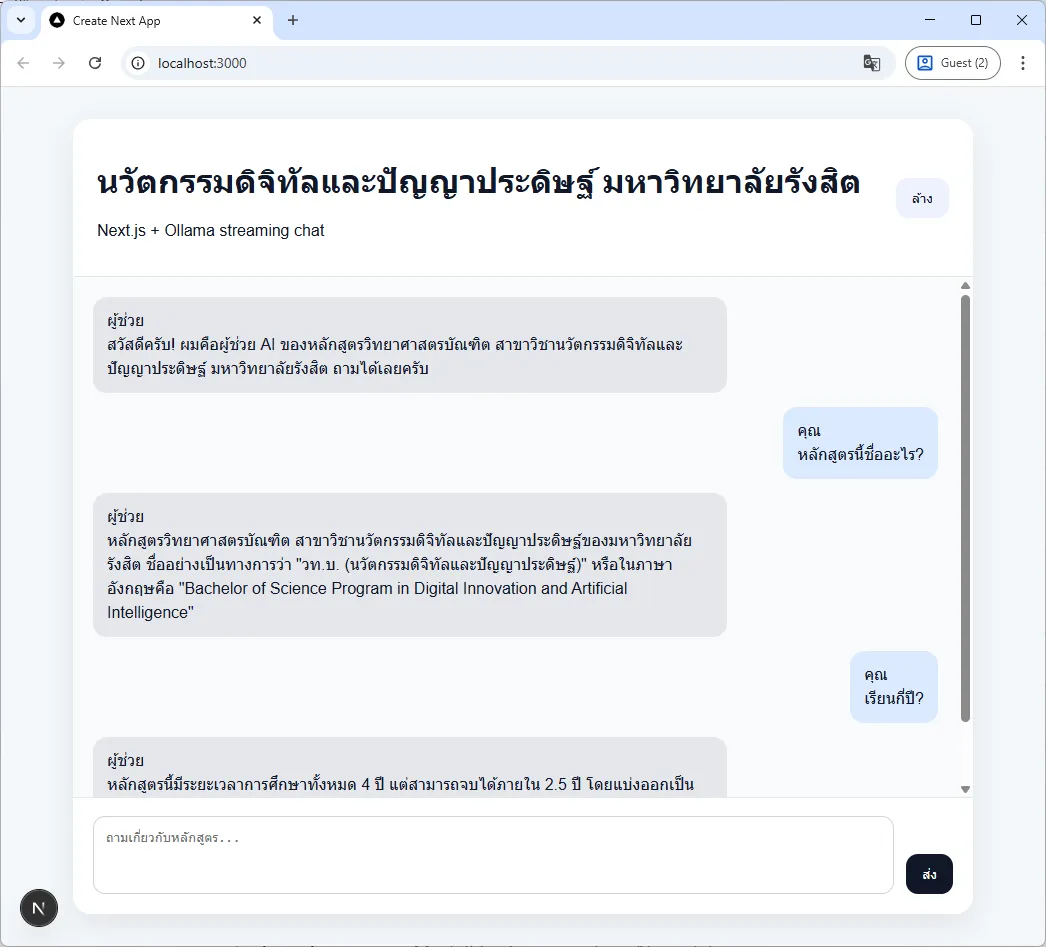
7.2 ตัวอย่างคำถามทดสอบ#
| คำถาม | คำตอบที่คาดหวัง |
|---|---|
| ”หลักสูตรนี้ชื่ออะไร?" | "หลักสูตรวิทยาศาสตรบัณฑิต สาขาวิชานวัตกรรมดิจิทัลและปัญญาประดิษฐ์ ครับ" |
| "เรียนกี่ปี?" | "4 ปี จบได้ภายใน 2.5 ปี ครับ" |
| "ใช้กี่หน่วยกิต?" | "120 หน่วยกิต ครับ" |
| "จบแล้วทำอาชีพอะไรได้บ้าง?" | "Frontend Developer, Backend Developer, Full Stack Developer, AI Assistant, Data Analyst ฯลฯ ครับ (11 อาชีพ)" |
| "สถานที่เรียนอยู่ที่ไหน?" | "วิทยาลัยนวัตกรรมดิจิทัลเทคโนโลยี มหาวิทยาลัยรังสิต เมืองเอก ถ.พหลโยธิน จ.ปทุมธานี ครับ" |
| "มีวิชา AI อะไรบ้าง?" | "มีหลายวิชาครับ เช่น DAI 102 AI เบื้องต้น, DAI 204 Machine Learning, DAI 209 Deep Learning, DAI 207 Computer Vision, DAI 208 NLP" |
| "มีค่าเทอมกี่บาท?" | "ขออภัยครับ ทางเราไม่มีข้อมูลในส่วนนี้ กรุณาติดต่อสถาบันฯ โดยตรง” |
สรุป#
ในบทความนี้จะได้เรียนรู้:
- Fine-tuning ด้วย Modelfile สำหรับ custom AI model
- ใช้ Next.js API routes เชื่อมต่อกับ Ollama
- อัปเดต UI แบบ real-time streaming
- สร้าง chatbot ที่ตอบคำถามเฉพาะ topics ที่กำหนด