Build Full-Stack Apps with Claude Code (GLM)
Build and deploy a full-stack app with Claude Code (GLM), Next.js 15 App Router, TypeScript, and MySQL - all in one project!
1. Introduction#
Building a full-stack application used to take weeks of coding. Today, with AI tools like Claude Code, you can build a complete application in hours.
This tutorial will show you how to:
- Install and configure Claude Code with GLM
- Generate a complete full-stack application using a single Claude Code prompt
- Set up a local database with CAMPP (MySQL)
What we’ll build: A full-stack E-Commerce application with:
- Backend API: Next.js App Router route handlers (Customers, Products, Orders with transaction support)
- Frontend: Next.js 15 with TypeScript and Tailwind CSS for managing the e-commerce data
- Everything in a single Next.js project with TypeScript!
2. Install Claude Code#
Native Install (Recommended)#
Install directly via command line for macOS, Linux, and Windows:
macOS, Linux, WSL:
curl -fsSL https://claude.ai/install.sh | bashWindows PowerShell:
irm https://claude.ai/install.ps1 | iexWindows CMD:
curl -fsSL https://claude.ai/install.cmd -o install.cmd && install.cmd && del install.cmd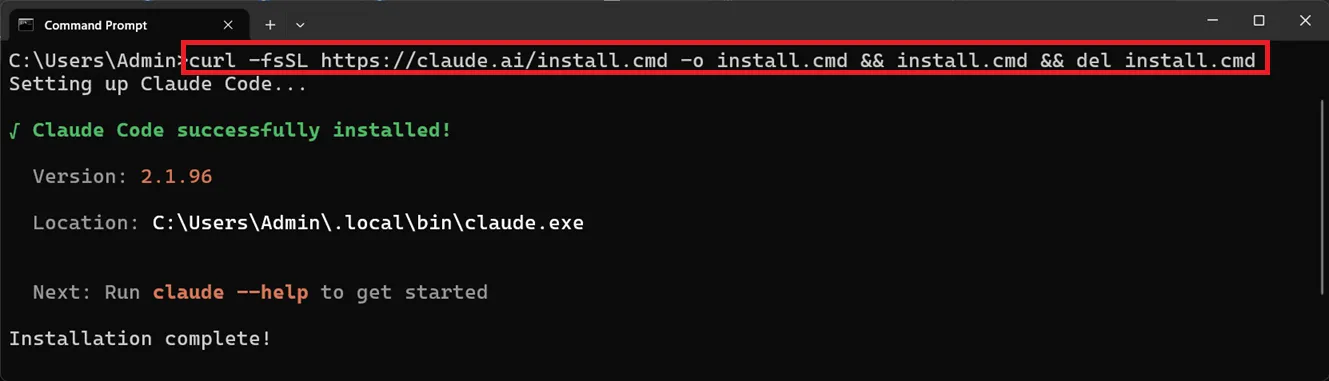
Configure GLM as the Model Provider#
To use GLM with Claude Code, you’ll need to configure the GLM Coding Plan.
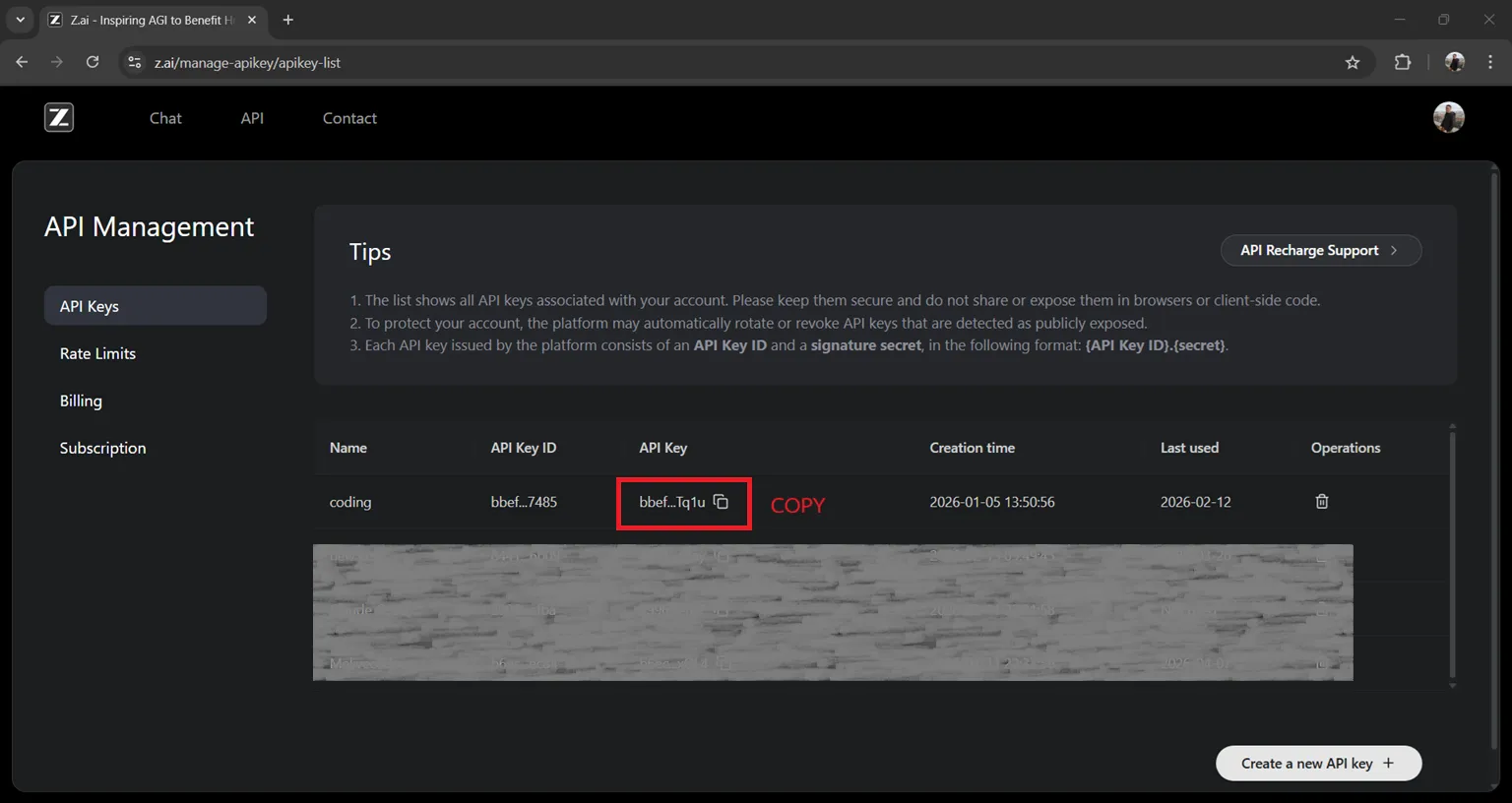
Step 1: Get API Key from Z.AI#
- Access Z.AI Platform ↗ and register or login
- Navigate to the API Keys management page
- Create a new API Key
- Copy your API Key for use in the next step
Step 2: Configure GLM Coding Plan#
Use the Coding Tool Helper to automatically configure GLM:
# Run Coding Tool Helper directly in your terminal
npx @z_ai/coding-helper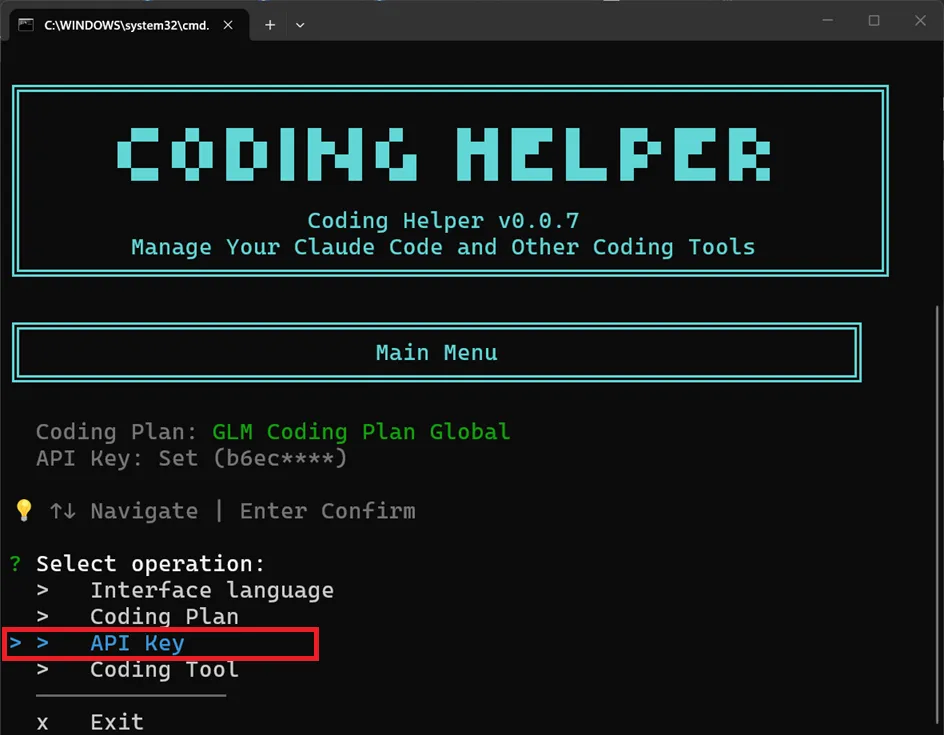
Press Enter to select the API Key option.
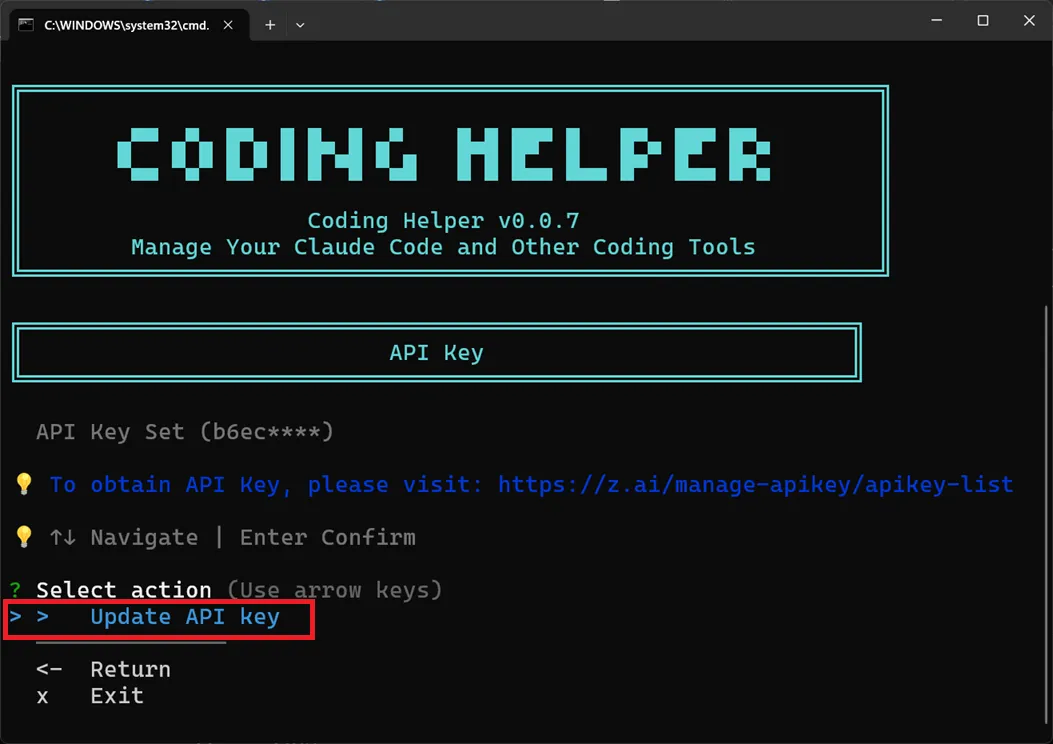
Paste your API Key when prompted.
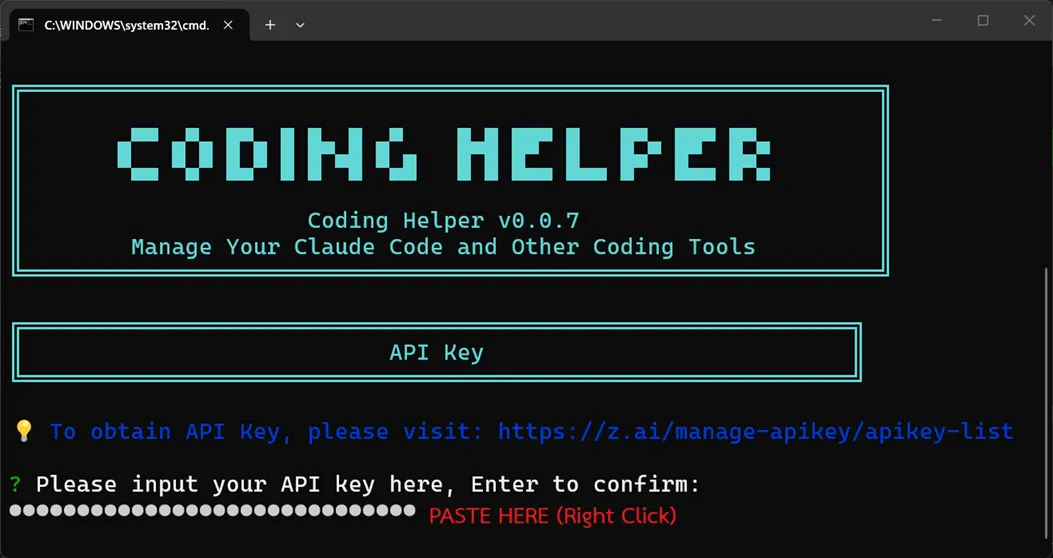
Once configured, restart Claude Code to use GLM as your AI model provider.
3. Prerequisites#
Tools you’ll need:
- Node.js installed on your computer
- Claude Code with GLM configured (see above)
- CAMPP ↗ - Local web development stack (Caddy, PHP, MySQL)
- A terminal (VS Code recommended)
4. Part 1: Generate Full-Stack Application with Claude Code#
Step 1: Create the Next.js Project#
Open your terminal and run:
mkdir ecommerce-app
cd ecommerce-app
npx create-next-app@15 . --tailwind --app --typescriptThis will create a Next.js 15 project with:
- TypeScript enabled
- Tailwind CSS for styling
- App Router
Step 2: Install MySQL Dependency#
npm install mysql2Step 3: The AI Prompt for Full-Stack Application#
Open Claude Code in Your Project#
Make sure you’re in your project directory, then open Claude Code:
Using terminal:
cd ecommerce-app
claude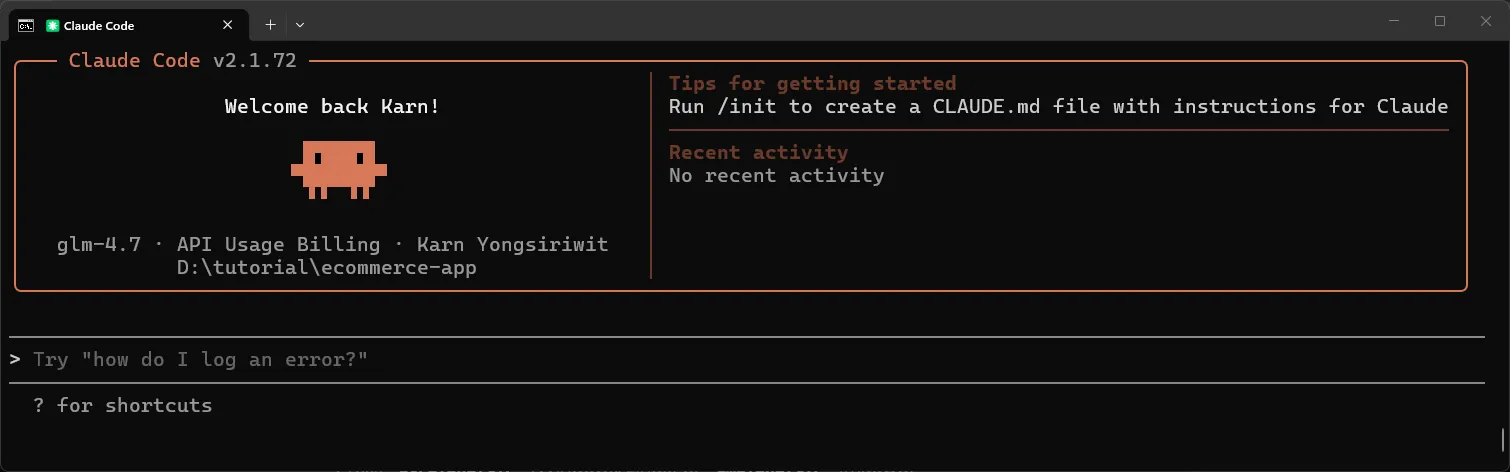
Or from VS Code:
- Open your project folder in VS Code
- Press
Ctrl+Shift+P(Windows/Linux) orCmd+Shift+P(macOS) - Type “Claude Code: Start New Chat” and press Enter
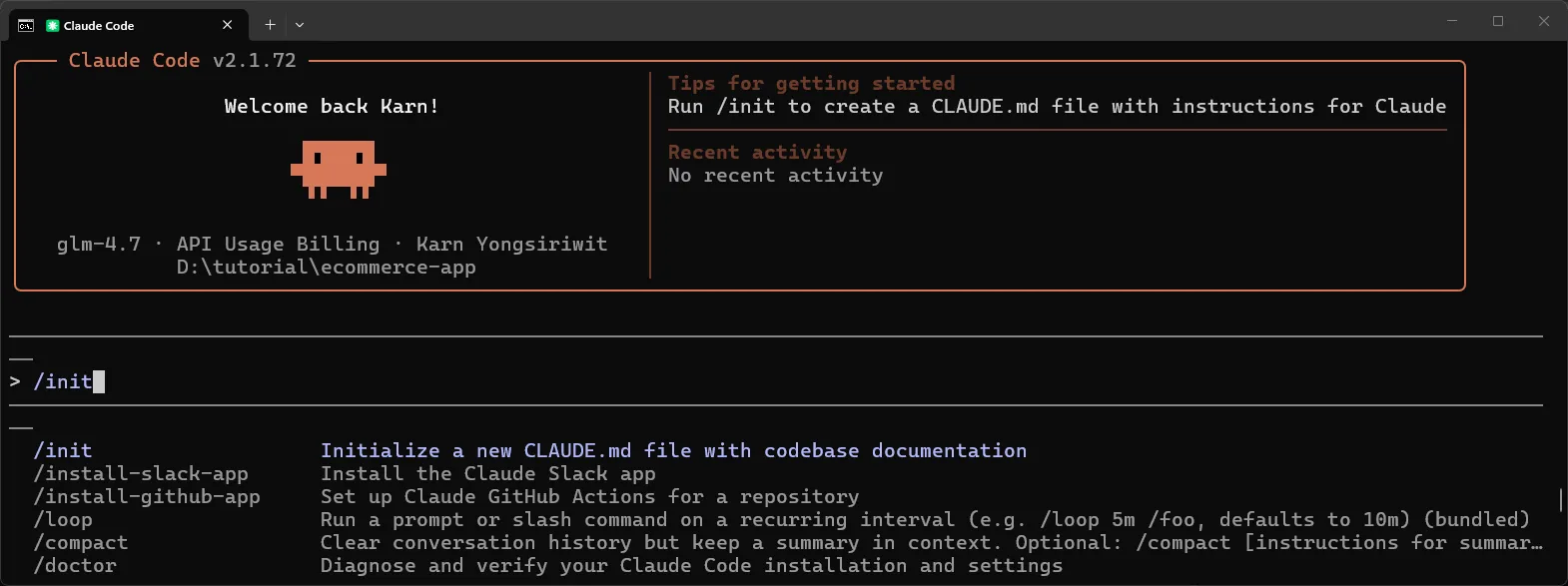
Initialize the Project Context#
Before using the prompt, let Claude Code understand your project structure by running:
/initThis will scan your project and help Claude Code generate code that fits perfectly with your existing setup.
Use This Exact Prompt#
After /init completes, paste this prompt:
Create a full-stack e-commerce application using Next.js 15 with App Router and TypeScript.

The frontend and API must be in the same Next.js project using App Router route handlers.

Use this exact project structure:

ecommerce-app/
├── schema.sql
├── seed.sql
├── .env.local
├── lib/
│   └── db.ts
└── app/
    ├── layout.tsx
    ├── page.tsx
    ├── customers/
    │   └── page.tsx
    ├── products/
    │   └── page.tsx
    ├── orders/
    │   └── page.tsx
    └── api/
        ├── customers/
        │   ├── route.ts
        │   └── [id]/
        │       └── route.ts
        ├── products/
        │   ├── route.ts
        │   └── [id]/
        │       └── route.ts
        └── orders/
            ├── route.ts
            └── [id]/
                └── route.ts

=== DATABASE REQUIREMENTS ===

Database: MySQL
Database name: ecommerce

Tables:
- customers (id, name, email, created_at)
- products (id, name, price, stock, created_at)
- orders (id, customer_id, total, status, created_at)
- order_items (id, order_id, product_id, quantity, price)

=== API REQUIREMENTS ===

Use Next.js App Router route handlers with TypeScript.

Customers:
- GET /api/customers → return all customers
- GET /api/customers/[id] → return one customer or 404
- POST /api/customers → create customer
- DELETE /api/customers/[id] → delete customer

Products:
- GET /api/products → return all products
- GET /api/products/[id] → return one product or 404
- POST /api/products → create product
- DELETE /api/products/[id] → delete product

Orders:
- GET /api/orders → return all orders
- GET /api/orders/[id] → return one order with items or 404
- POST /api/orders → create order
- DELETE /api/orders/[id] → optional, only include if implemented

POST /api/orders must:
- use database transactions
- validate product stock before creating the order
- decrease stock after order creation
- rollback on any error

API rules:
- use mysql2 with parameterized queries
- return JSON only
- use proper status codes: 200, 201, 400, 404, 500
- include error handling
- use NextResponse
- use proper TypeScript types/interfaces

=== FRONTEND REQUIREMENTS ===

Use Next.js 15 + App Router + TypeScript + Tailwind CSS.

Pages:
- Dashboard
- Customers
- Products
- Orders

UI requirements:
- responsive tables
- simple forms to add data
- loading states
- error messages
- fetch using relative URLs like /api/customers
- clean modern UI
- navigation using Next.js Link
- proper TypeScript interfaces
- **NO dark mode toggle - use light theme only**

Orders page:
- allow selecting customer
- allow selecting products and quantity
- calculate order total
- submit order to /api/orders

=== DATABASE CONNECTION ===

Create lib/db.ts using mysql2/promise:
- connection pool
- environment variables
- promise-based query helper
- TypeScript types

Environment variables:
DB_HOST=localhost
DB_PORT=3307
DB_USER=root
DB_PASSWORD=your-password
DB_NAME=ecommerce
DB_SSL=false

If DB_SSL=true, support SSL config for TiDB.

=== OUTPUT REQUIREMENTS ===

Provide:
1. Complete code for every file in the structure above
2. .env.local template
3. schema.sql
4. seed.sql
5. TypeScript interfaces/types
6. Commands to install dependencies and run the project
7. Ensure the code is build-ready and TypeScript-safe
8. If any assumption is made, state it clearly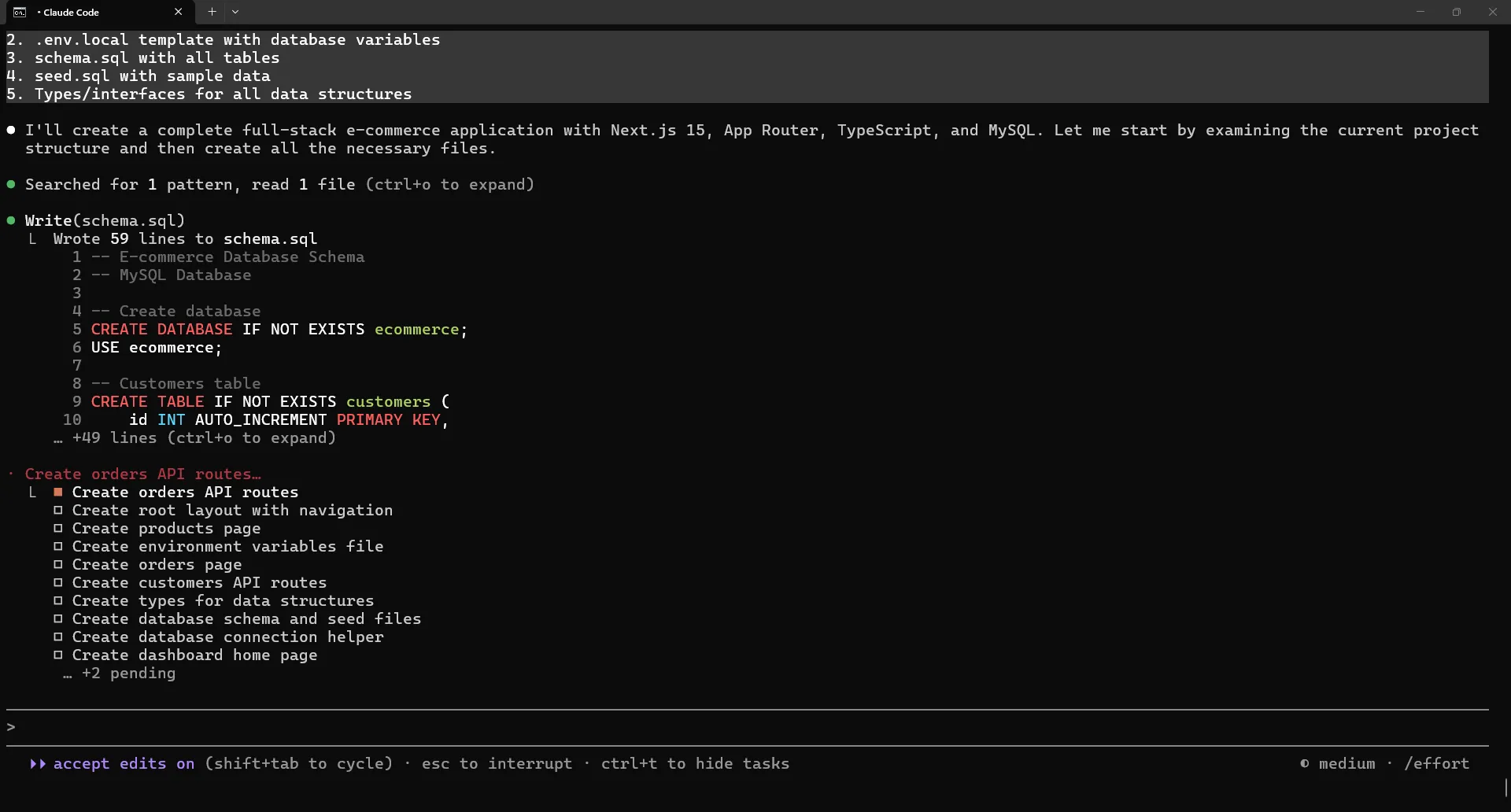
Step 4: Review the Generated Code#
Claude Code will generate all the code files in your project. You should see the following structure created:
ecommerce-app/
├── schema.sql
├── seed.sql
├── .env.local
├── lib/
│   └── db.ts
└── app/
    ├── layout.tsx
    ├── page.tsx
    ├── customers/
    │   └── page.tsx
    ├── products/
    │   └── page.tsx
    ├── orders/
    │   └── page.tsx
    └── api/
        ├── customers/
        │   ├── route.ts
        │   └── [id]/
        │       └── route.ts
        ├── products/
        │   ├── route.ts
        │   └── [id]/
        │       └── route.ts
        └── orders/
            ├── route.ts
            └── [id]/
└── route.ts5. Part 2: Set Up Local Database with CAMPP#
Step 1: Install and Start CAMPP#
CAMPP is a Local Web Development Stack that includes Caddy, PHP, MySQL, and phpMyAdmin. Download it from https://campp.melivecode.com/ ↗
Installation Steps:
- Download CAMPP from the website
- Install according to your operating system
- Open CAMPP and click Start for Caddy, PHP, and MySQL
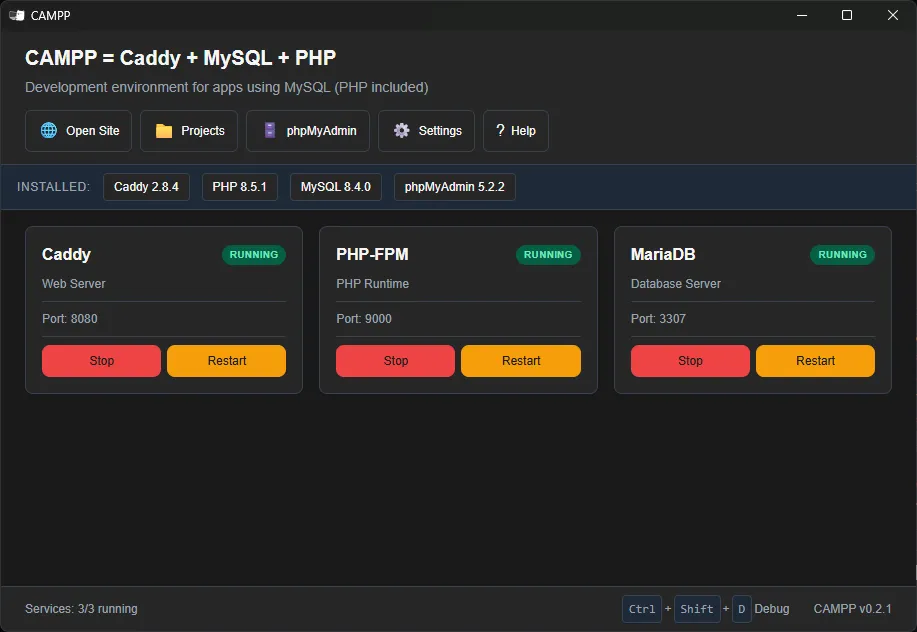
Default MySQL connection settings for CAMPP:
| Setting | Value |
|---|---|
| Host | localhost |
| Port | 3307 (not 3306 to avoid conflicts) |
| Username | root |
| Password | (as specified in CAMPP) |
Note: CAMPP uses port 3307 for MySQL to avoid conflicts with other MySQL services on your machine.
Step 2: Access phpMyAdmin#
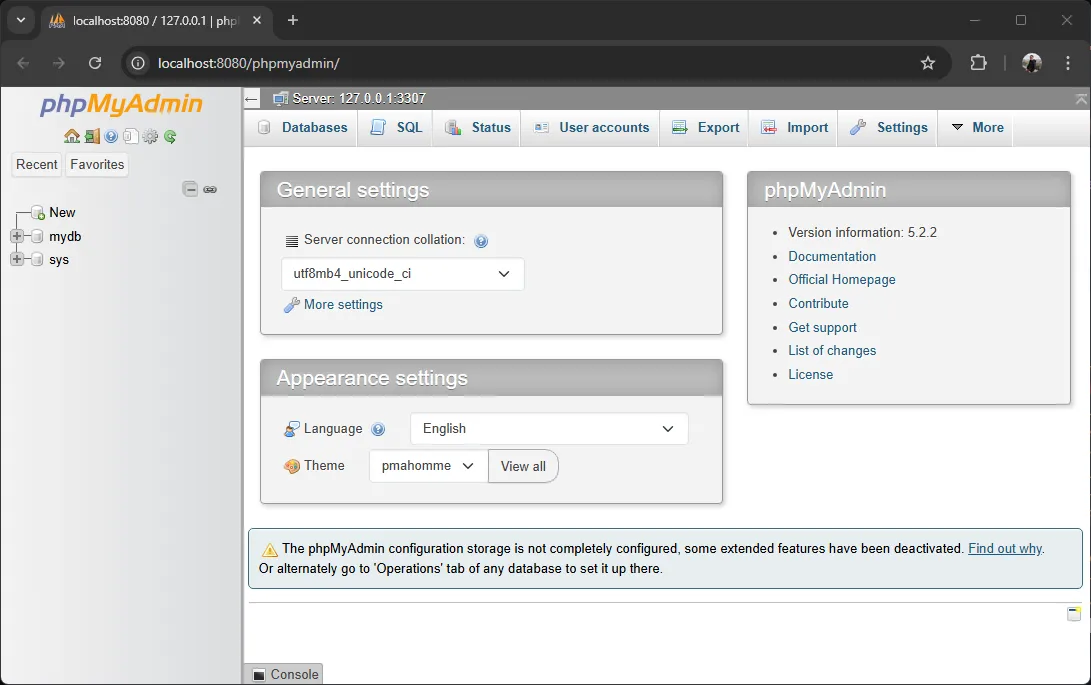
Access phpMyAdmin through CAMPP:
- Click the phpMyAdmin button on the CAMPP Dashboard
- This will open http://localhost:8080/phpmyadmin ↗
Step 3: Create Database#
Create a new database in phpMyAdmin:
- Click New in phpMyAdmin
- Name the database:
ecommerce - Click Create
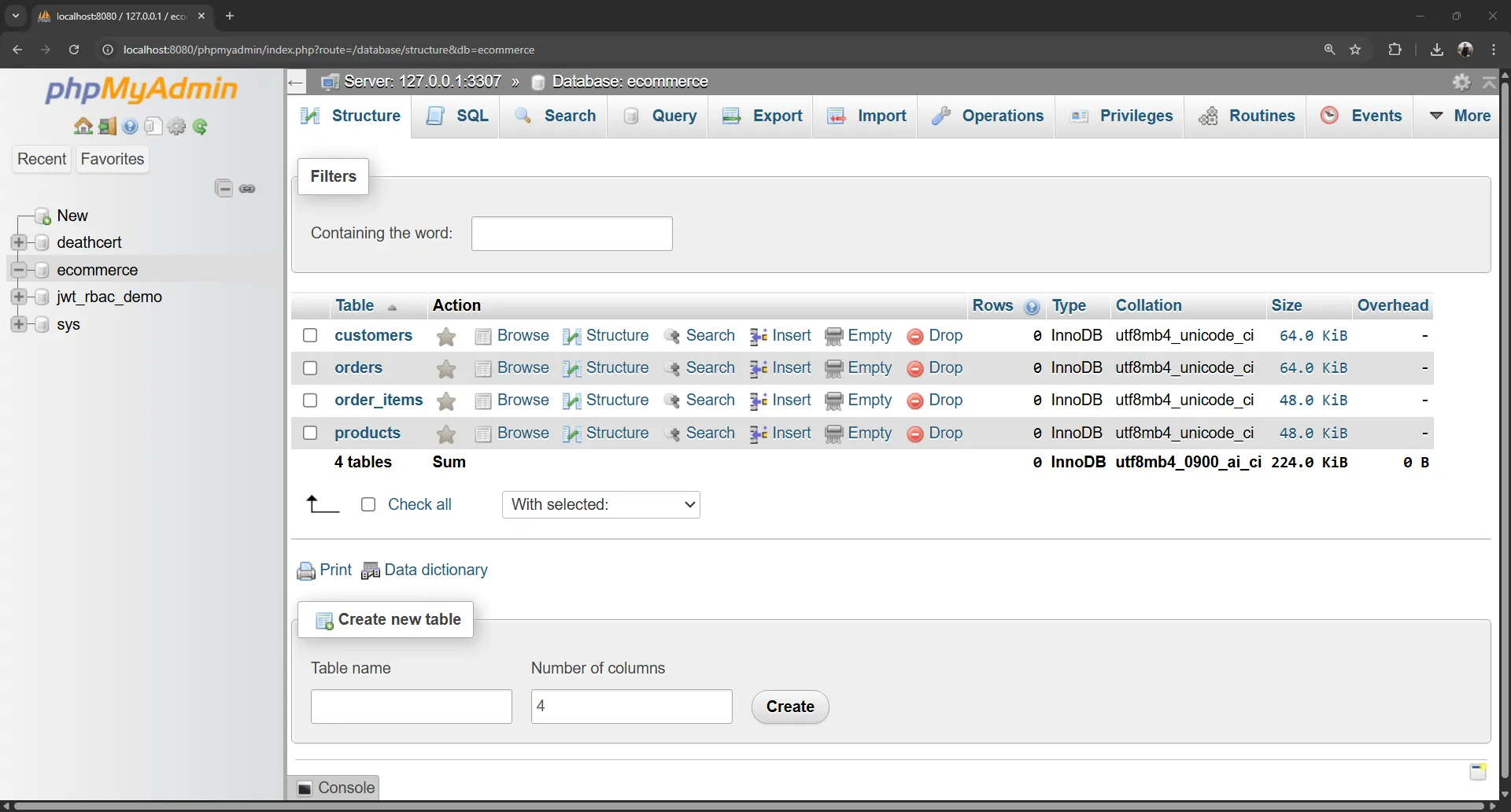
Step 4: Create Tables with SQL#
In phpMyAdmin, select the ecommerce database and click SQL. Paste the contents of schema.sql from your project:
Click Go to create the tables.
Step 5: Configure Environment Variables#
Create a .env.local file in your project root (this should already be generated by Claude Code):
DB_HOST=localhost
DB_PORT=3307
DB_USER=root
DB_PASSWORD=your-password
DB_NAME=ecommerceImportant: CAMPP uses port 3307, not 3306.
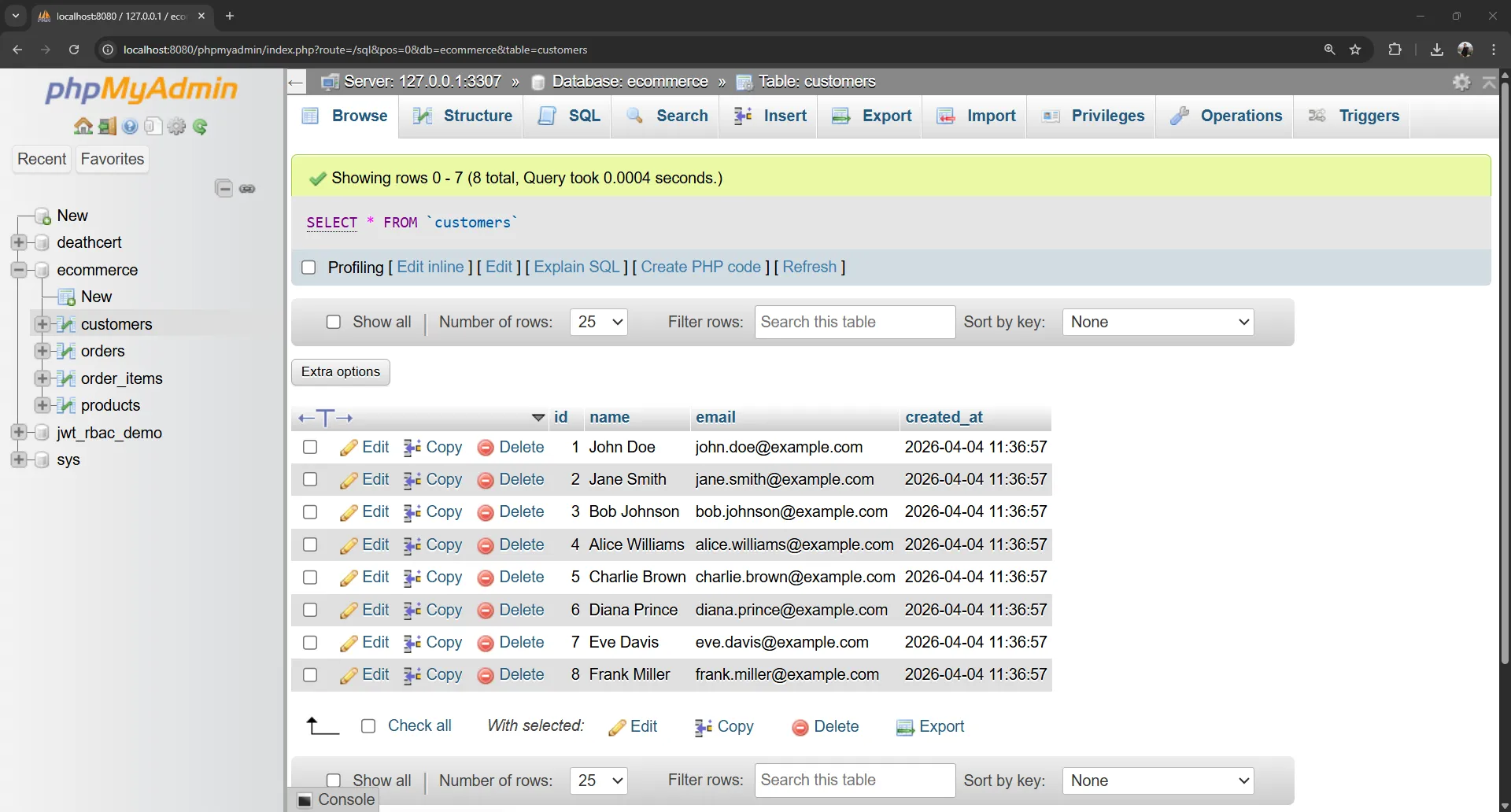
Step 6: Run Seed Data#
In phpMyAdmin SQL Editor, paste the contents of seed.sql and click Run to populate your database with sample data.
6. Part 3: Test Your Application Locally#
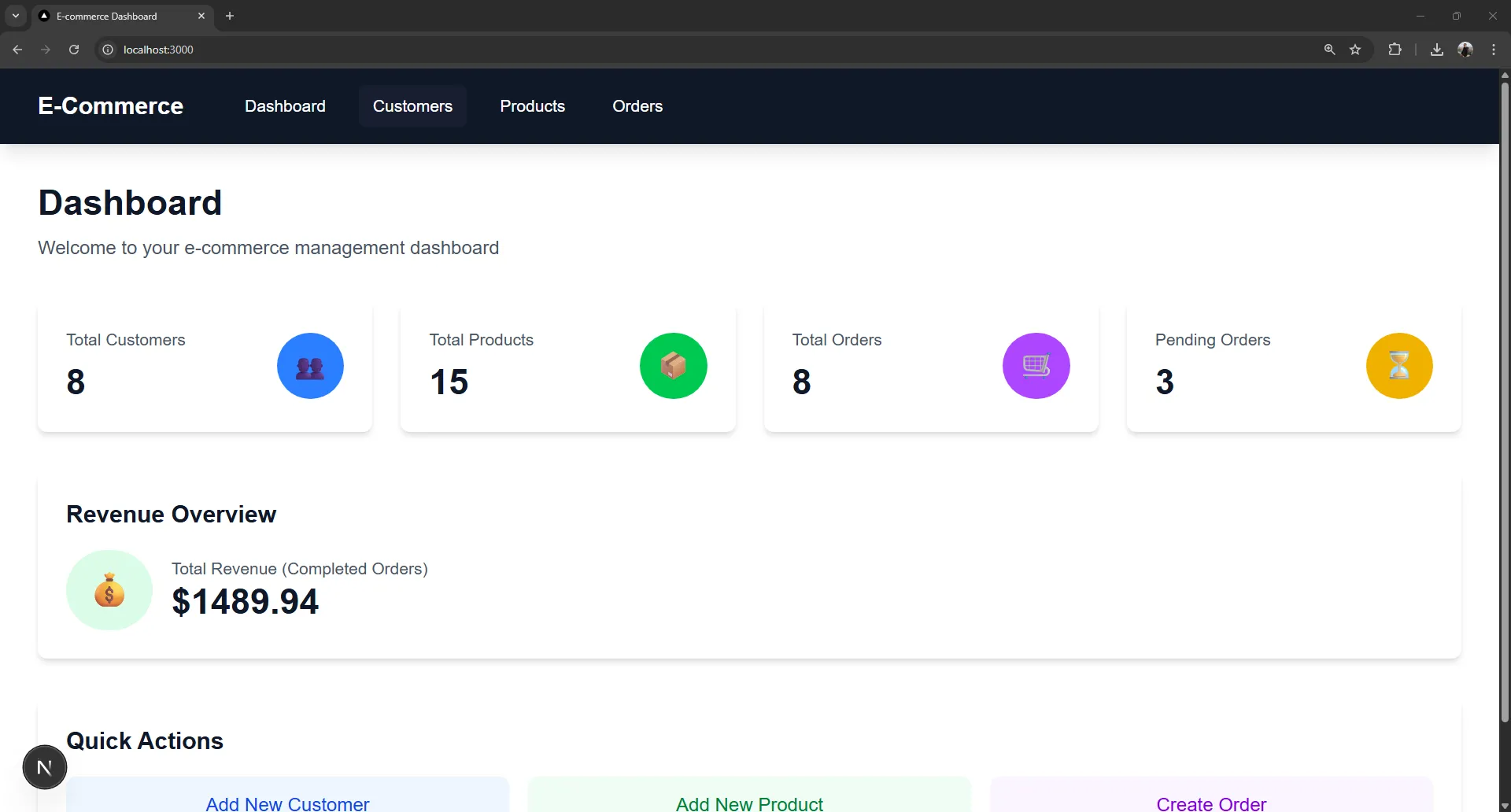
Start the Development Server#
npm run devYou should see: Ready on http://localhost:3000
Since we’re using Next.js App Router for both frontend and API, everything runs on the same server!
Test the Application#
- Open http://localhost:3000 ↗ in your browser
- Navigate through the Dashboard, Customers, Products, and Orders pages
- Try adding new customers, products, and creating orders
- Verify all functionality works correctly
7. Part 4: Deploy to TiDB and Vercel#
Step 1: Create TiDB Cloud Cluster#
- Go to tidbcloud.com ↗ and sign up
- Click Create Cluster → TiDB Serverless
- Choose a region near you
- Wait for cluster to create (1-2 minutes)
Step 2: Create Database in TiDB#
- In TiDB Cloud, click SQL Editor or Chat to TiDB
- Run:
CREATE DATABASE ecommerce;
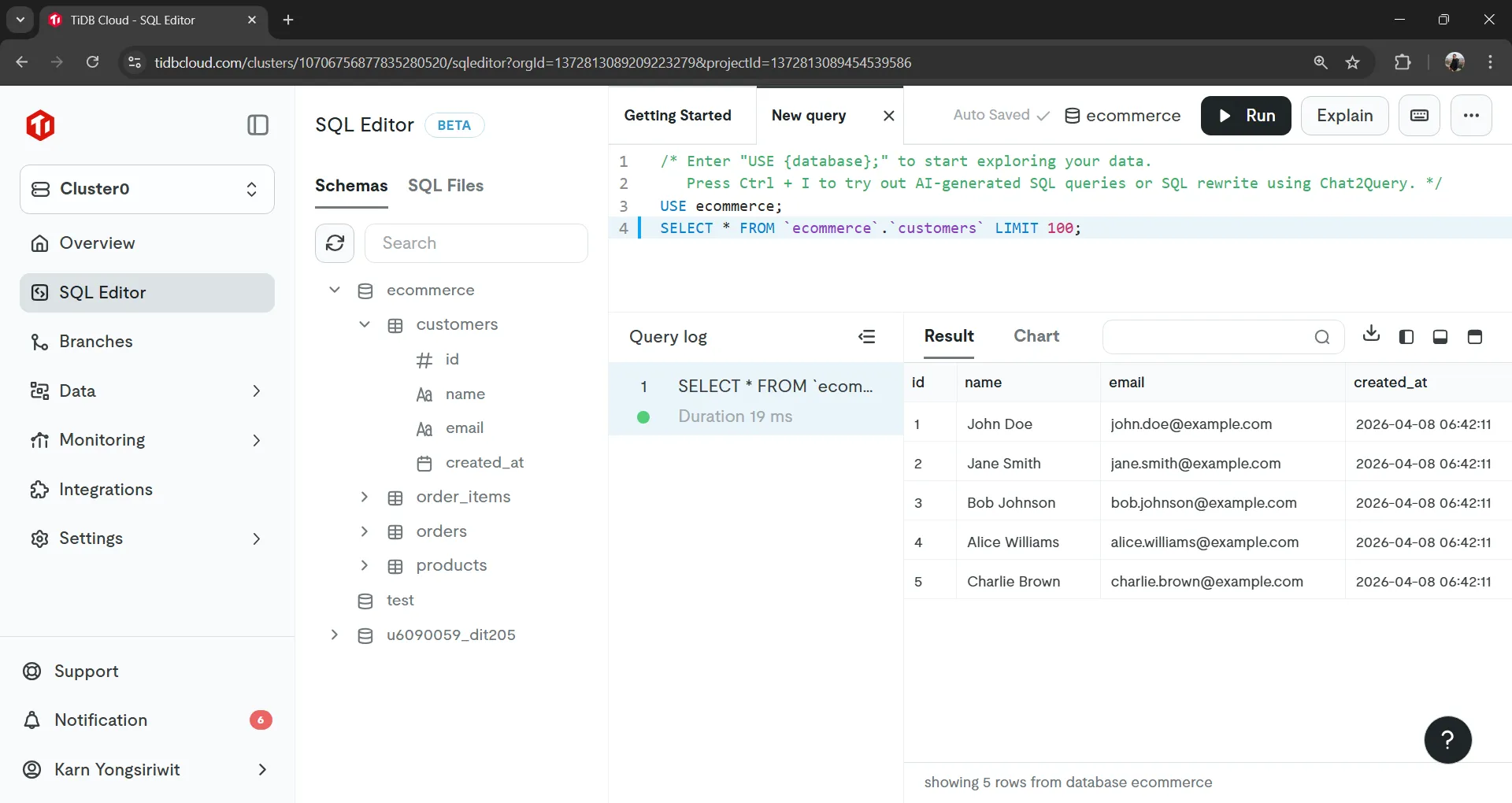
Step 3: Run Schema and Seed in TiDB#
- In TiDB Cloud SQL Editor, paste the contents of
schema.sql - Click Run
- Then paste and run
seed.sql
Step 4: Get TiDB Connection Details#
- Click Connect on your cluster
- Choose General connection
- Create a password
- Copy the connection string
Update your .env.local file with TiDB credentials:
DB_HOST=your-tidb-host.gateway.prod.aws.tidbcloud.com
DB_PORT=4000
DB_USER=xxx.root
DB_PASSWORD=your-password
DB_NAME=ecommerce
DB_SSL=trueStep 5: Build and Fix Errors with Claude Code#
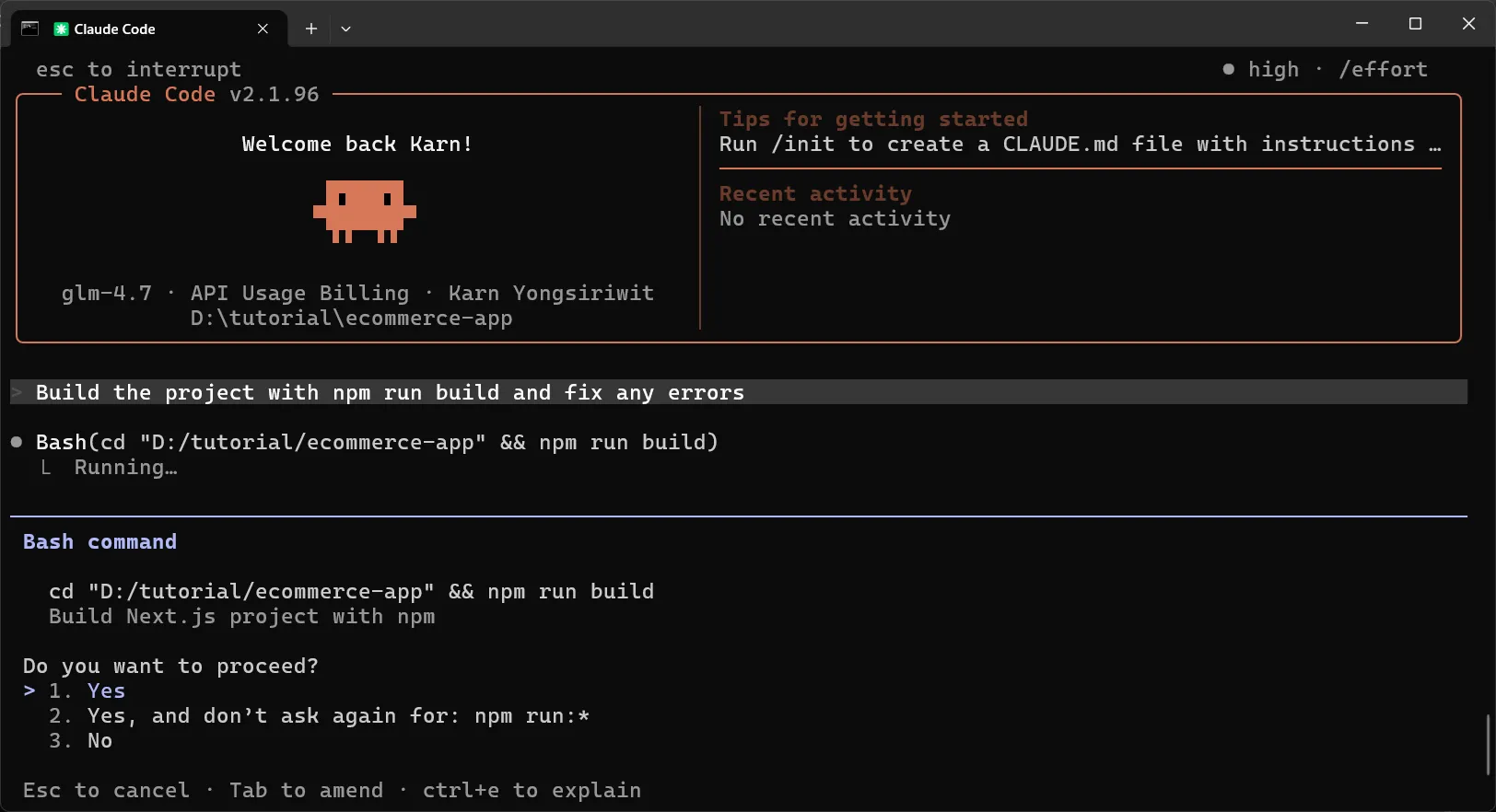
Before pushing to GitHub, use Claude Code to build and fix any errors:
- Open Claude Code in your project:
claude - Ask Claude Code:
Build the project with npm run build and fix any errors - Claude Code will run the build and automatically fix any issues
- Verify the build passes successfully
Step 6: Push to GitHub#
Create .gitignore in your project root:
node_modules
.env.localPush to GitHub using VS Code:
- Open your
ecommerce-appproject in VS Code - Click the Source Control icon (or press
Ctrl+Shift+G) - Click Initialize Repository
- Click the + icon next to “Changes” to stage all changes
- Enter a commit message:
Initial commit - Full-stack e-commerce app - Click Commit
- Click the Publish Branch button
- Follow the prompts to create a new GitHub repository (make it Public)
Your code is now on GitHub at: https://github.com/YOUR_USERNAME/ecommerce-app
Step 7: Deploy on Vercel#
Before deploying, if you encounter any build errors on Vercel, use Claude Code to fix them:
- Copy the error message from Vercel
- Paste it in Claude Code and ask to fix the issue
- Commit and push the fixes
- Vercel will automatically redeploy
Deploy your application:
- Go to vercel.com ↗
- Click Add New → Project
- Import your GitHub repository
- Click Environment Variables
- Add all variables from your
.env.localfile:- DB_HOST
- DB_PORT
- DB_USER
- DB_PASSWORD
- DB_NAME
- DB_SSL
- Click Deploy
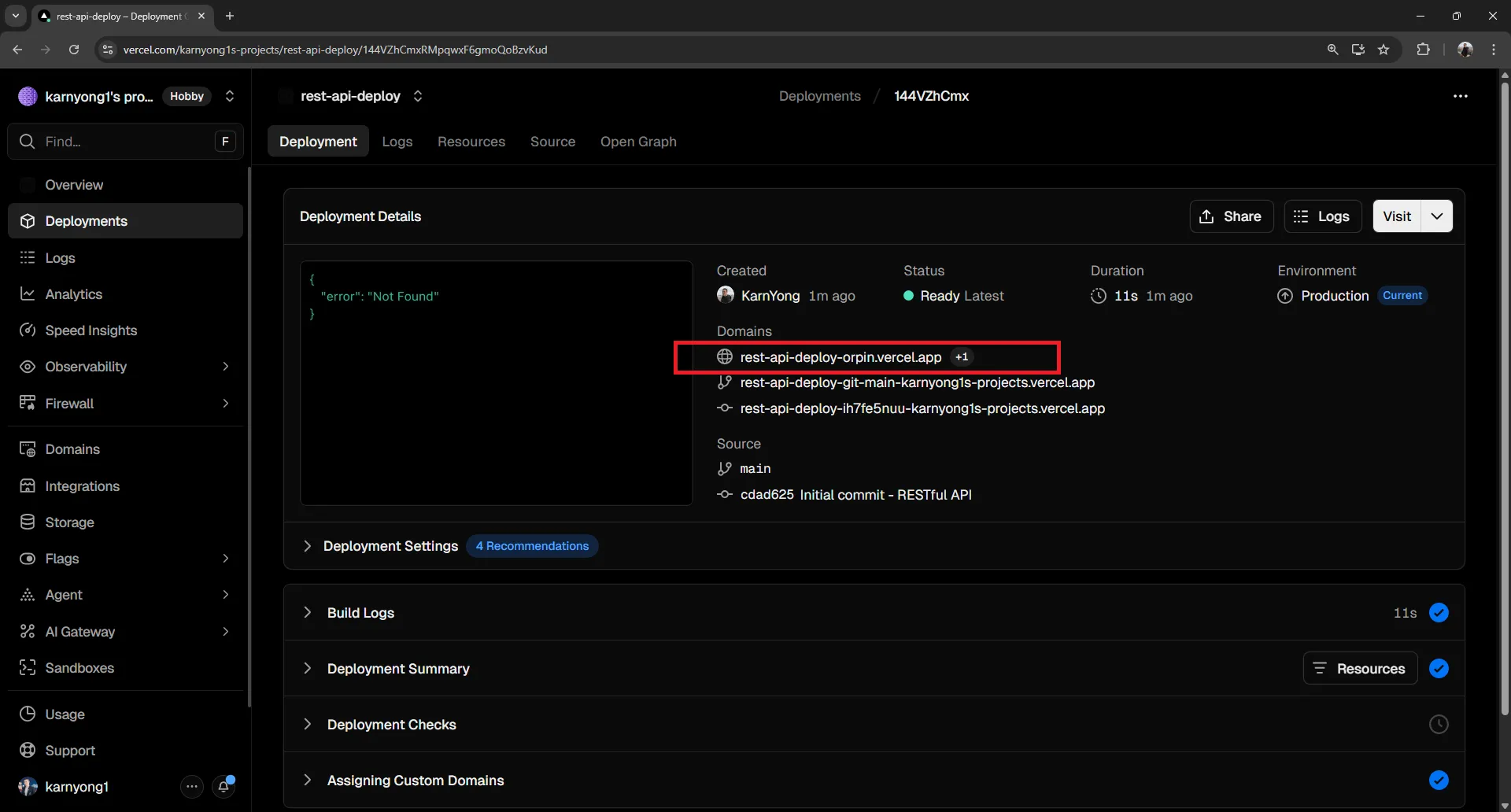
Since Next.js handles both frontend and API in the same project, everything is deployed together!
Your application is now live at: https://your-project.vercel.app
For example: https://ecommerce-app-amber-two.vercel.app/ ↗
Test Your Deployed Application#
- Open your deployed URL in a browser
- Test all functionality: viewing and adding customers, products, and orders
- Verify everything works correctly
Congratulations! You now have a full-stack e-commerce application deployed with TiDB Cloud and Vercel!
8. Summary#
What you’ve built:
| Component | Technology | Cost |
|---|---|---|
| Full-Stack App | Next.js 15 (App Router + TypeScript) | Free |
| API | Route Handlers | Built-in |
| Database | TiDB Serverless | Free (5GB) |
| Hosting | Vercel | Free (100GB bandwidth) |
Next Steps:
- Add authentication with JWT
- Implement pagination
- Add search and filtering
- Set up custom domain
Tips for Better Claude Code Prompts:
- Be specific about your tech stack
- Include sample request/response formats
- Mention security requirements
- Ask for error handling
- Request the complete file structure
The key to building with Claude Code is providing clear specifications. The more detailed your prompt, the better the generated code.
Happy building!