

คลิปประกอบบทความ#
สร้าง VPS + n8n บน Hostinger (รับสิทธิพิเศษ)#
-
สมัครผ่านลิงก์พิเศษ: https://www.hostinger.com/melivecode ↗ เพื่อรับส่วนลดพิเศษสำหรับผู้ติดตามช่องหมีไลฟ์โค้ด
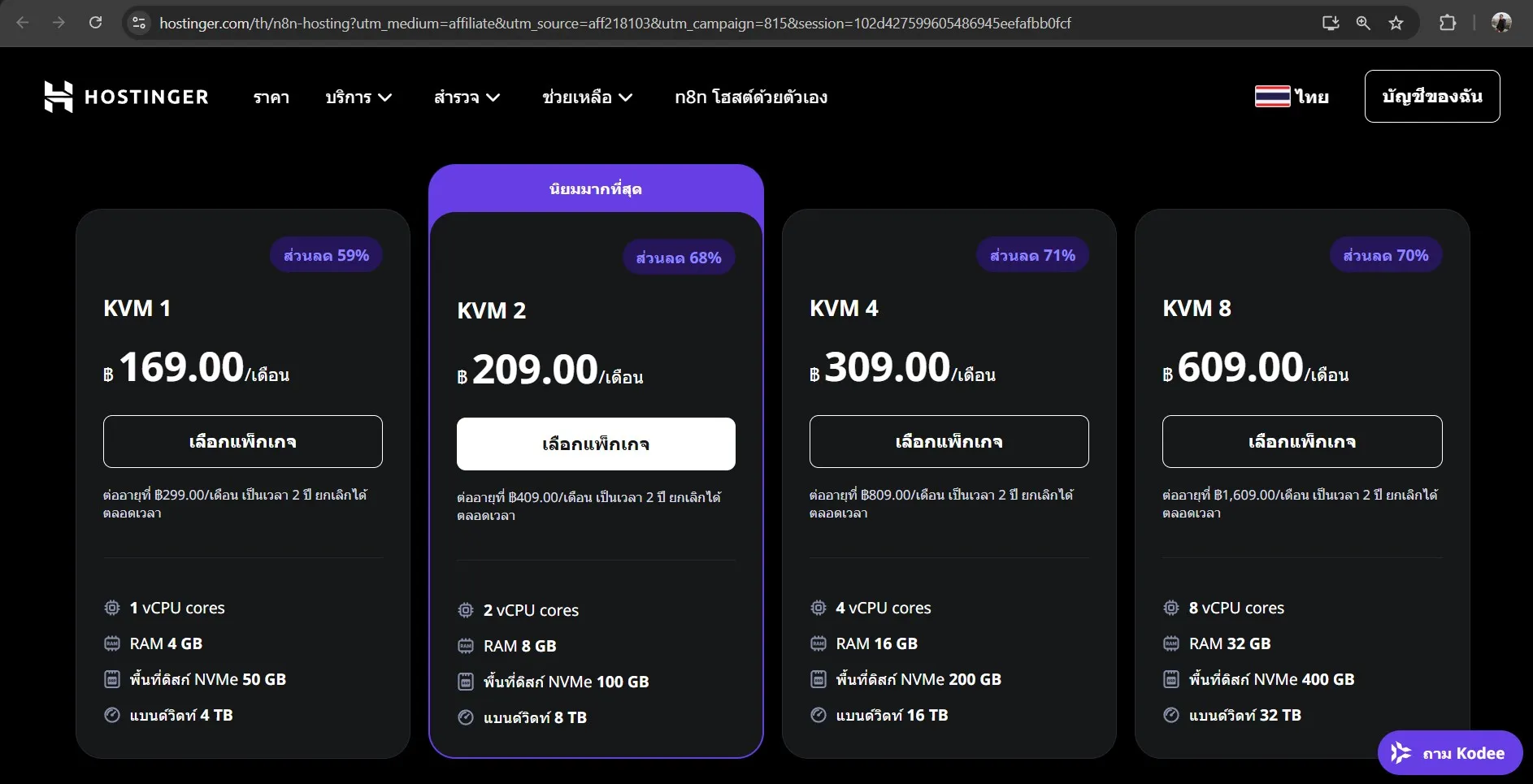
-
ใส่โค้ด
MELIVECODEเพื่อรับส่วนลดเพิ่มเติม อีก 10% บางช่วงเวลาจะลดถึง 20% ด้วยนะ
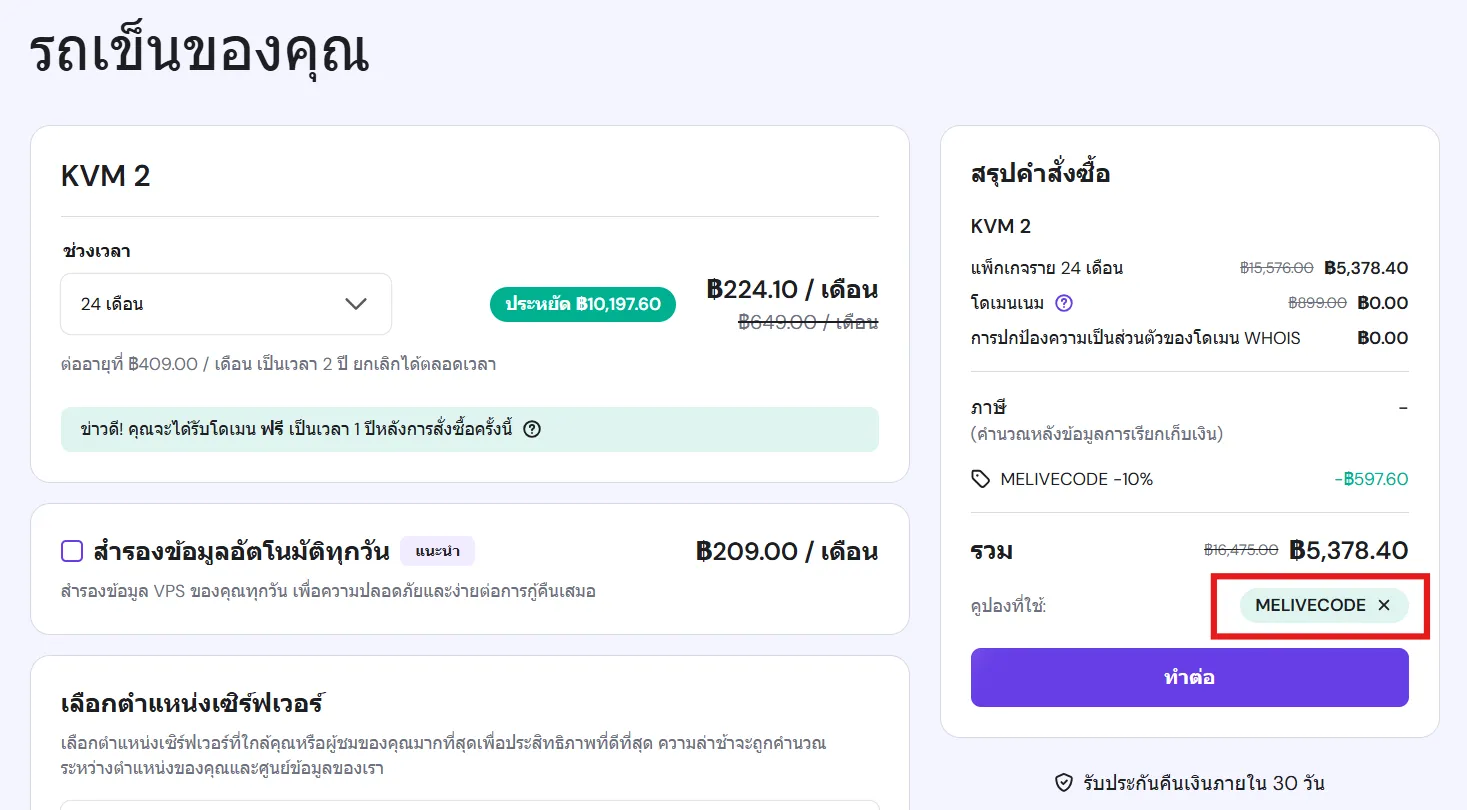
-
ในขั้นตอนการติดตั้งระบบปฏิบัติการ เลือก n8n
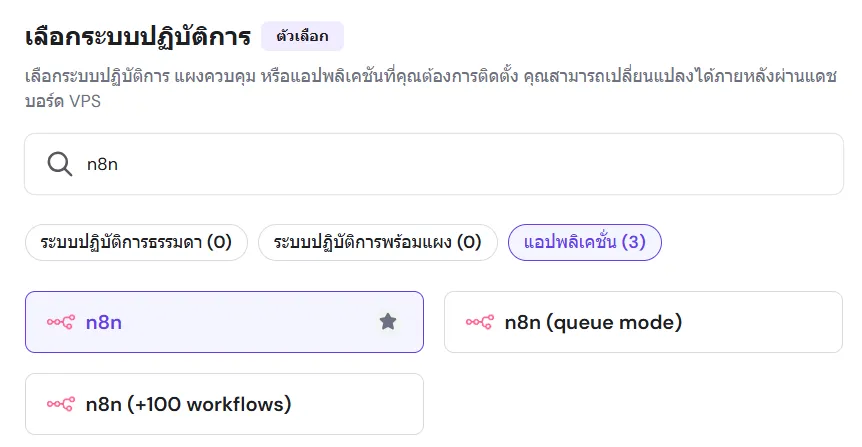
-
เมื่อสร้าง VPS เสร็จ จะสามารถใช้งาน n8n ได้โดยการกดปุ่ม จัดการแอป
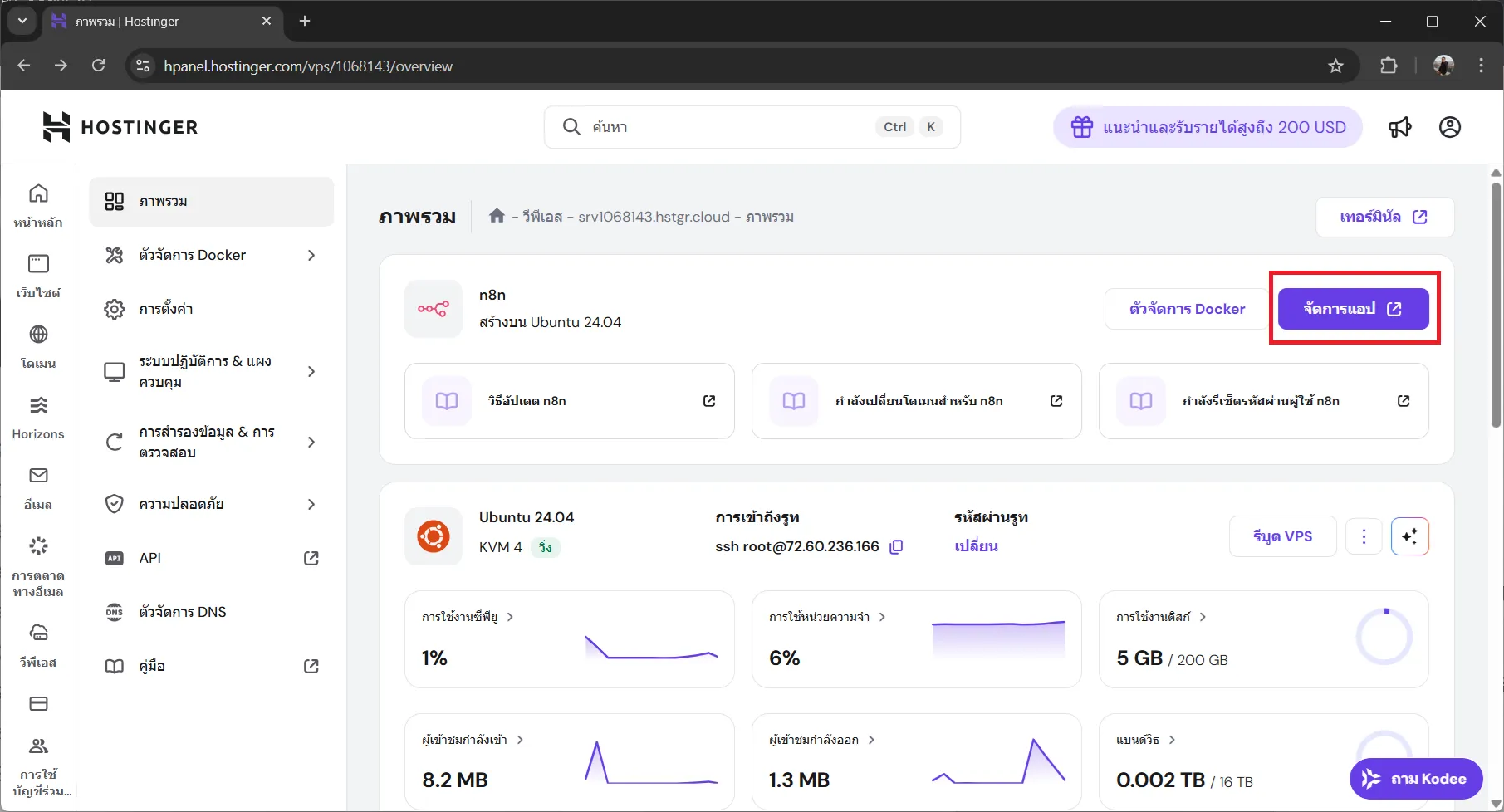
-
จะเป็นการเปิดเบราว์เซอร์ไปที่ n8n บน VPS:
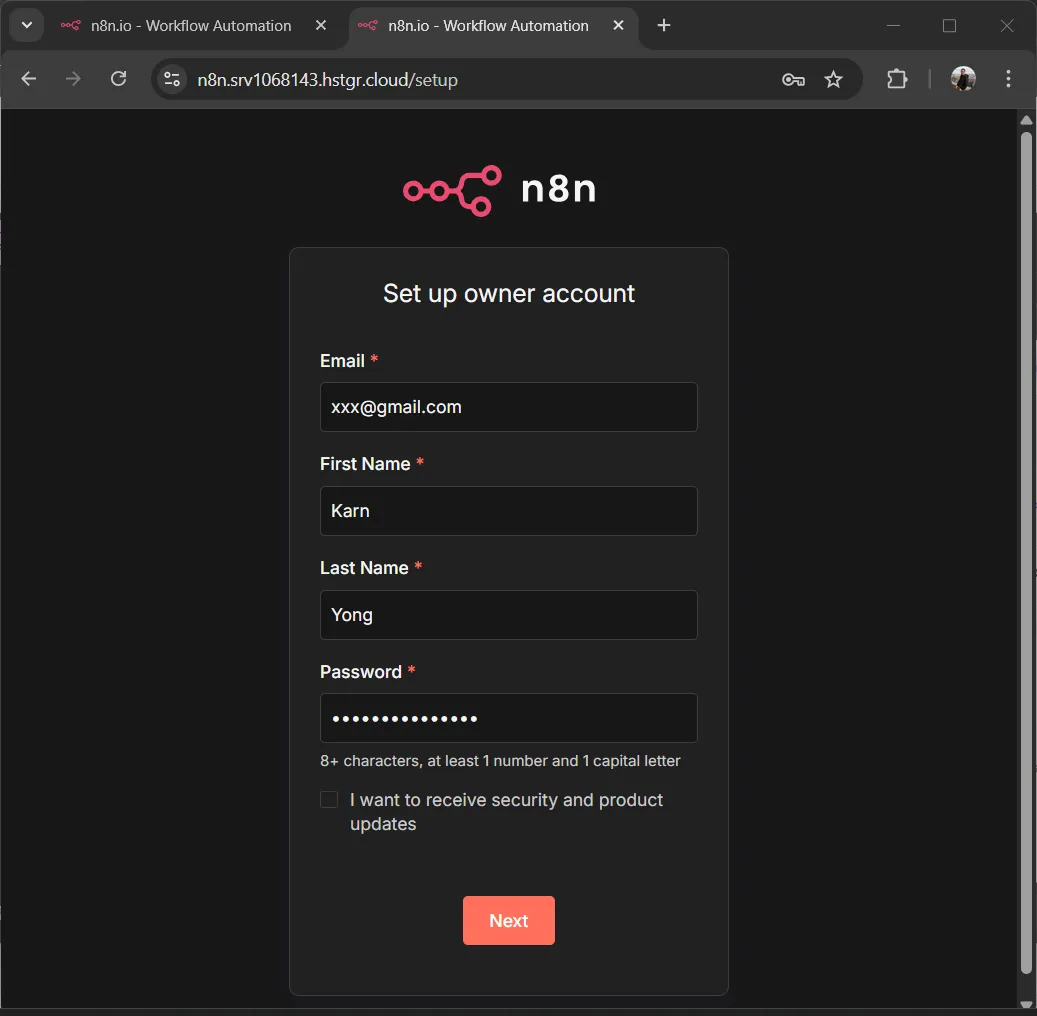
https://n8n.xxxx.hstgr.cloud/สำหรับการใช้งานครั้งแรก ให้สร้างบัญชี Owner และเริ่มใช้งาน n8n
-
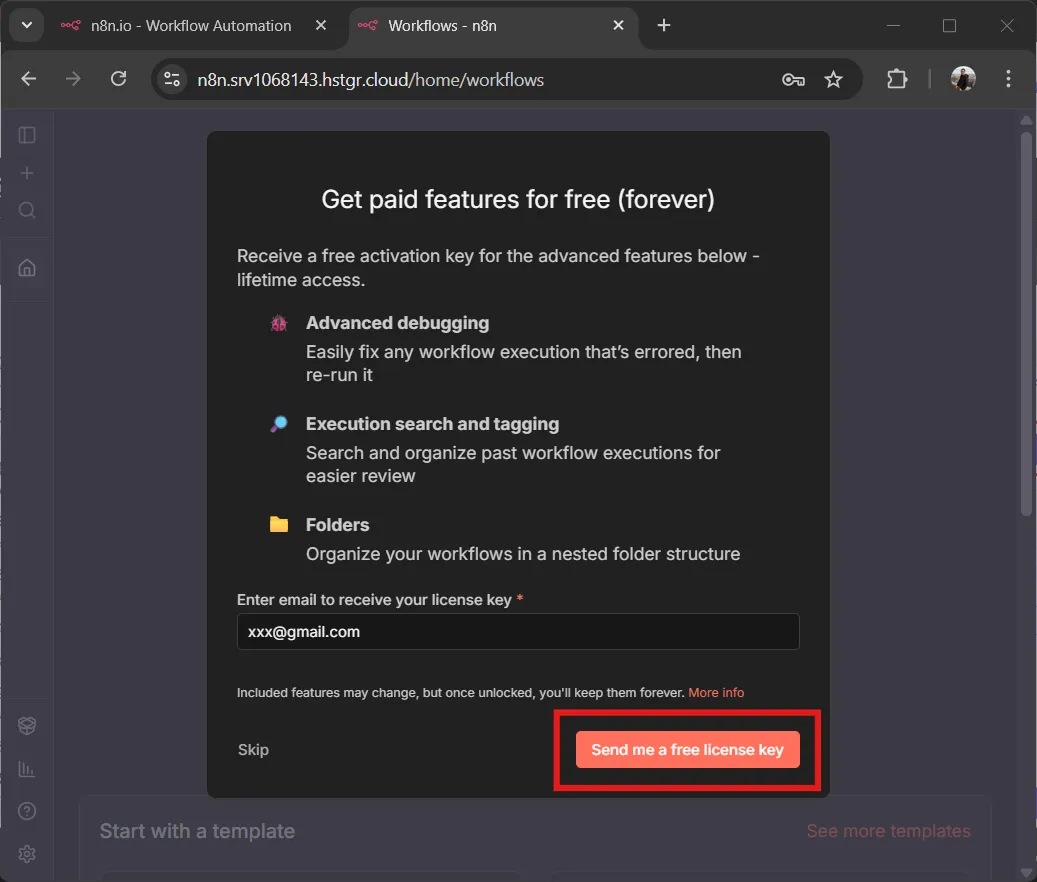
ทำการส่ง Free License Key ไปที่ Email
-
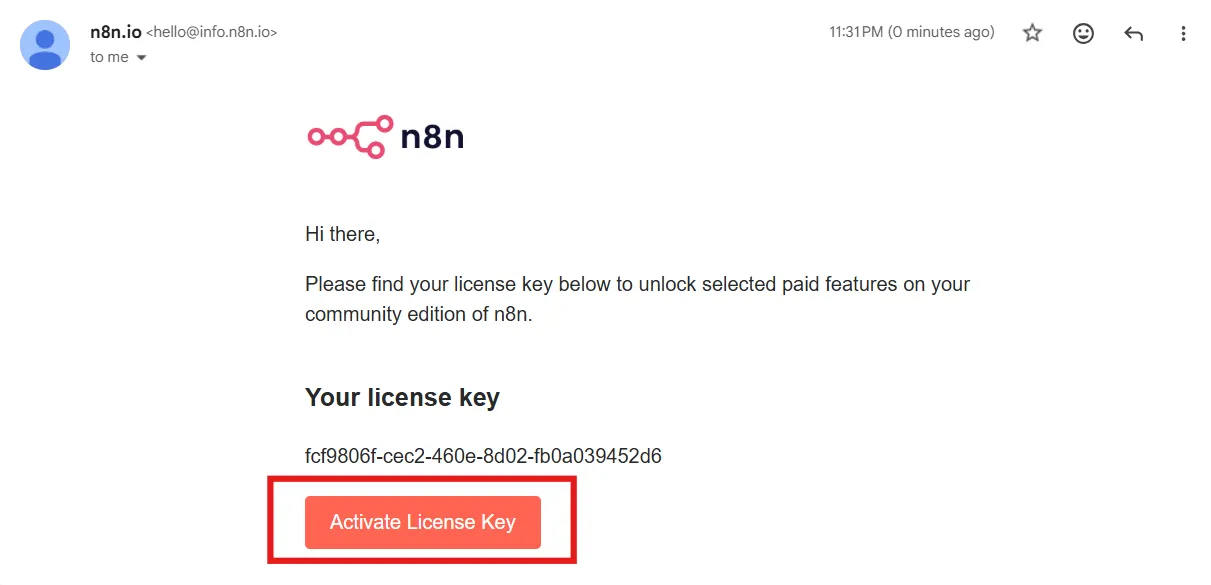
เข้าไปที่ Email เพื่อ Activate License Key
-
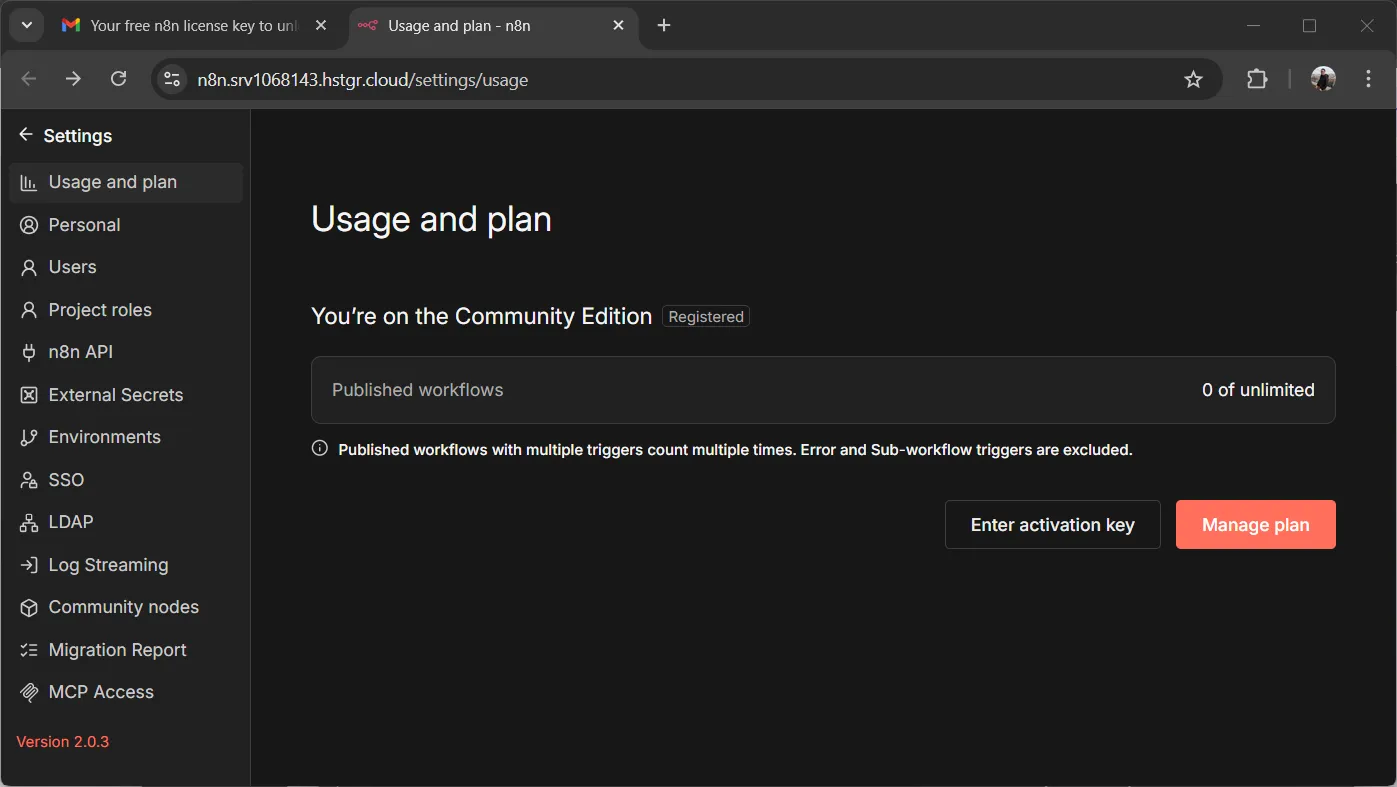
จะ Redirect กลับมาที่ n8n และมี License พร้อมใช้งาน
1. วัตถุประสงค์#
บทความนี้จะสอนการสร้าง ETL Pipeline (Extract-Transform-Load) แบบครบวงจร:
- สร้าง VPS + n8n บน Hostinger (ติดตั้งให้อัตโนมัติ)
- ดึงข้อมูลรีวิวสินค้าจาก REST API (Extract)
- ใช้ OpenAI GPT วิเคราะห์ Sentiment และ Extract ข้อมูล (Transform)
- บันทึกข้อมูลลง Supabase (PostgreSQL) อัตโนมัติ (Load)
- ตั้ง Schedule ให้ทำงานอัตโนมัติทุกวัน
2. ETL คืออะไร?#
ETL ย่อมาจาก Extract-Transform-Load เป็นกระบวนการจัดการข้อมูลที่ใช้กันแพร่หลาย:
| ขั้นตอน | คำอธิบาย | ตัวอย่างในบทความนี้ |
|---|---|---|
| Extract | ดึงข้อมูลจากแหล่งต้นทาง | ดึงรีวิวจาก REST API |
| Transform | แปลง/เพิ่มคุณค่าข้อมูล | วิเคราะห์ Sentiment ด้วย AI |
| Load | โหลดข้อมูลเข้าปลายทาง | บันทึกลง Supabase |
3. n8n คืออะไร?#
n8n (pronounced n-eight-n) คือ Workflow Automation Tool แบบ Open Source ที่ช่วยให้เราสร้าง Automation ได้โดยไม่ต้องเขียนโค้ดมาก
ข้อดีของ n8n:
- ✅ Open Source - ติดตั้งบน Server ตัวเองได้
- ✅ มี Node มากกว่า 400+ integrations
- ✅ รองรับ AI/LLM nodes (OpenAI, Claude, etc.)
- ✅ Visual Workflow Editor ใช้งานง่าย
- ✅ Self-hosted หรือ Cloud ก็ได้
4. สร้าง Supabase Project#
4.1 สมัครและสร้าง Project#
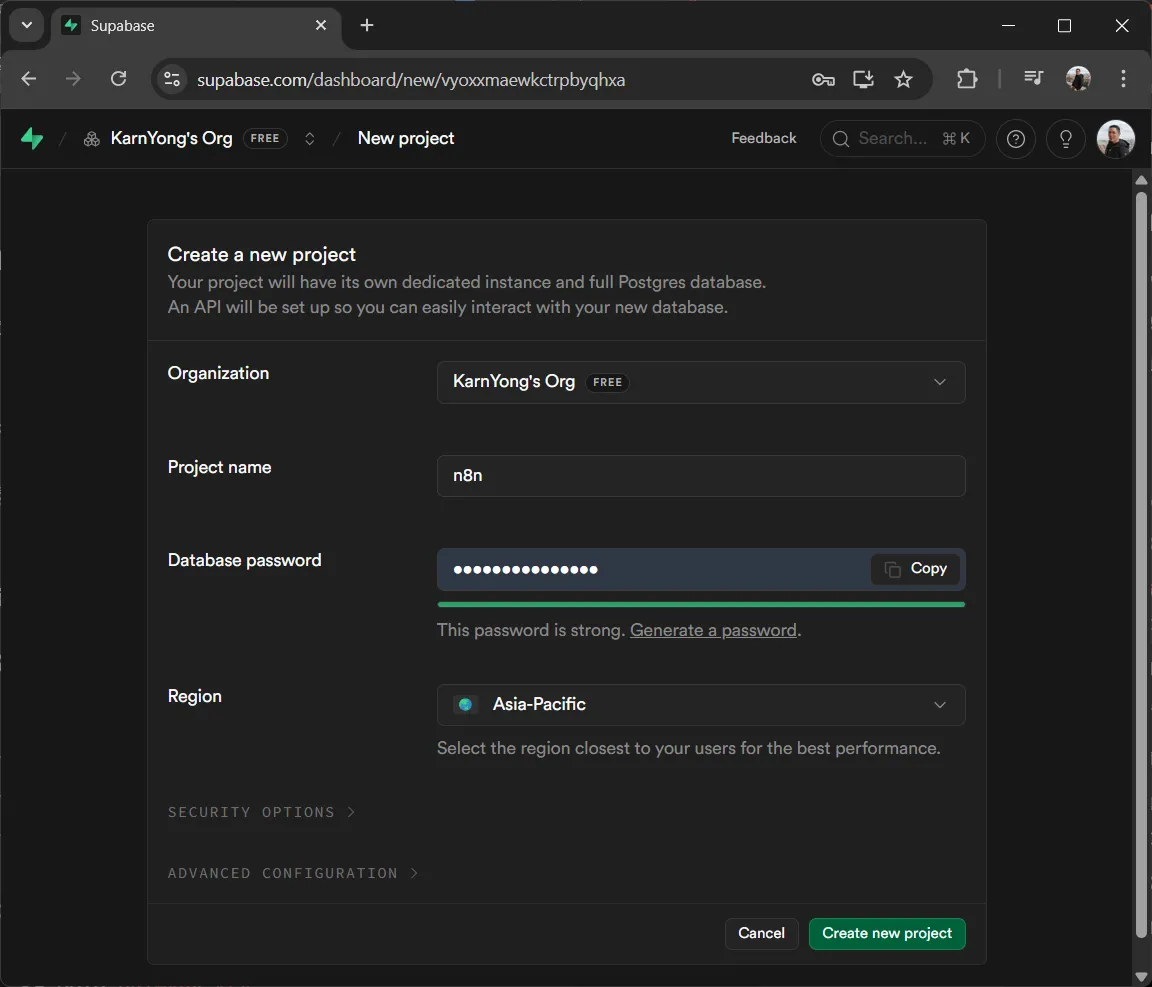
- ไปที่ https://supabase.com ↗ และสมัครสมาชิก
- คลิก New Project
- ตั้งชื่อ Project และรหัสผ่าน Database
- เลือก Region ที่ใกล้ที่สุด (Singapore)
4.2 สร้างตาราง product_reviews#
ไปที่ SQL Editor แล้วรันคำสั่งต่อไปนี้:
-- =============================================
-- Product Reviews Table (LLM Enriched)
-- =============================================

CREATE TABLE product_reviews (
  -- Primary Key
  id UUID PRIMARY KEY,

  -- Original Data (from API)
  product_id INT NOT NULL,
  product_name VARCHAR(100),
  review_text TEXT,
  review_date DATE,

  -- LLM Enriched Fields
  sentiment VARCHAR(20) CHECK (sentiment IN ('positive', 'negative', 'neutral')),
  sentiment_score DECIMAL(3,2) CHECK (sentiment_score >= 0 AND sentiment_score <= 1),
  quality VARCHAR(20),
  usability VARCHAR(20),
  issues TEXT[],
  highlights TEXT[],
  summary TEXT,

  -- Metadata
  created_at TIMESTAMPTZ DEFAULT NOW(),
  updated_at TIMESTAMPTZ DEFAULT NOW()
);

-- =============================================
-- Indexes
-- =============================================

CREATE INDEX idx_reviews_product_id ON product_reviews(product_id);
CREATE INDEX idx_reviews_sentiment ON product_reviews(sentiment);
CREATE INDEX idx_reviews_date ON product_reviews(review_date);
CREATE INDEX idx_reviews_created ON product_reviews(created_at DESC);

-- =============================================
-- Auto-update updated_at
-- =============================================

CREATE OR REPLACE FUNCTION update_updated_at()
RETURNS TRIGGER AS $$
BEGIN
  NEW.updated_at = NOW();
  RETURN NEW;
END;
$$ LANGUAGE plpgsql;

CREATE TRIGGER trigger_update_timestamp
  BEFORE UPDATE ON product_reviews
  FOR EACH ROW
  EXECUTE FUNCTION update_updated_at();
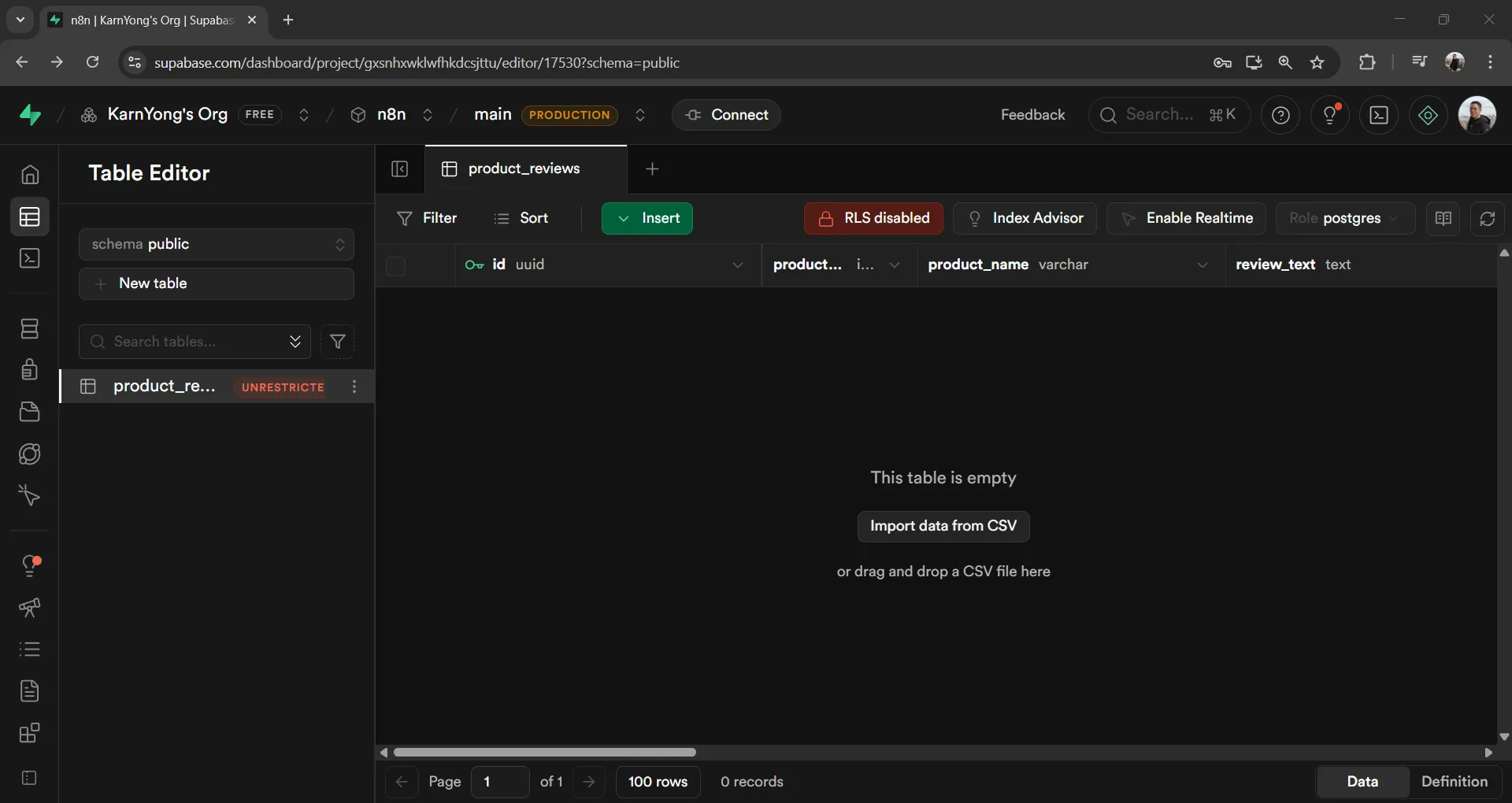
ไปที่ Table Editor จะเห็นตาราง product_reviews ที่ถูกสร้างขึ้น (ยังไม่มีข้อมูล):
4.3 เก็บ API Keys#
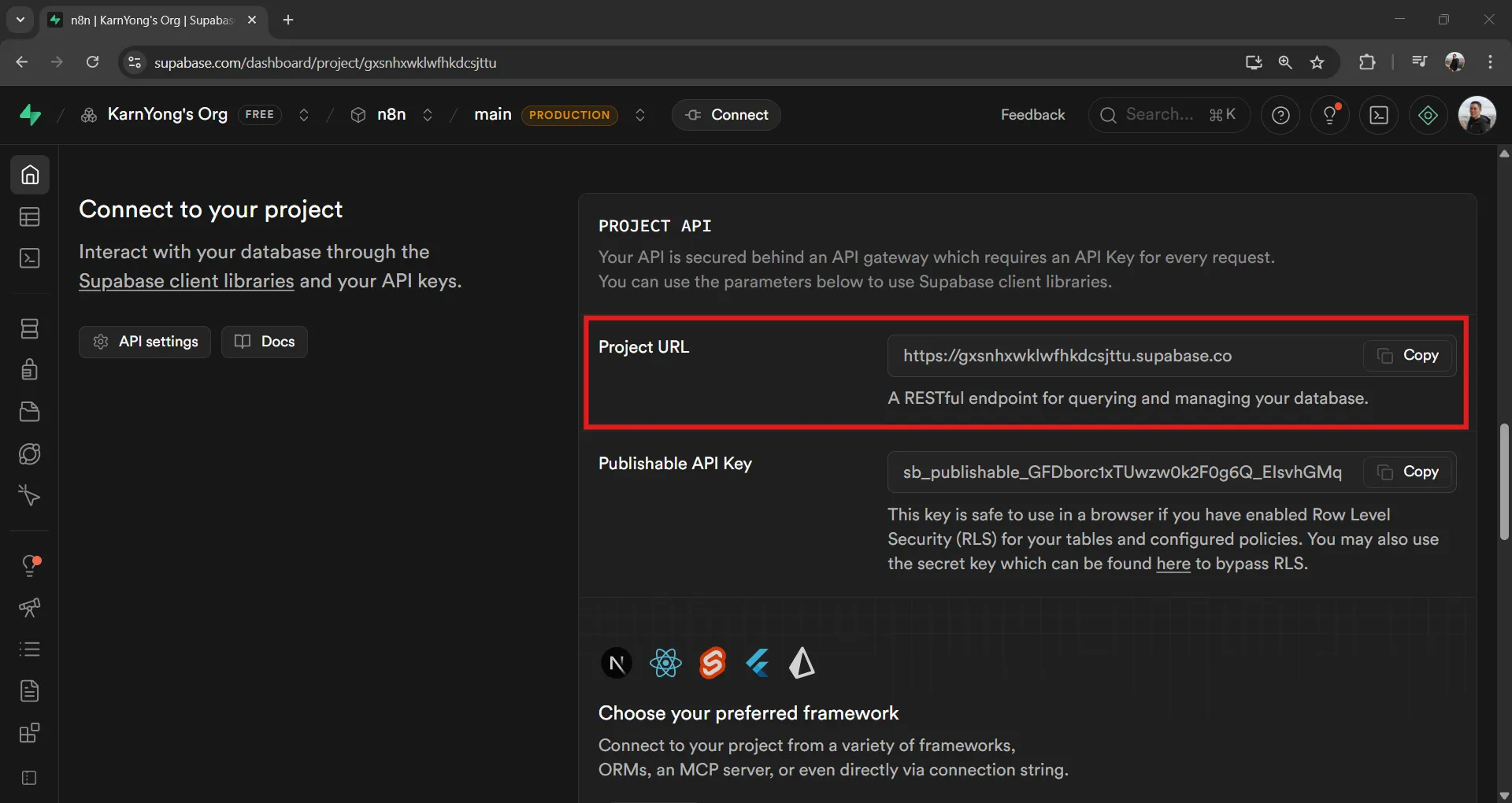
ไปที่ Project Overview → Connect to your project แล้วจดค่า:
- Project URL:
https://xxxxx.supabase.co
ไปที่ Project Settings → API → Publishable and secret API keys แล้วจดค่า:
- Secret keys: สำหรับ server-side access (ใช้ใน n8n)

5 สร้าง ETL Workflow#
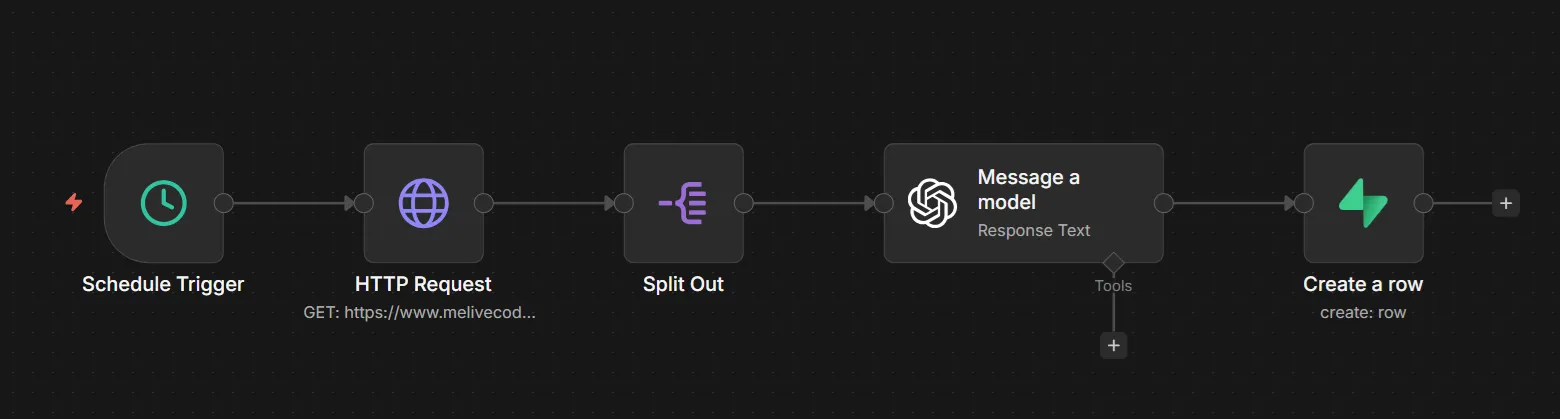
5.1 ภาพรวม Flow#
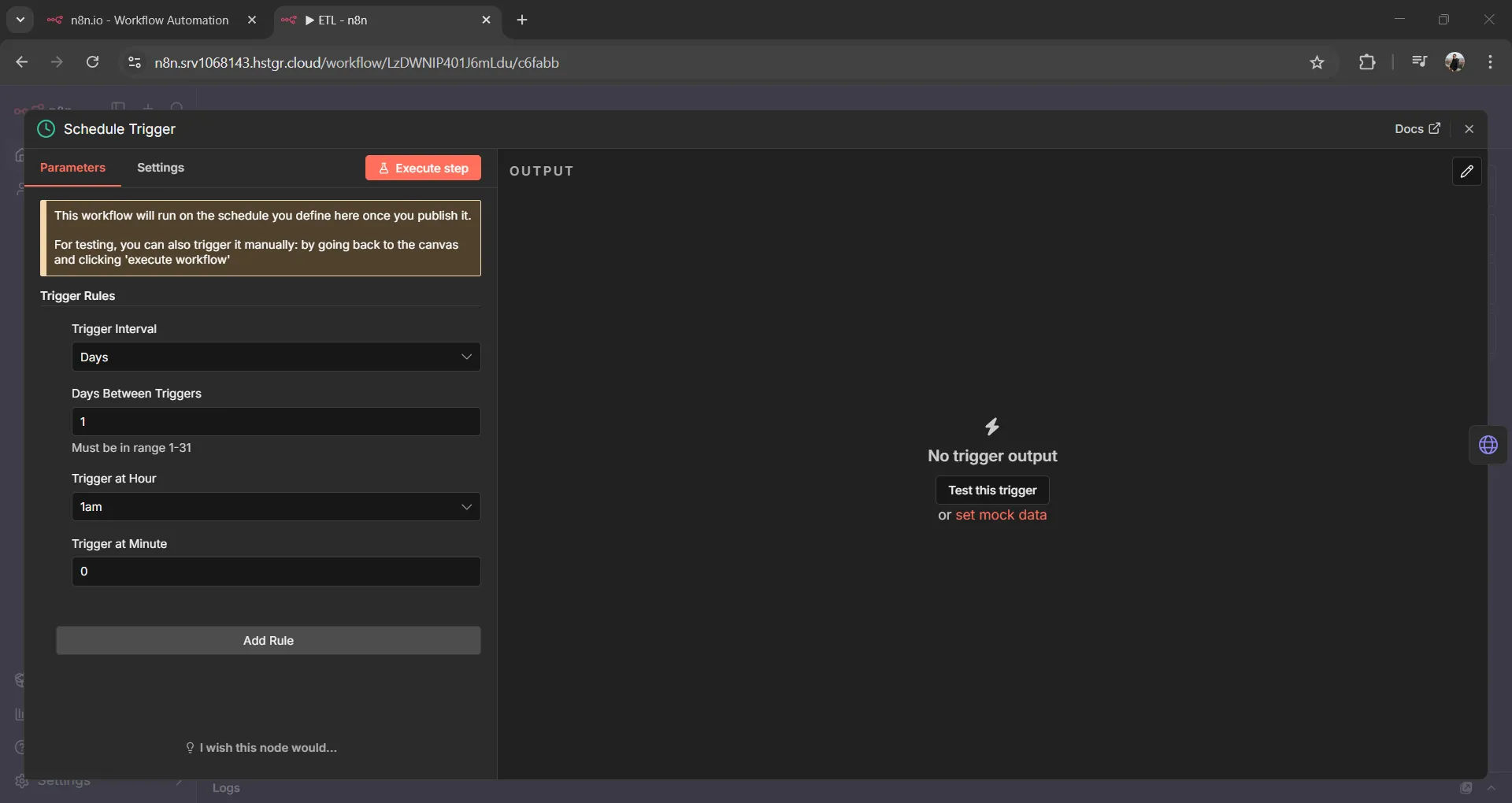
5.2 Node 1: Schedule Trigger#
ตั้งเวลาให้ Workflow ทำงานอัตโนมัติ
| Parameter | Value |
|---|---|
| Trigger Interval | Days |
| Days Between Triggers | 1 |
| Trigger at Hour | 1am (ตี 1) |
5.3 Node 2: HTTP Request (Extract)#
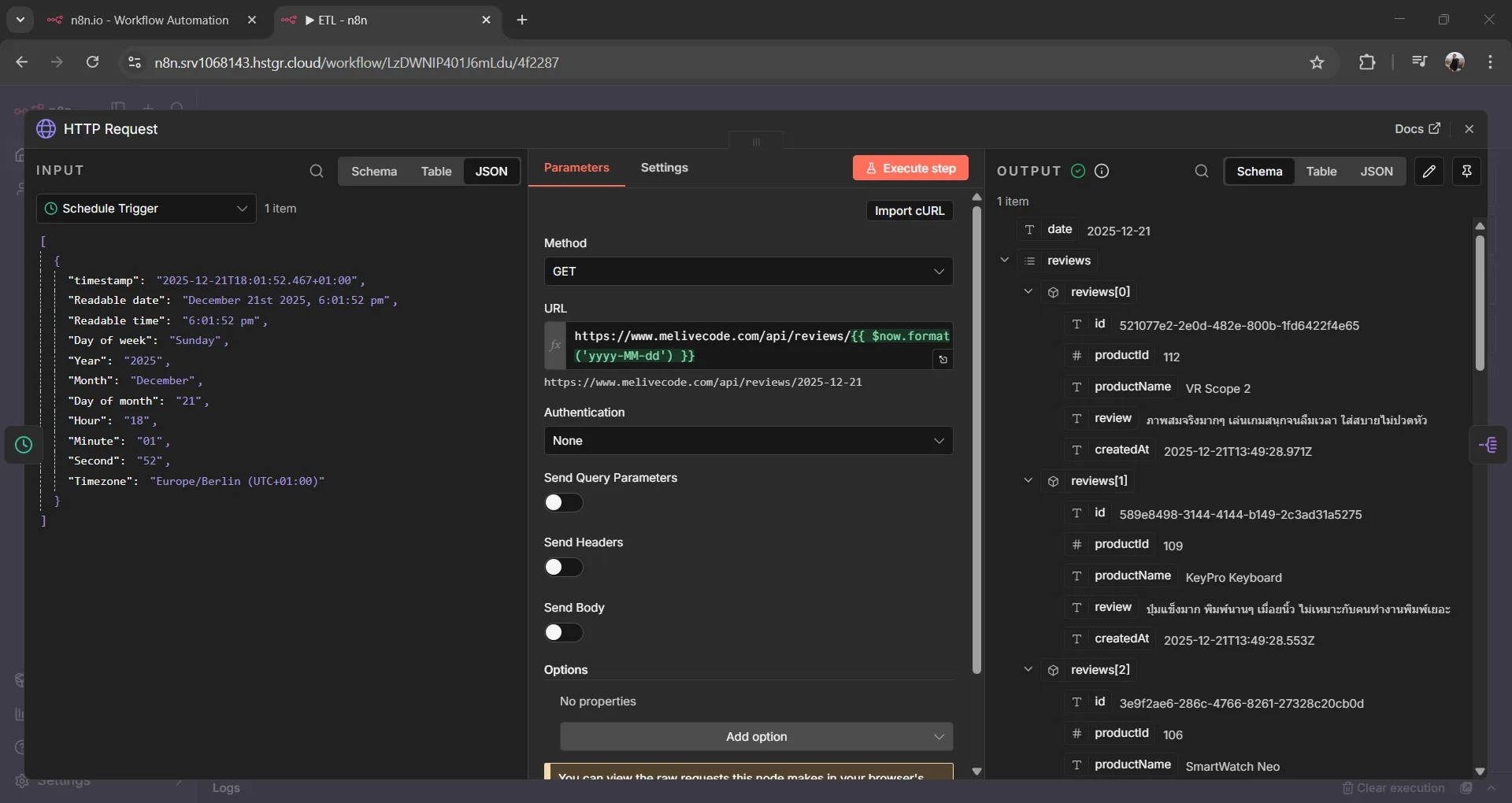
ดึงข้อมูลรีวิวจาก API
| Parameter | Value |
|---|---|
| Method | GET |
| URL | https://www.melivecode.com/api/reviews/{{ $now.format('yyyy-MM-dd') }} |
ตัวอย่าง Response:
[
  {
    "date": "2025-12-21",
    "reviews": [
      {
        "id": "521077e2-2e0d-482e-800b-1fd6422f4e65",
        "productId": 112,
        "productName": "VR Scope 2",
        "review": "ภาพสมจริงมากๆ เล่นเกมสนุกจนลืมเวลา ใส่สบายไม่ปวดหัว",
        "createdAt": "2025-12-21T13:49:28.971Z"
      },
      {
        "id": "589e8498-3144-4144-b149-2c3ad31a5275",
        "productId": 109,
        "productName": "KeyPro Keyboard",
        "review": "ปุ่มแข็งมาก พิมพ์นานๆ เมื่อยนิ้ว ไม่เหมาะกับคนทำงานพิมพ์เยอะ",
        "createdAt": "2025-12-21T13:49:28.553Z"
      }
    ]
  }
]
5.4 Node 3: Split Out#
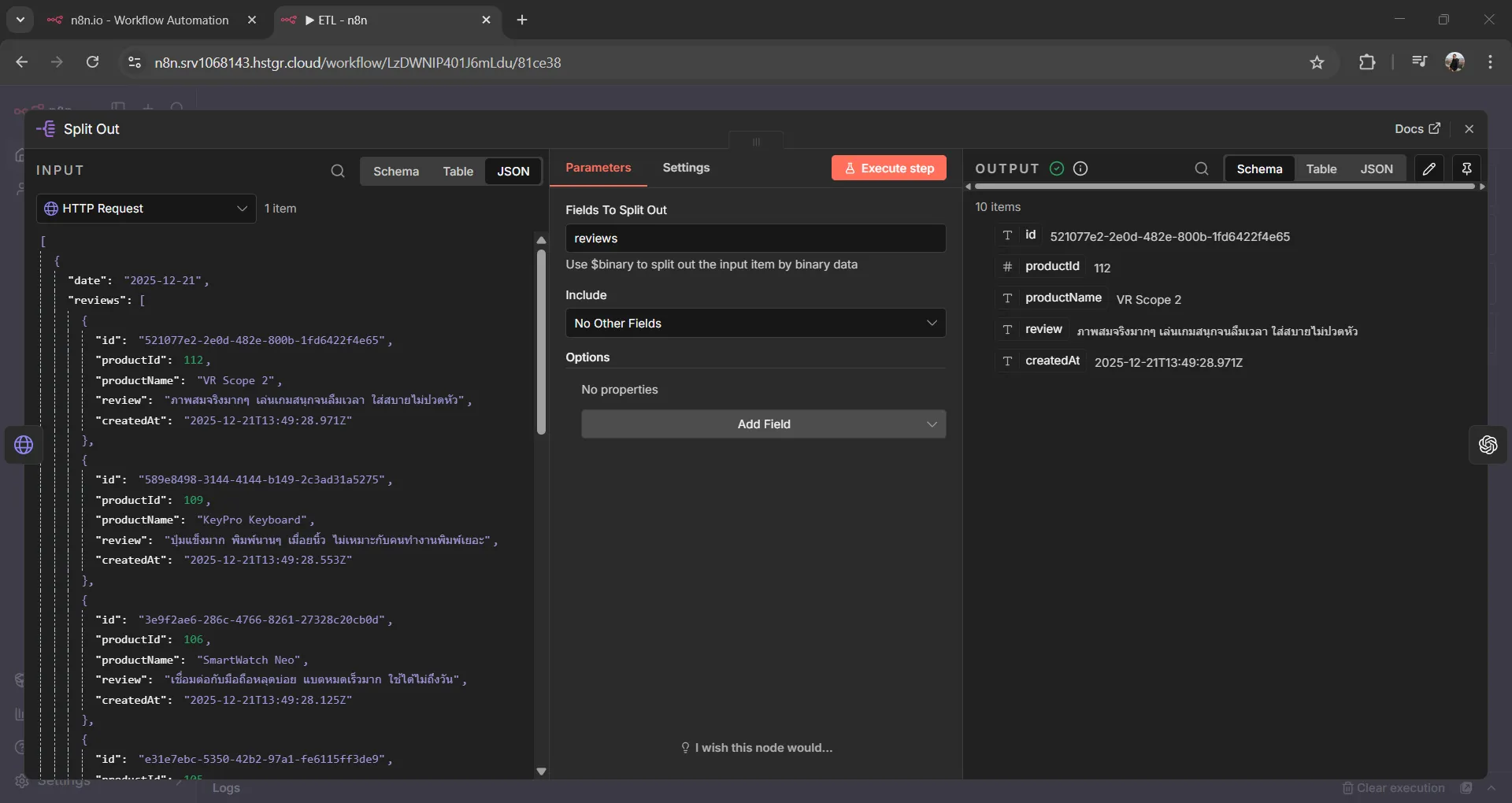
แยกแต่ละรีวิวออกมาเป็น item แยกกัน
| Parameter | Value |
|---|---|
| Field To Split Out | reviews |
5.5 Node 4: OpenAI - Message a Model (Transform)#
ใช้ AI วิเคราะห์รีวิว
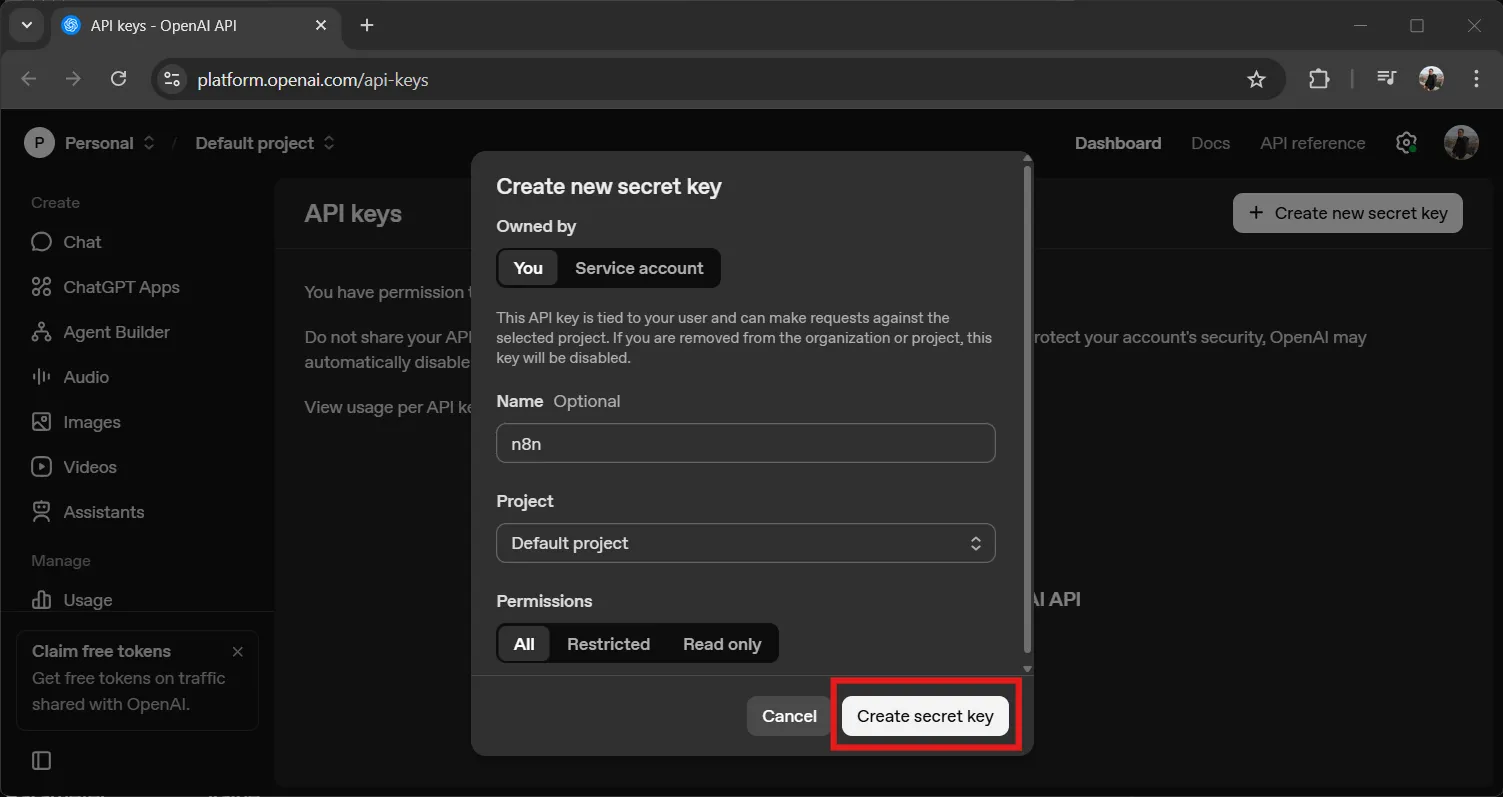
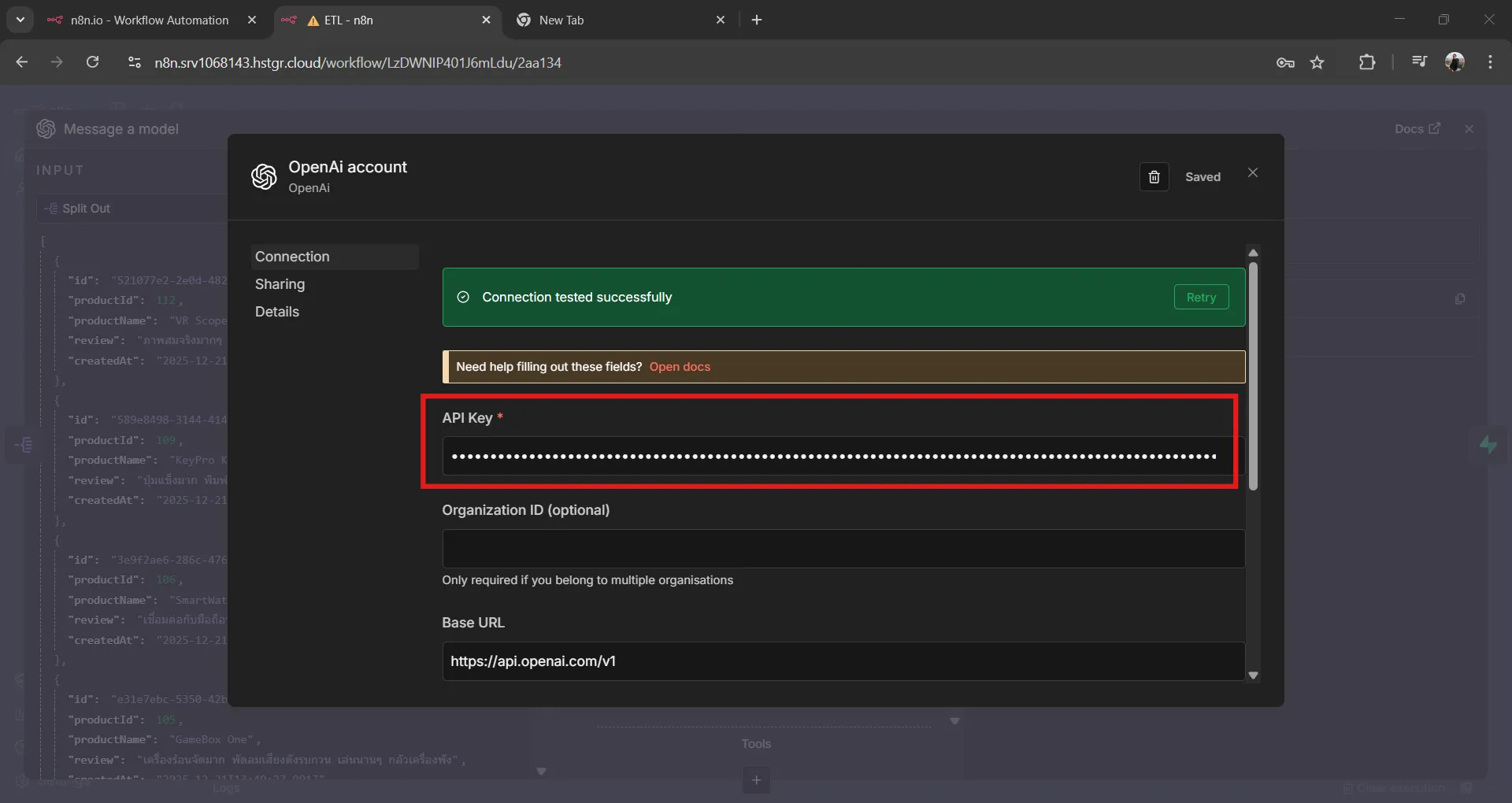
เพิ่ม OpenAI Credential
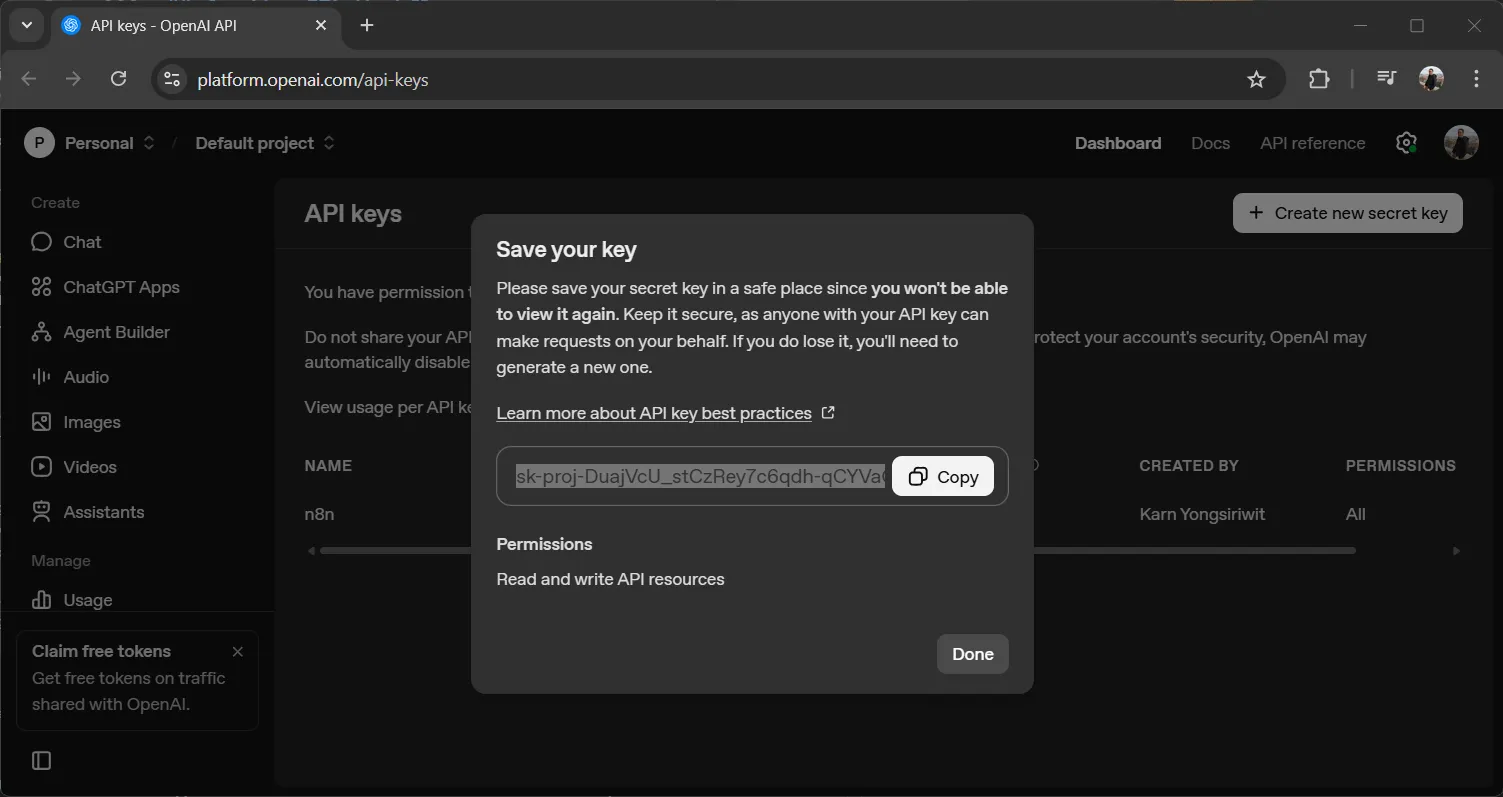
- ไปที่ Settings → Credentials
- คลิก Add Credential
- ค้นหา OpenAI
- ใส่ API Key จาก https://platform.openai.com/api-keys ↗
Model Settings:
| Parameter | Value |
|---|---|
| Model | gpt-4o-mini (หรือ gpt-4o) |
| Output Randomness (Temperature) | 0.1 |
| Maximum Number of Tokens | 500 |
| Output Format | JSON Object |
Messages:
System Message:
คุณเป็น AI วิเคราะห์รีวิวสินค้า ตอบเป็น JSON เท่านั้น ห้ามมีข้อความอื่นUser Message:
วิเคราะห์รีวิวนี้:
สินค้า: {{ $json.productName }}
รีวิว: {{ $json.review }}

ตอบ JSON format:
{
  "sentiment": "positive|negative|neutral",
  "sentiment_score": 0.0-1.0,
  "aspects": {
    "quality": "positive|negative|neutral|null",
    "usability": "positive|negative|neutral|null"
  },
  "issues": [],
  "highlights": [],
  "summary": "สรุปสั้นๆ"
}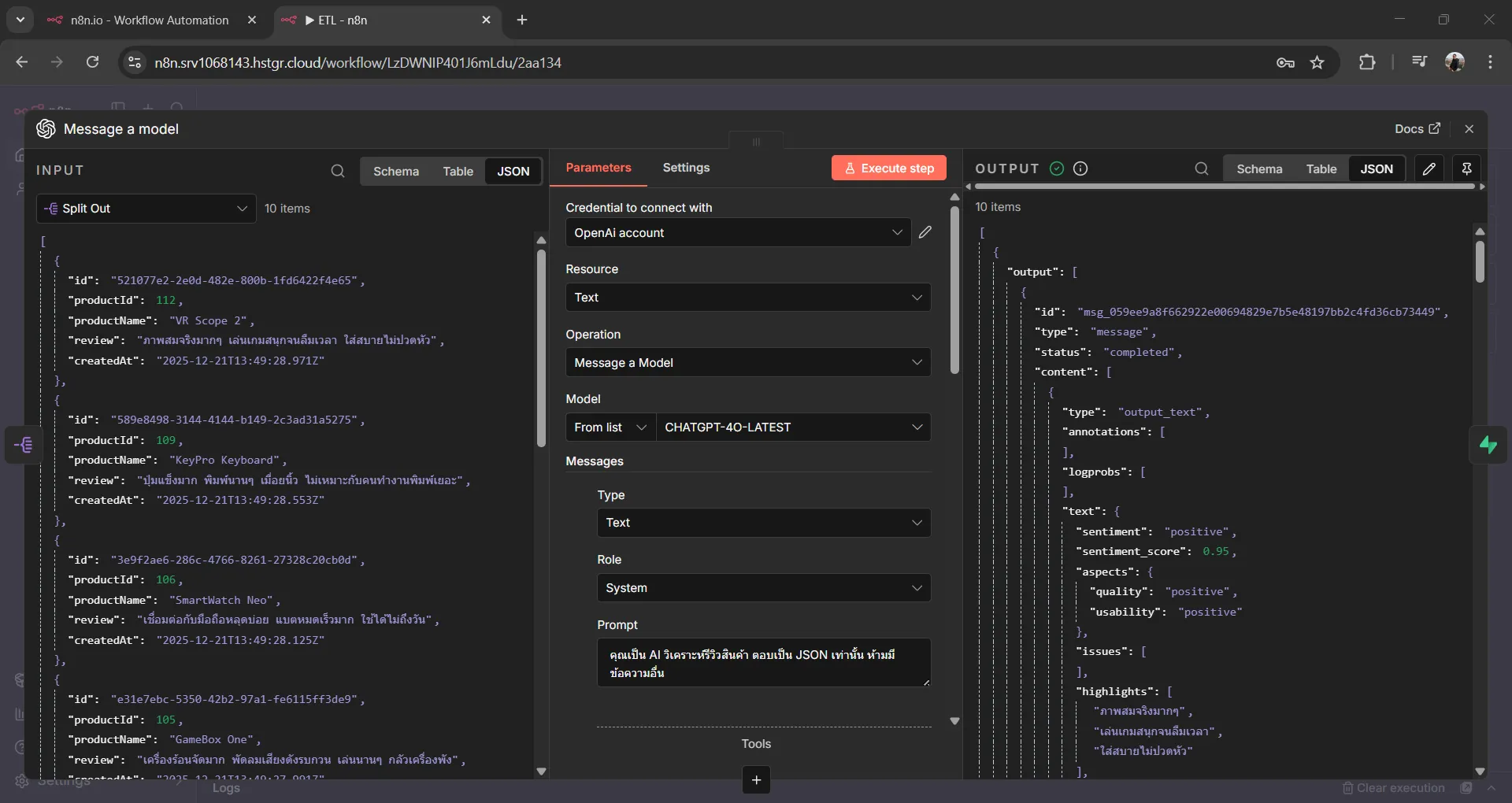
ตัวอย่าง Output:
[
  {
    "output": [
      {
        "id": "msg_059ee9a8f662922e00694829e7b5e48197bb2c4fd36cb73449",
        "type": "message",
        "status": "completed",
        "content": [
          {
            "type": "output_text",
            "annotations": [],
            "logprobs": [],
            "text": {
              "sentiment": "positive",
              "sentiment_score": 0.95,
              "aspects": {
                "quality": "positive",
                "usability": "positive"
              },
              "issues": [],
              "highlights": [
                "ภาพสมจริงมากๆ",
                "เล่นเกมสนุกจนลืมเวลา",
                "ใส่สบายไม่ปวดหัว"
              ],
              "summary": "ภาพสมจริง เล่นเกมสนุก ใส่สบายไม่ปวดหัว"
            }
          }
        ],
        "role": "assistant"
      }
    ]
  },
  {
    "output": [
      {
        "id": "msg_0aacc86feee528a100694829e9d2008196aafb9ca977faa9aa",
        "type": "message",
        "status": "completed",
        "content": [
          {
            "type": "output_text",
            "annotations": [],
            "logprobs": [],
            "text": {
              "sentiment": "negative",
              "sentiment_score": 0.2,
              "aspects": {
                "quality": "negative",
                "usability": "negative"
              },
              "issues": [
                "ปุ่มแข็ง",
                "พิมพ์นานๆ เมื่อยนิ้ว",
                "ไม่เหมาะกับคนทำงานพิมพ์เยอะ"
              ],
              "highlights": [],
              "summary": "คีย์บอร์ดปุ่มแข็ง พิมพ์นานแล้วเมื่อยนิ้ว ไม่เหมาะสำหรับงานที่ต้องพิมพ์เยอะ"
            }
          }
        ],
        "role": "assistant"
      }
    ]
  }
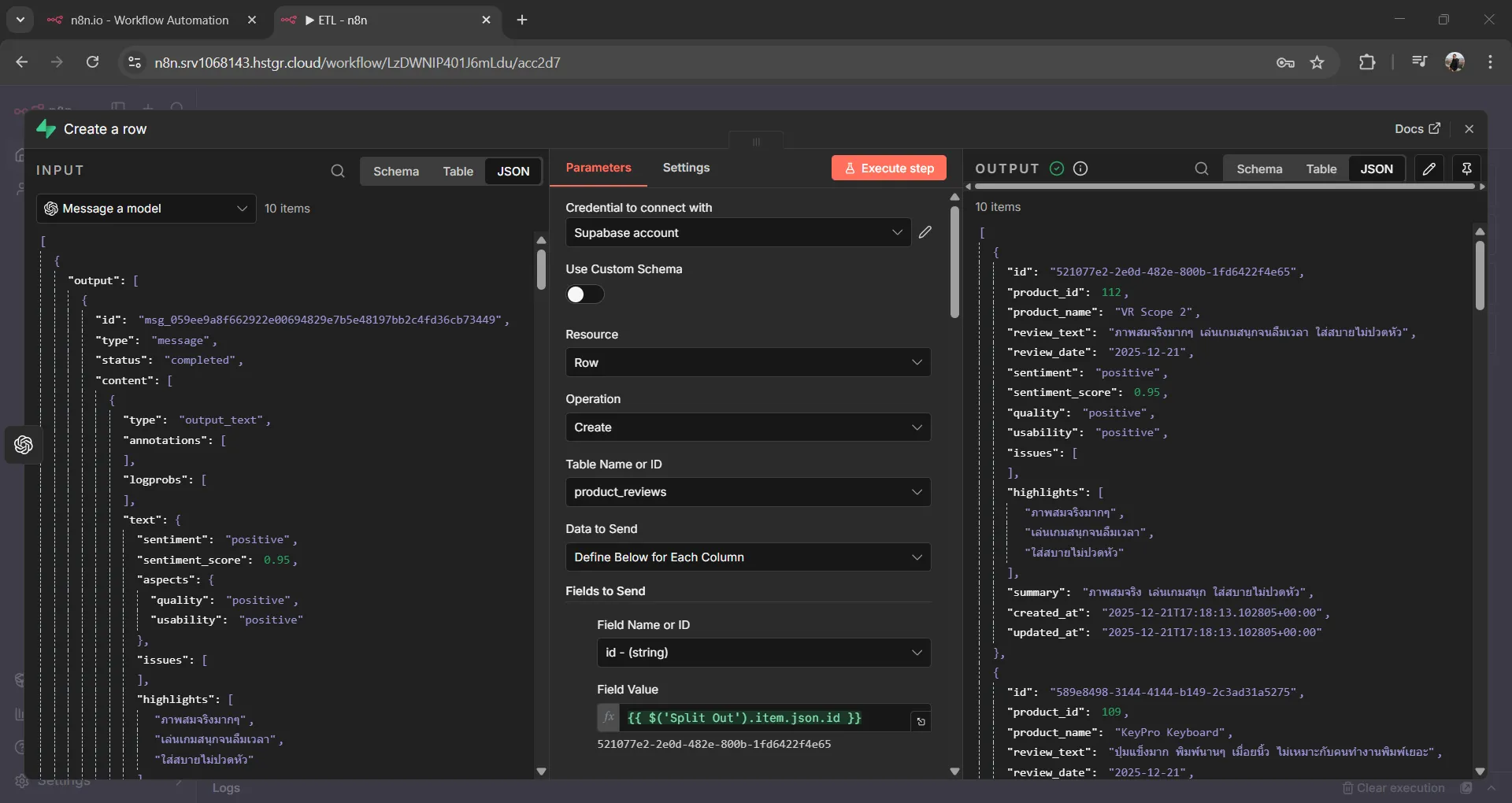
]5.6 Node 5: Supabase - Create a Row (Load)#
บันทึกข้อมูลลง Database
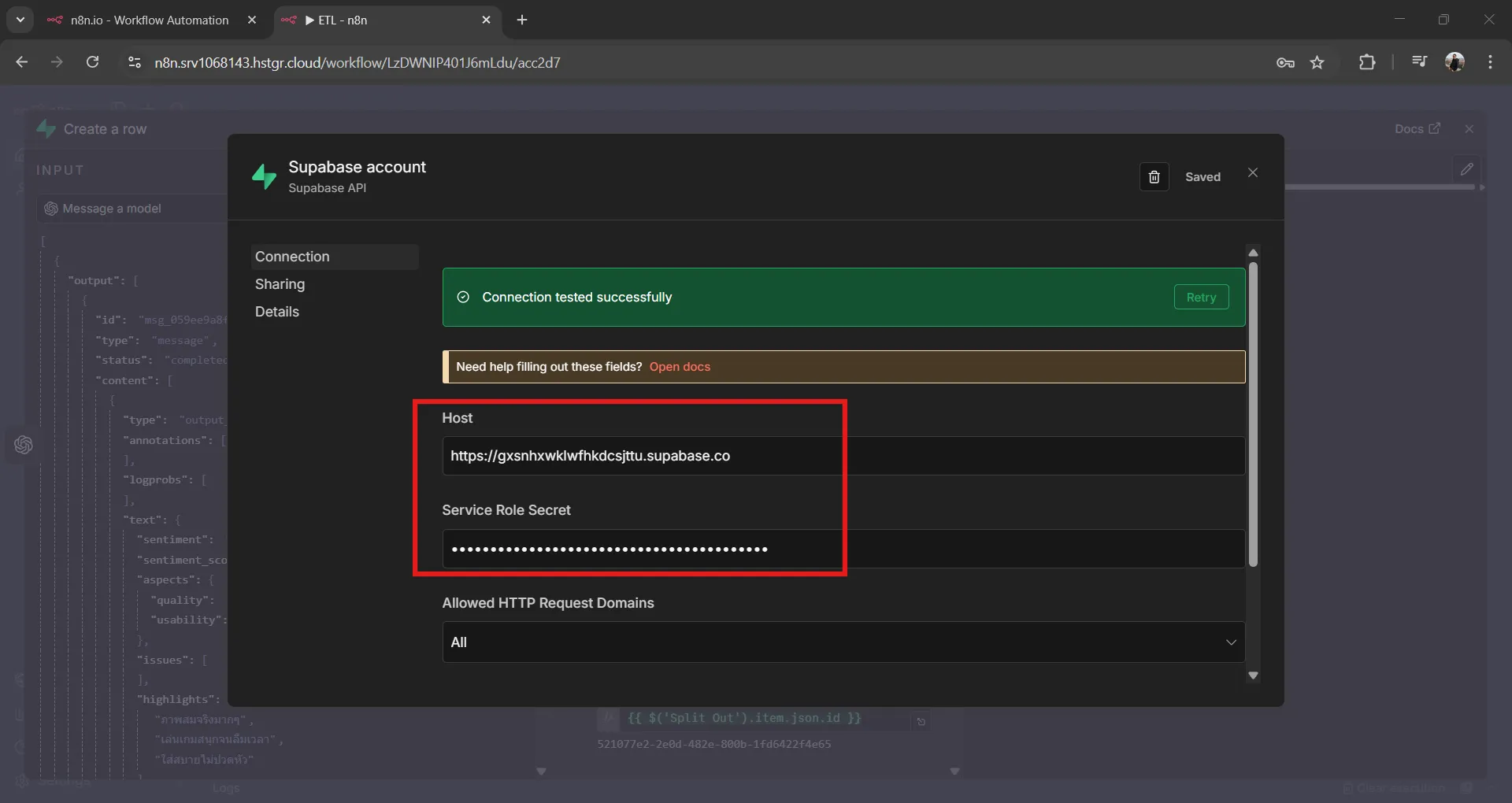
เพิ่ม Supabase Credential
- คลิก Add Credential
- ค้นหา Supabase
- ใส่ข้อมูล:
- Host:
https://xxxxx.supabase.co - Service Role Secret: (ใช้ service_role key)
- Host:
| Parameter | Value |
|---|---|
| Operation | Create a Row |
| Table | product_reviews |
Column Mapping:
| Column | Expression |
|---|---|
id | {{ $('Split Out').item.json.id }} |
product_id | {{ $('Split Out').item.json.productId }} |
product_name | {{ $('Split Out').item.json.productName }} |
review_text | {{ $('Split Out').item.json.review }} |
review_date | {{ $('HTTP Request').item.json.date }} |
sentiment | {{ $json.output[0].content[0].text.sentiment }} |
sentiment_score | {{ $json.output[0].content[0].text.sentiment_score }} |
quality | {{ $json.output[0].content[0].text.aspects.quality }} |
usability | {{ $json.output[0].content[0].text.aspects.usability }} |
issues | {{ $json.output[0].content[0].text.issues }} |
highlights | {{ $json.output[0].content[0].text.highlights }} |
summary | {{ $json.output[0].content[0].text.summary }} |
5.7 ทดสอบ Workflow และดูผลลัพธ์#
คลิกปุ่ม Test Workflow เพื่อทดสอบการทำงานทั้งหมด เมื่อ Workflow ทำงานสำเร็จ จะเห็นเครื่องหมาย ✓ สีเขียวที่ทุก Node:

5.8 ดูผลลัพธ์ใน Supabase#
กลับไปที่ Supabase → Table Editor → product_reviews จะเห็นข้อมูลที่ถูกบันทึกพร้อมผลการวิเคราะห์จาก AI:
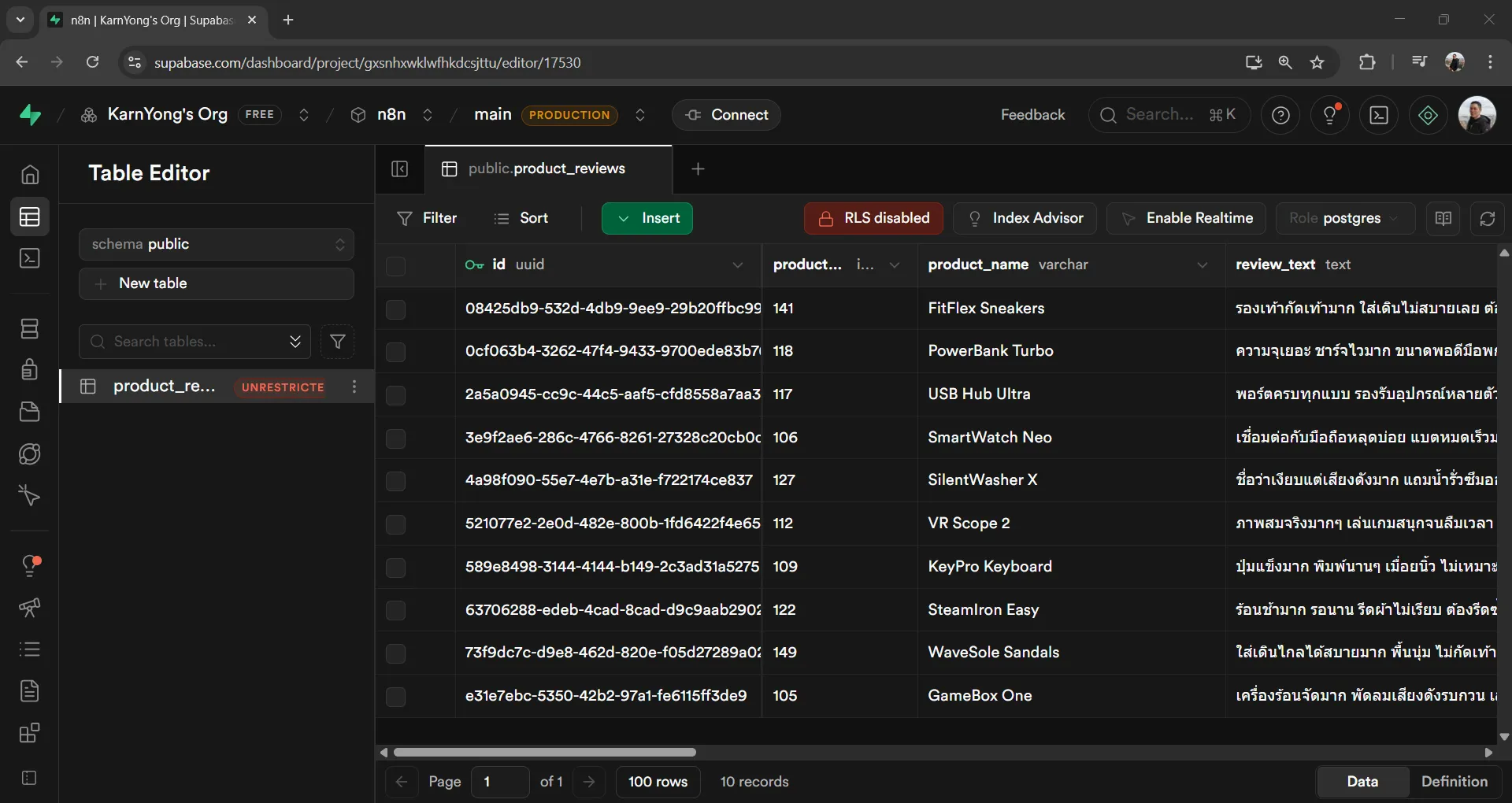
ตัวอย่างข้อมูลที่ถูกบันทึก:
| product_name | review_text | sentiment | sentiment_score | summary |
|---|---|---|---|---|
| VR Scope 2 | ภาพสมจริงมากๆ เล่นเกมสนุก… | positive | 0.95 | ภาพสมจริง เล่นเกมสนุก ใส่สบาย |
| KeyPro Keyboard | ปุ่มแข็งมาก พิมพ์นานๆ เมื่อยนิ้ว… | negative | 0.20 | คีย์บอร์ดปุ่มแข็ง พิมพ์นานแล้วเมื่อยนิ้ว |
ตอนนี้ Workflow จะทำงานอัตโนมัติทุกวันตามที่ตั้งไว้ใน Schedule Trigger
5.9 Publish Workflow#
เพื่อให้ Workflow ทำงานอัตโนมัติตาม Schedule ที่ตั้งไว้ ต้องทำการ Publish Workflow ก่อน
เมื่อ Published แล้ว จะเห็นสถานะเปลี่ยนเป็น ✅ (สีเขียว):
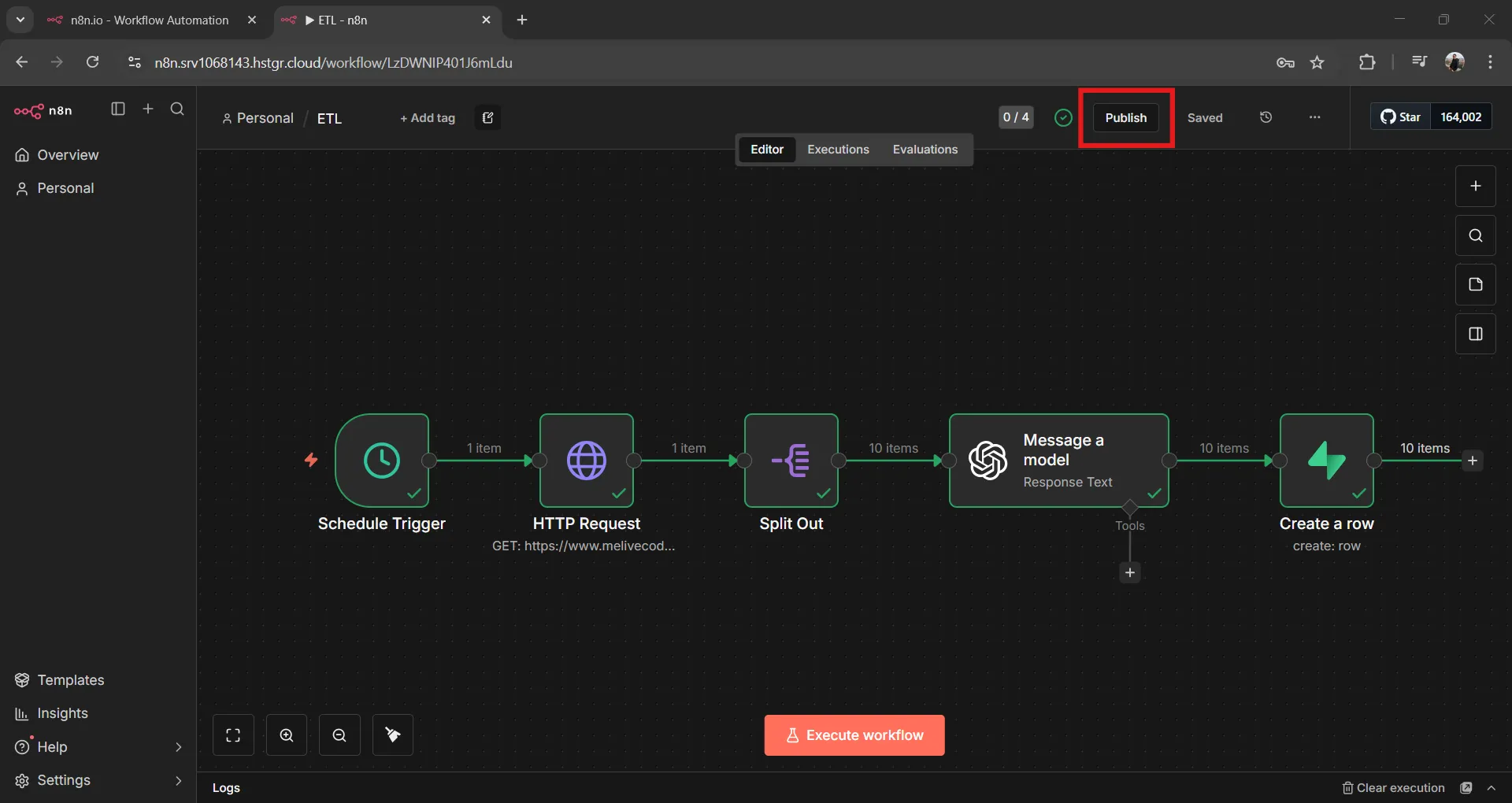
ตอนนี้ Workflow พร้อมทำงานอัตโนมัติทุกวันแล้ว
6. Dashboard Queries#
หลังจากเก็บข้อมูลไประยะหนึ่ง สามารถใช้ SQL Query เพื่อวิเคราะห์ข้อมูลรีวิวได้ โดยไปที่ Supabase → SQL Editor แล้วรัน Query ต่อไปนี้:
6.1 สรุป Sentiment ตามสินค้า#
ดูภาพรวมว่าแต่ละสินค้ามีรีวิว Positive/Negative/Neutral เท่าไหร่ และคะแนนเฉลี่ยเป็นอย่างไร:
SELECT
  product_name,
  COUNT(*) as total_reviews,
  COUNT(*) FILTER (WHERE sentiment = 'positive') as positive,
  COUNT(*) FILTER (WHERE sentiment = 'negative') as negative,
  COUNT(*) FILTER (WHERE sentiment = 'neutral') as neutral,
  ROUND(AVG(sentiment_score)::numeric, 2) as avg_score
FROM product_reviews
GROUP BY product_name
ORDER BY total_reviews DESC;ตัวอย่างผลลัพธ์:
| product_name | total_reviews | positive | negative | neutral | avg_score |
|---|---|---|---|---|---|
| VR Scope 2 | 15 | 12 | 2 | 1 | 0.78 |
| KeyPro Keyboard | 10 | 3 | 6 | 1 | 0.35 |
| CleanBot Mini | 8 | 2 | 5 | 1 | 0.28 |
การนำไปใช้: ใช้ดูว่าสินค้าไหนได้รับ Feedback ดี/ไม่ดี เพื่อปรับปรุงสินค้าหรือ Marketing
6.2 สินค้าที่มีปัญหามากที่สุด#
ดูว่าปัญหาอะไรที่ถูกพูดถึงบ่อยที่สุด:
SELECT
  product_name,
  unnest(issues) as issue,
  COUNT(*) as count
FROM product_reviews
WHERE array_length(issues, 1) > 0
GROUP BY product_name, issue
ORDER BY count DESC
LIMIT 20;ตัวอย่างผลลัพธ์:
| product_name | issue | count |
|---|---|---|
| KeyPro Keyboard | ปุ่มแข็ง | 5 |
| CleanBot Mini | ชนสิ่งกีดขวาง | 4 |
| KeyPro Keyboard | พิมพ์นานแล้วเมื่อยนิ้ว | 3 |
| CleanBot Mini | ระบบนำทางไม่ดี | 3 |
การนำไปใช้: ส่งต่อให้ทีม Product เพื่อแก้ไขปัญหาที่พบบ่อย
6.3 รีวิวล่าสุด#
ดูรีวิวล่าสุดพร้อมผลการวิเคราะห์:
SELECT
  product_name,
  review_text,
  sentiment,
  sentiment_score,
  summary,
  created_at
FROM product_reviews
ORDER BY created_at DESC
LIMIT 10;การนำไปใช้: Monitor รีวิวใหม่ๆ แบบ Real-time
6.4 สินค้าที่ต้องปรับปรุงด่วน (คะแนนต่ำสุด)#
หาสินค้าที่มีคะแนน Sentiment ต่ำที่สุด:
SELECT
  product_name,
  COUNT(*) as total_reviews,
  ROUND(AVG(sentiment_score)::numeric, 2) as avg_score,
  COUNT(*) FILTER (WHERE sentiment = 'negative') as negative_count
FROM product_reviews
GROUP BY product_name
ORDER BY avg_score ASC
LIMIT 5;ตัวอย่างผลลัพธ์:
| product_name | total_reviews | avg_score | negative_count |
|---|---|---|---|
| CleanBot Mini | 8 | 0.28 | 5 |
| KeyPro Keyboard | 10 | 0.35 | 6 |
| DryMate Dryer | 5 | 0.42 | 3 |
การนำไปใช้: ระบุสินค้าที่ต้อง Action ด่วน
6.5 จุดเด่นของสินค้ายอดนิยม#
ดูว่าสินค้าที่ได้รับ Feedback ดี มีจุดเด่นอะไรบ้าง:
SELECT
  product_name,
  unnest(highlights) as highlight,
  COUNT(*) as count
FROM product_reviews
WHERE sentiment = 'positive'
  AND array_length(highlights, 1) > 0
GROUP BY product_name, highlight
ORDER BY count DESC
LIMIT 15;ตัวอย่างผลลัพธ์:
| product_name | highlight | count |
|---|---|---|
| VR Scope 2 | ภาพสมจริง | 8 |
| VR Scope 2 | ใส่สบาย | 6 |
| DishClean Pro | ล้างสะอาด | 5 |
การนำไปใช้: นำจุดเด่นไปใช้ใน Marketing Content